How to Balance Exposure and Soften Harsh Facial Shadows with AI?
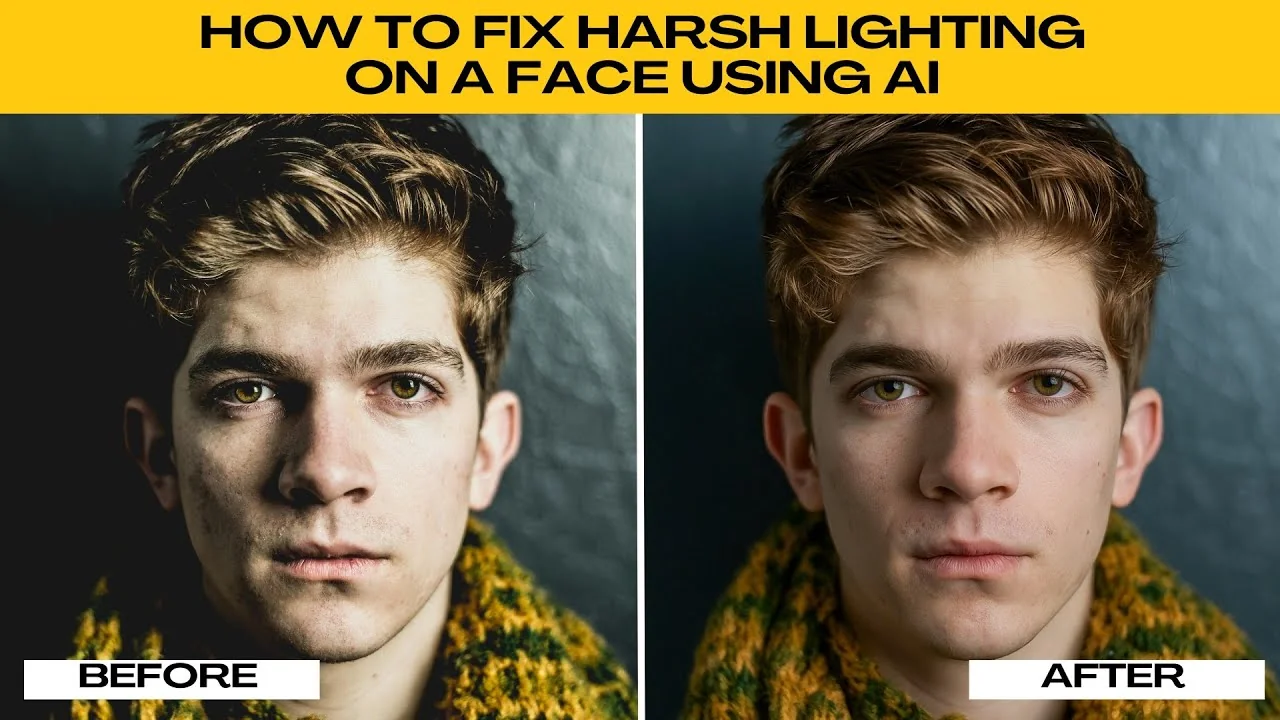
Good lighting can make or break a photo, especially when it comes to faces.
Sometimes strong sunlight, a camera flash, or uneven indoor lighting creates harsh shadows and bright highlights that make the image look unflattering.
Traditionally fixing this requires advanced editing skills and tools like Photoshop.
Thanks to AI powered editing in ChatGPT, you can smooth out lighting on a face with just a few clicks and prompts.
For deeper control of shadow issues, see how to remove shadows from faces with AI.
Start in ChatGPT
Open your browser and go to ChatGPT.
Sign in or create a free account.
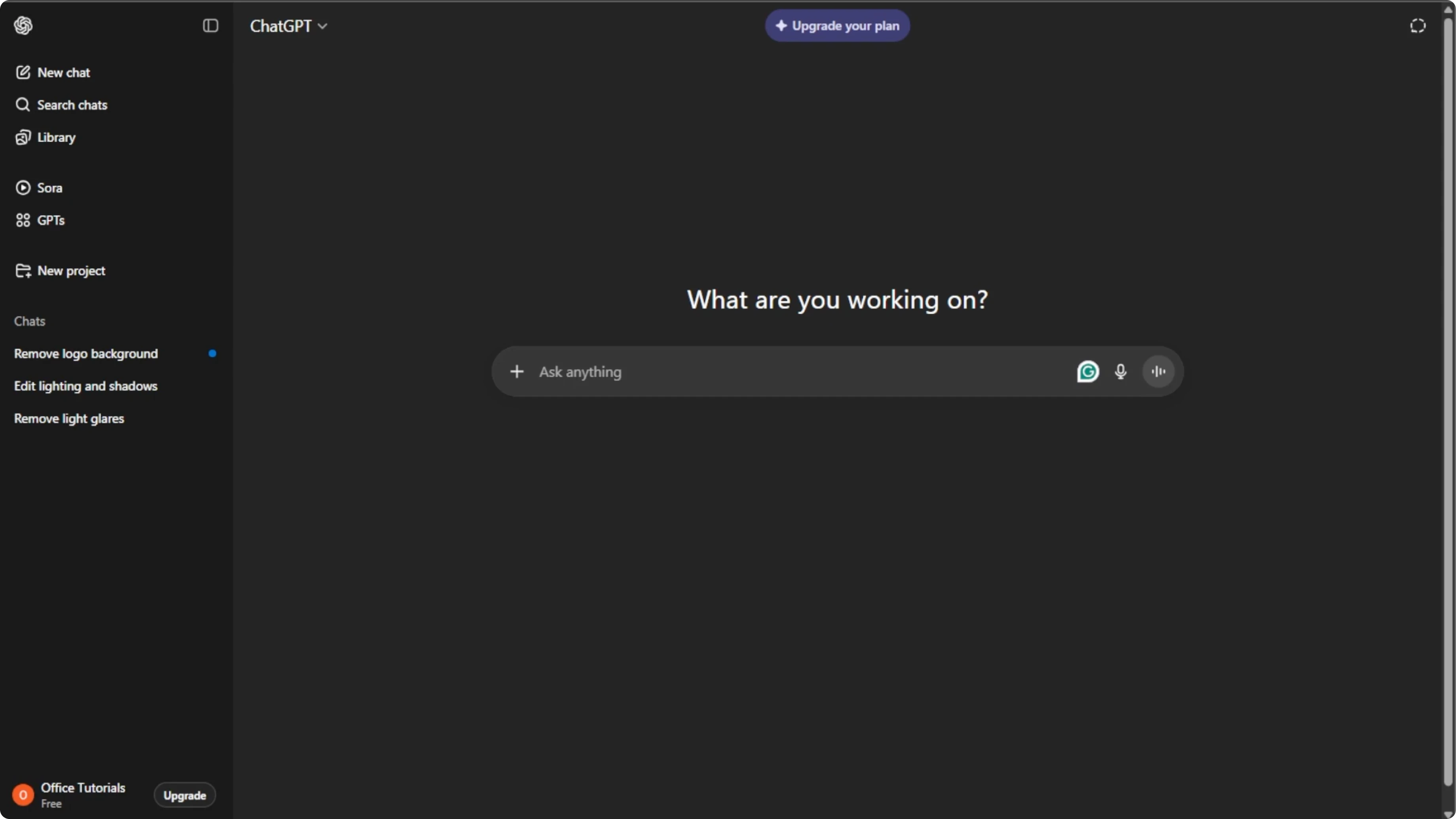
In the chat box, click the plus icon and select create image to activate image editing mode.
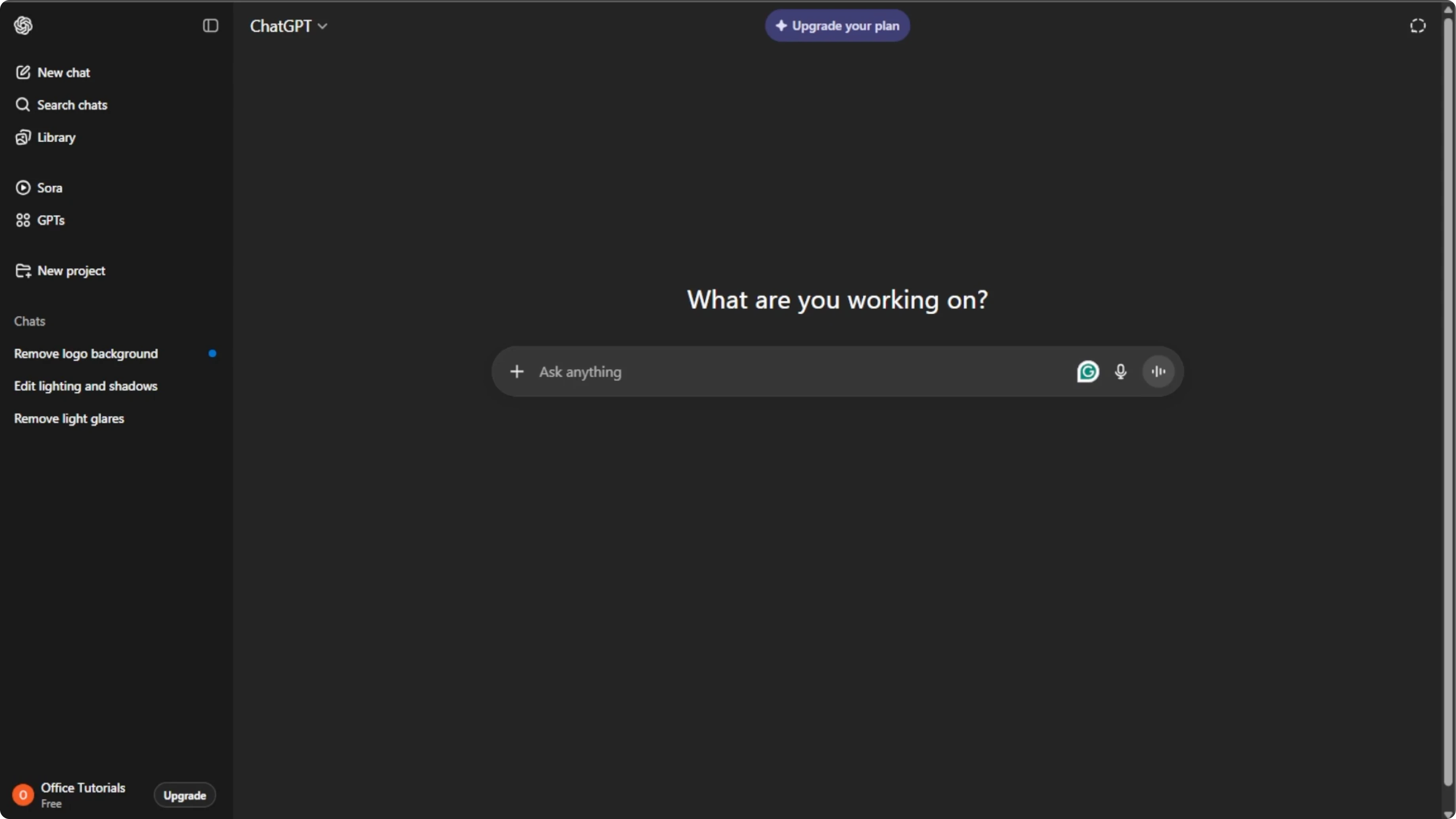
Click the plus icon again and select add photos or files, or press Control U on Windows or Command U on Mac.

Choose the photo that you want to edit from your computer.
This is where you tell the AI exactly what you want fixed.
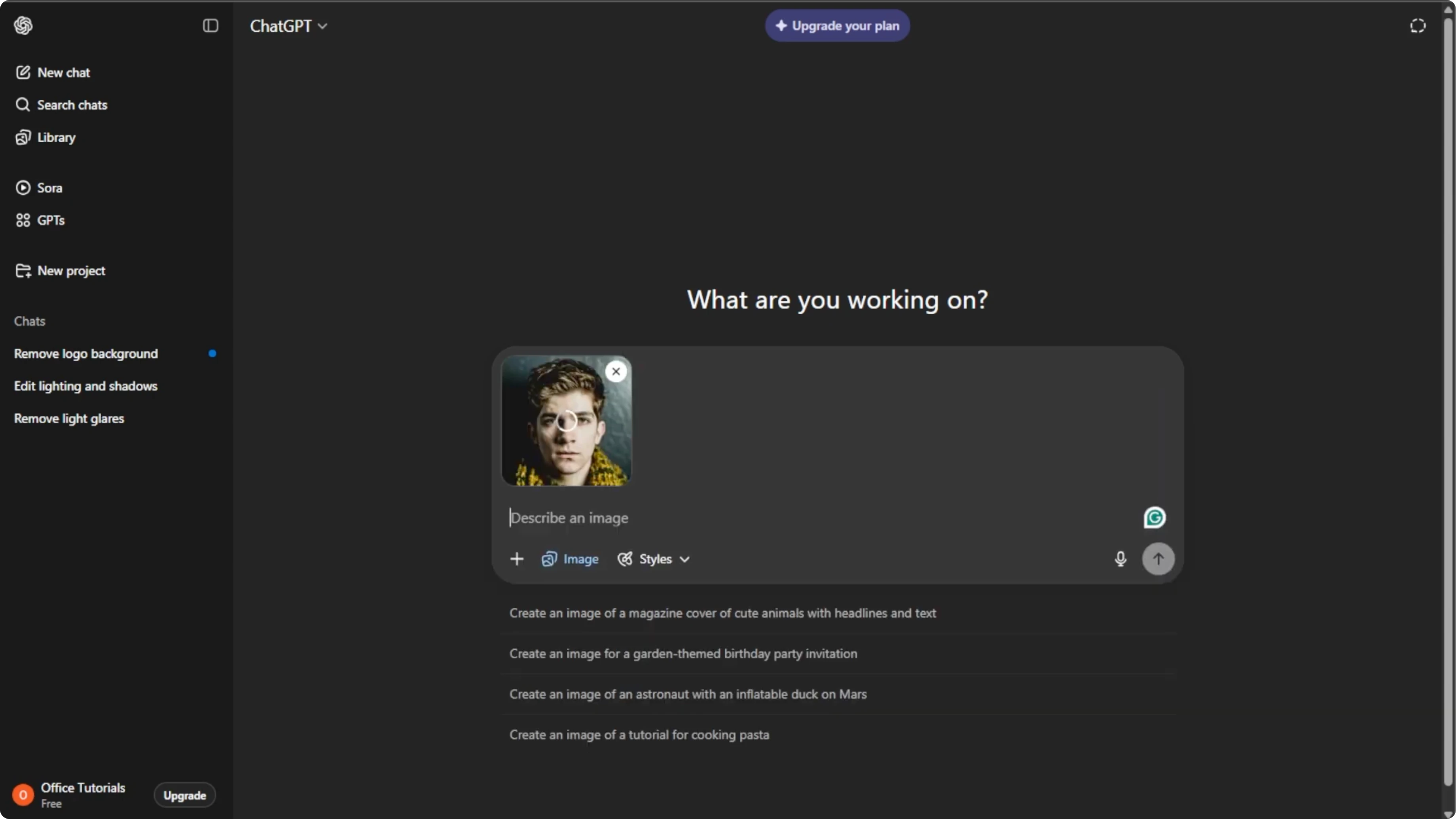
Write a clear prompt
The clearer your instructions, the better the results.
Describe the shadows and highlights you want adjusted and what to keep untouched.
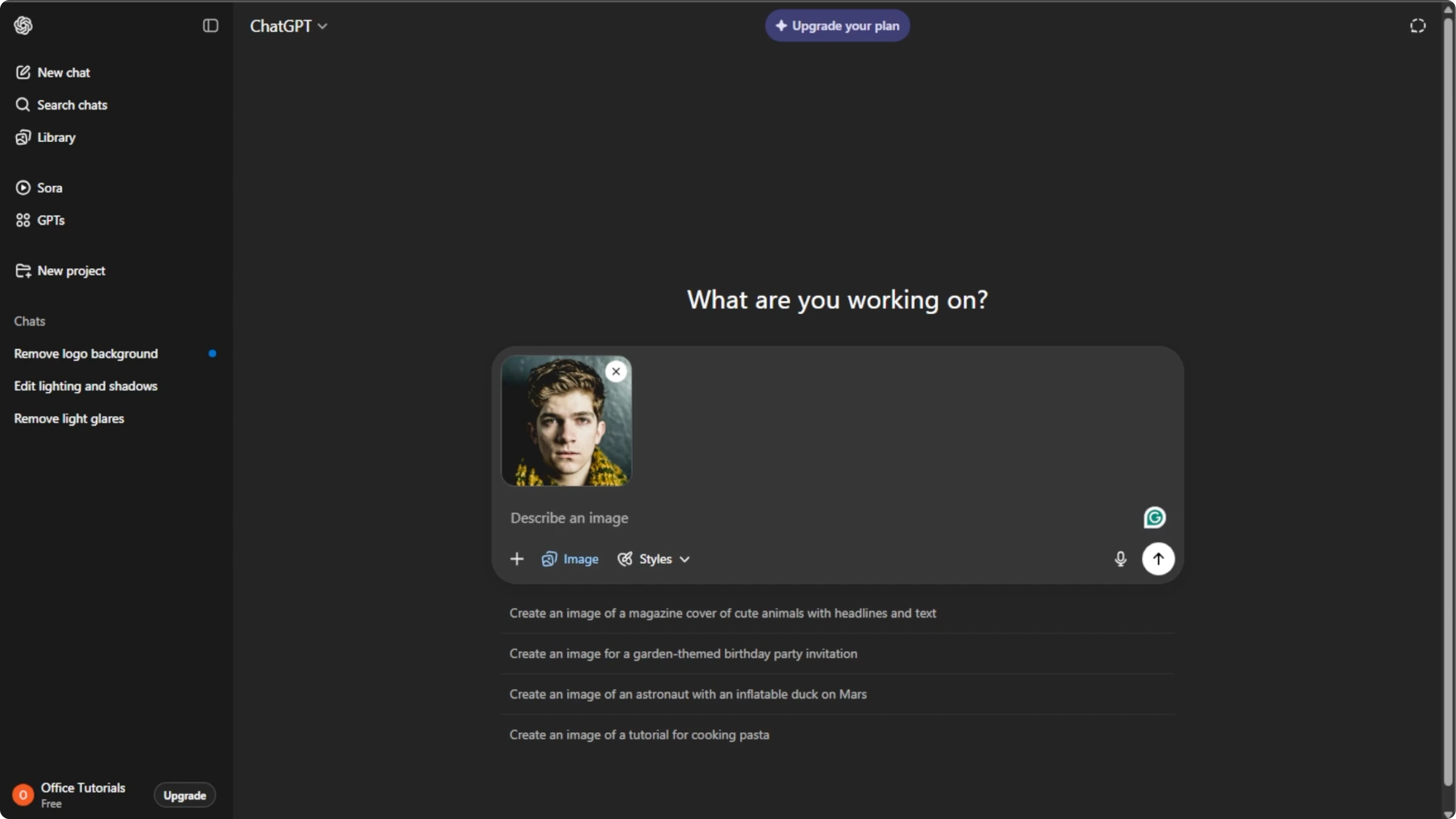
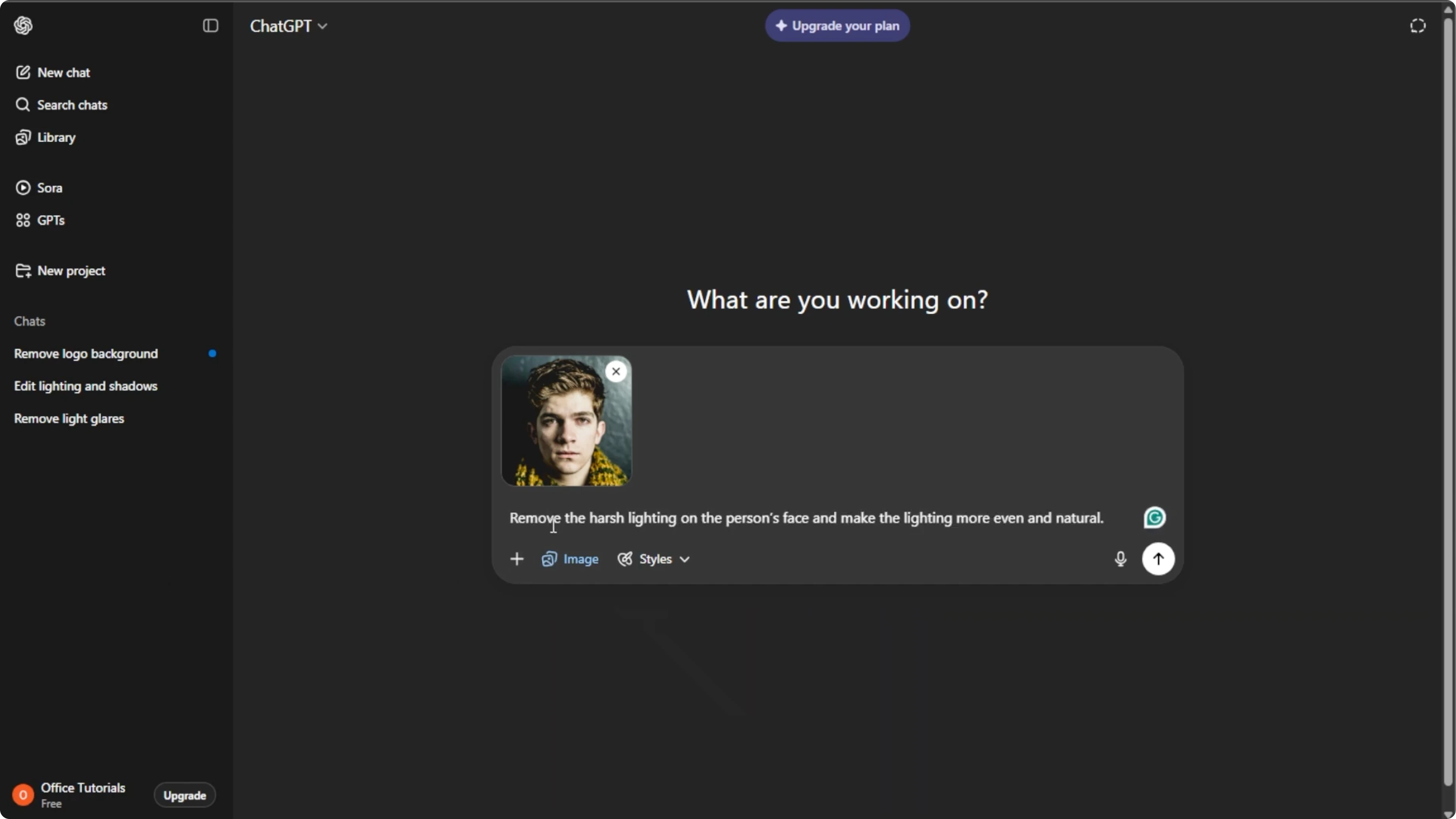
Reduce harsh shadows on the face.
Soften bright highlights on the forehead and cheeks.
Keep skin texture natural.
Do not change the background, facial features, or color balance.
Press Enter and let the AI process your request.
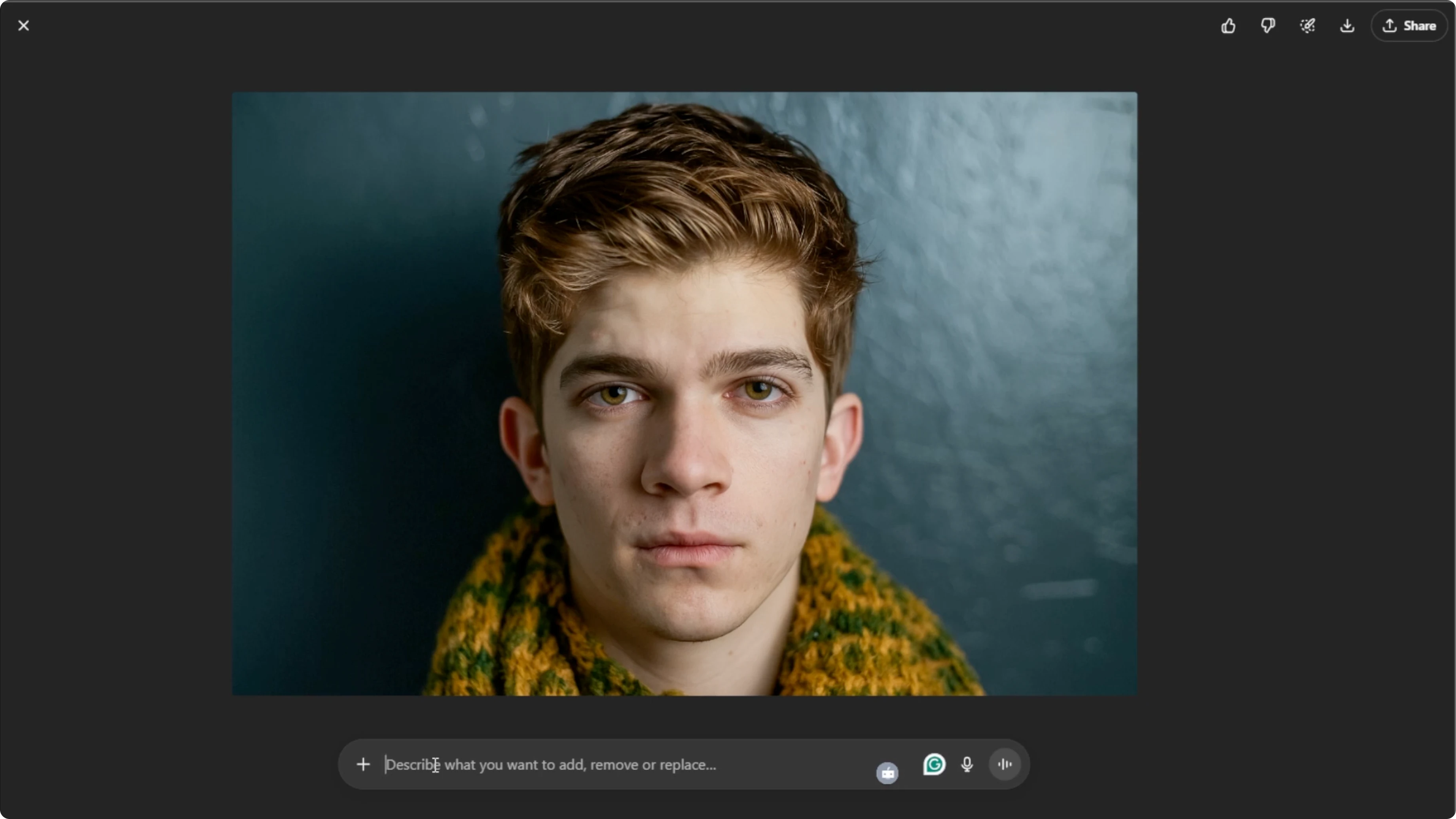
Within seconds, the AI will create a new version of your photo with smoother lighting on the face.
If you want to try a dedicated editor alongside ChatGPT, see our guide to image editing using ICEdit AI.
Refine and save
If the first version is not perfect, make adjustments.
Click on the generated image and type new instructions, then press Enter again.
Repeat until you like the result.
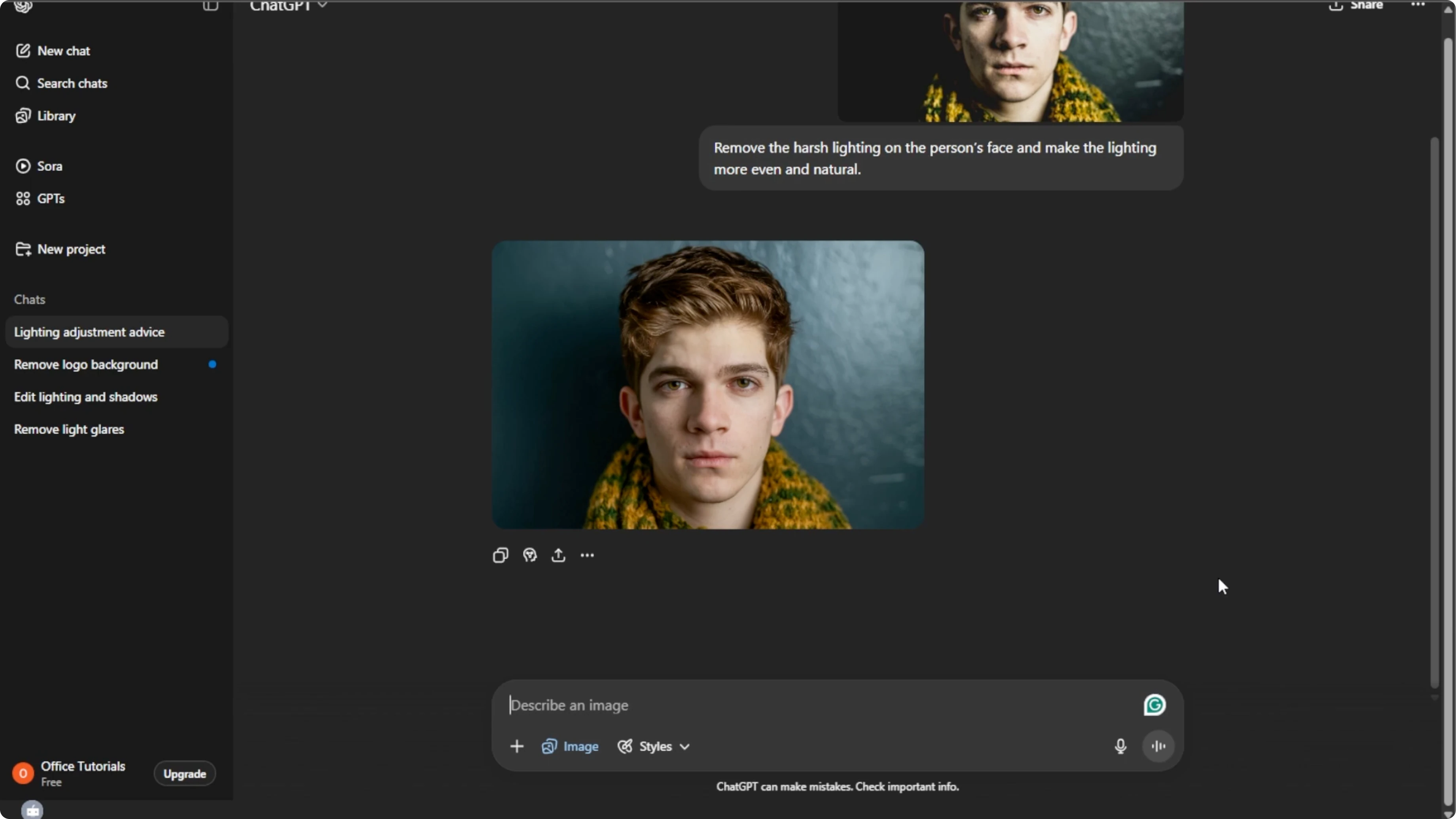
Hover over your final image and click download to save it to your computer.
You can also click share to send it directly to your social media or colleagues.
Tips for beginners
With this method, you do not need advanced editing software skills to fix harsh lighting.
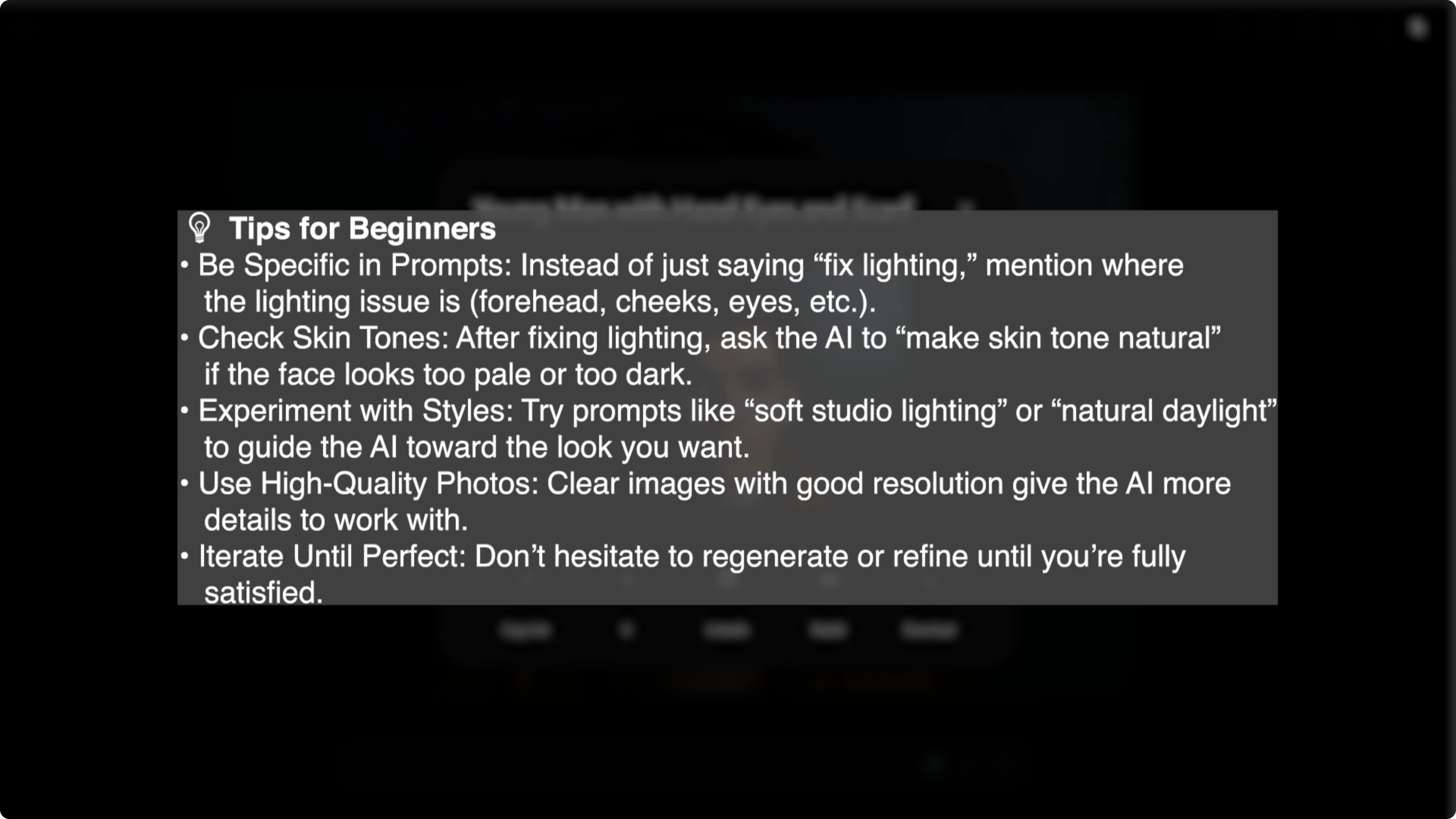
In just a few steps, AI helps you rescue poorly lit photos and make faces look more natural, professional, and flattering.
After you fix the lighting, you can experiment with style edits such as trying facial hair with AI.
Final thoughts
AI tools can smooth out harsh lighting on a face quickly with clear prompts and a couple of refinements.
Keep instructions specific, review each output, and save the version that looks natural.
Small tweaks to shadows and highlights can transform a photo without heavy manual editing.
Recent Posts

How to Visualize Yourself as a Pixelized Character with AI?
How to Visualize Yourself as a Pixelized Character with AI?

How to Revive Faded Memories and Enhance Image Clarity with AI?
How to Revive Faded Memories and Enhance Image Clarity with AI?

How to Visualize Yourself as an Animal Crossing Character with AI?
How to Visualize Yourself as an Animal Crossing Character with AI?