How to Fill Text with a Photo in Canva
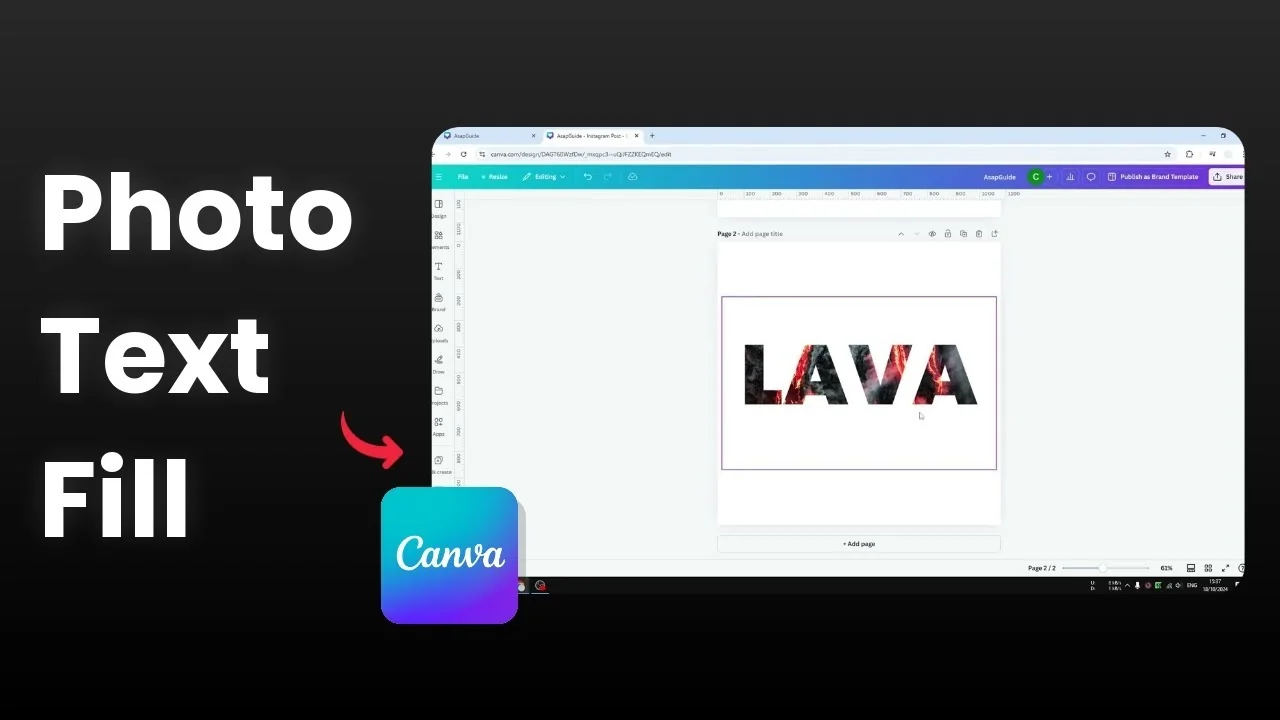
This is a simple text, but there is a picture inside the text body, and you might be wondering how to achieve this design in Canva. You cannot insert a photo into regular text in Canva. You need a third party app, but the process is simple and the app is free and available directly in Canva.
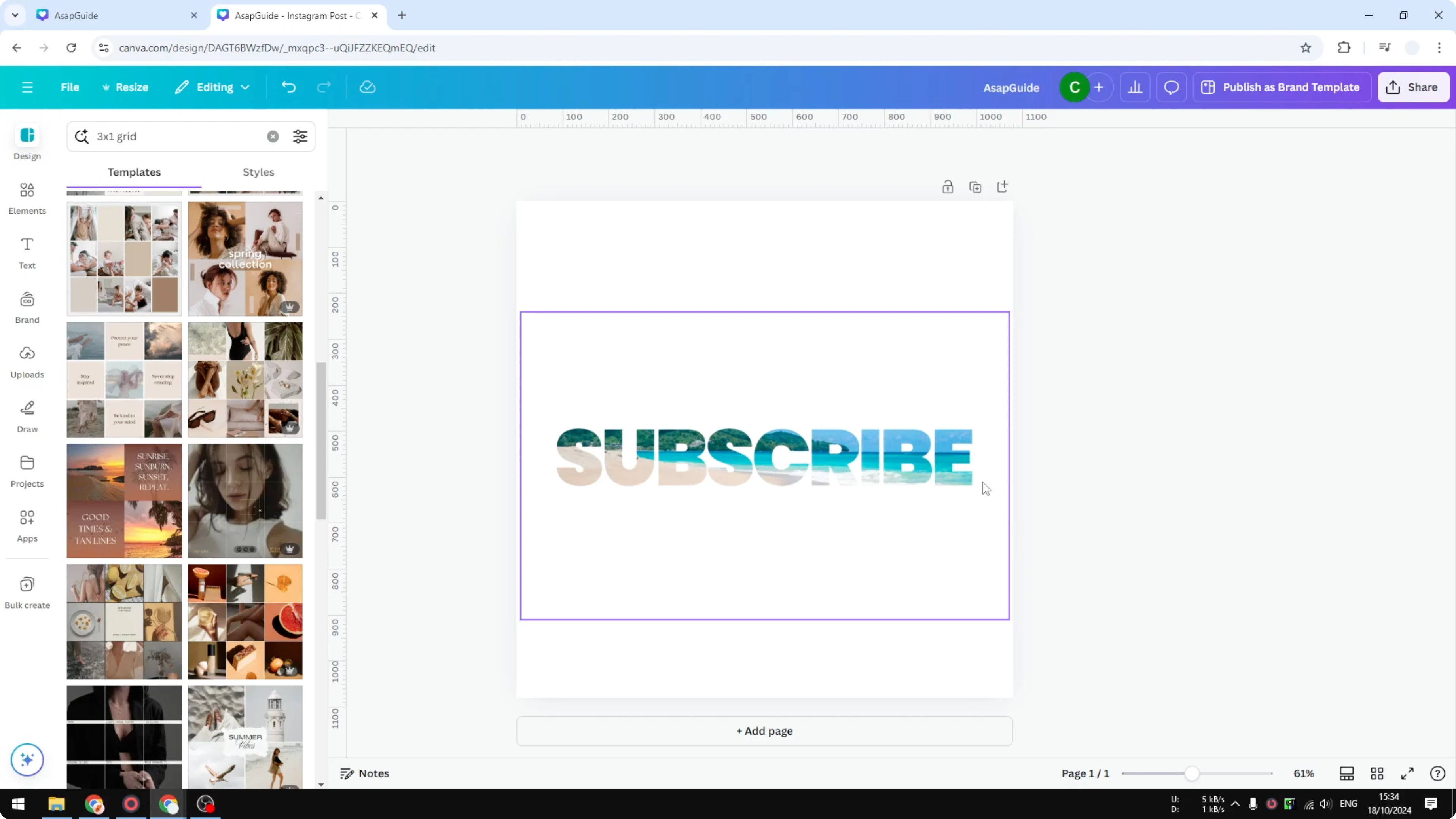
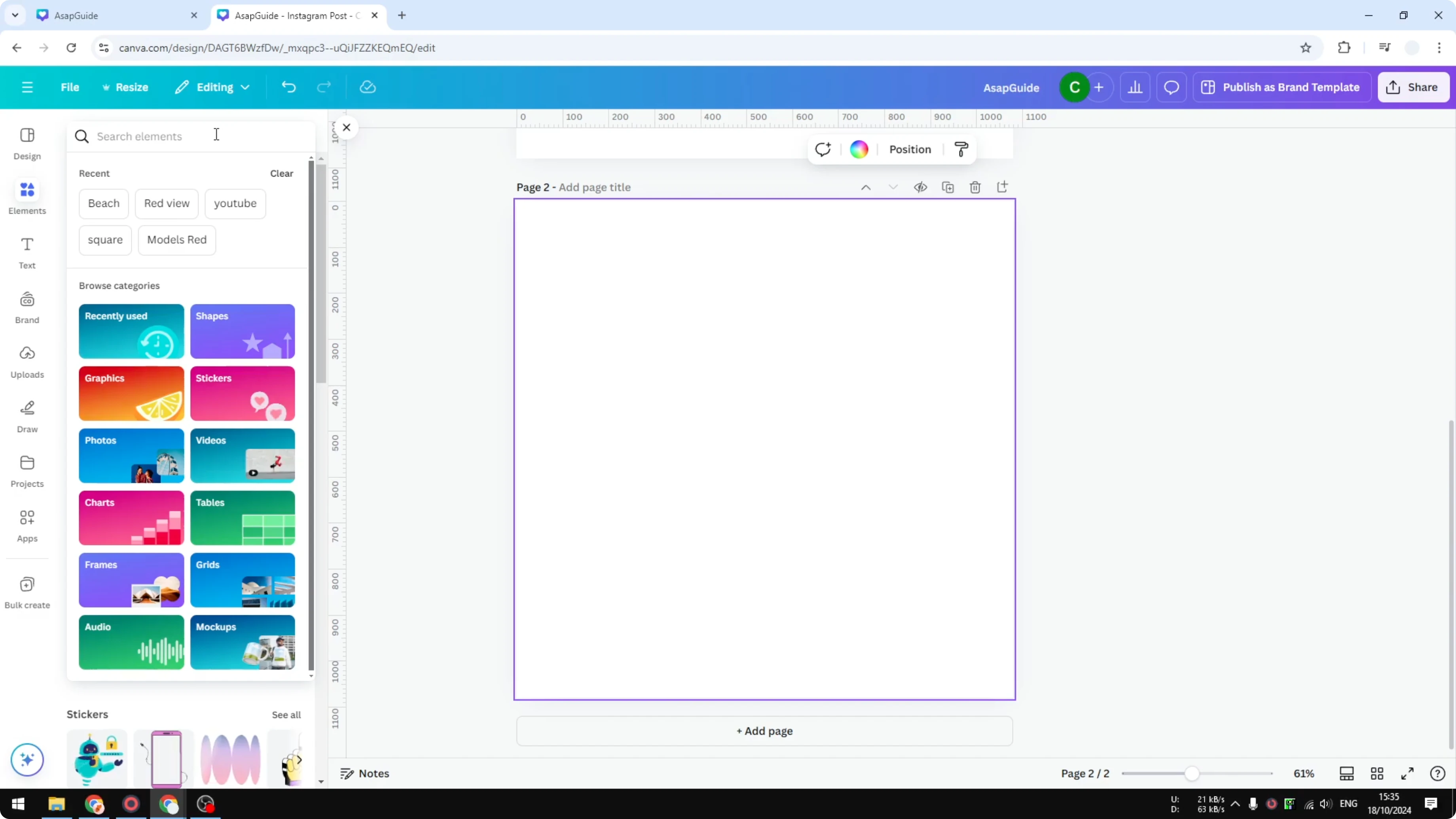
Fill Text with a Photo in Canva
Pick the image
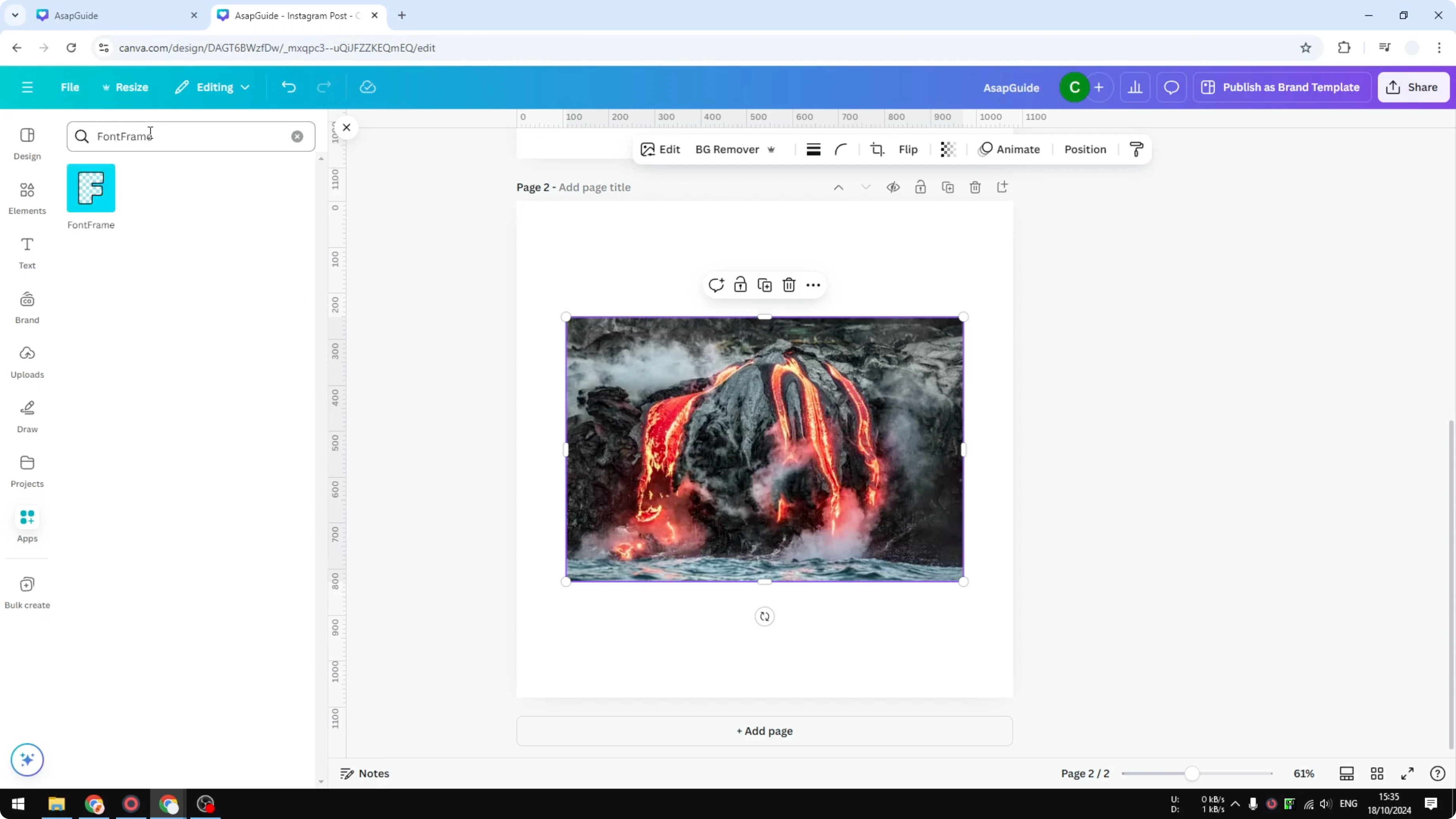
Add another page. Find a picture you want to use and select it. I picked a lava photo because it looks really cool.
If you also want a full canvas backdrop behind your filled text, see how to set a background photo in Canva.
Install and open Font Frame
Go to Apps. Search for Font Frame, click it, grant access, and click Open. You are ready to use this tool.
Set the text and style
Type the word you want to fill. I used “Lava.” Choose your font. I stuck with Poppins.
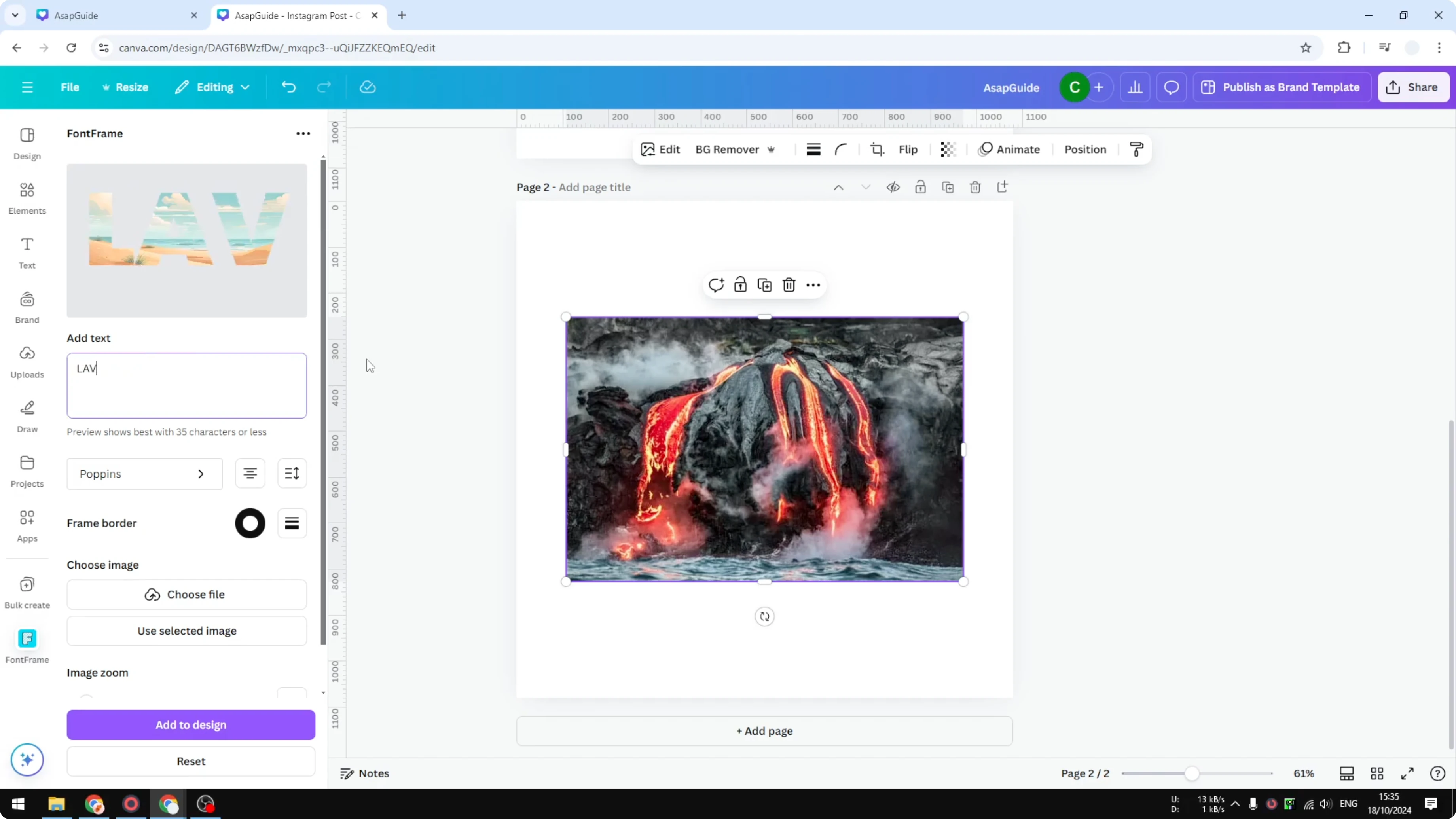
You can add a border, change its color, and adjust the weight, but I prefer no border. Adjust the letter spacing to bring the letters closer or push them further apart. Line spacing is for vertical orientation, so I skipped it.
For alternative type treatments, you can also try creating background typography. Learn how to set up background text effects in Canva.
Fill with the image
Select the image. You can upload a file from your computer.
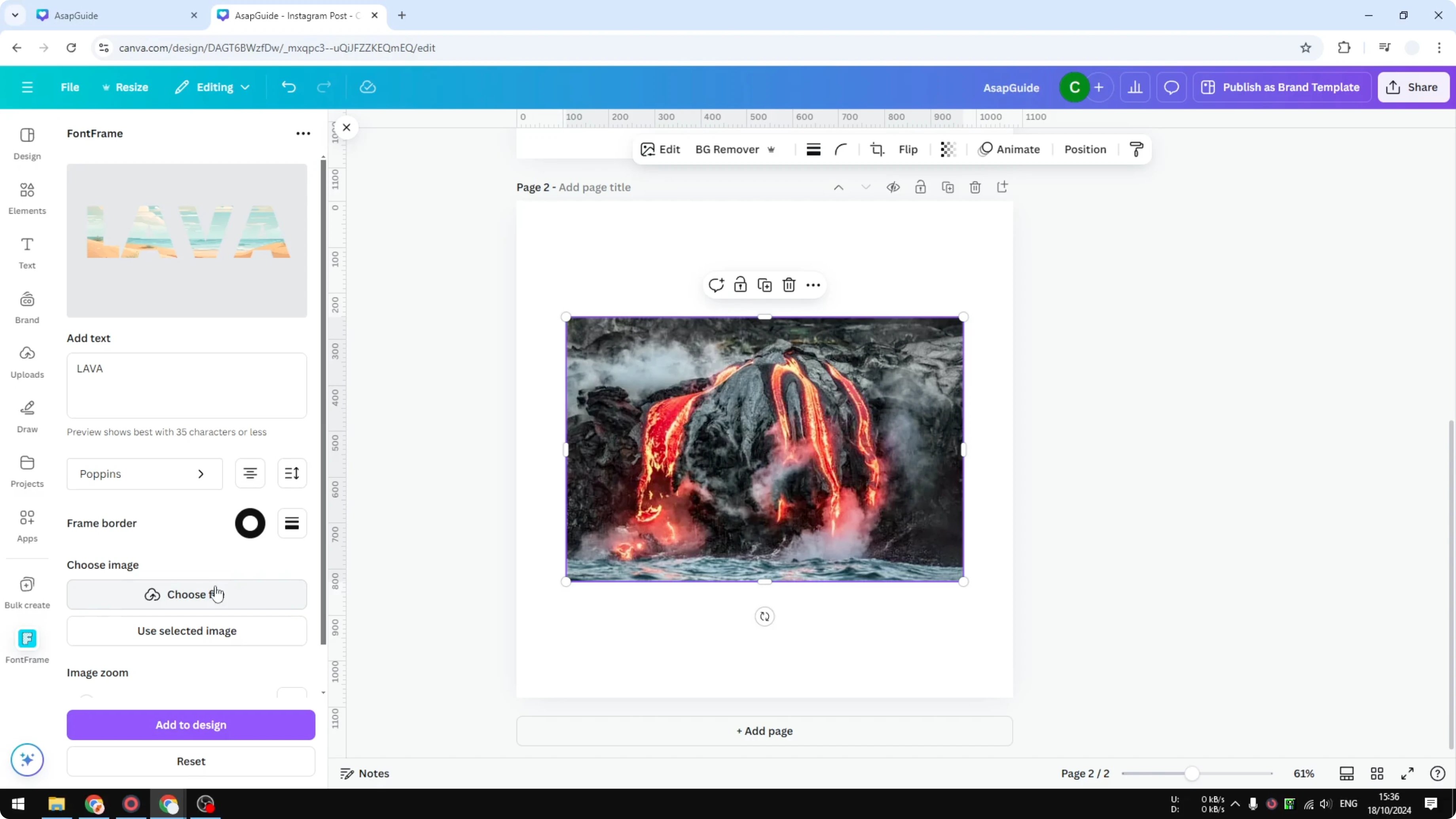
You can also click any photo already on your canvas and hit Use selected image. The photo fills the text instantly.
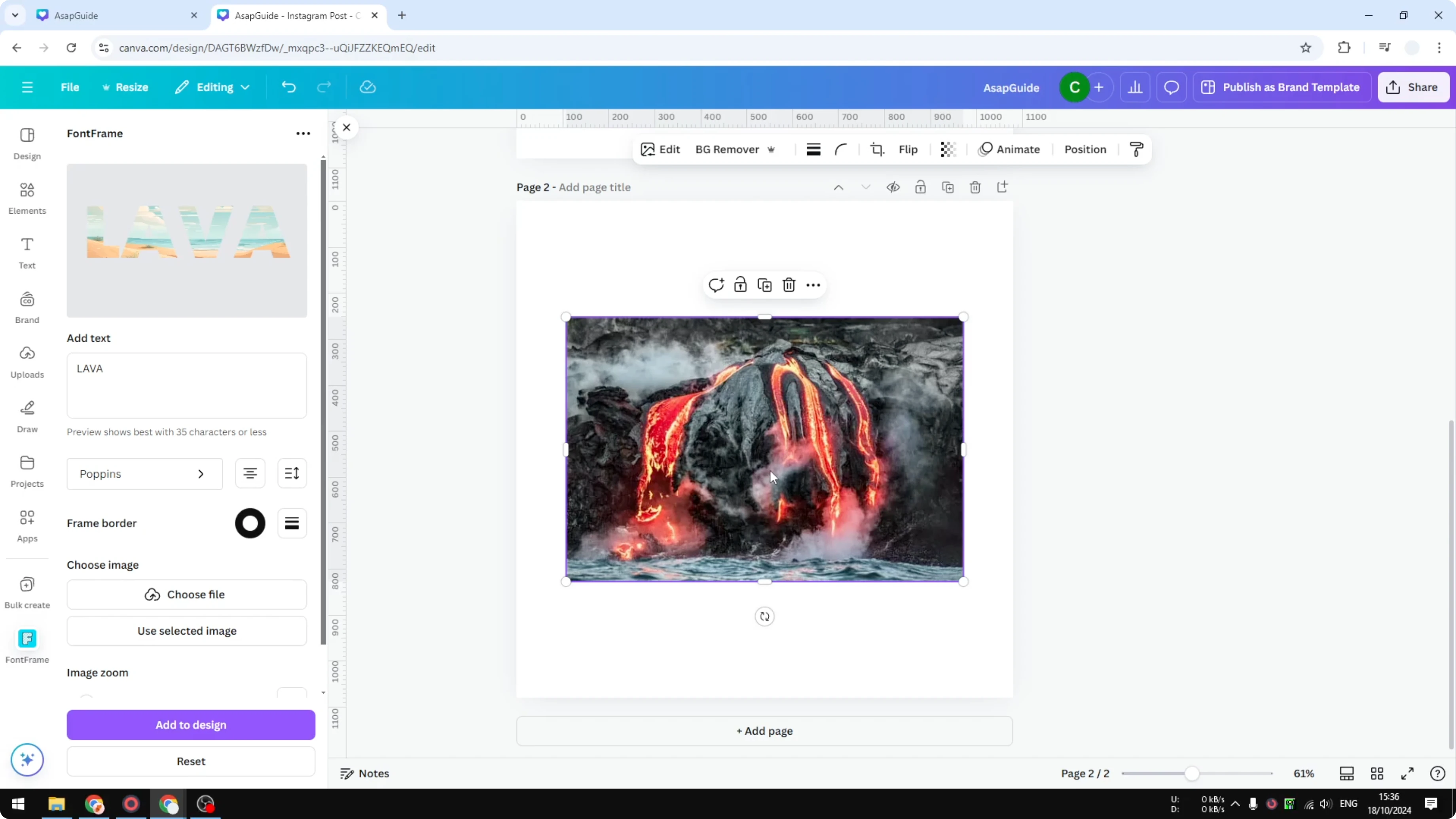
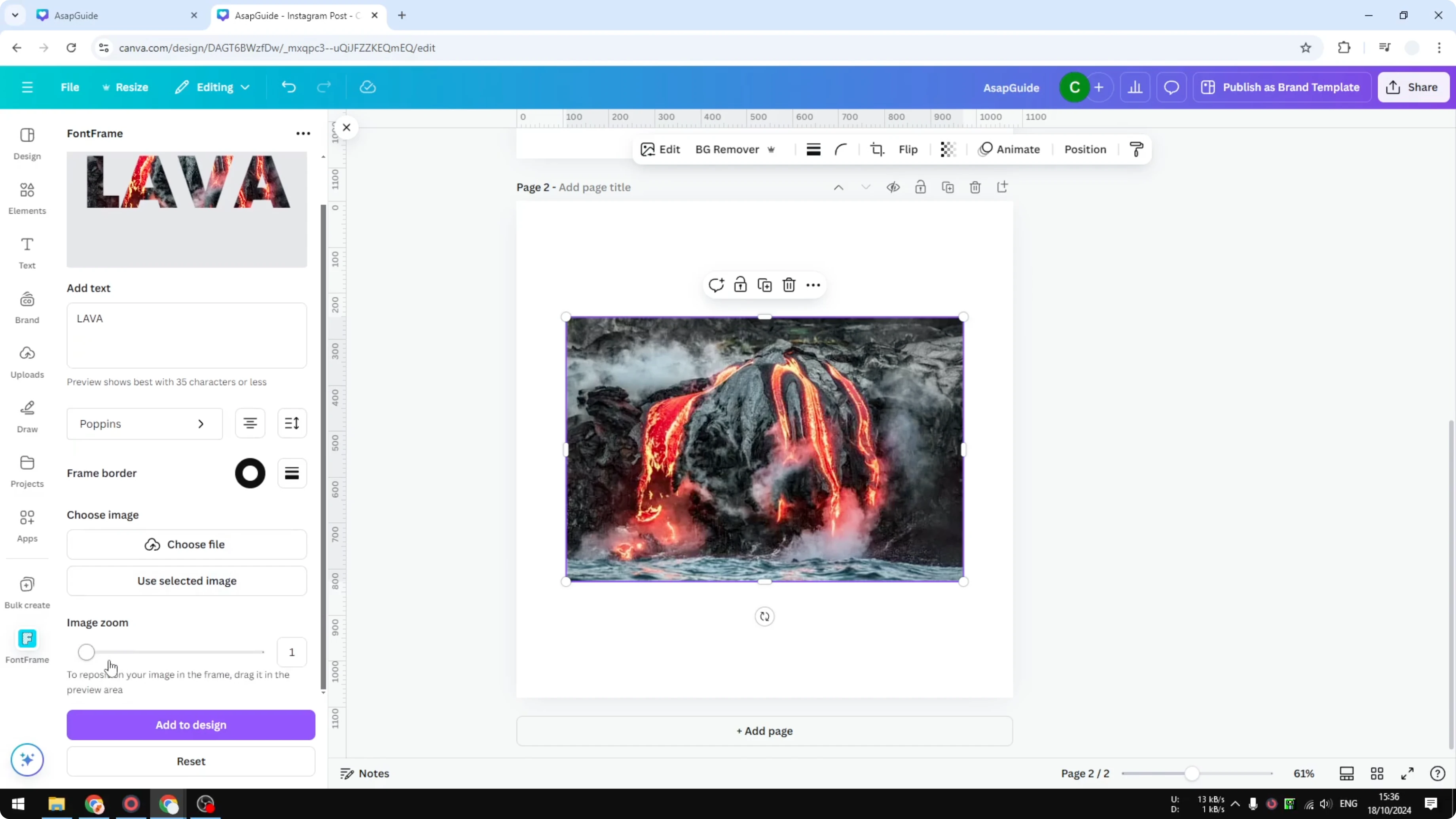
Adjust the position of the image to reveal the part you want inside the letters. There is an option to zoom the image, but I kept the default zoom. Click Add to design when you are done.
Finalize the design
You now have the result on your canvas. This is not editable text anymore, because it has become a regular image. You cannot change the text content after this step.
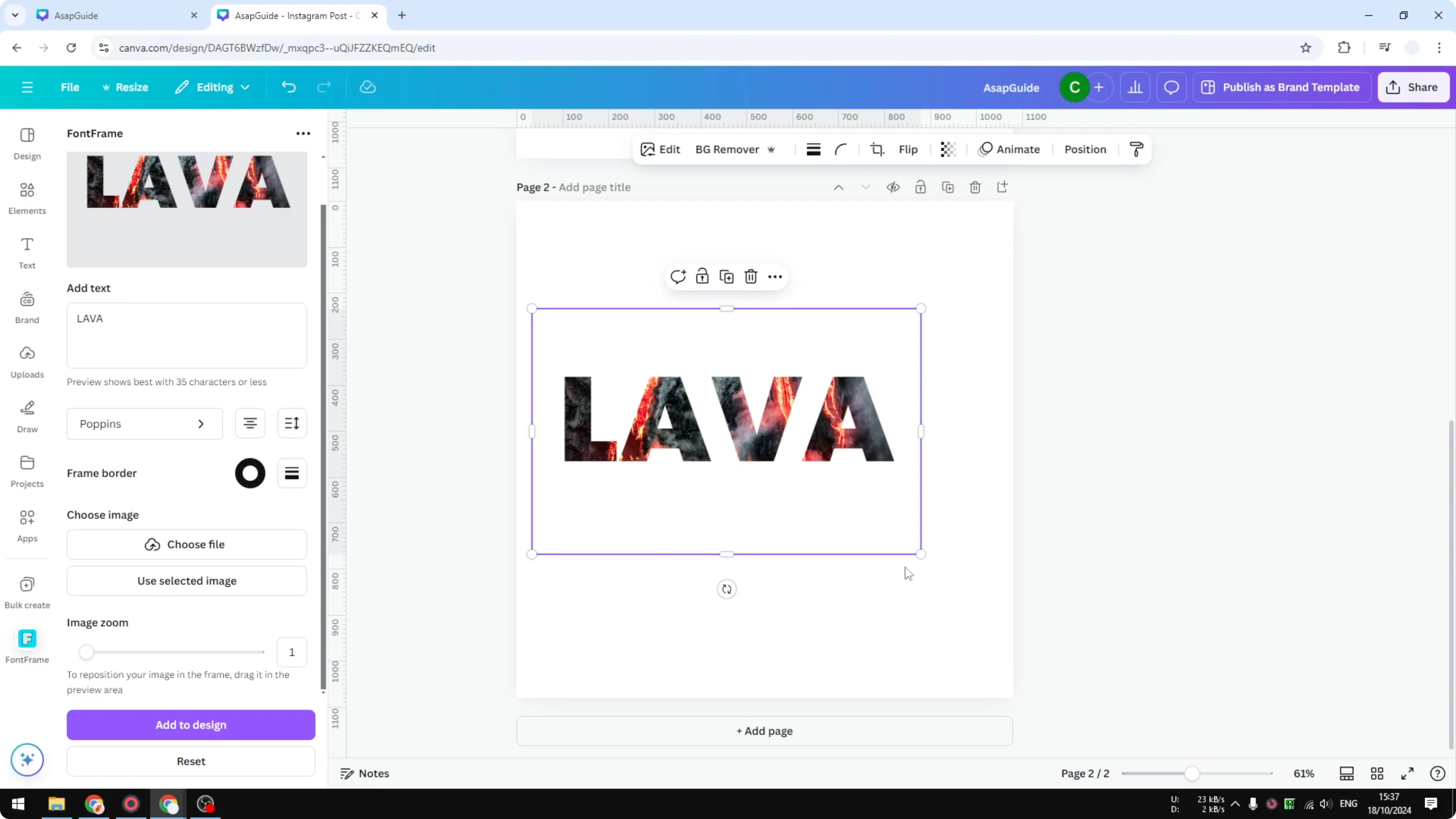
Close the app. You have a piece of text with a picture in it, ready to save or share. For accessibility, remember to add alt text to your image in Canva.
Final Thoughts on Fill Text with a Photo in Canva
Font Frame makes it easy to create photo-filled text right inside Canva. Pick your image, set your text and spacing, fill it, and confirm it to your design. Once added, the text is baked into an image, so finalize your wording and font before you commit.
Recent Posts

How to Visualize Yourself as a Pixelized Character with AI?
How to Visualize Yourself as a Pixelized Character with AI?

How to Revive Faded Memories and Enhance Image Clarity with AI?
How to Revive Faded Memories and Enhance Image Clarity with AI?

How to Visualize Yourself as an Animal Crossing Character with AI?
How to Visualize Yourself as an Animal Crossing Character with AI?