How to Detach Image from Background in Canva
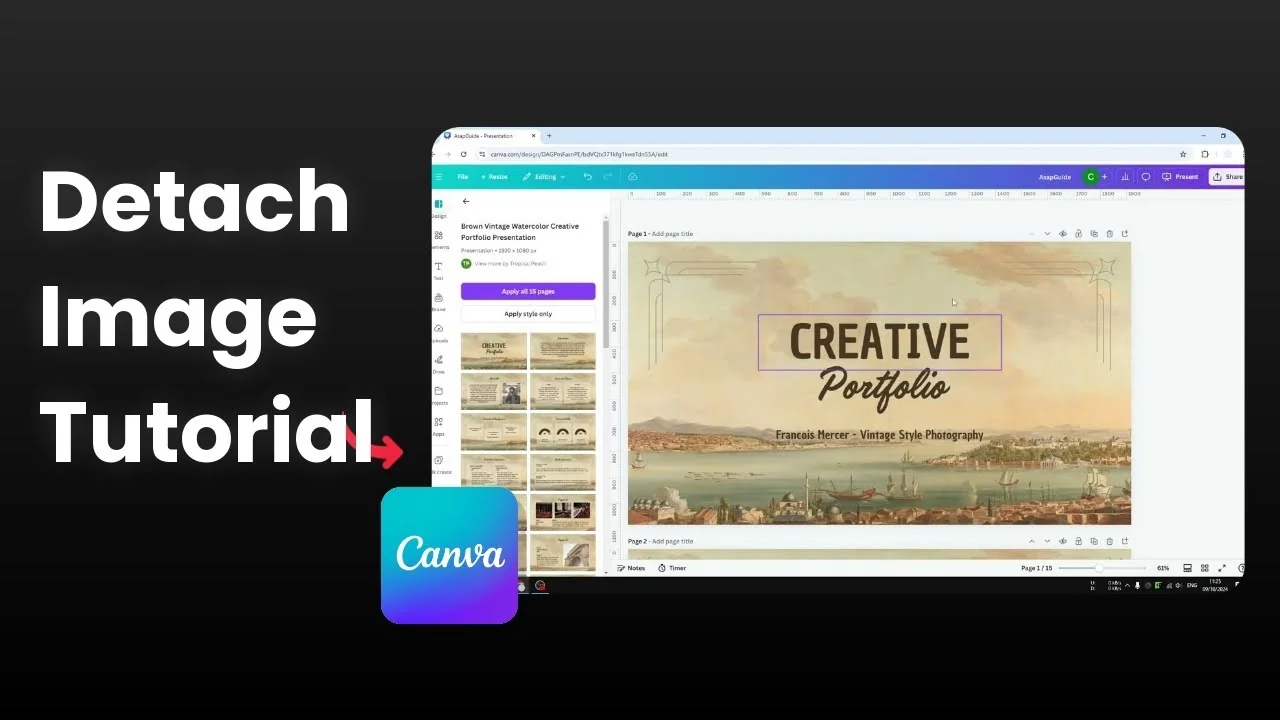
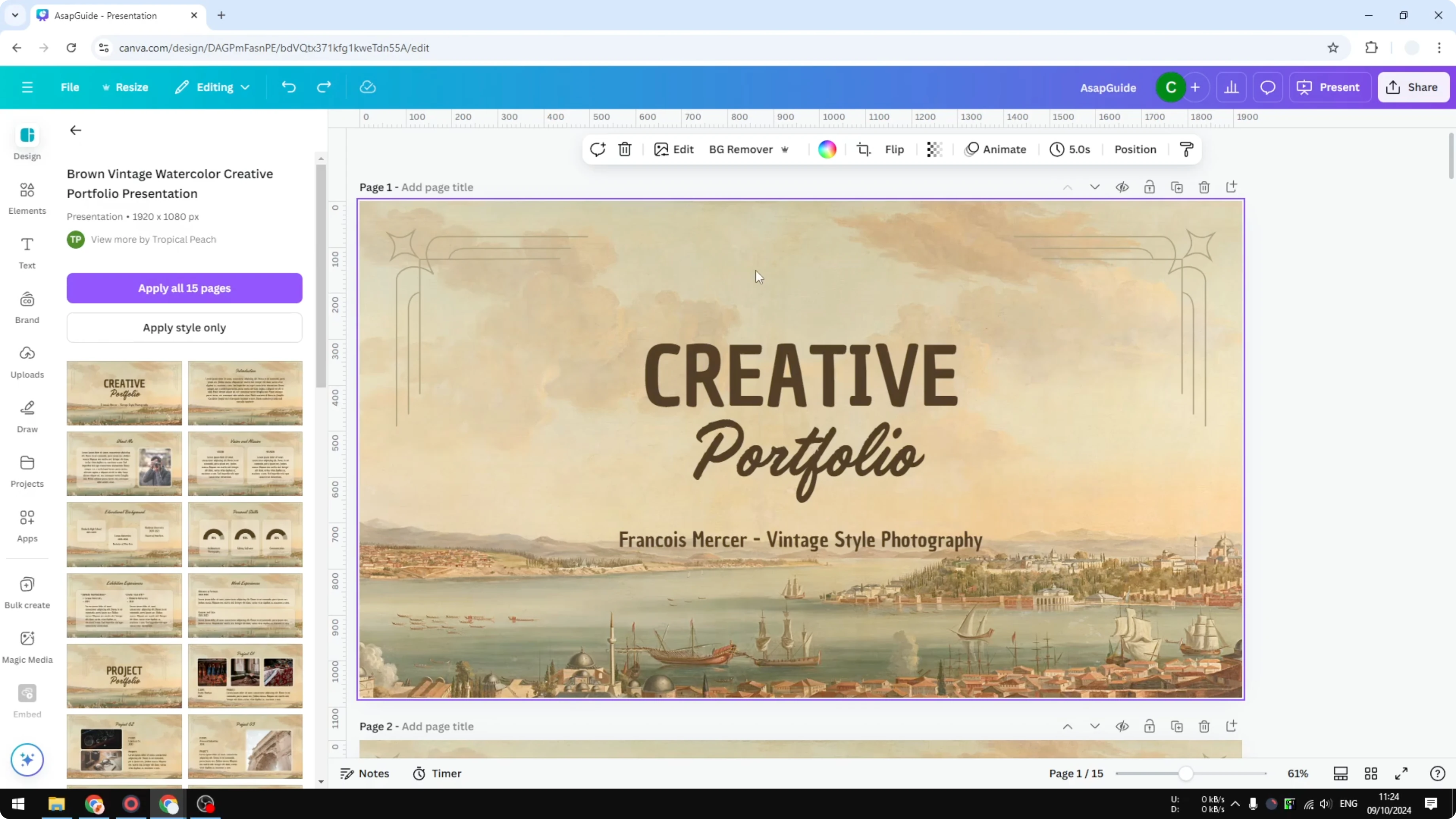
I will show you how to get the background picture of your Canva design or presentation. I have a Canva presentation with a background image. The background looks pretty and it is a real image.
We should be able to change properties like style, position, and size. For some reason this image is locked and I cannot do anything. I can click on it and I am aware there is a background image, but I cannot change it.
This happens because the image is set as a background. To get the image, you need to detach it from the background. Detach Image from Background in Canva will turn it into a movable object.
If you are starting from a blank page, you can add a background photo in Canva first.
Why Detach Image from Background in Canva
The image is locked as a background layer. You can see it, but you cannot edit it like a normal object. Detaching turns that fixed layer into an editable image.
You can then modify it or resize it later. You can also position it anywhere on the page. This change gives you full control over the image as an object.
Steps to Detach Image from Background in Canva
Right click exactly on the background. Make sure you are not clicking a different object.
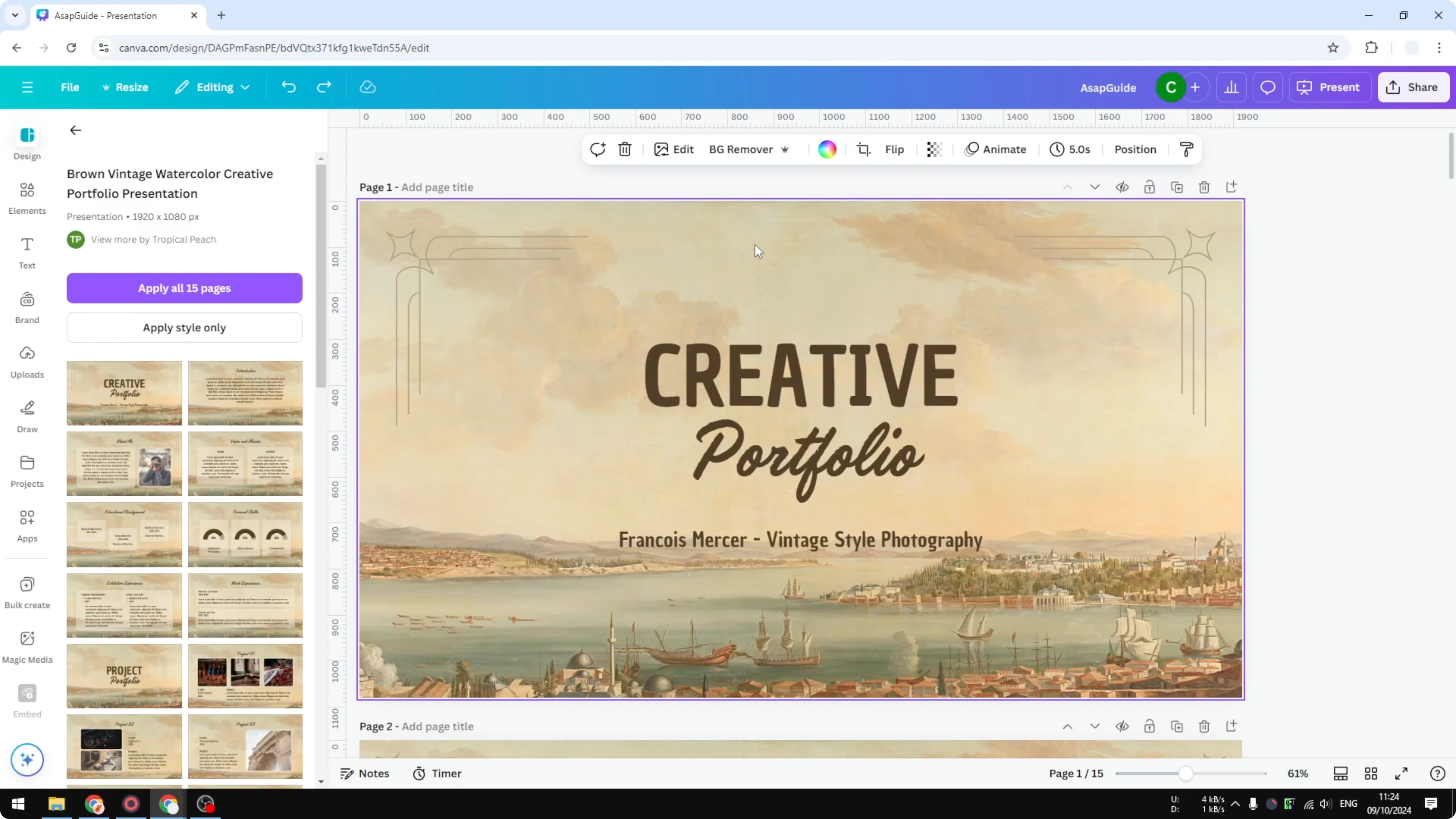
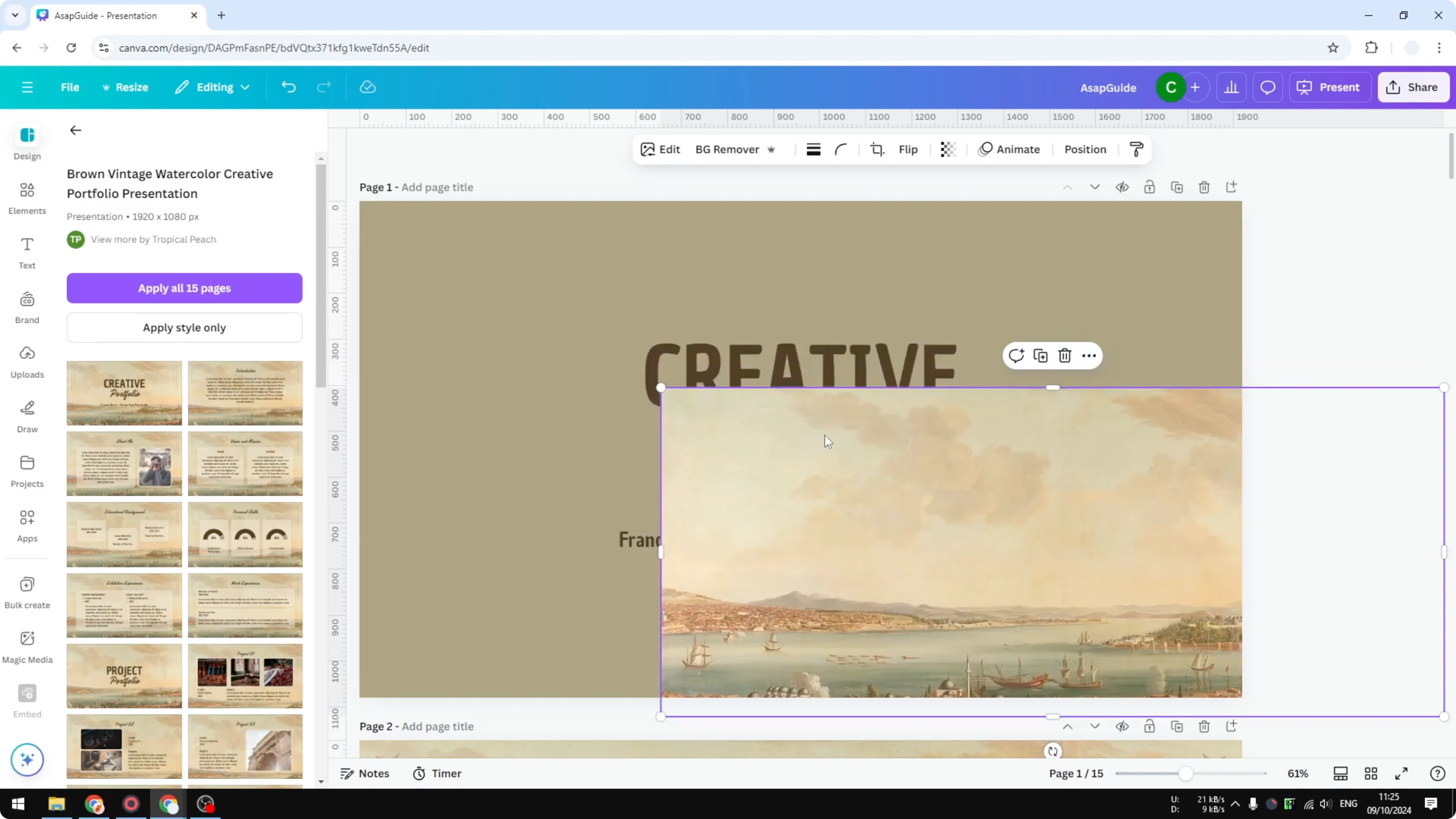
Select Detach image from background. Canva will lift the image off the background layer.
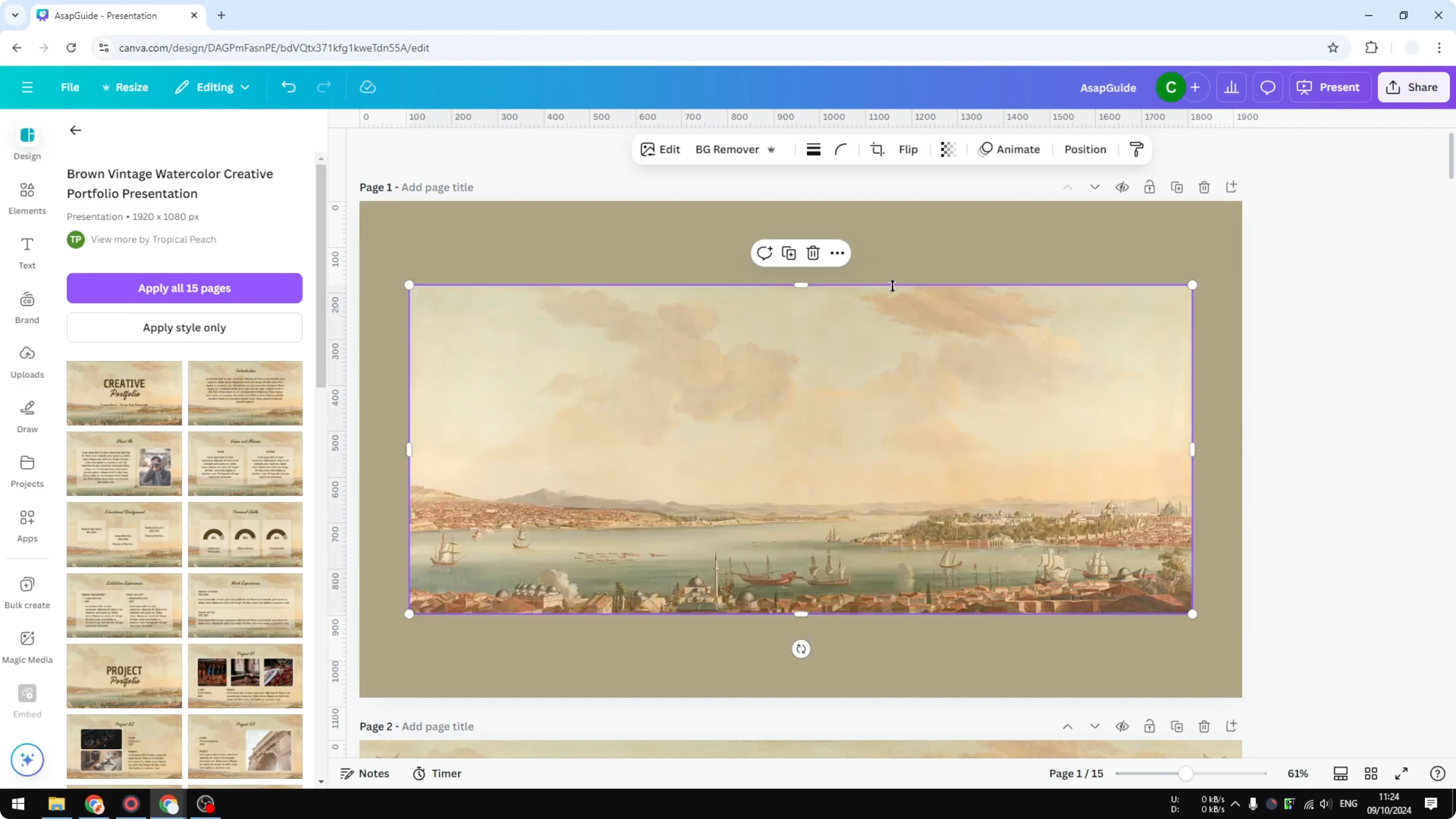
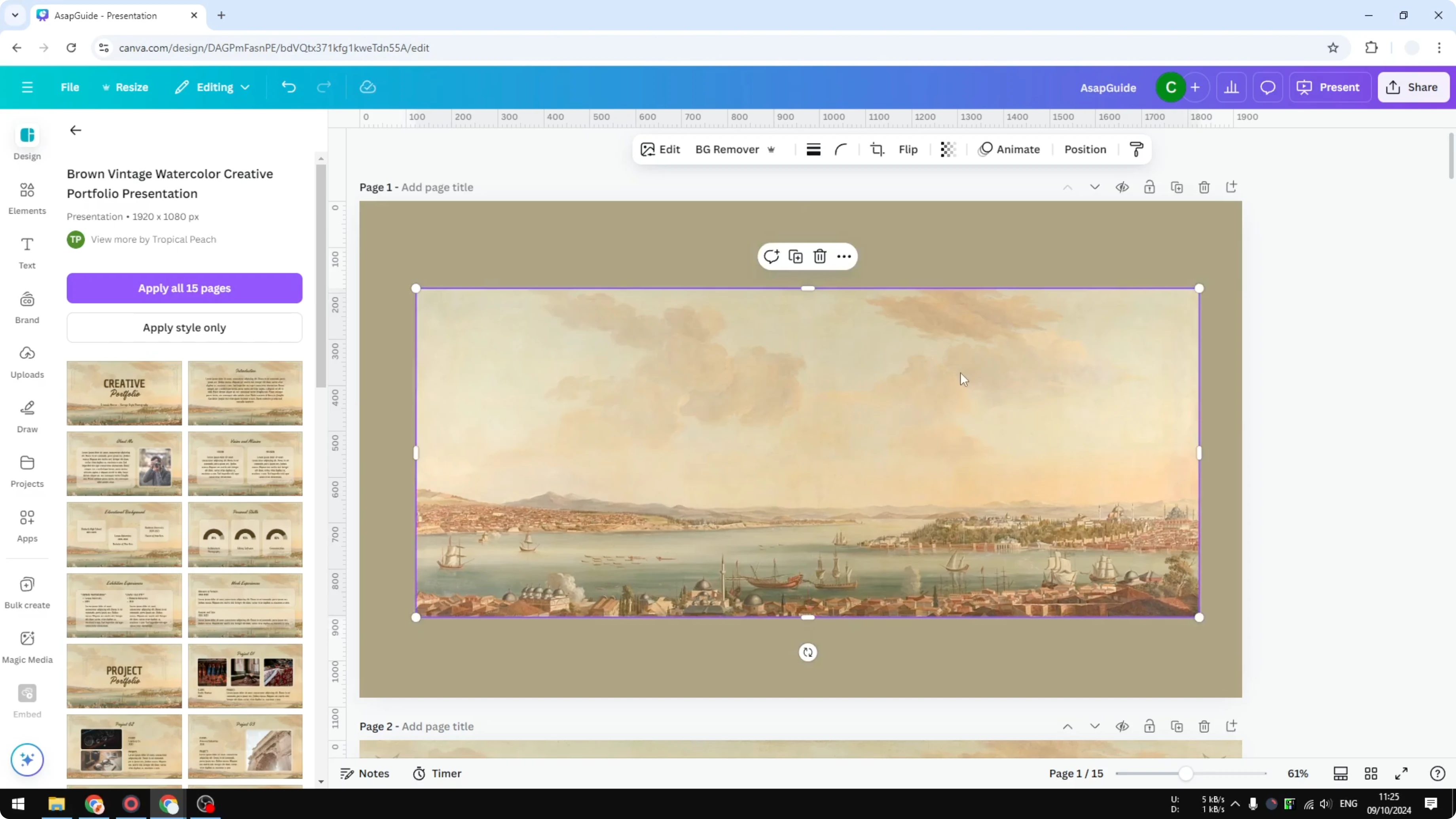
The image is now a separate object. You can move it, resize it, or edit its properties. It is no longer locked to the page.
Read More: Add background text in Canva
Put it back as a background
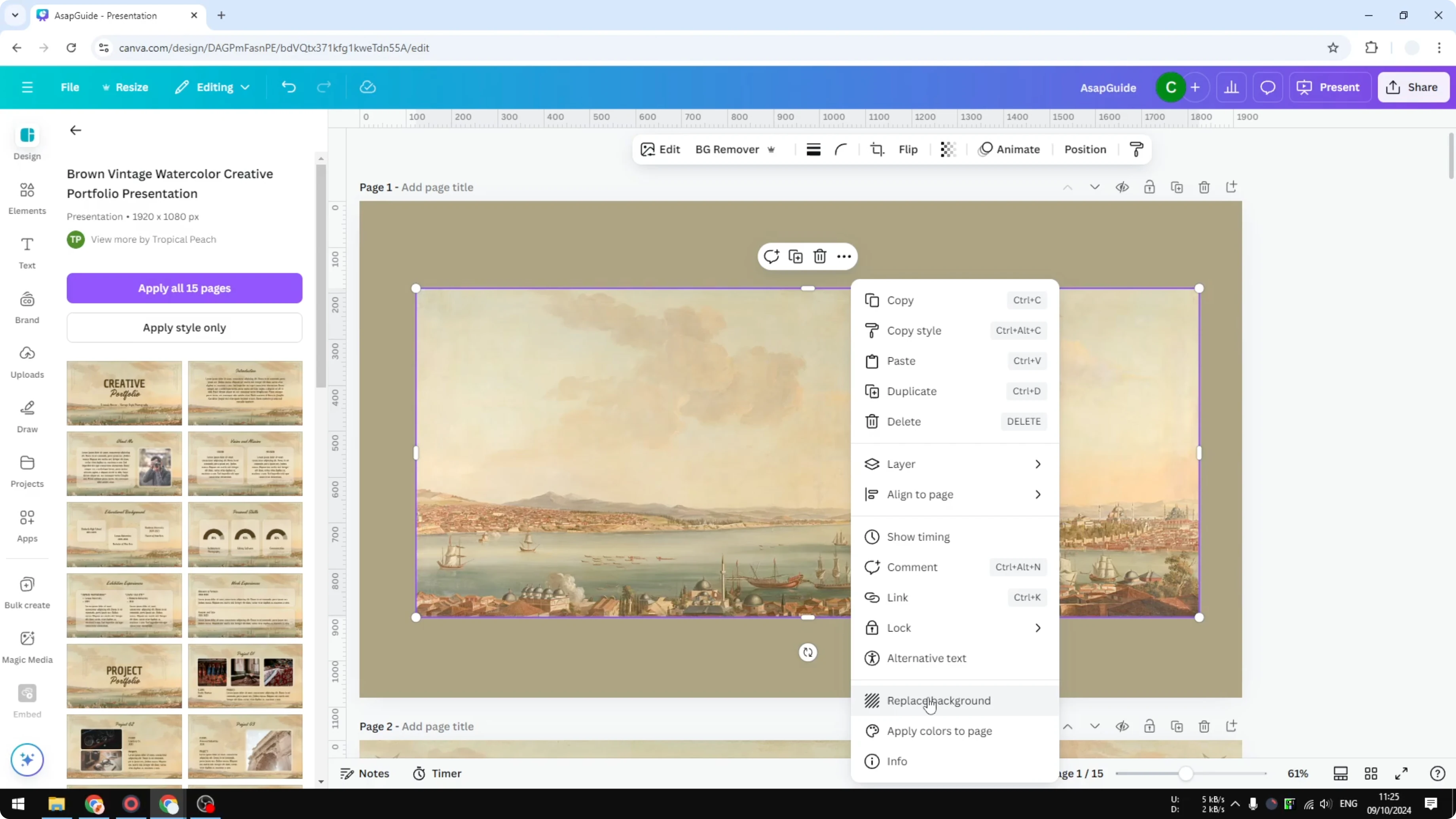
Right click the image again.
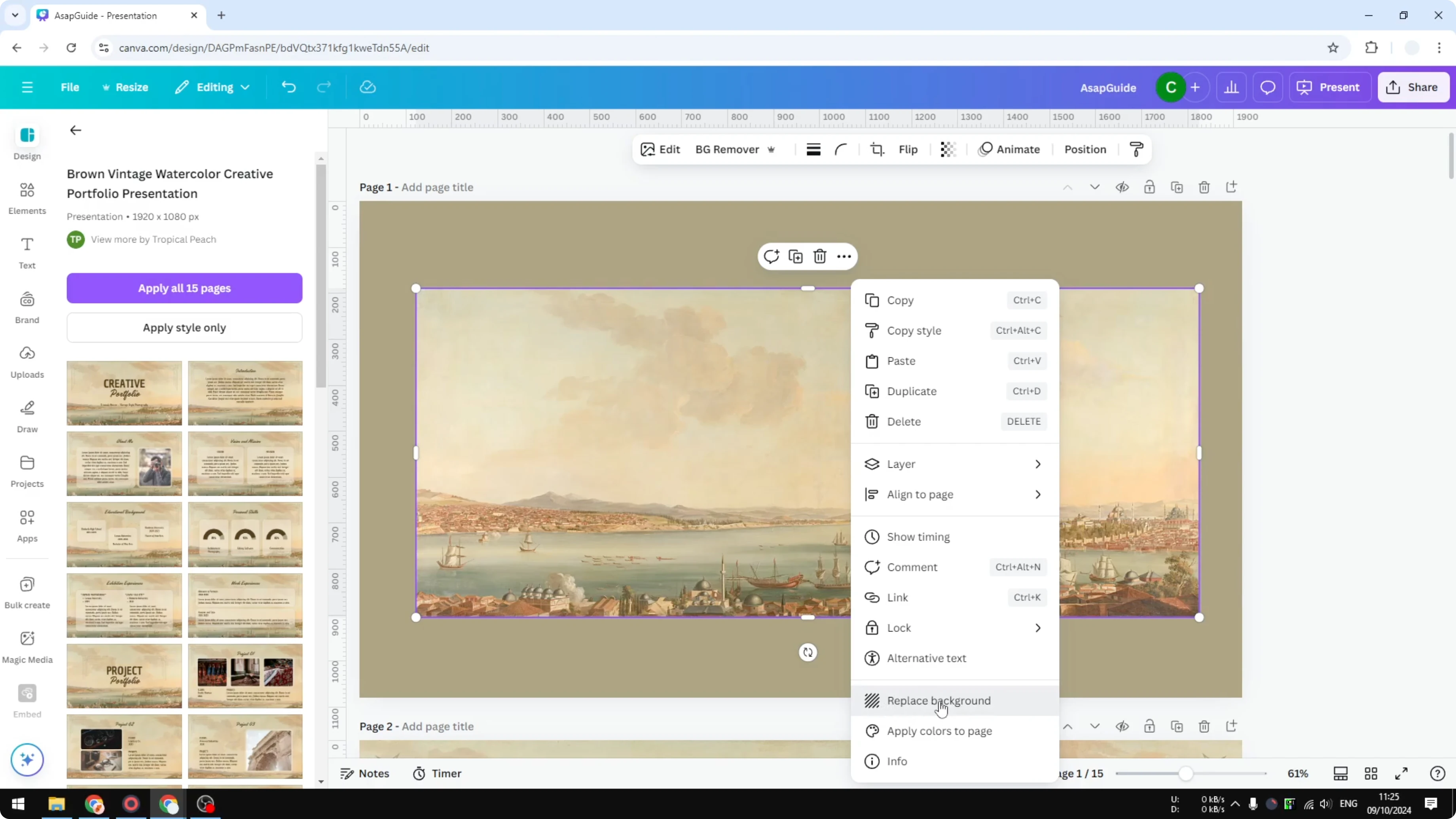
Select Replace background. Sometimes you will see options like Use as background or Insert as background.
Pick the option you see and the image returns as the background. The page will treat it as a fixed layer again. You can repeat these steps anytime you need to switch.
Read More: Add a glitter background
Final Thoughts
Right click the background and choose Detach image from background. That single action turns a locked background into an editable image. To set it back, right click the image and choose Replace background or the equivalent option.
Recent Posts

How to Visualize Yourself as a Pixelized Character with AI?
How to Visualize Yourself as a Pixelized Character with AI?

How to Revive Faded Memories and Enhance Image Clarity with AI?
How to Revive Faded Memories and Enhance Image Clarity with AI?

How to Visualize Yourself as an Animal Crossing Character with AI?
How to Visualize Yourself as an Animal Crossing Character with AI?