How To Crop A Photo Into A CIRCLE In Canva
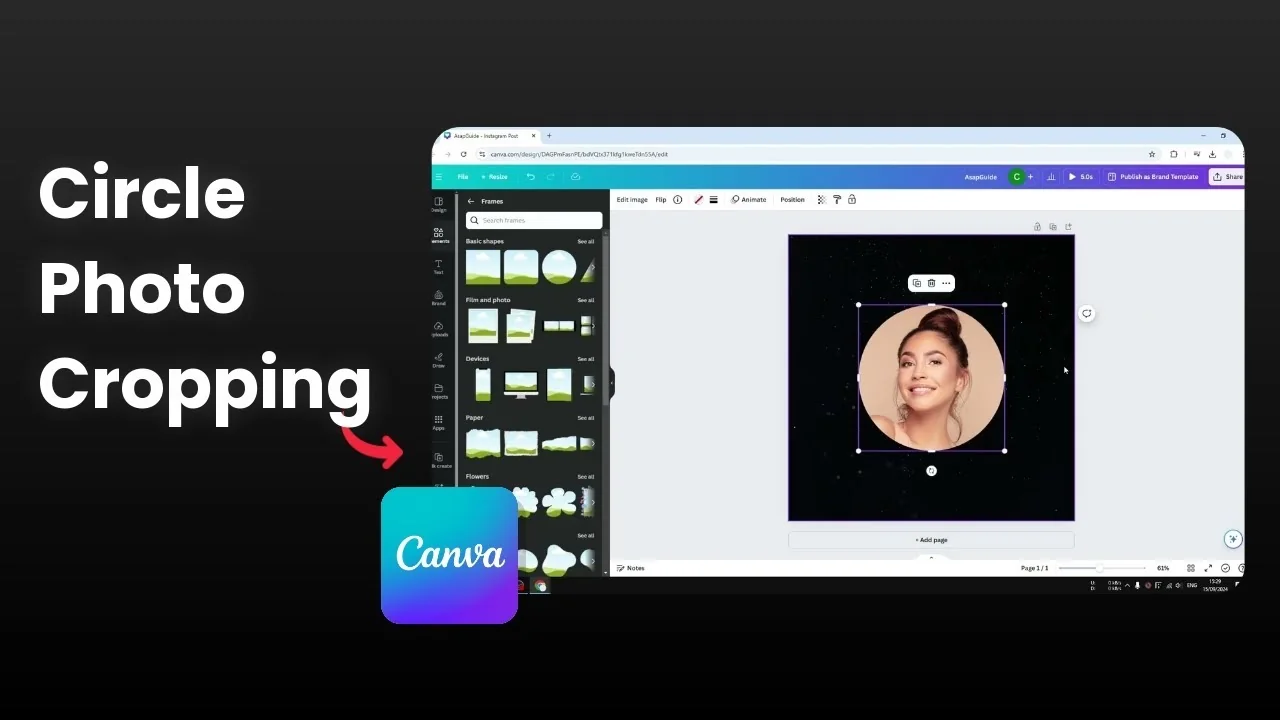
I will show you how you can turn any square or rectangular image into a circle. I think a circle is probably the best shape to showcase a human face and to show photos in a more modern style compared to a regular square. I have a rectangular picture with a woman and I am going to turn it into a circle.
Crop A Photo Into A CIRCLE In Canva
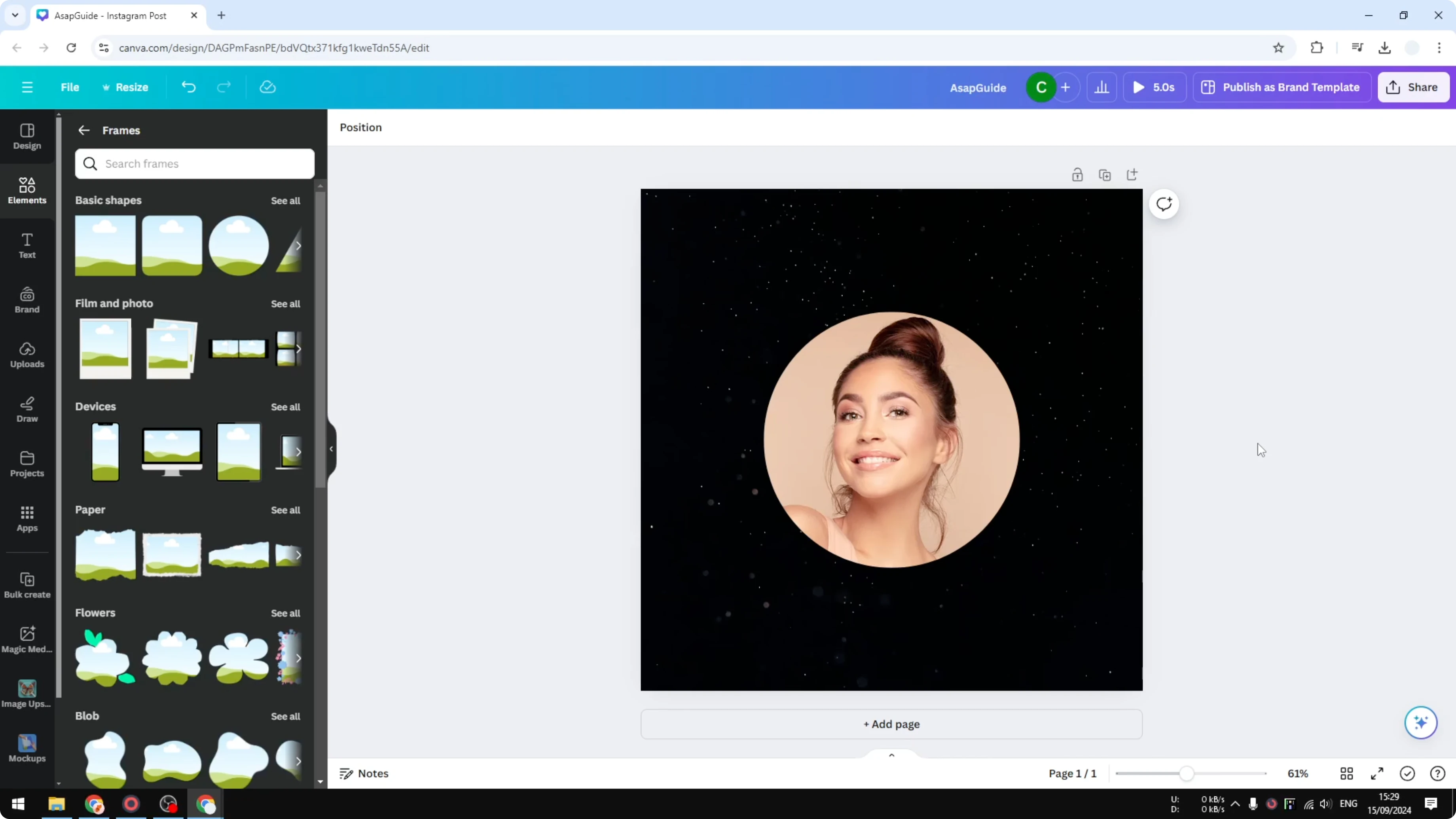
Go to the Elements menu. Scroll to the bottom and open the section called Frames. Click See all and choose the circle frame.
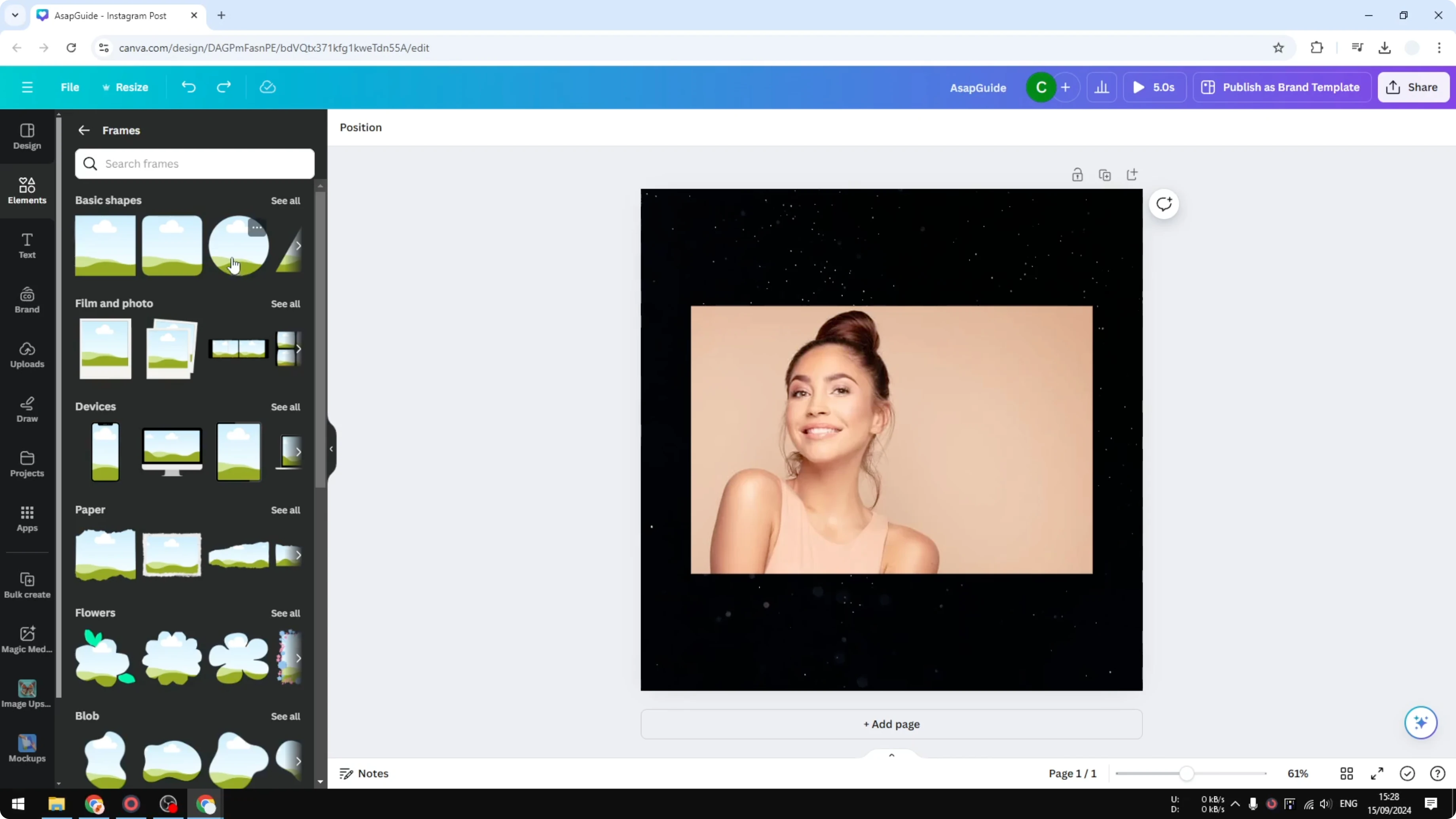
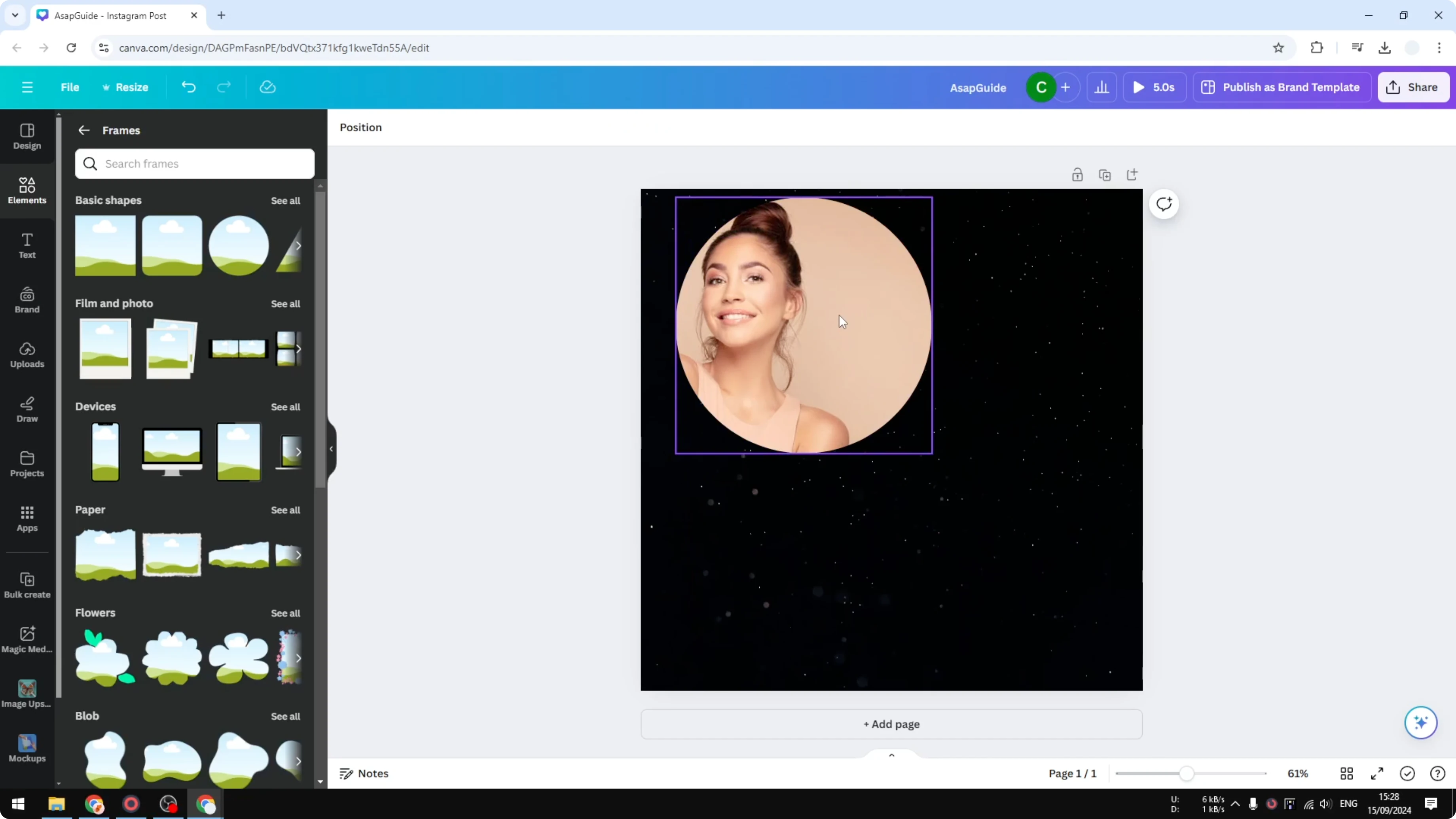
Place the circle at the top and keep the image at the bottom. Drag the image onto the frame. Canva recognizes it and puts the photo inside the circle immediately.
Read More: Add Background Photo Canva
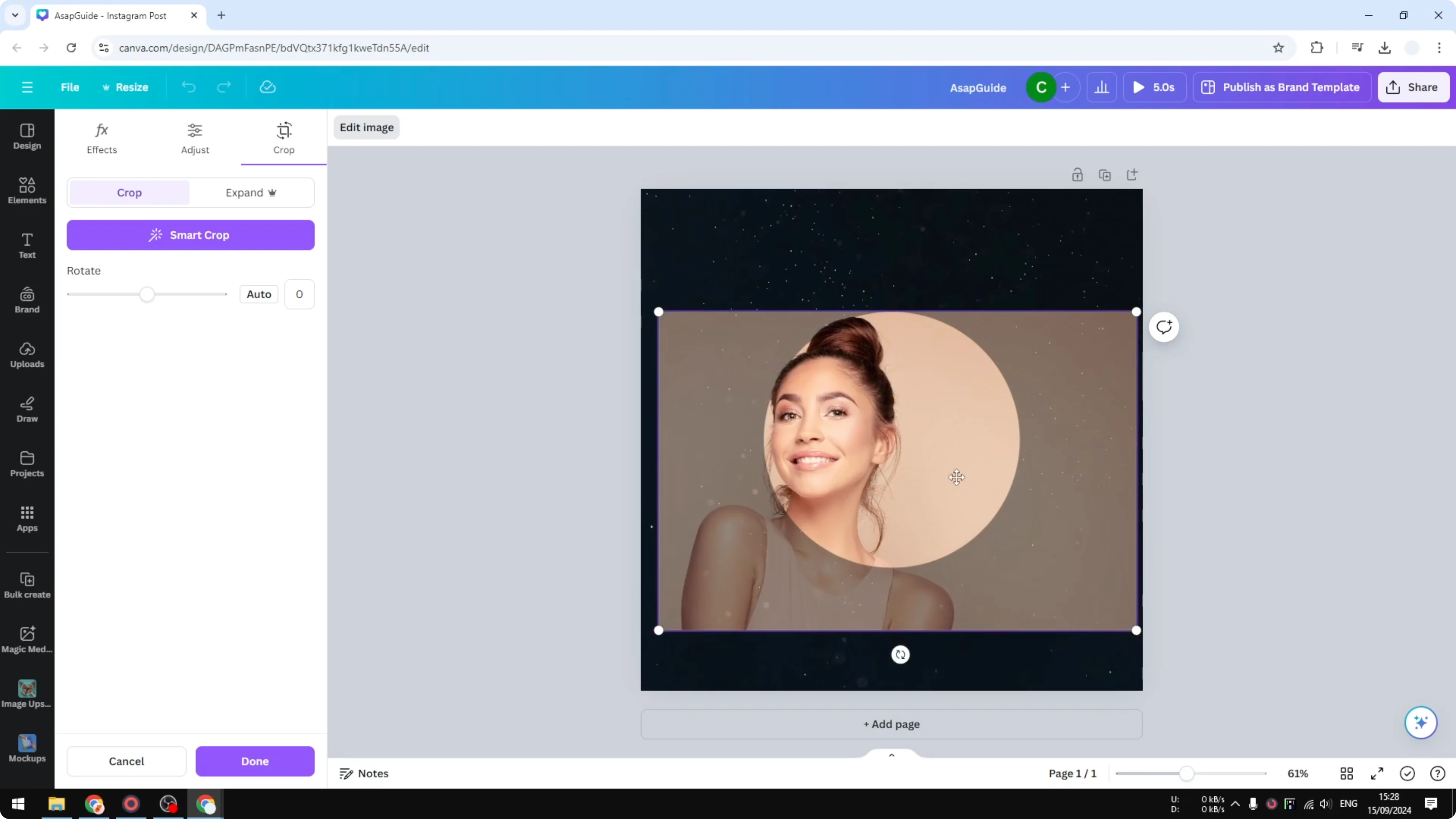
If your face is not precisely in the middle, you might see the subject leaning to the left side of the circle. You want the face to be precisely in the middle of the circle. Double click the frame to adjust.
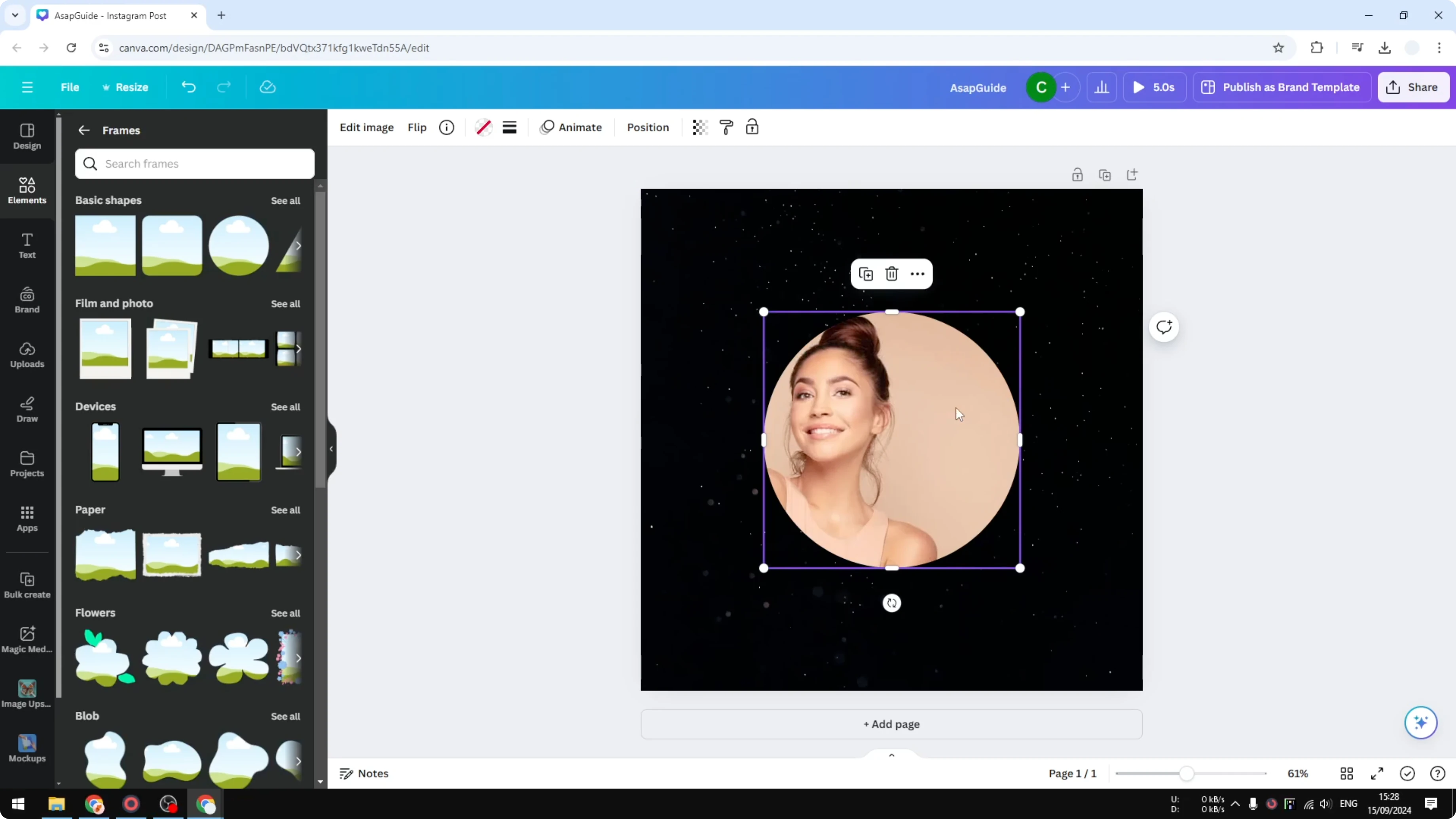
Drag the area you want to make visible inside the frame. Resize the image so the face looks bigger and more visible. When you are done, click Done or click anywhere on the empty area of your design.
Read More: Add Blending Edges Photo Canva
This is exactly how you can turn any square image into a circle in Canva. Drag into the frame, double click to reposition, and resize to center the face. I hope you find this helpful.
Read More: Add Cartoon Effect Photo Canva Ai
Recent Posts

How to Visualize Yourself as a Pixelized Character with AI?
How to Visualize Yourself as a Pixelized Character with AI?

How to Revive Faded Memories and Enhance Image Clarity with AI?
How to Revive Faded Memories and Enhance Image Clarity with AI?

How to Visualize Yourself as an Animal Crossing Character with AI?
How to Visualize Yourself as an Animal Crossing Character with AI?