How To Crop a Photo In Canva
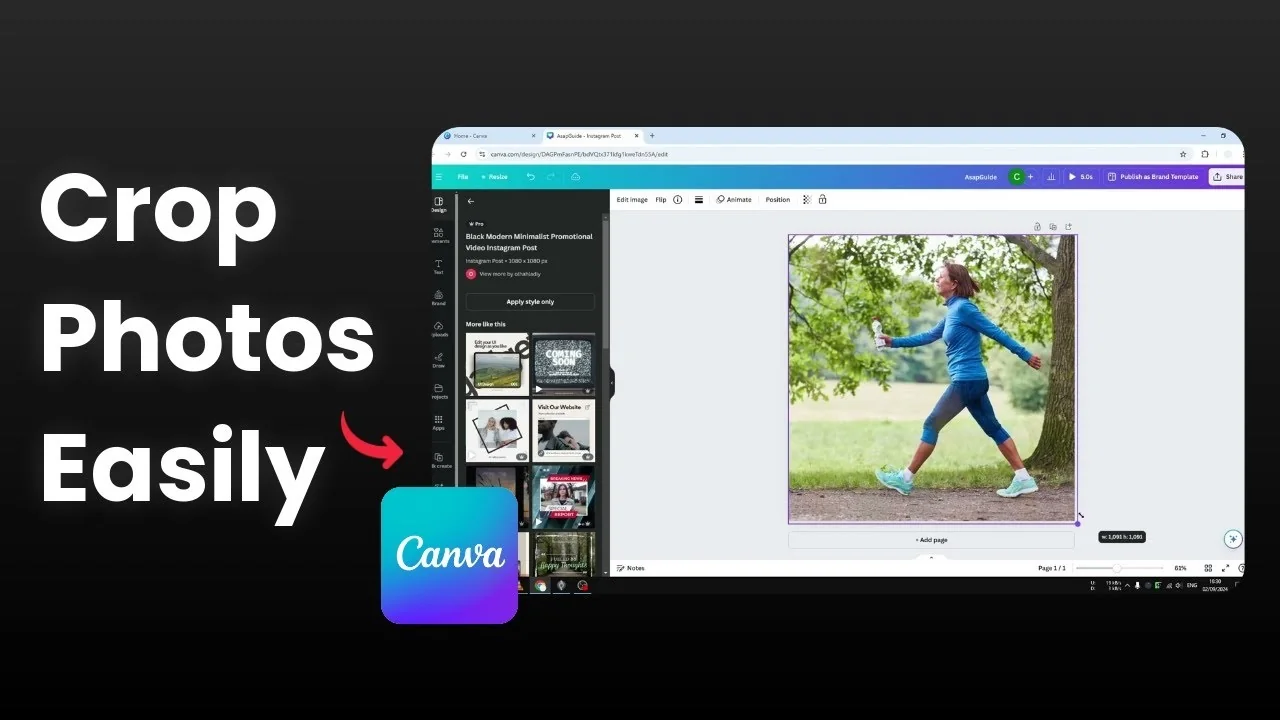
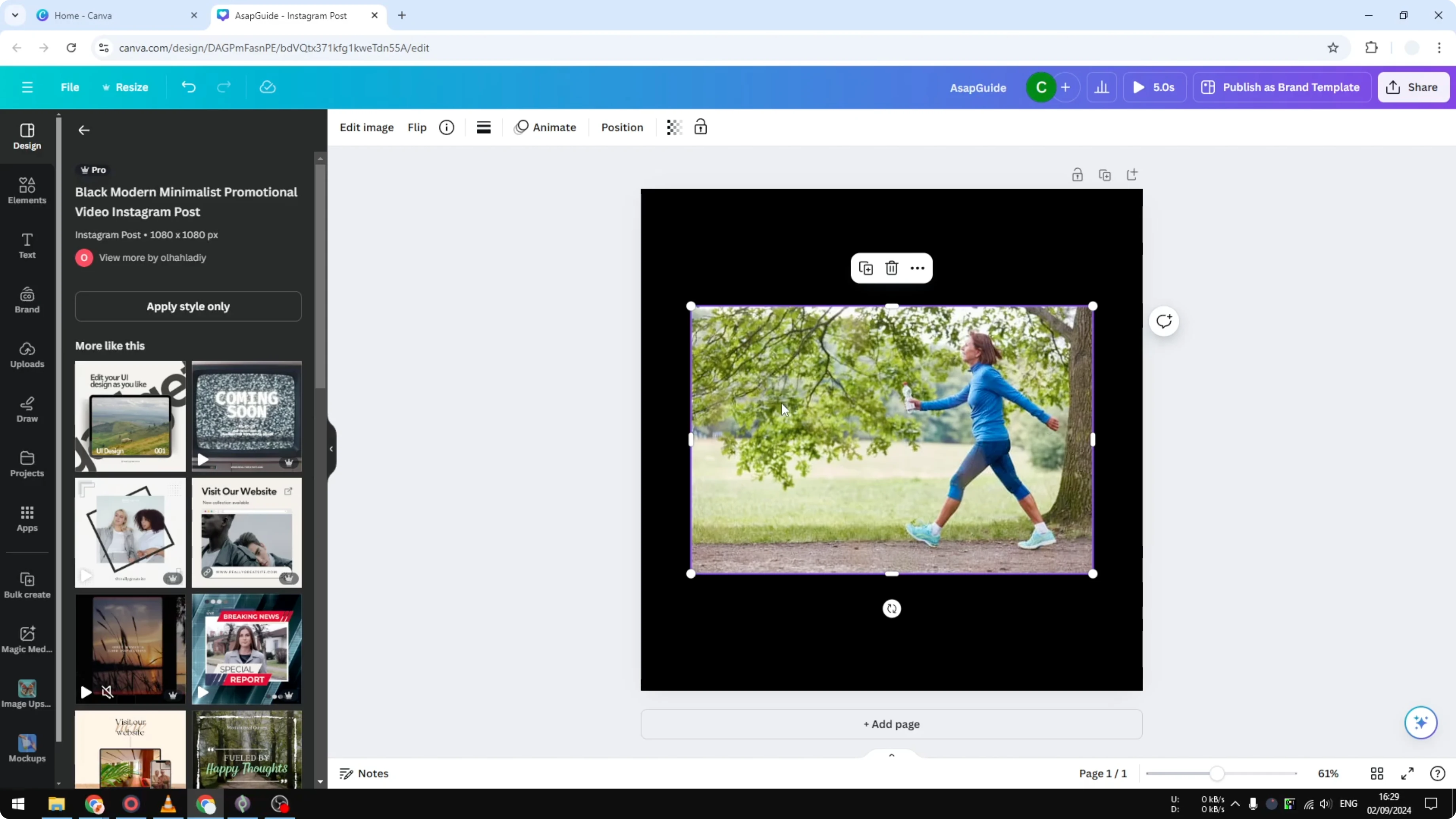
I will show you how you can crop a picture or element or even a video using Canva. I have this picture that is rectangular while the canvas is square. It's for an Instagram post, so I want to crop this picture to be exactly a 1 by 1 ratio.
If you need a different shape for profile images, see how to crop a photo into a circle in Canva.
Crop a Photo In Canva: aspect ratios
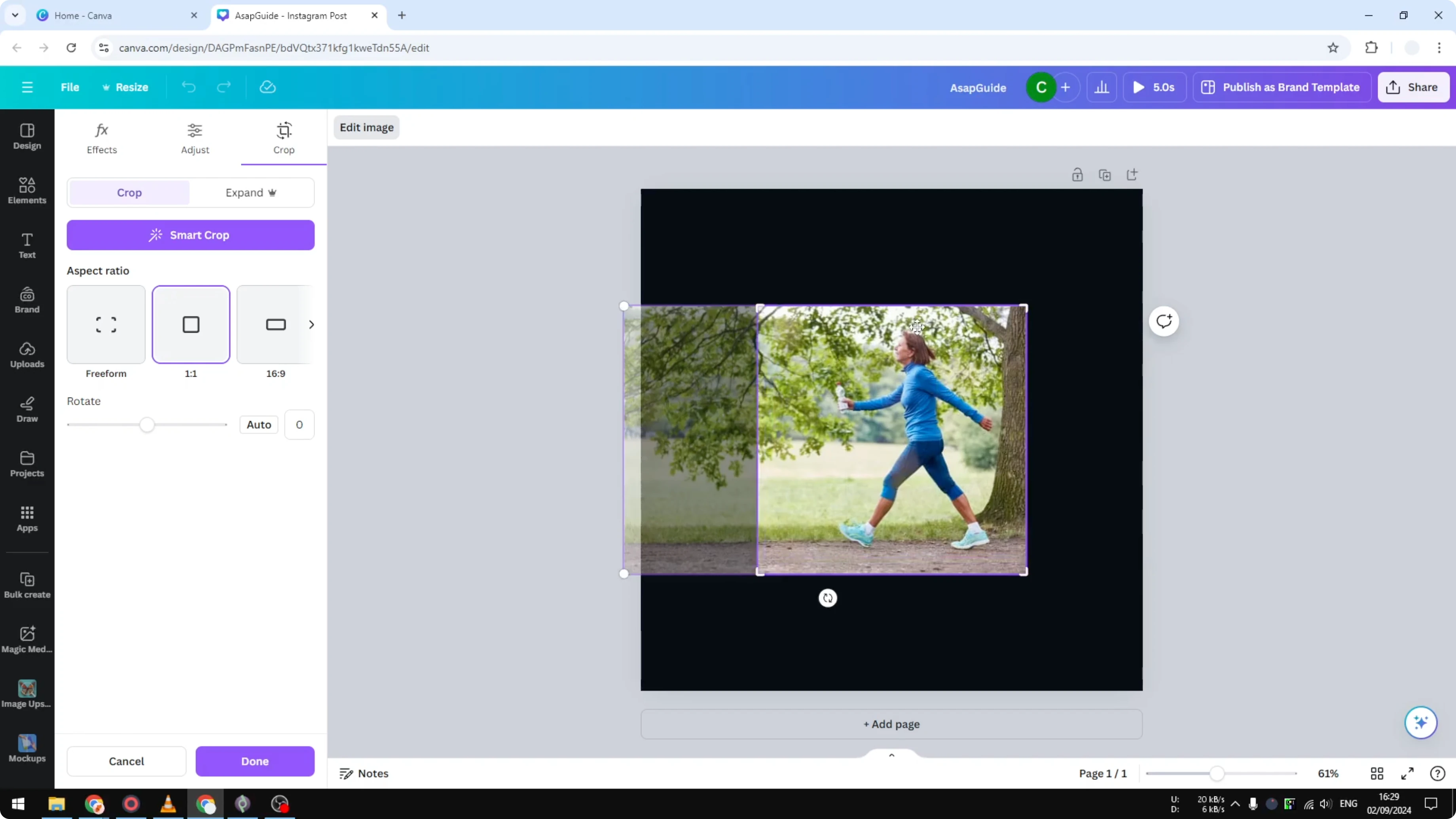
Click on the image, then click Edit image. Select Crop. Here I can select the aspect ratio to be 1 by 1.
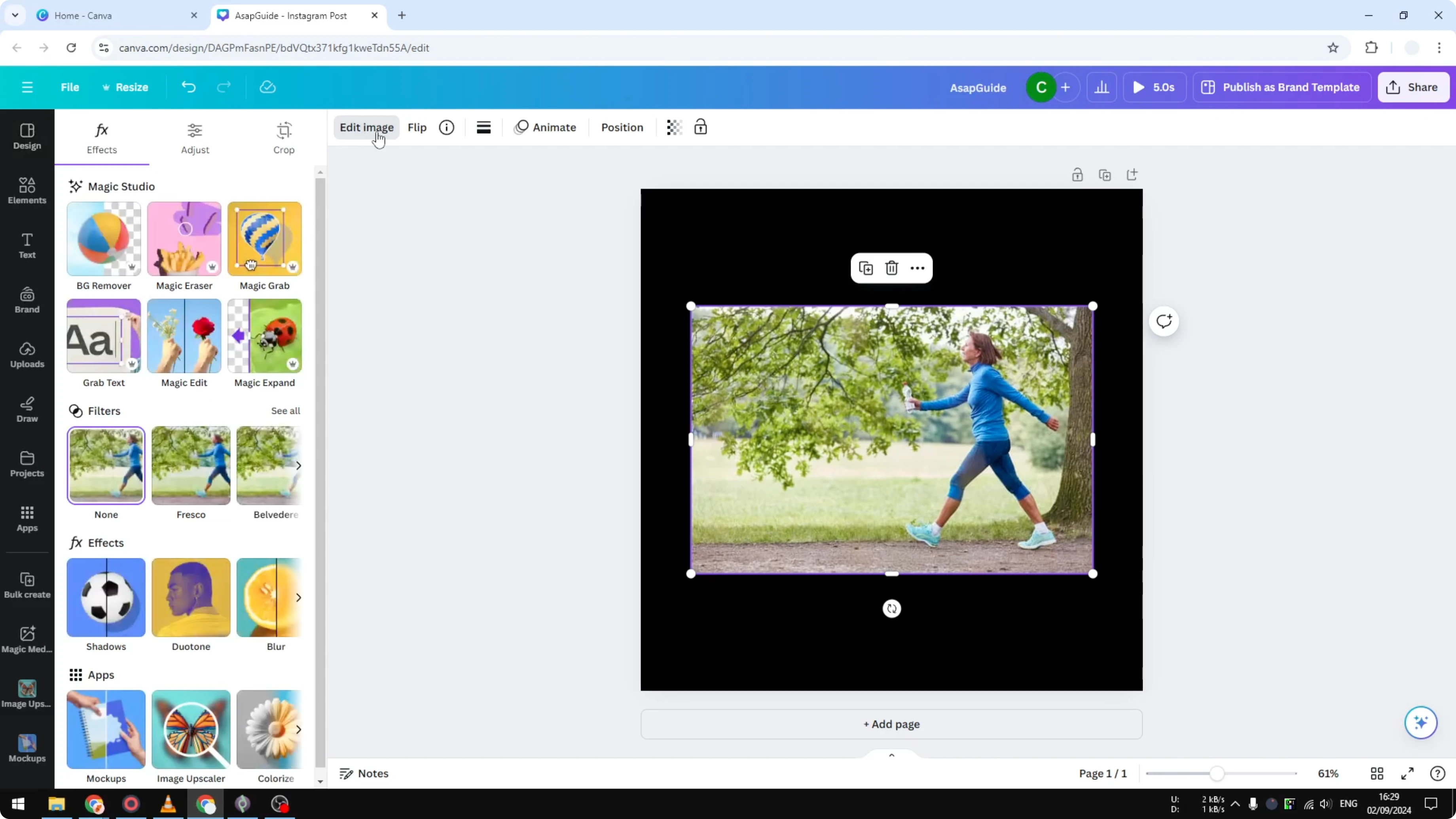
You can also select 16 by 9, 9 by 16, and many other aspect ratio options. For this tutorial I select 1 by 1. The idea of that selection is you will always get this 1 by 1 ratio.
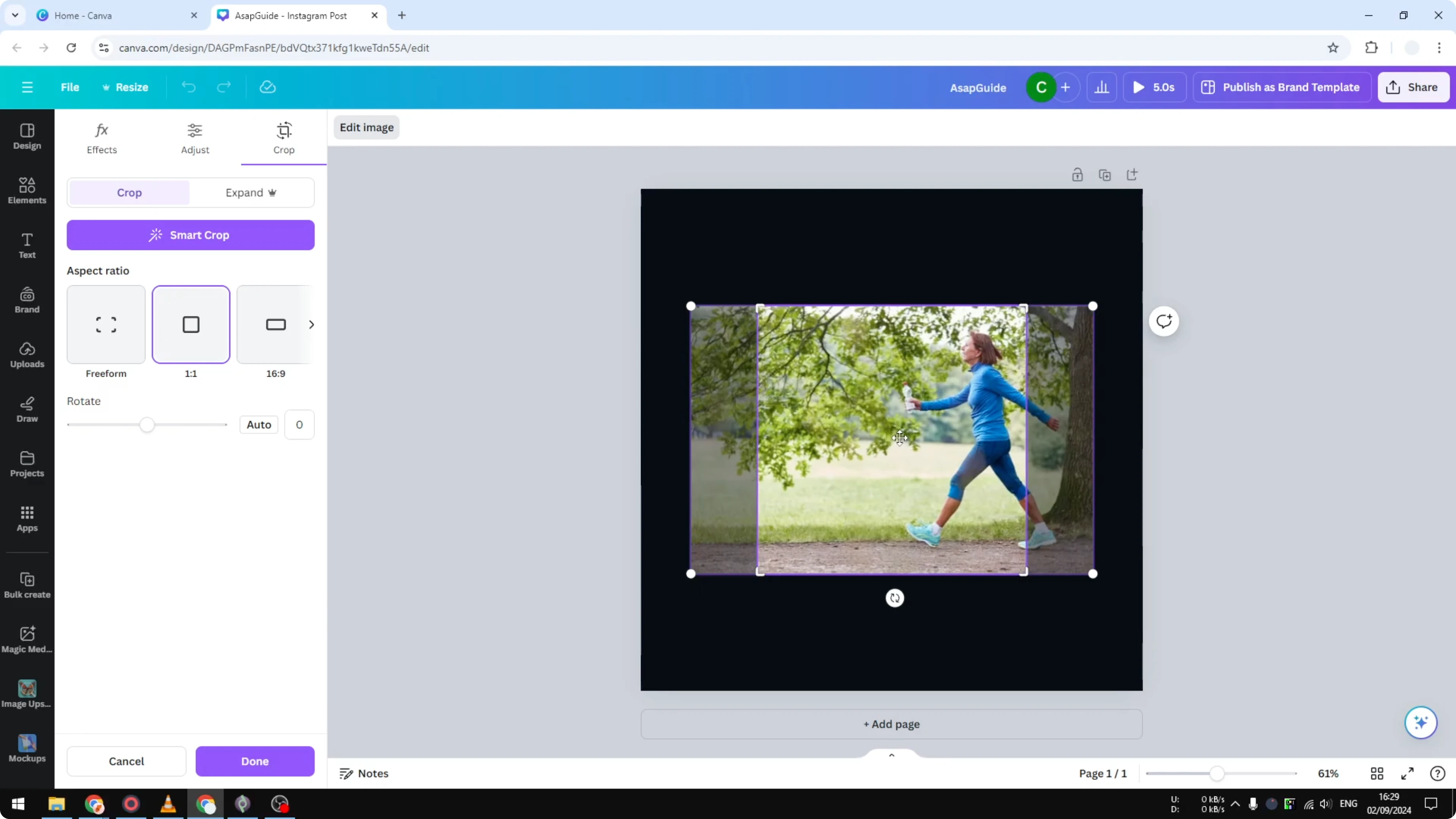
You can adjust the anchor point but it always retains its aspect ratio. That is something that I really want to have. When you're done, click Done.
Crop a Photo In Canva auto vs manual
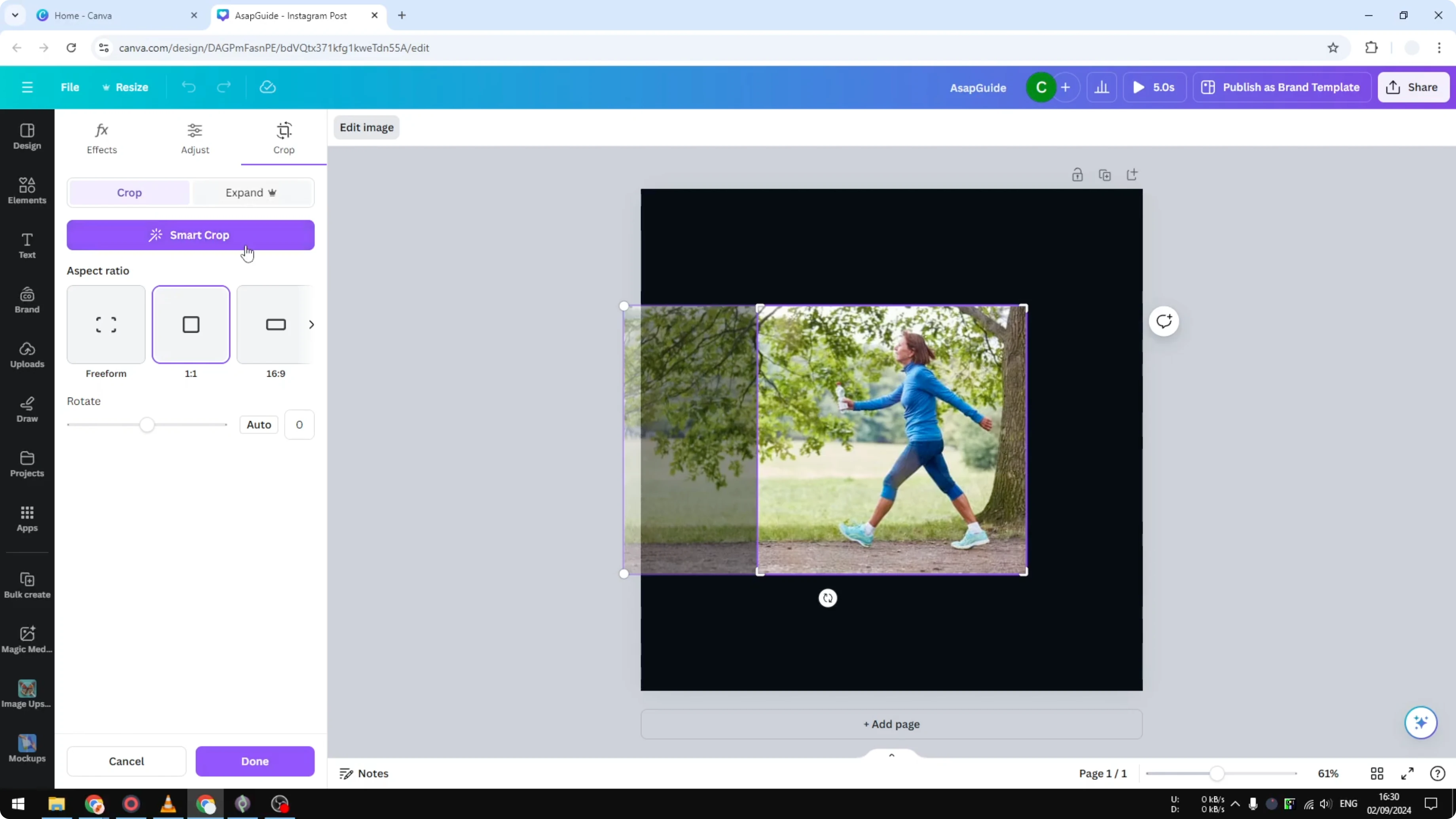
You can also use this SMC feature which reads the content and tries to figure out the best element to show. From my experience this feature never gets it right, so I always manually crop my image. After that click Done and we have this result.
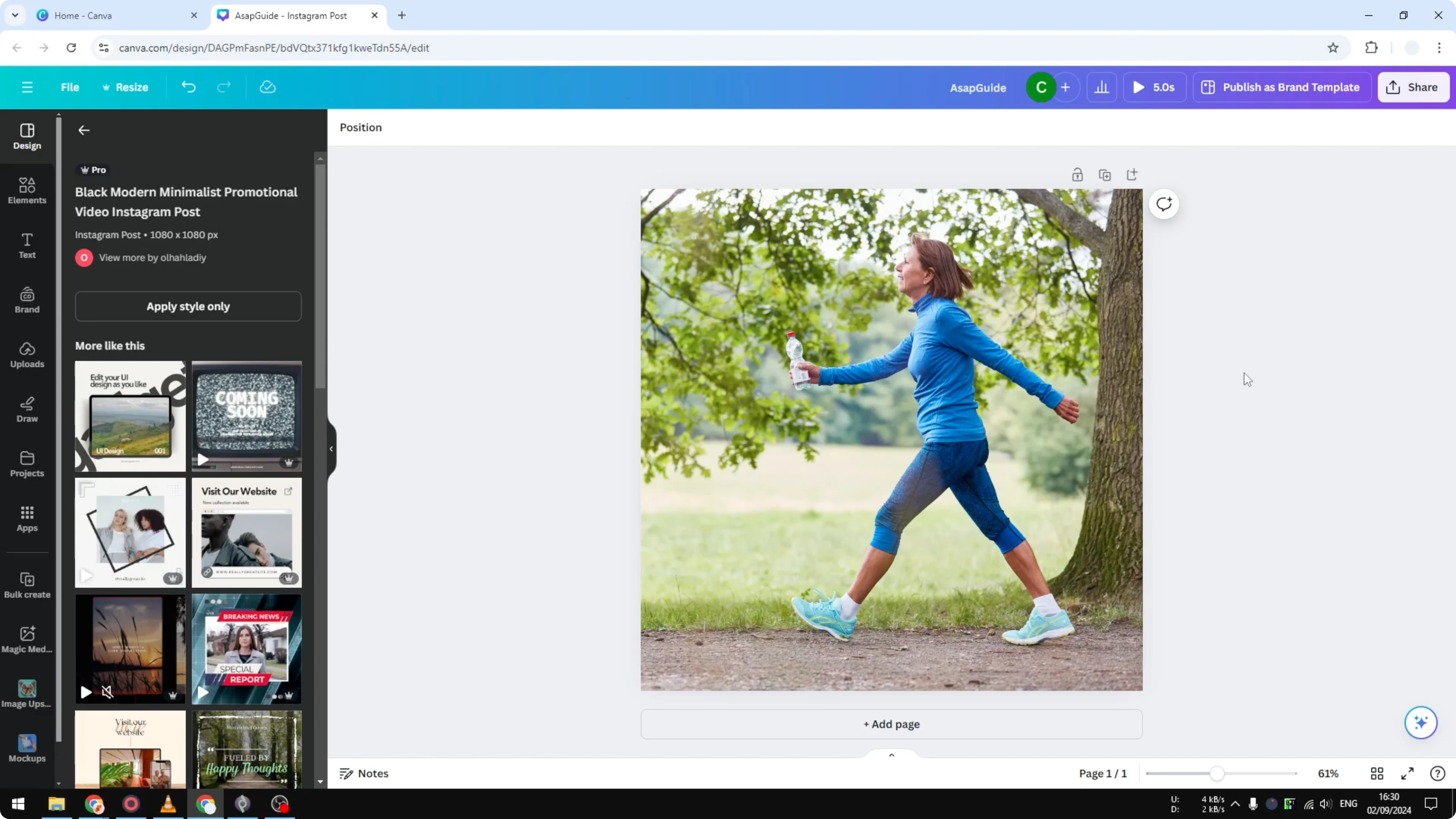
I can expand this image and now I have a perfect 1 by 1 photo on my document. If you want a backdrop behind your subject, here is how to add a background photo in Canva.
Crop a Photo In Canva: dragging
There is another method which may not be for everyone, especially if you are a beginner on Canva. If you have been using this software a lot then you may find this method even better. Instead of navigating to the crop menu, I use the handles, the anchor points.
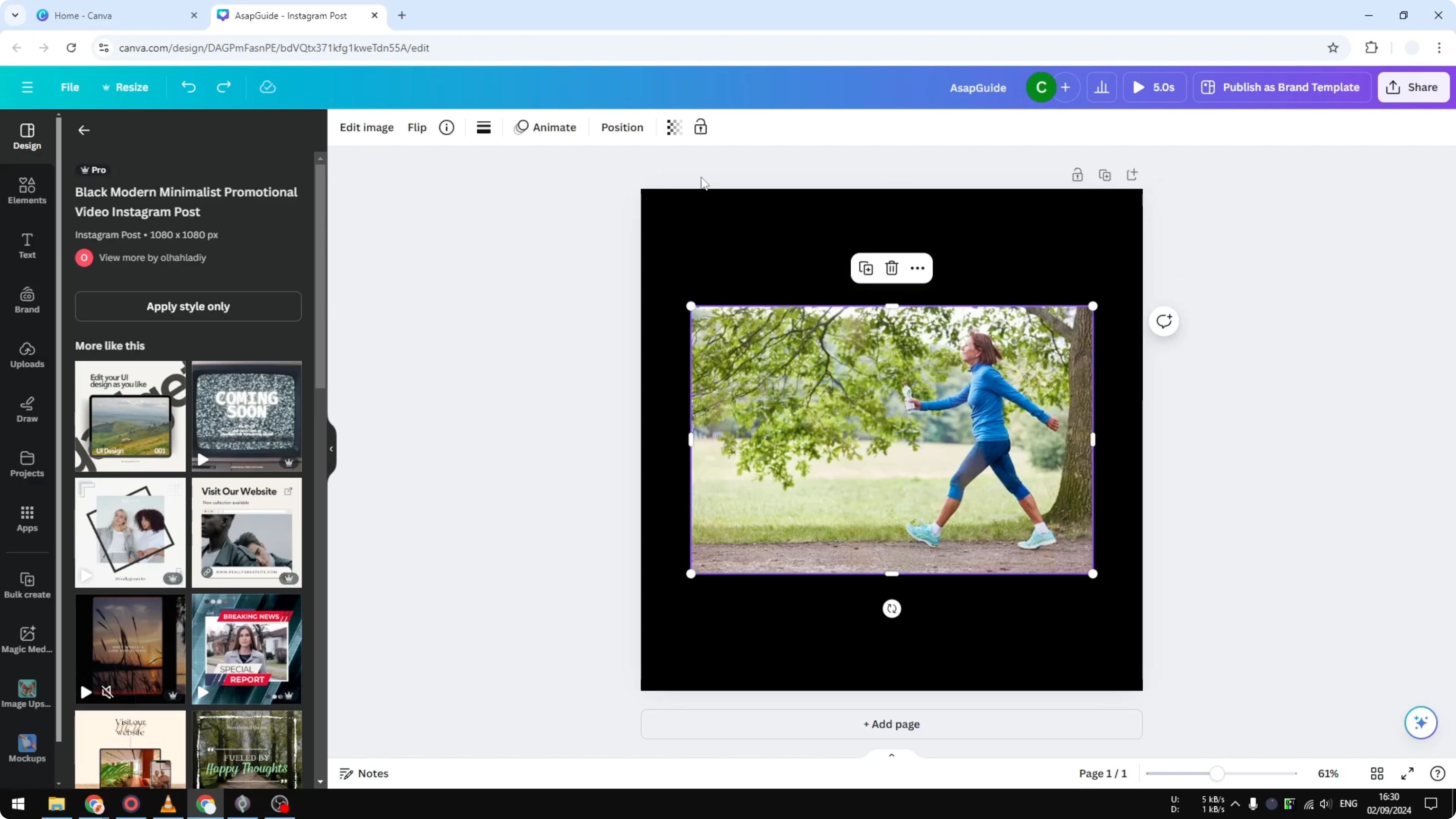
Click and drag an anchor point anywhere you like. You can maintain the content that you want to preserve. To make sure I get the perfect 1 by 1 aspect ratio, I expand the size of this picture and grab it manually.
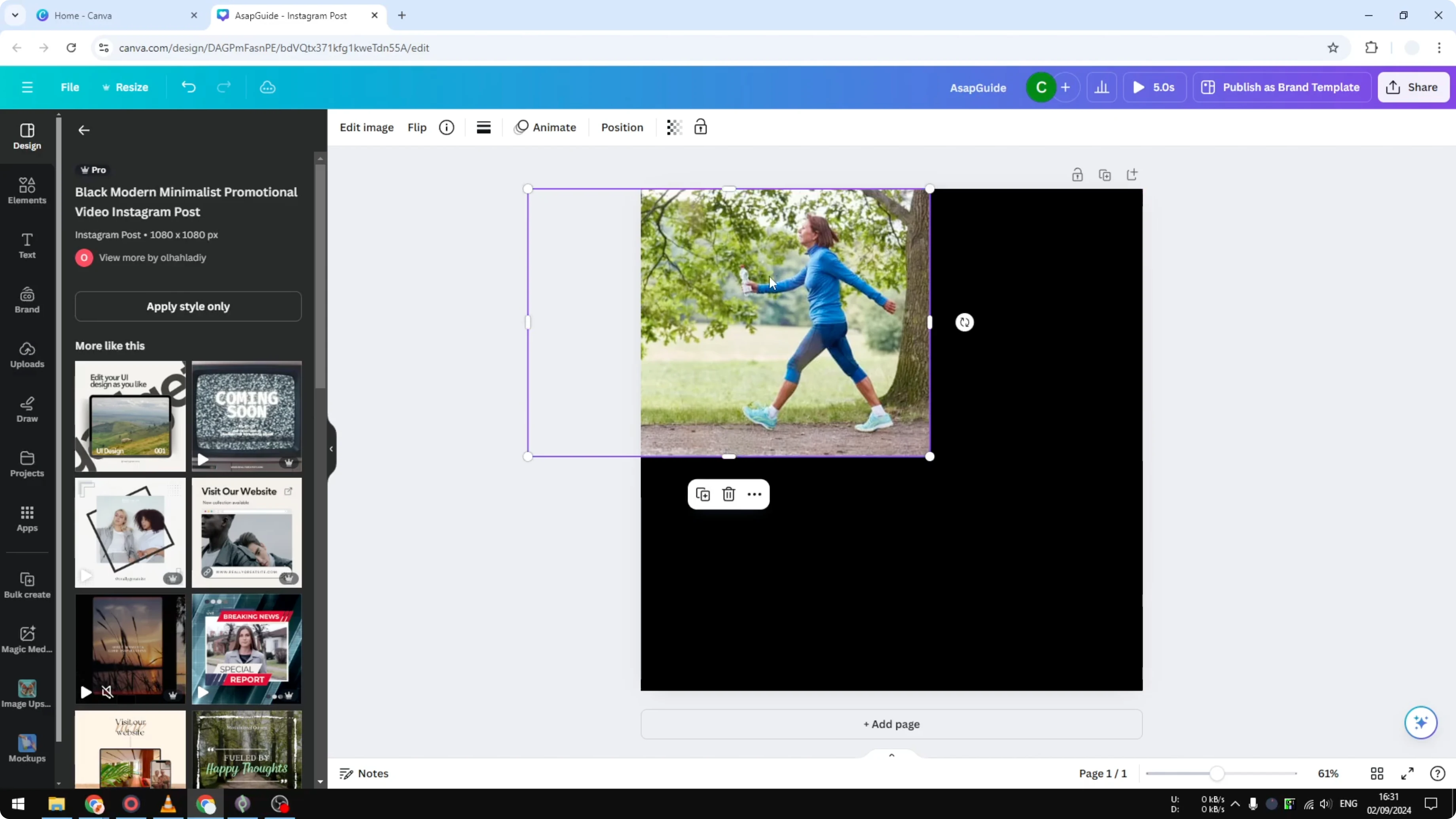
To keep my document looking pretty and organized, I drop elements that are unused.
Crop a Photo In Canva: size behavior
If you are cropping the other way and there is empty space, the image will naturally get bigger to compensate for the new area you create. That is basically how you can crop an image or any other element on Canva. There you have it.
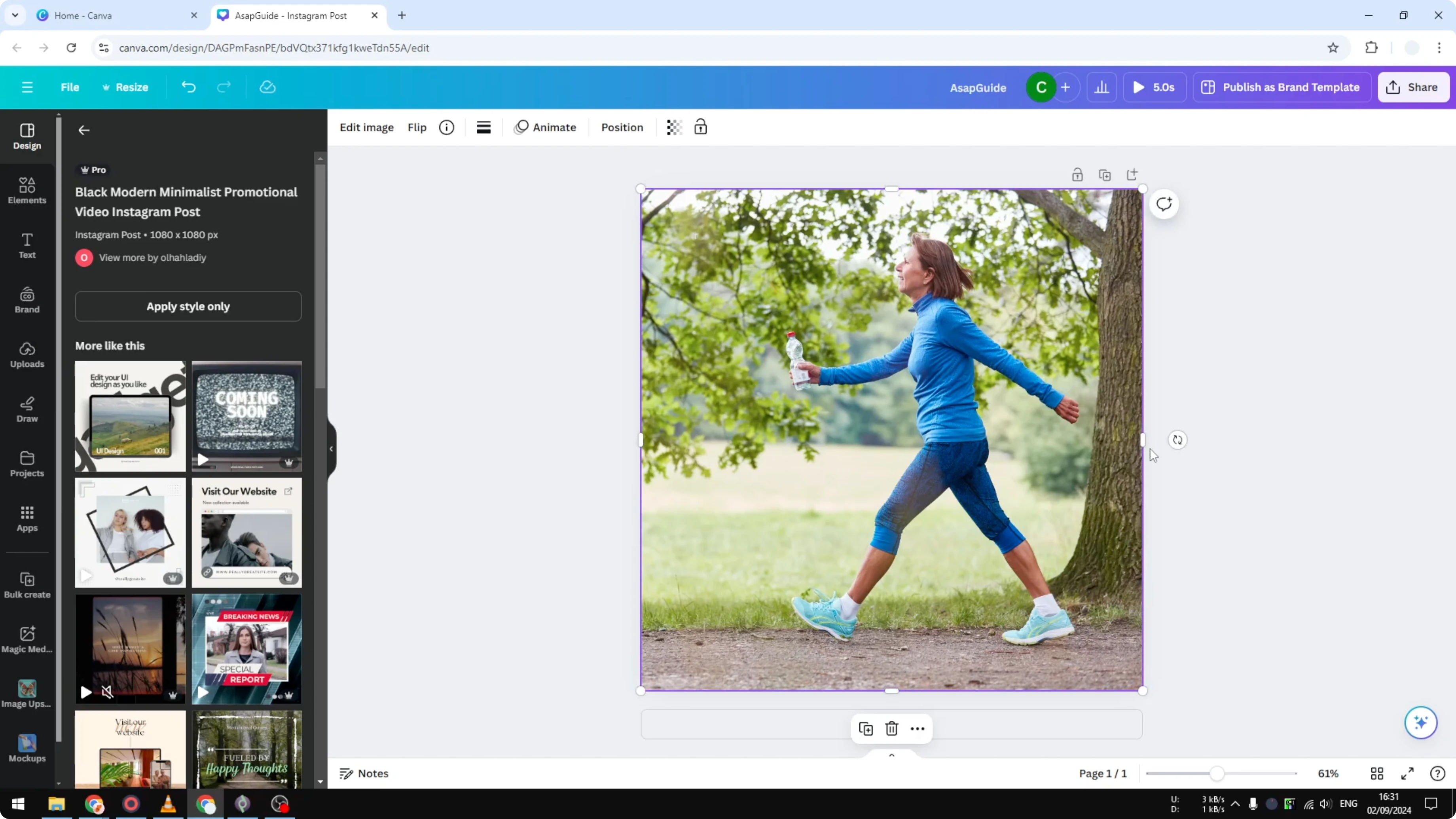
To soften the borders after cropping, you can add blending edges to a photo in Canva.
Final thoughts
Setting the aspect ratio to 1 by 1 keeps the crop locked and makes it easy to get an Instagram-ready square. Manual cropping gives the best control, and dragging anchor points is fast once you get used to it. Use auto suggestions only if they match what you want, and expand the image to fill new space when needed.
Recent Posts

How to Visualize Yourself as a Pixelized Character with AI?
How to Visualize Yourself as a Pixelized Character with AI?

How to Revive Faded Memories and Enhance Image Clarity with AI?
How to Revive Faded Memories and Enhance Image Clarity with AI?

How to Visualize Yourself as an Animal Crossing Character with AI?
How to Visualize Yourself as an Animal Crossing Character with AI?