How to Adjust Background Image Transparency
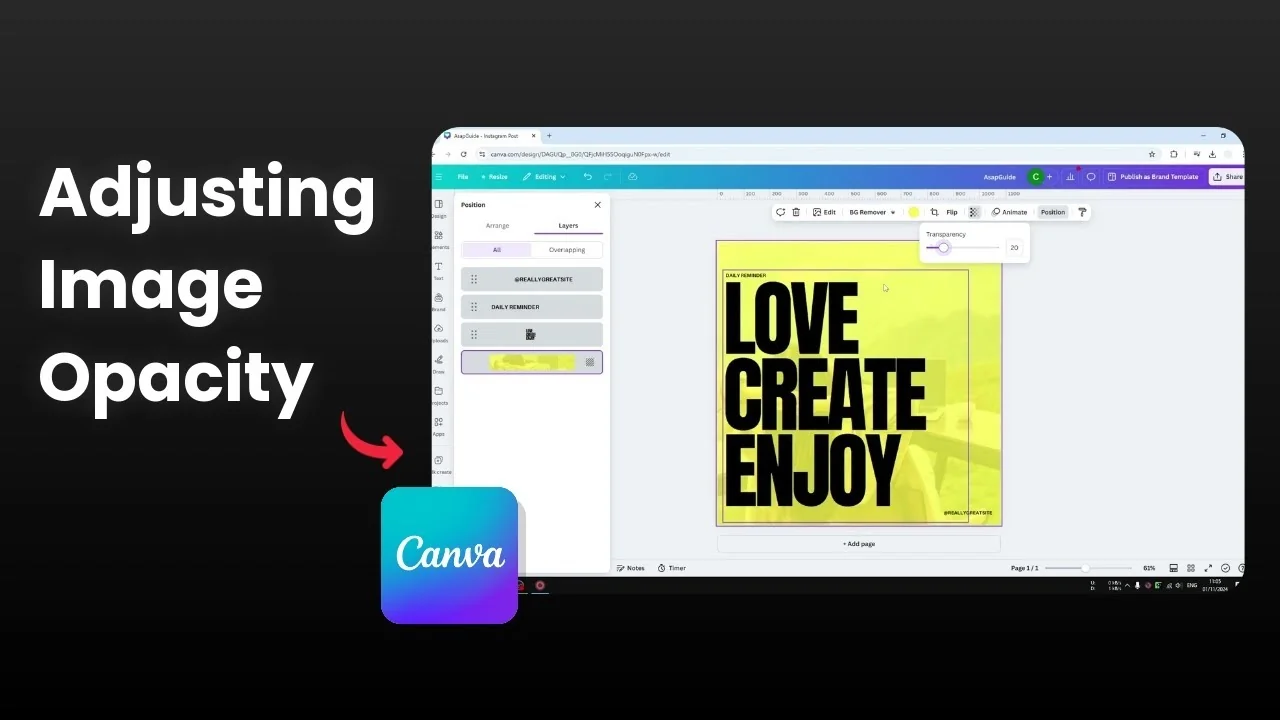
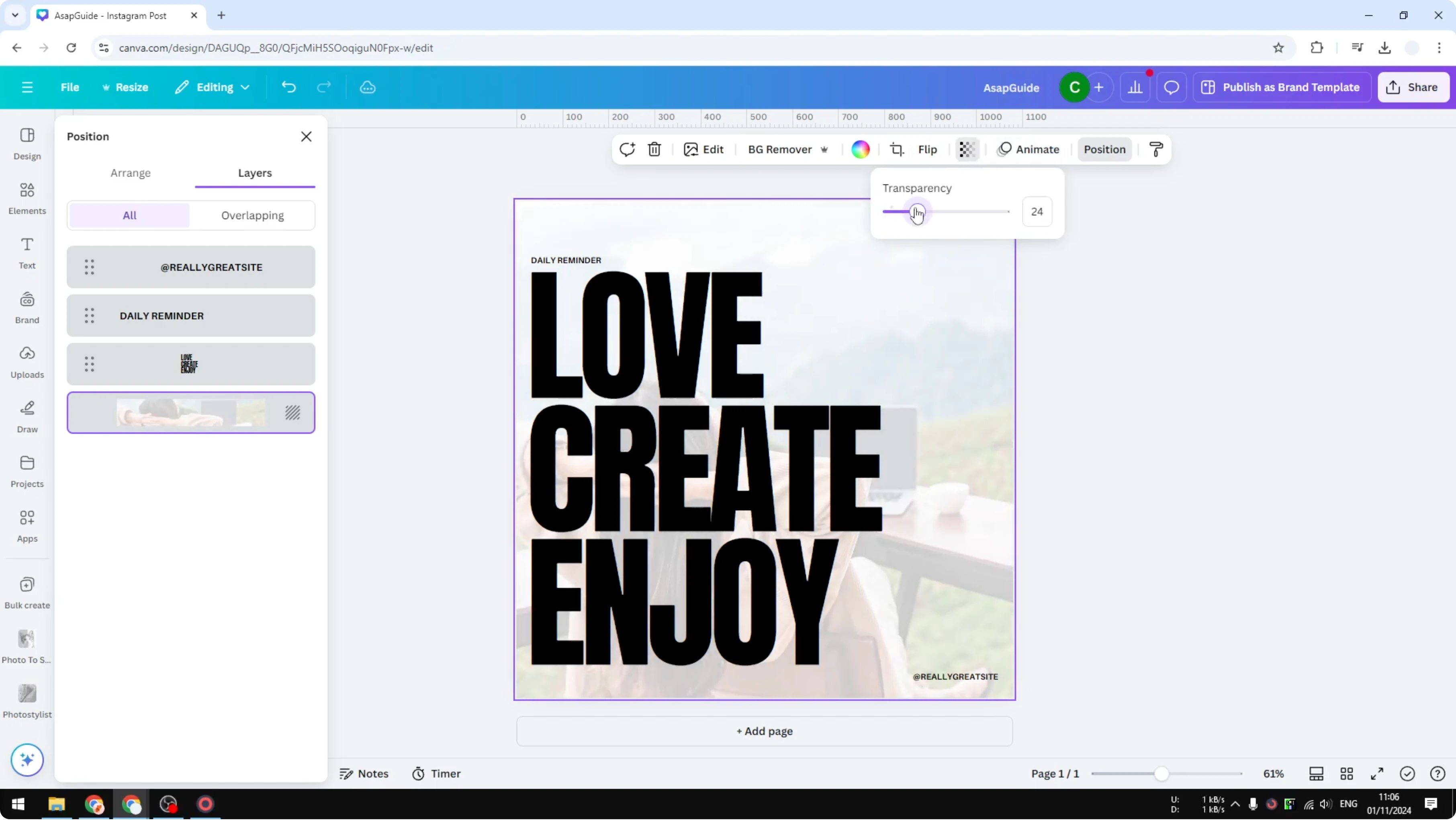
I want to show you how to adjust the background image transparency in Canva so the text on top stays readable. I have a design where the background is very prominent, and it makes the text not very visible. The background needs to be adjusted a bit by making it more transparent.
Why Adjust Background Image Transparency
When the background image is strong, it competes with your text. Making it a little more transparent lets the type stand out without changing your layout. If you also work with motion assets, you can adjust video transparency in Canva for a similar effect.
Adjust Background Image Transparency: Select the background
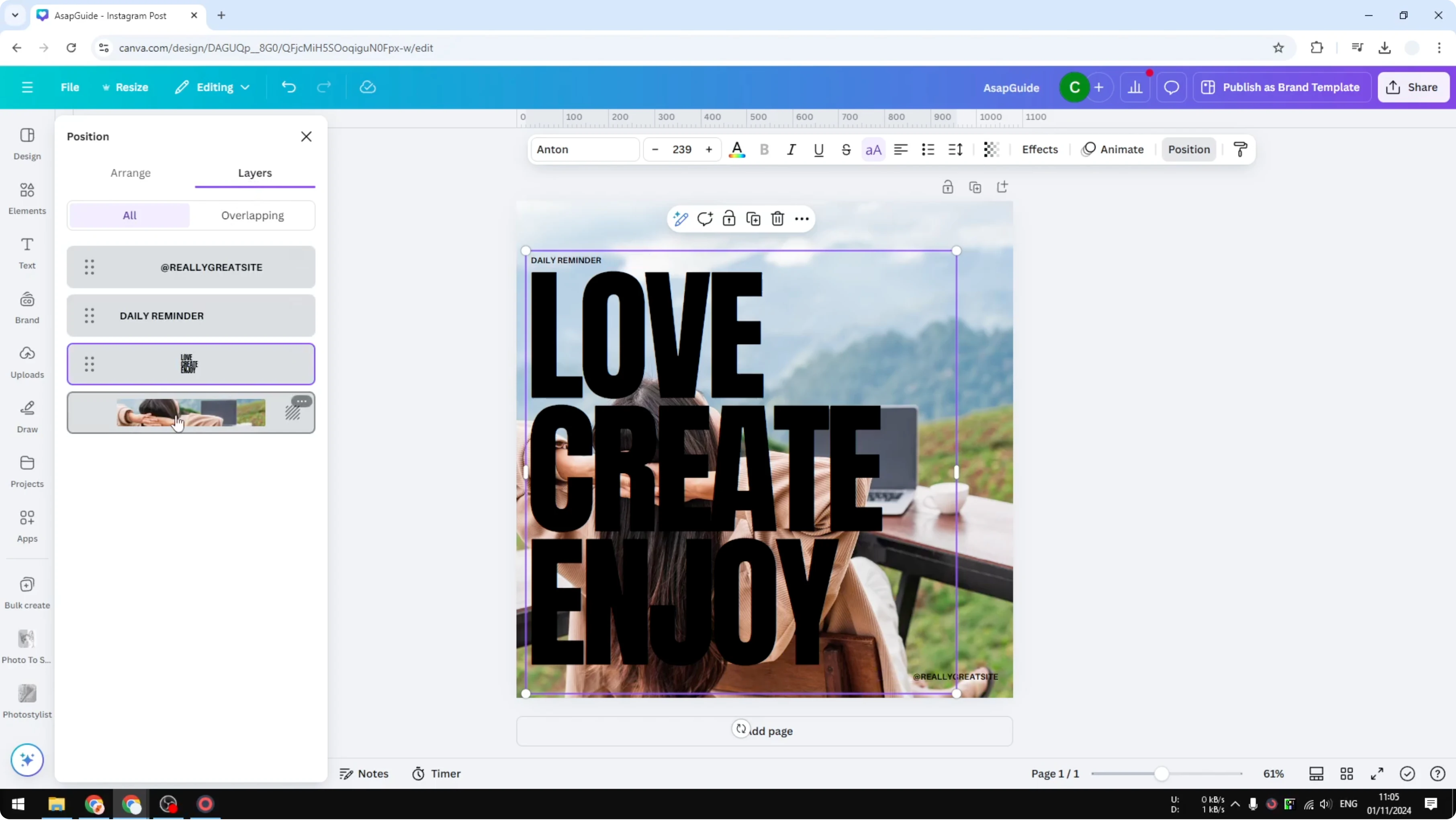
First, click the background so it is selected.
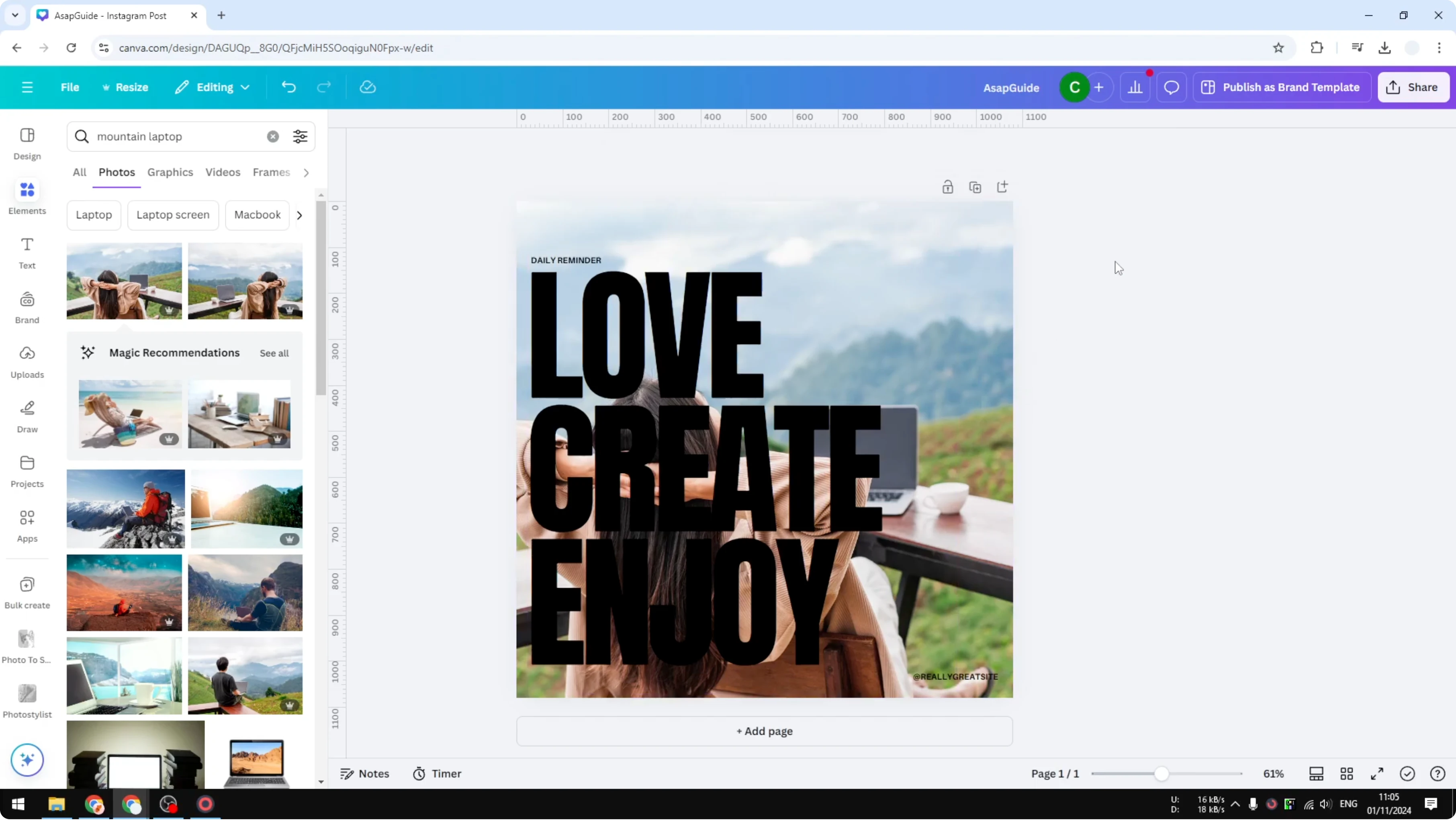
If you cannot select it, click any element, go to Position, click Layers, and select the background image.
Adjust Background Image Transparency: Set the transparency
On the top toolbar, open Transparency.
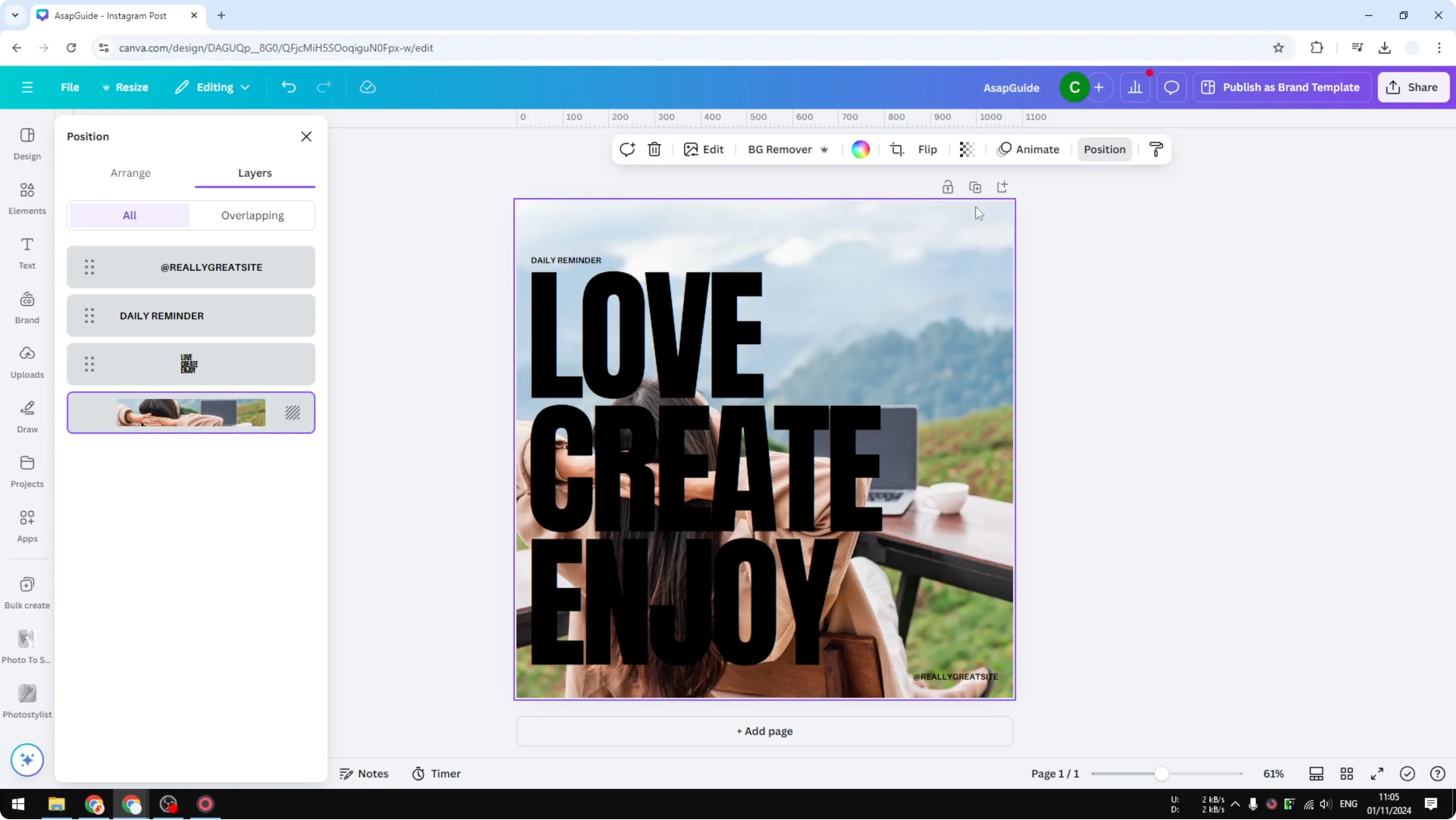
Reduce the transparency to the level that looks best for your design.
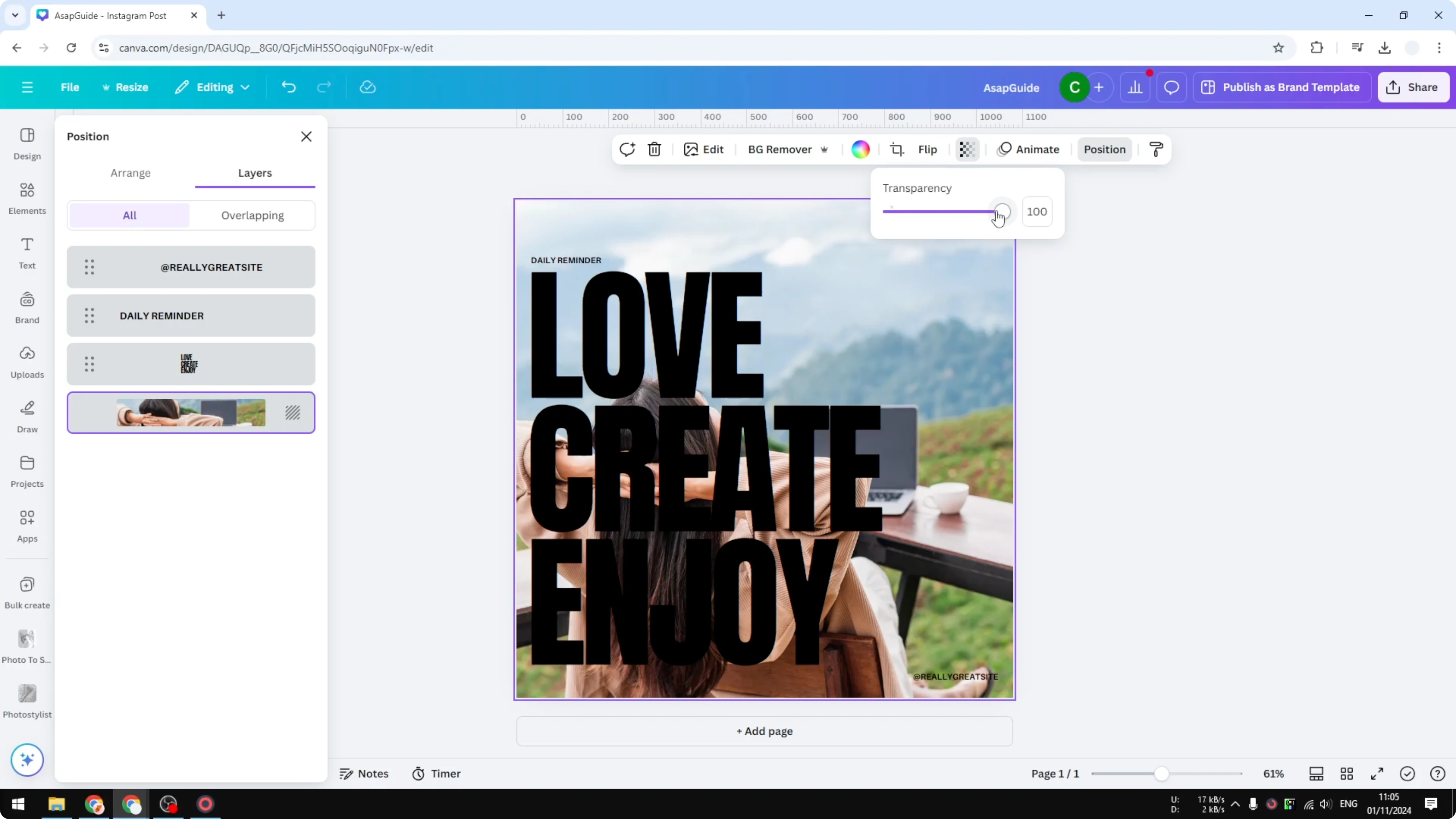
I like to move it slowly and pause to check text readability as I go.
Adjust Background Image Transparency: See the canvas color
The original background color of my document was yellow, which starts to show as the image becomes more transparent. If your document background is white, you will see white, and if it is green, you will see green. As the background image gets more transparent, the original canvas color becomes more visible behind it.
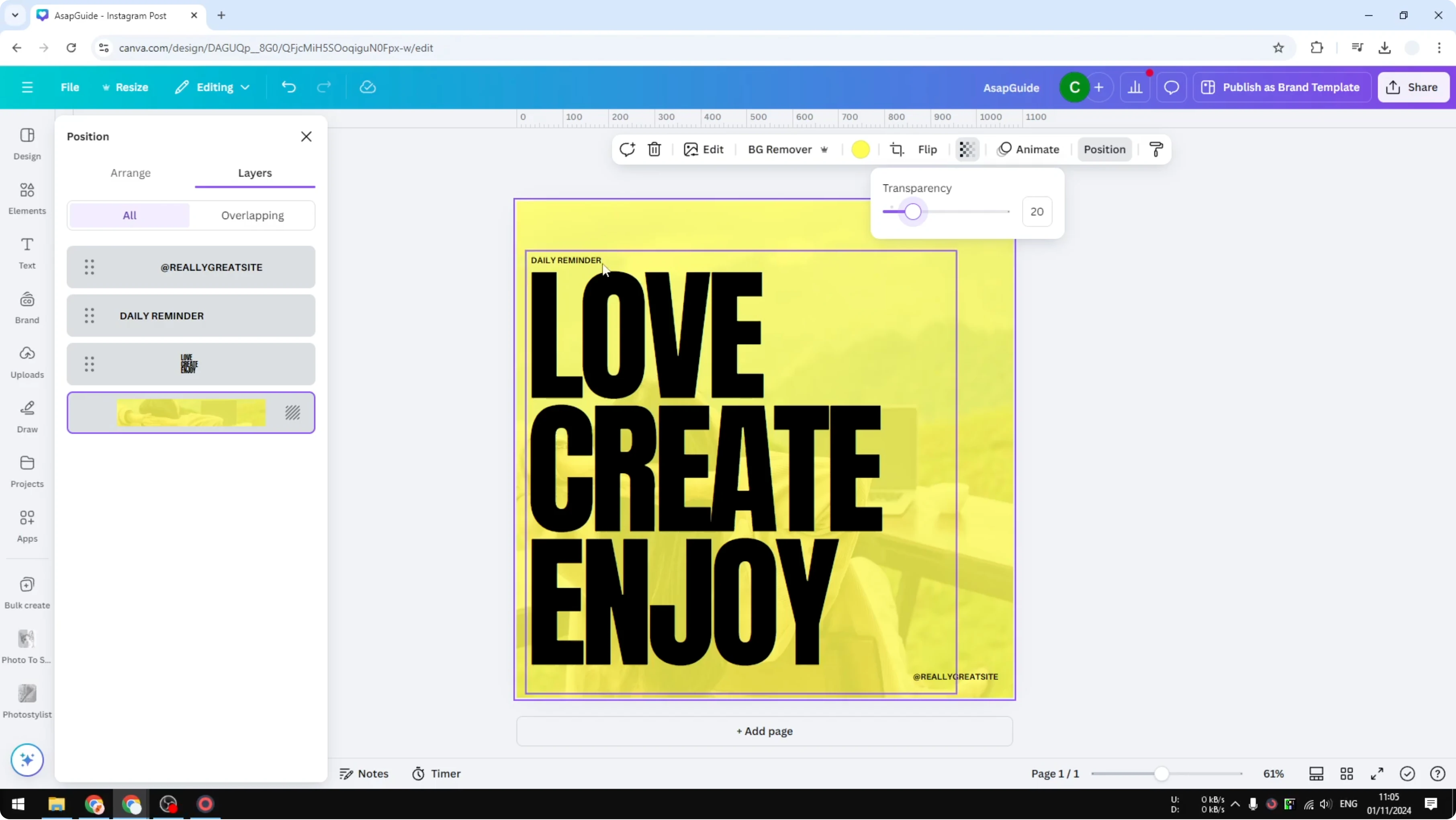
If the goal is better text contrast, you can also add background text in Canva or use a subtle shape behind the text for extra clarity.
Adjust Background Image Transparency: Tweak later
If you want to change the level again, click the background.
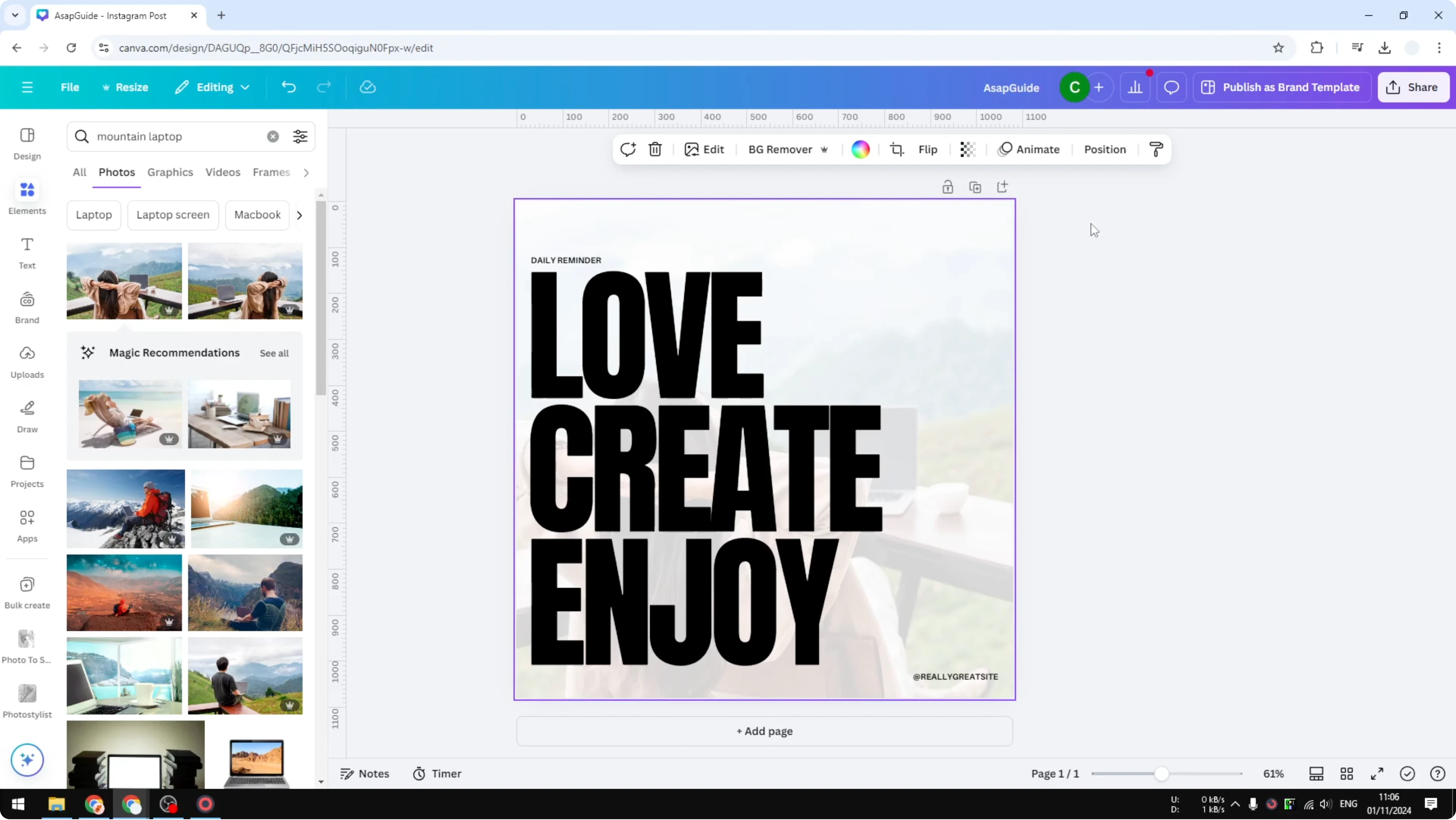
Open Transparency and adjust the number anytime.
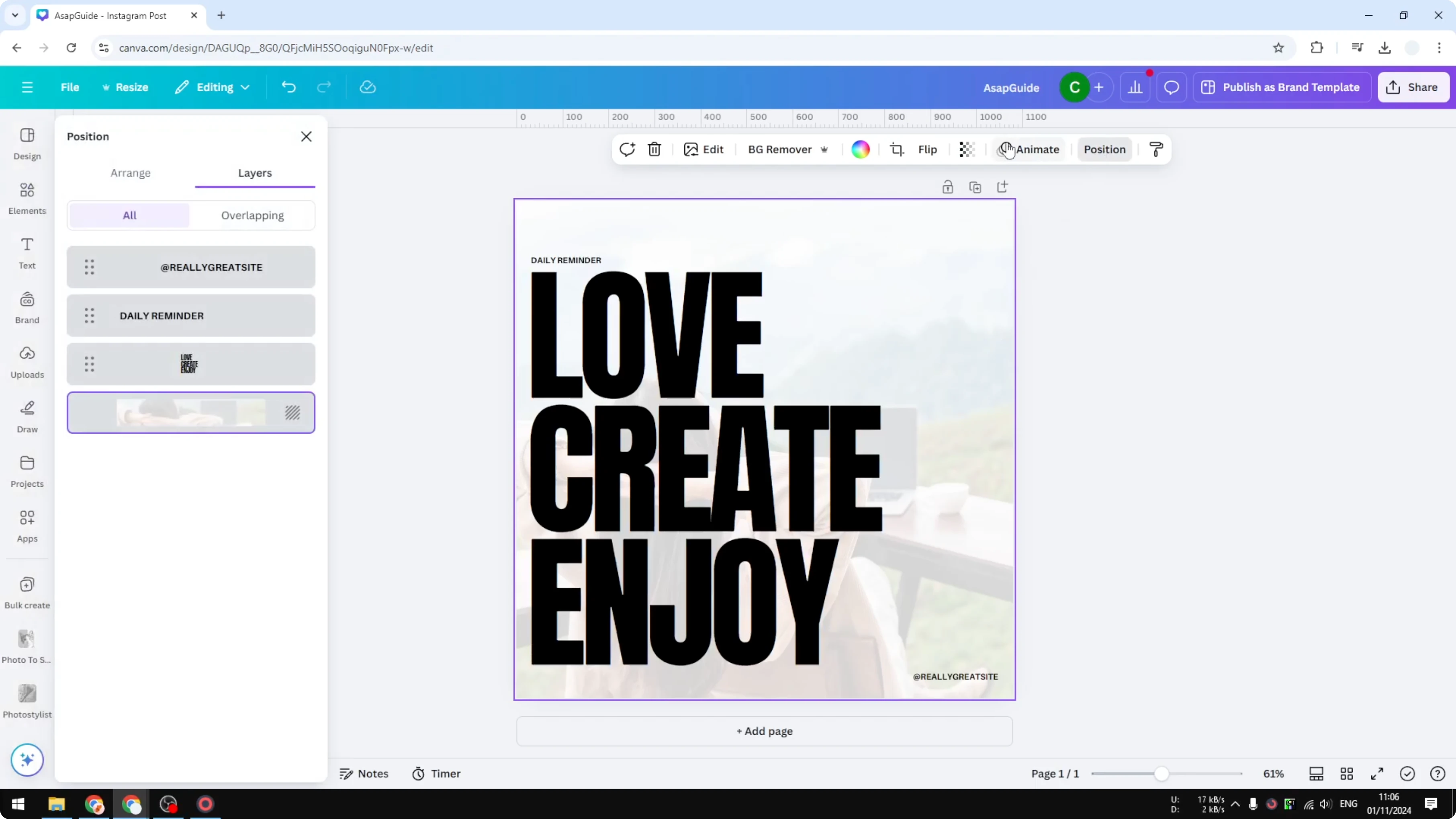
This gives you quick control without redoing your layout.
Final thoughts
That is how you can make or adjust the background image transparency in Canva to help your text read clearly. Select the background, open Transparency, and fine-tune the level until the text stands out while keeping your design intact. For broader edits with AI, check our AI image editing guide to speed up your workflow.
Recent Posts

How to Visualize Yourself as a Pixelized Character with AI?
How to Visualize Yourself as a Pixelized Character with AI?

How to Revive Faded Memories and Enhance Image Clarity with AI?
How to Revive Faded Memories and Enhance Image Clarity with AI?

How to Visualize Yourself as an Animal Crossing Character with AI?
How to Visualize Yourself as an Animal Crossing Character with AI?