How to Add Texture in Canva
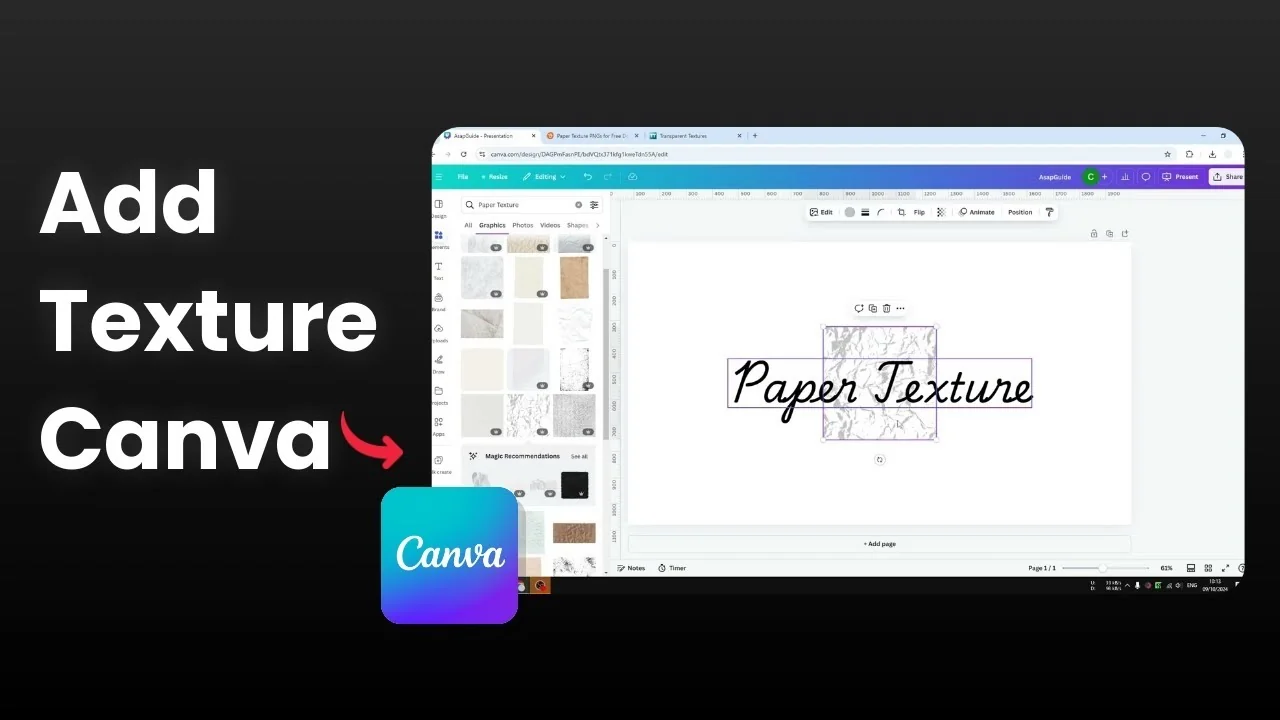
I will show you how you can add a layer of texture to your Canva design. Texture makes the surface of an object or the background more pronounced and more attractive. It gives a bit of a 3D look and it can make your design prettier.
In Canva there are multiple methods to insert what is basically a regular transparent picture that contains a texture. You place that picture on top of your design and adjust it as needed. Here is how I add it.
Elements for Add Texture in Canva
The simplest way is through Elements. Search for a keyword like paper texture, or use any keyword that fits your idea. You will usually find a lot of different options.
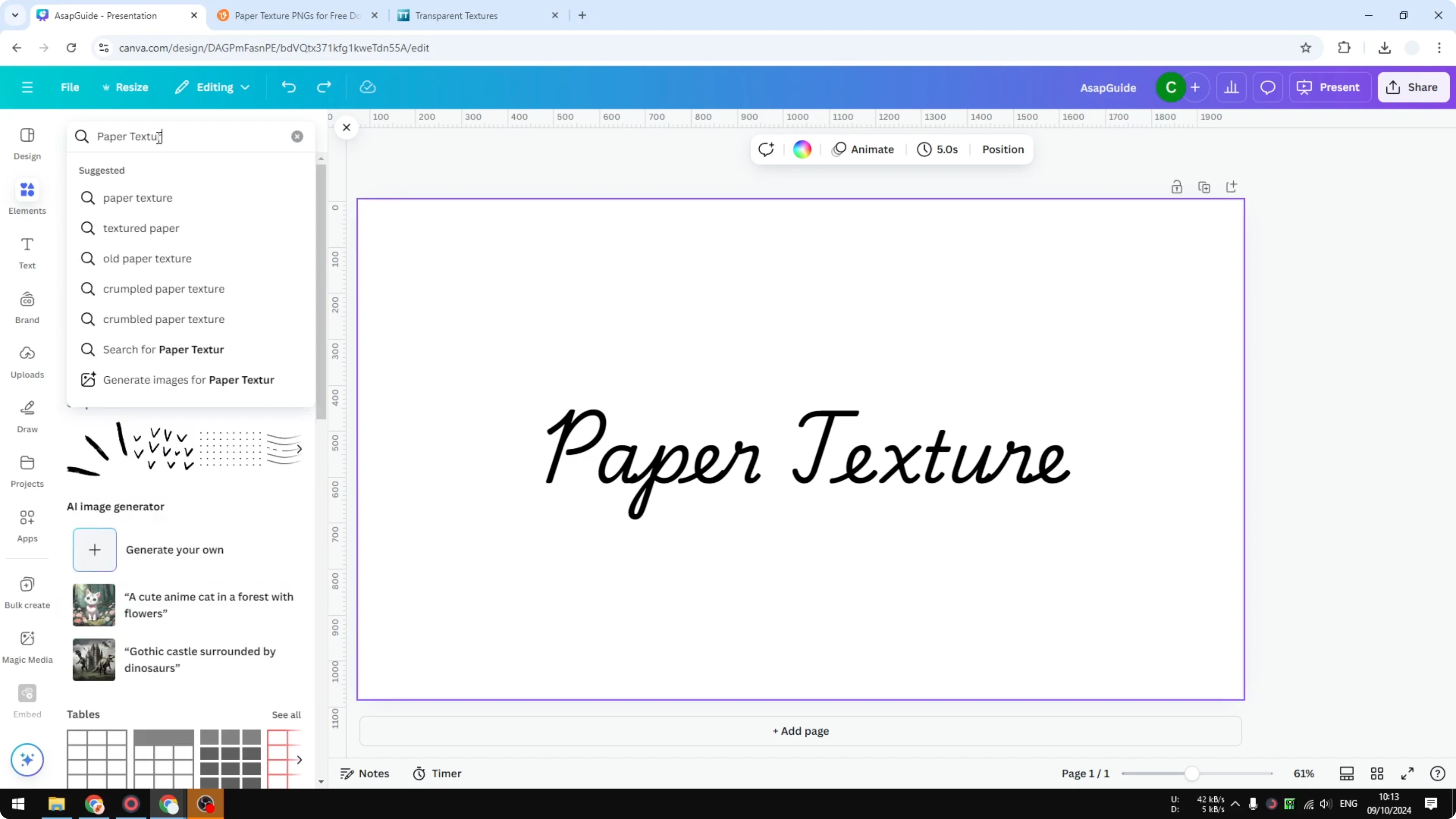
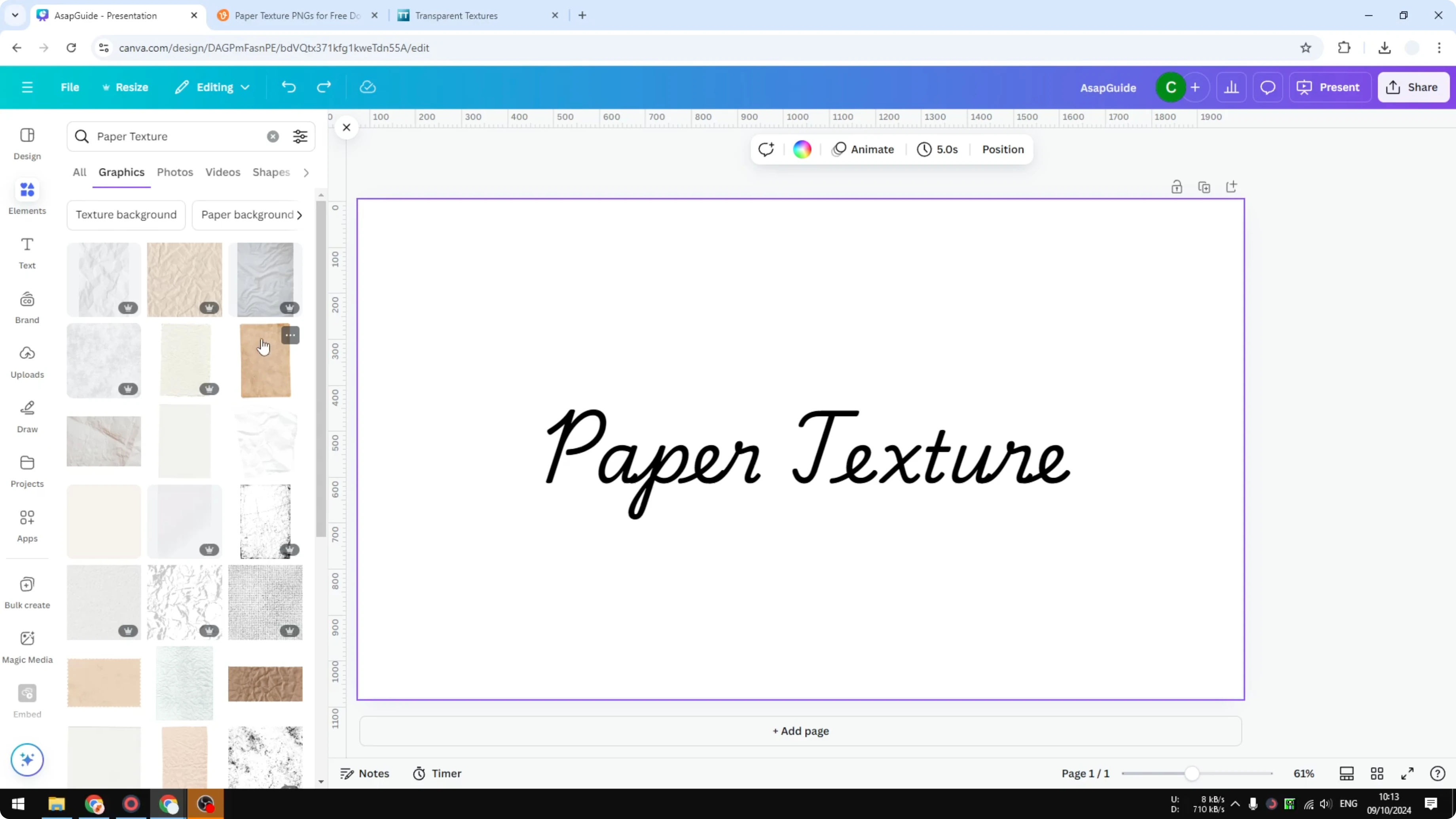
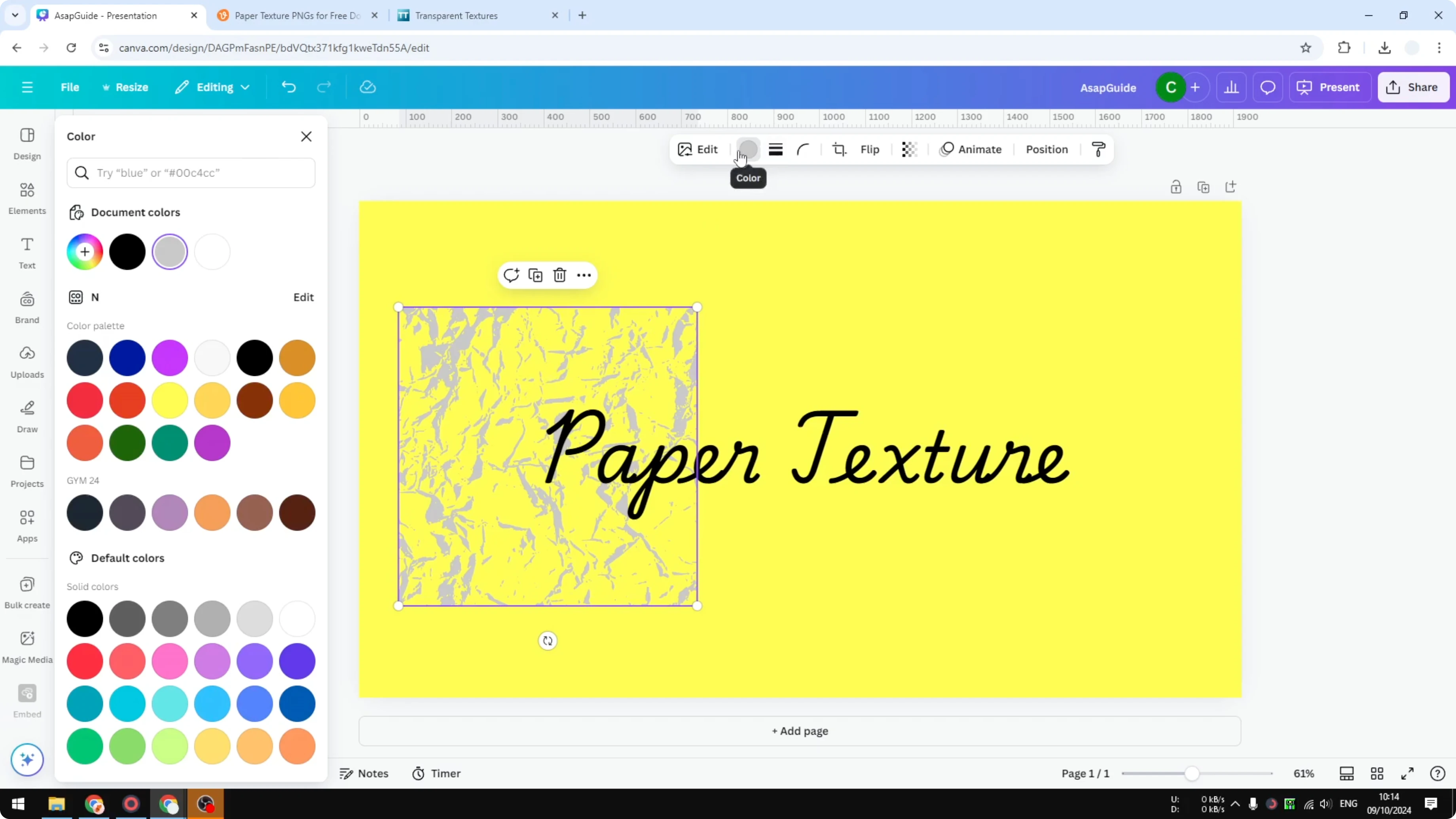
I recommend opening the Graphics section. Sometimes you will find a truly transparent texture, where only the wrinkle or grain is visible. Change your background to white to see only the wrinkle part, and you can also change its color, which is very interesting.
Steps
Open Elements.
Type a texture keyword like paper texture.
Open the Graphics section.
Pick a texture that is transparent so only the texture details are visible.
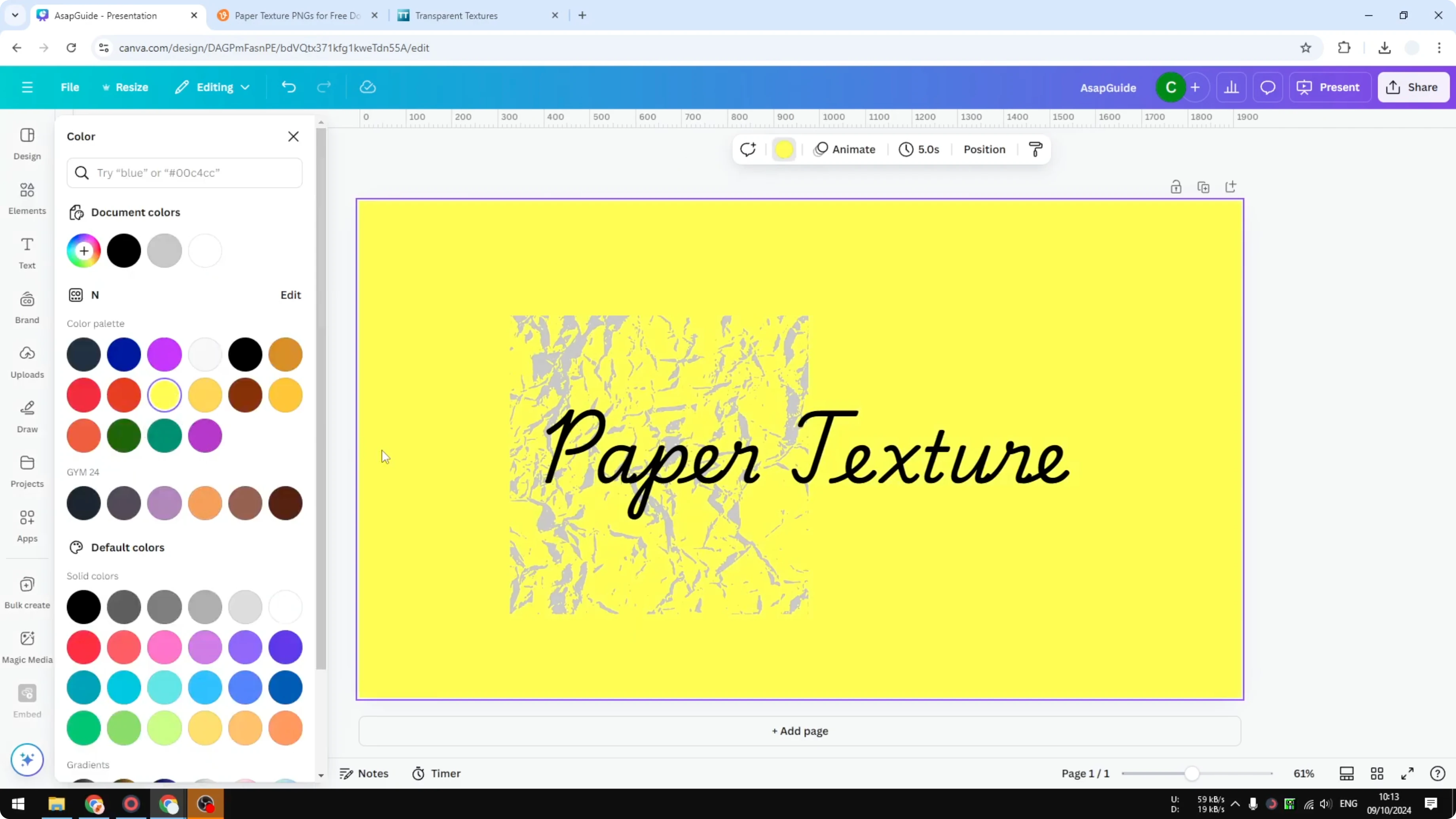
Change your page background to test visibility and adjust the color of the texture if the item supports color changes.
Read More: Add Accent Marks Canva
Photos for Add Texture in Canva
If the texture you want is in Photos and not a graphic, you can still use it. This type is not transparent, but you can keep your color idea by reducing opacity. That lets your background color show through while maintaining the texture.
Steps
Open Elements and move to the Photos section.
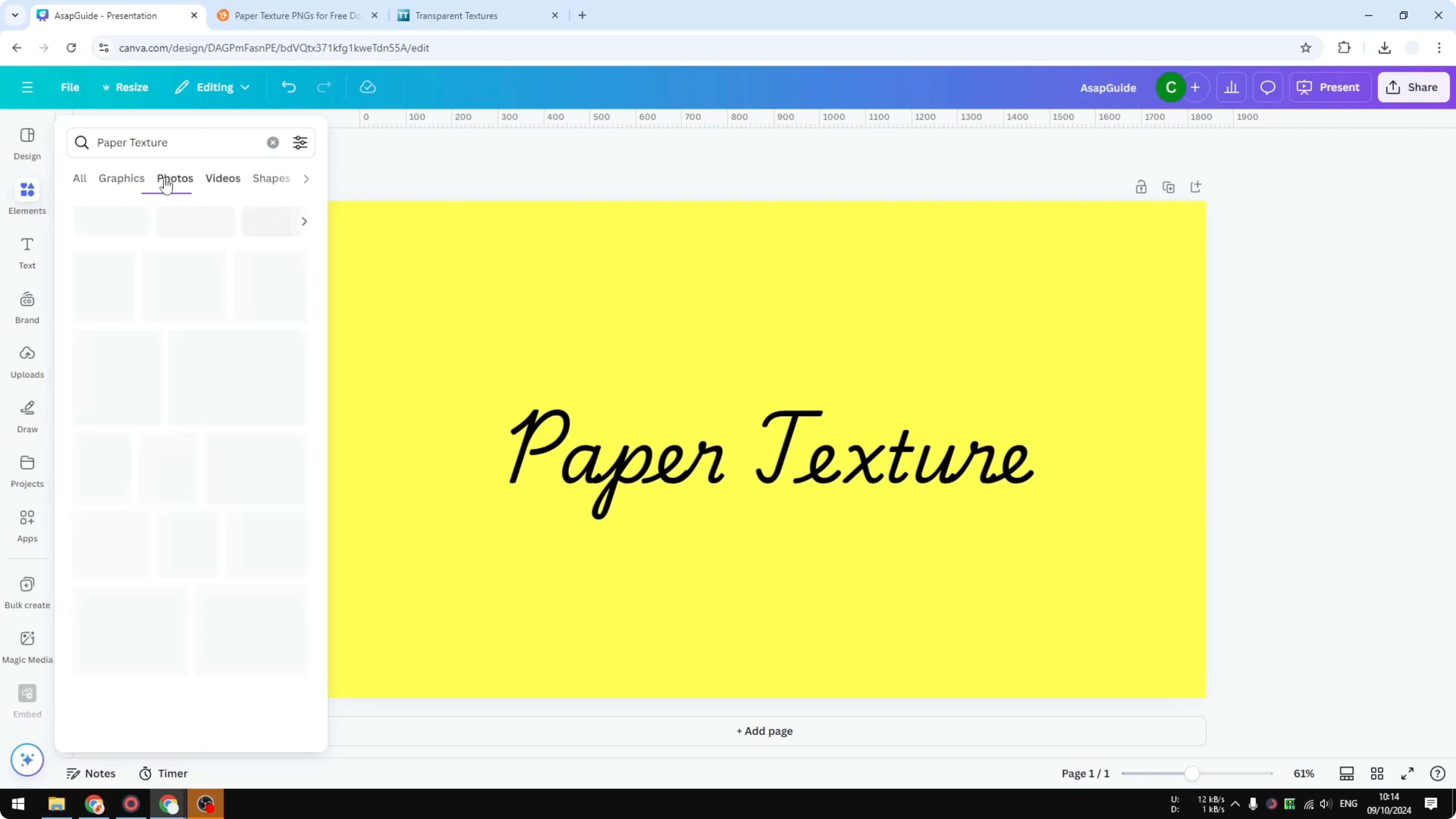
Choose a texture photo that fits your design.
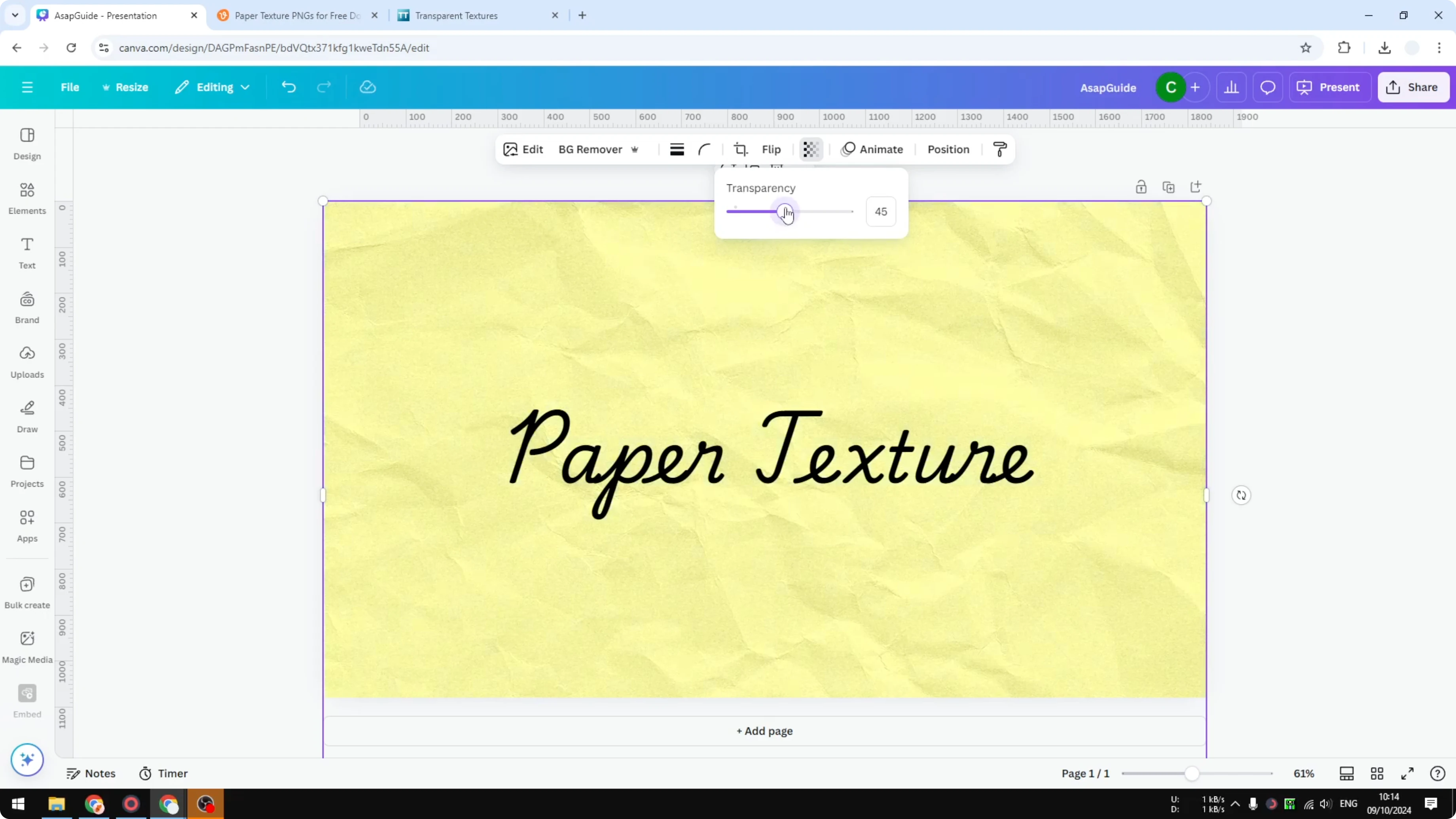
Click the photo and open the Transparency control.
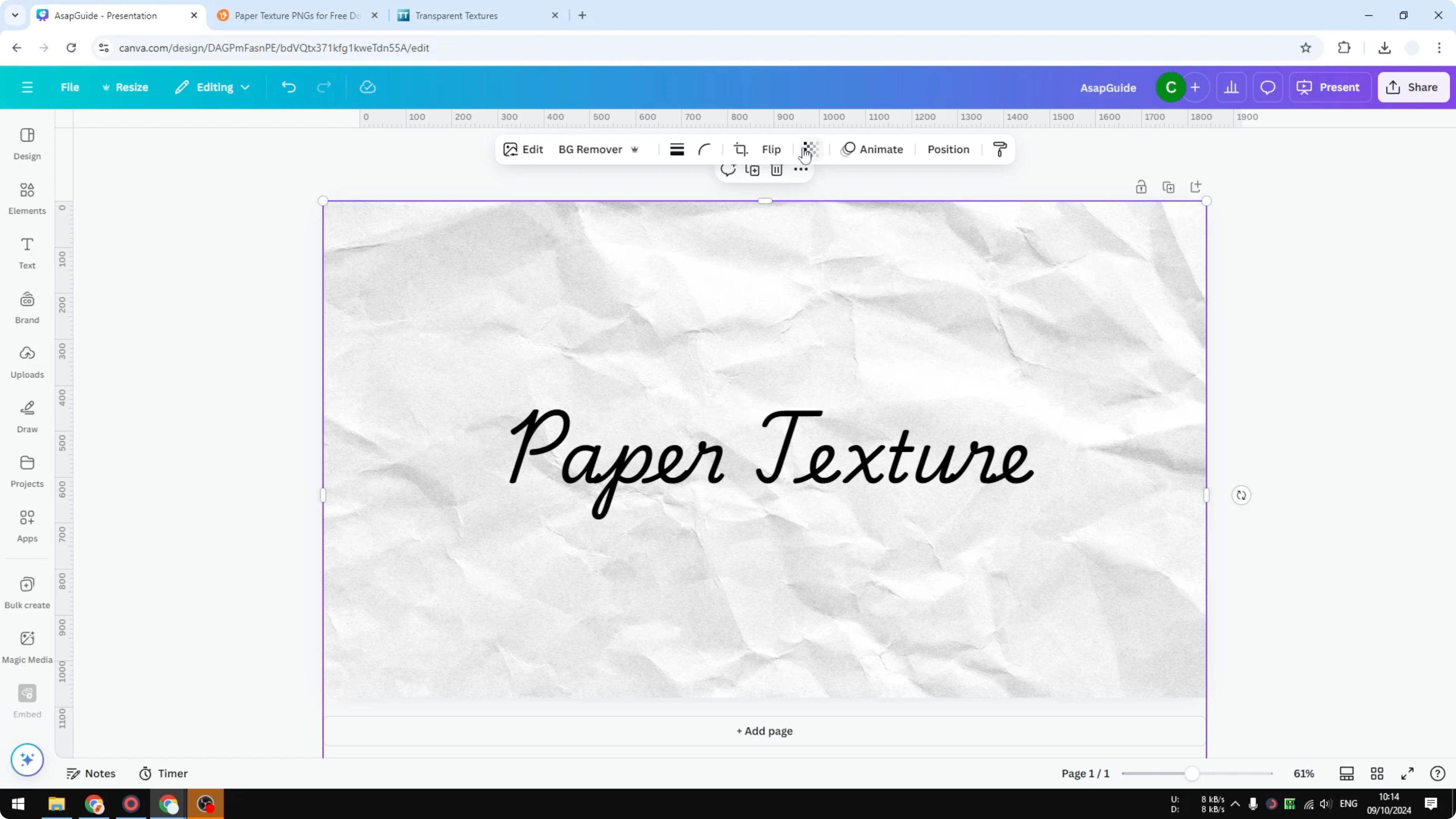
Reduce the transparency until your background color comes through but the texture still reads clearly.
If you need a custom image behind your texture, see how to add a background photo and then return to transparency adjustments.
External sources for Add Texture in Canva
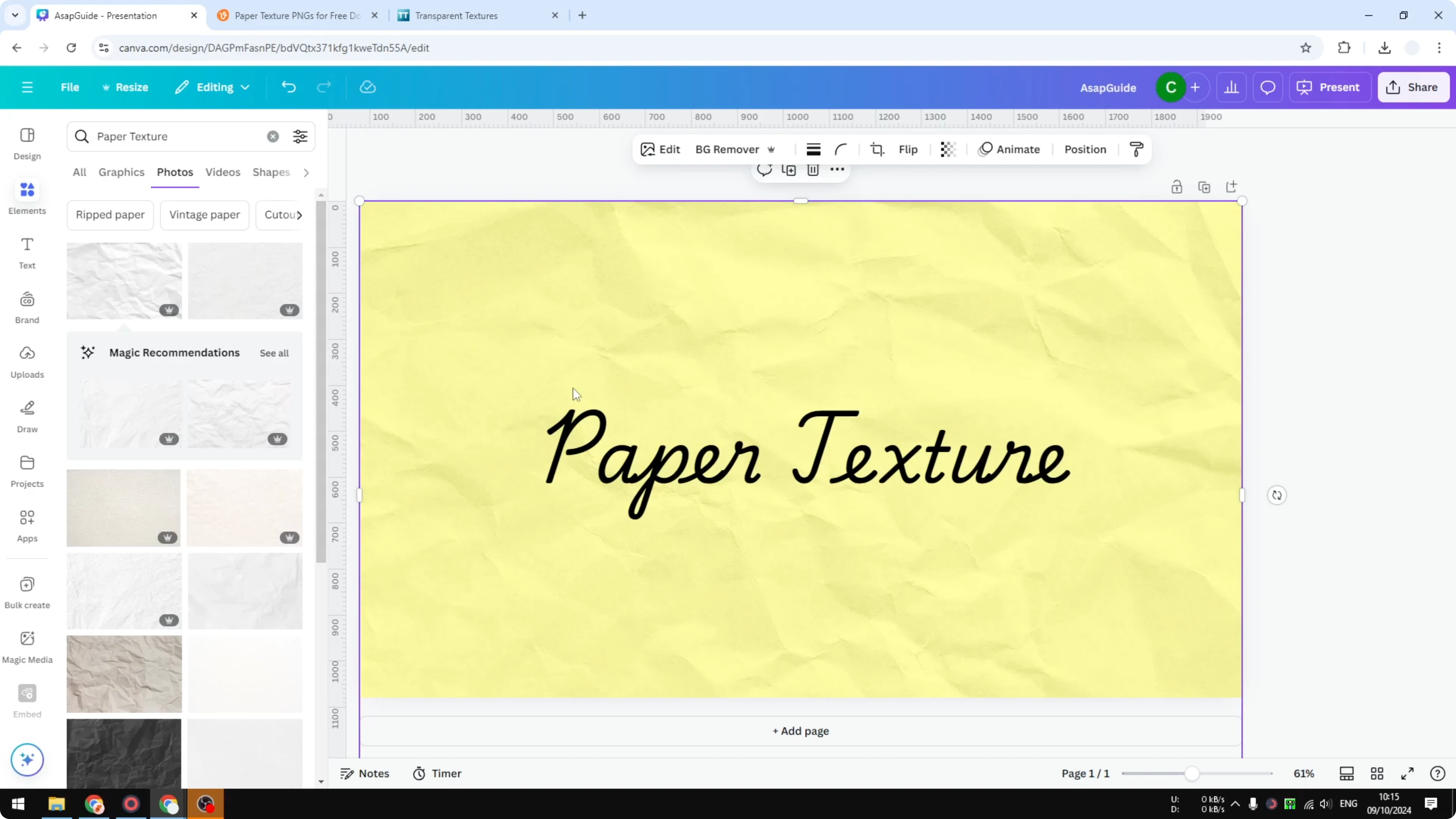
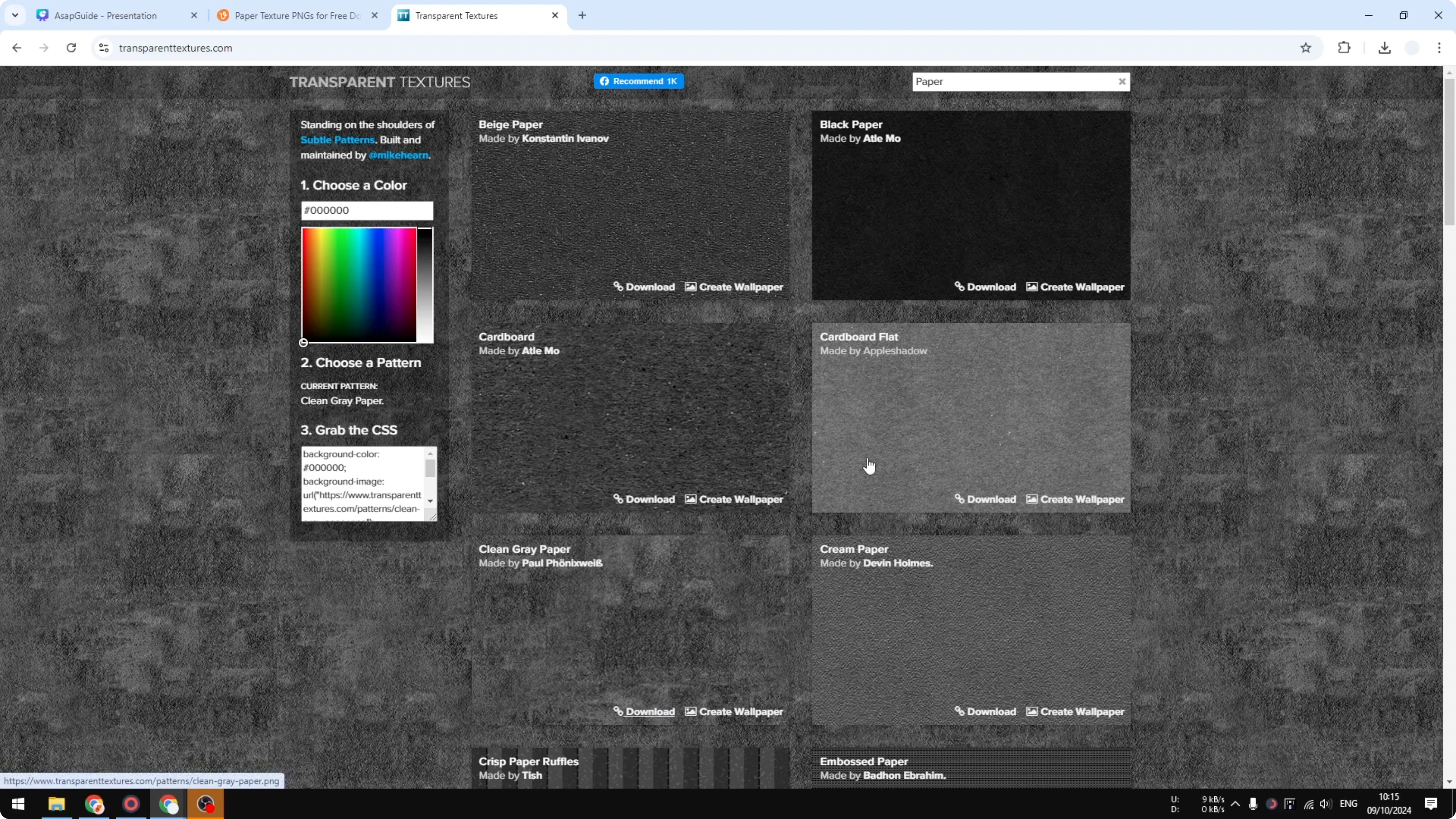
Elements is just one resource. You can go to a website like pt.com to find many high quality textures that you can download and upload to your Canva design. Some items there are premium, so you may need to pay.
If you really want free options, try transparenttextures.com. The options are more limited, but they work for many use cases. Download the texture picture to your computer and upload it to your Canva design.
Steps
Find a texture on pt.com or transparenttextures.com and download it.
In Canva, open Uploads and add your texture file.
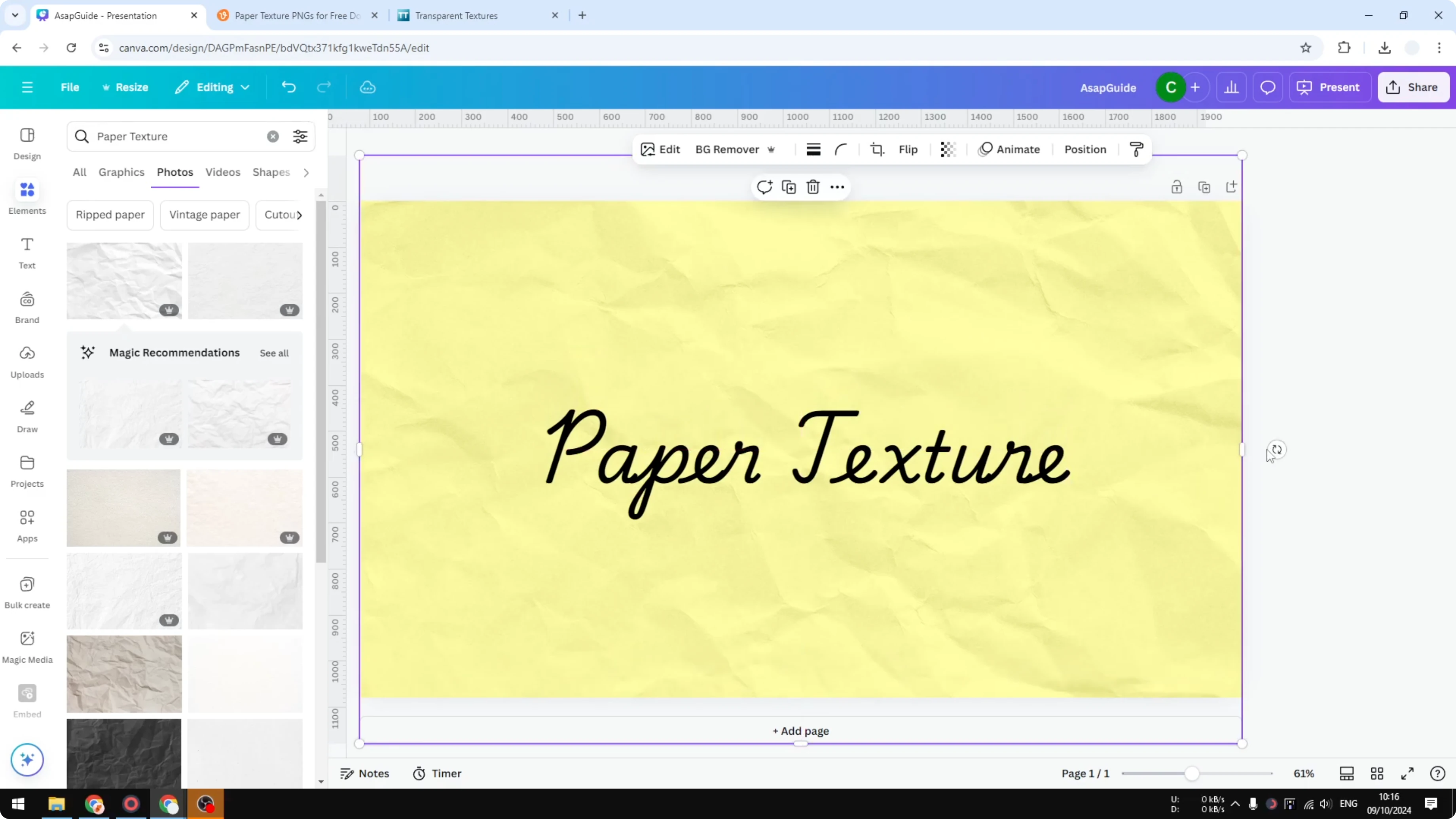
Place the texture over your design and resize it to fit.
Adjust color if the item supports color changes, or reduce transparency to blend it with your background.
Read More: Add Alt Text Picture Canva
Final Thoughts on Add Texture in Canva
Adding texture can make your background or object surfaces feel more pronounced and more attractive. You can get this effect with transparent graphics, photo textures with adjusted transparency, or files you upload from external sources. I think this simple approach can make your design a lot prettier.
Recent Posts

How to Visualize Yourself as a Pixelized Character with AI?
How to Visualize Yourself as a Pixelized Character with AI?

How to Revive Faded Memories and Enhance Image Clarity with AI?
How to Revive Faded Memories and Enhance Image Clarity with AI?

How to Visualize Yourself as an Animal Crossing Character with AI?
How to Visualize Yourself as an Animal Crossing Character with AI?