How to Add Presenter Notes in Canva
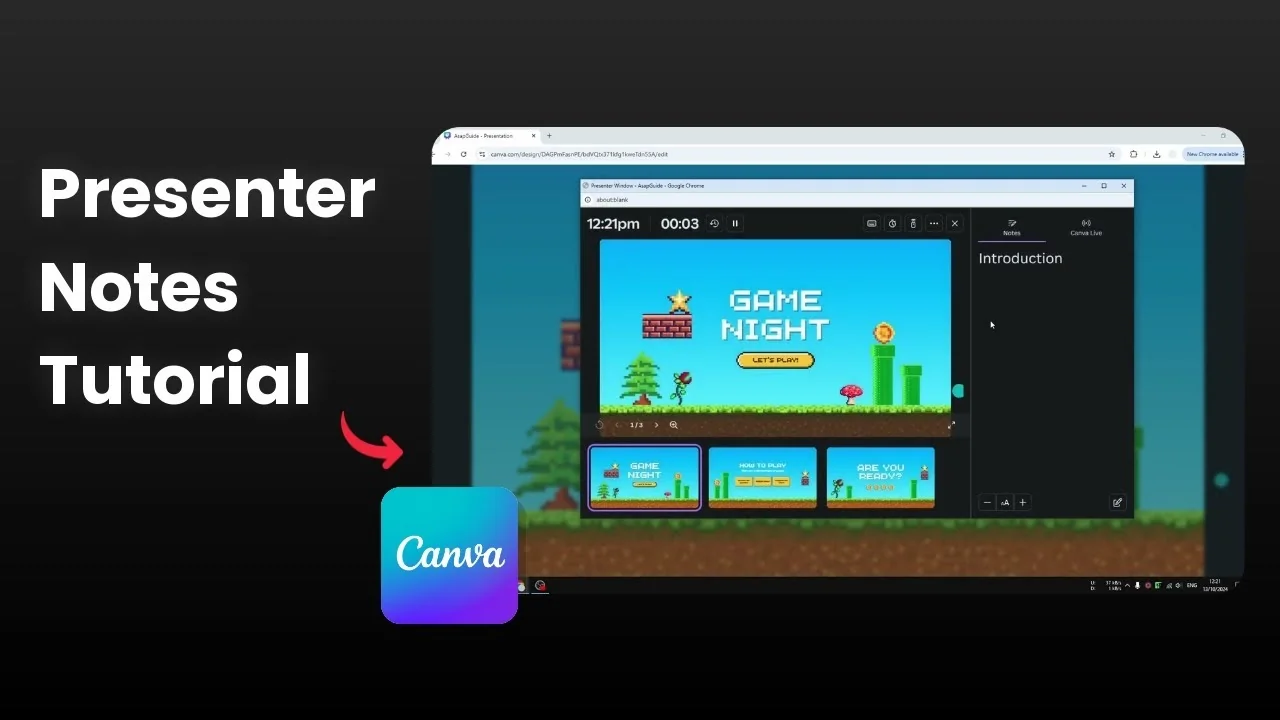
I will show you how to add presenter notes in Canva. If you are creating and presenting your document in Canva, notes help you avoid forgetting details during the presentation. Notes also keep you organized and keep your presentation on track.
Add Presenter Notes in Canva
Click the Notes section to open a text area on the left side of the screen.
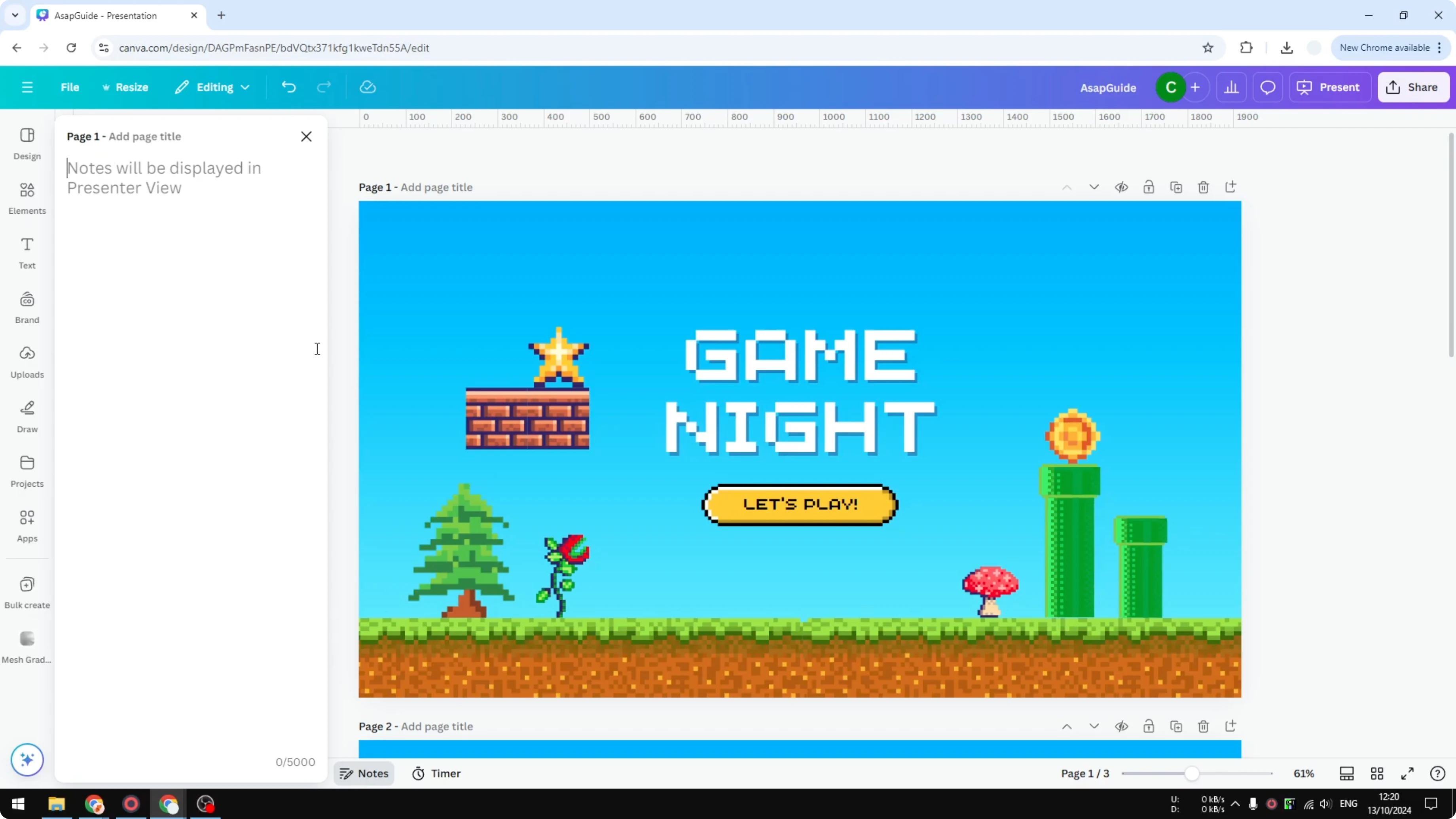
Insert your notes for the current slide, for example, type introduction for the first slide.
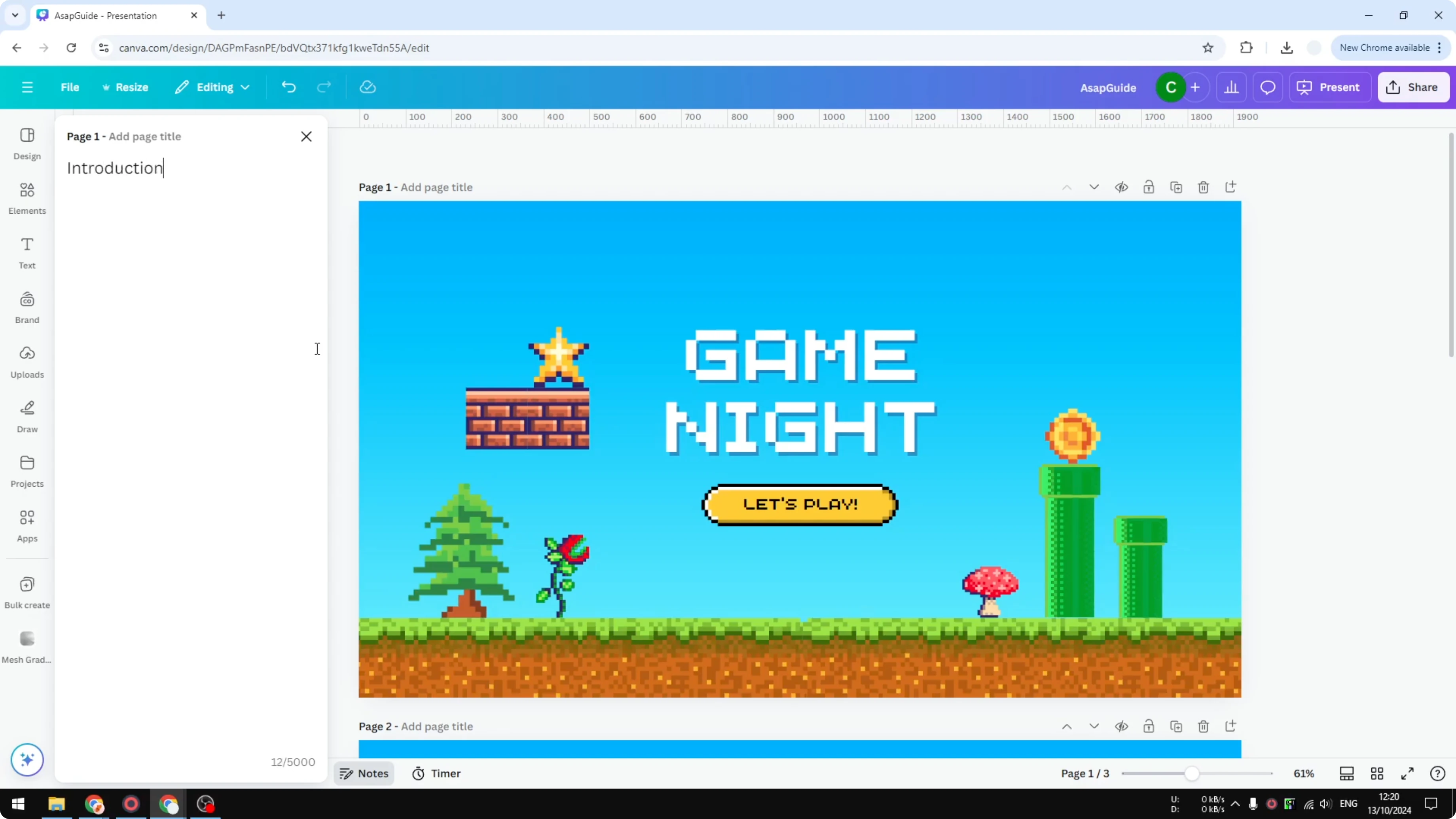
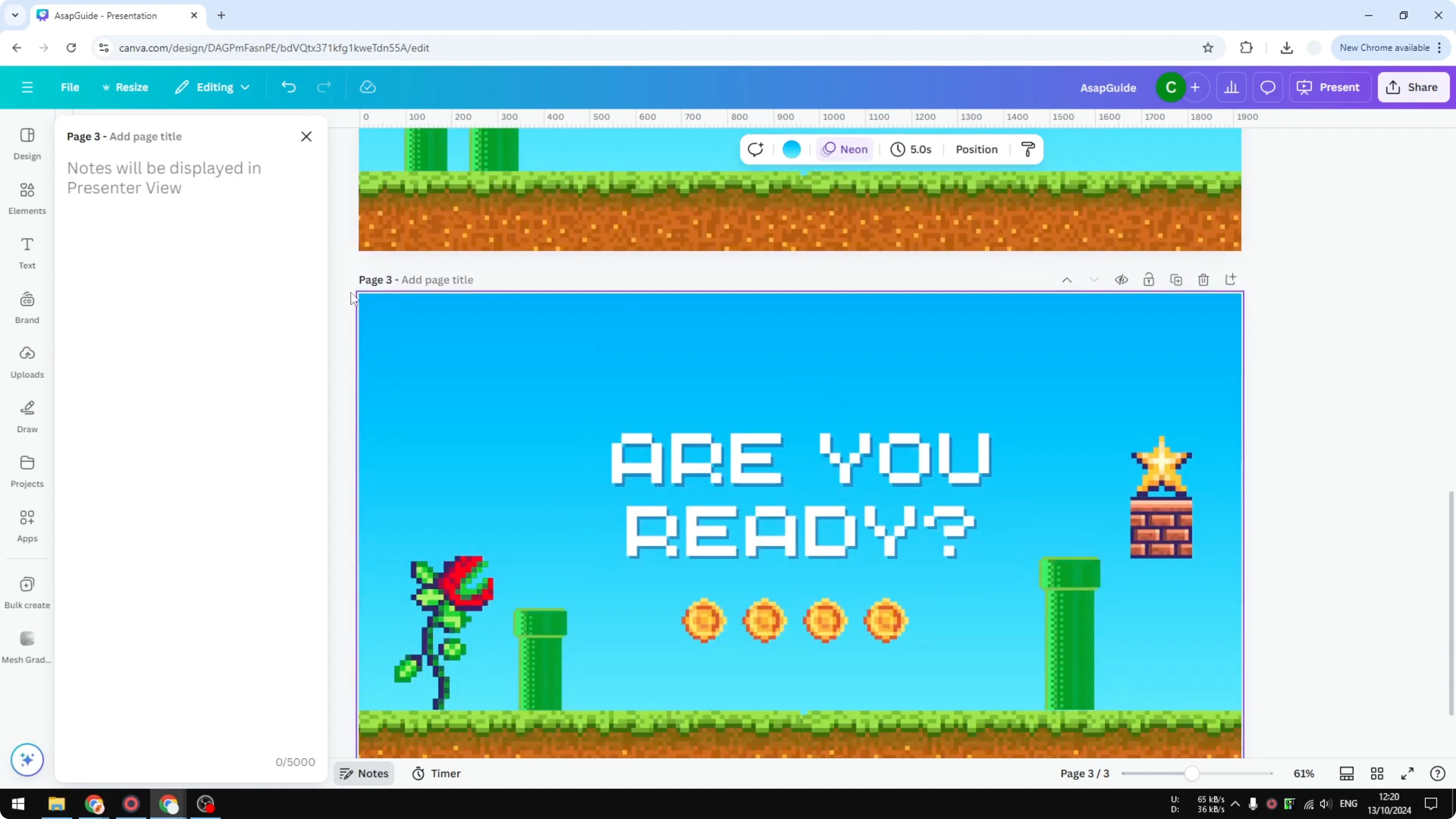
Move to the next slide and you will see the note area is empty.
Notes are exclusive to each slide, so add the note that fits that slide.
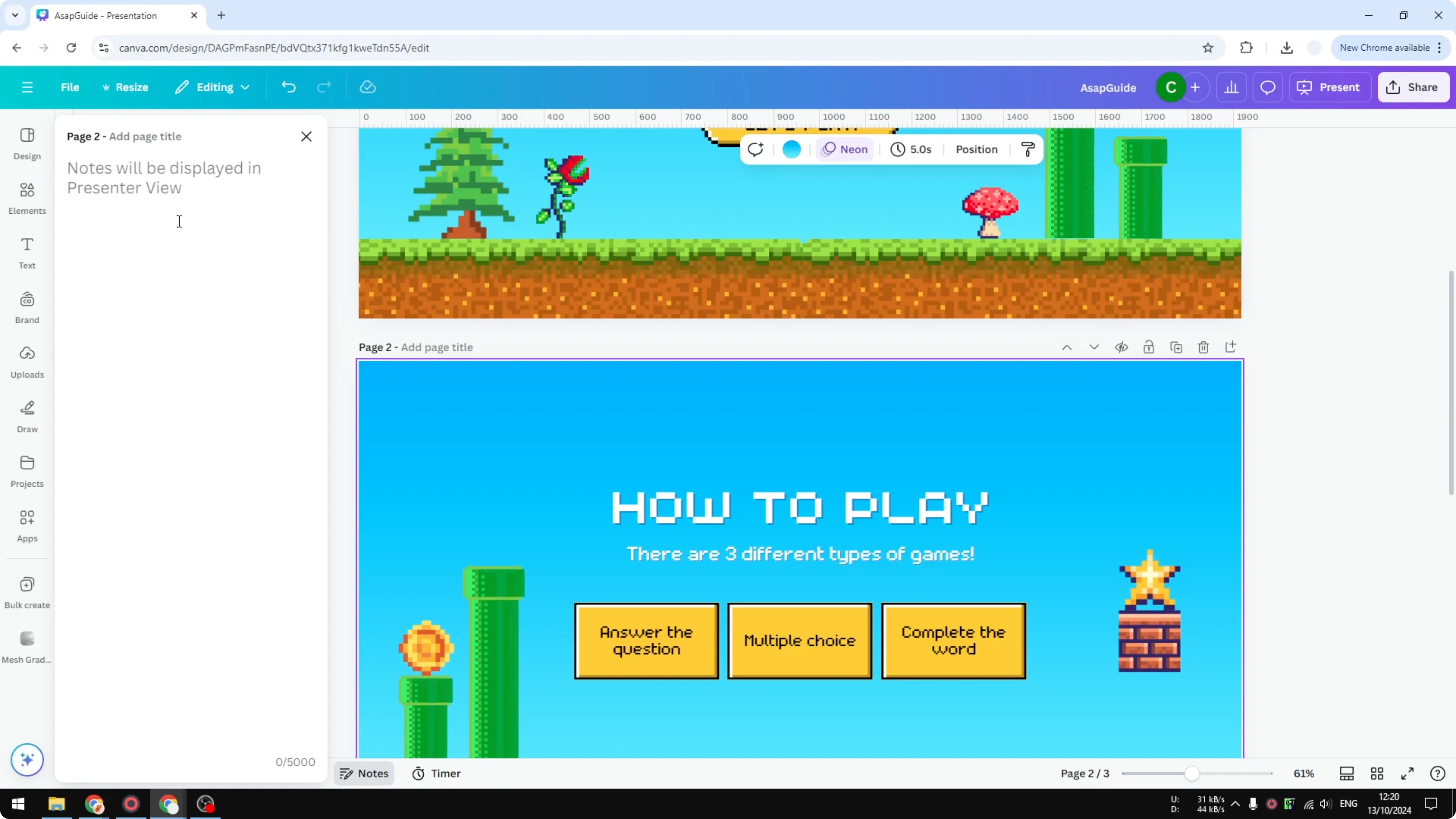
For the second slide, you might write something like how to play the game.
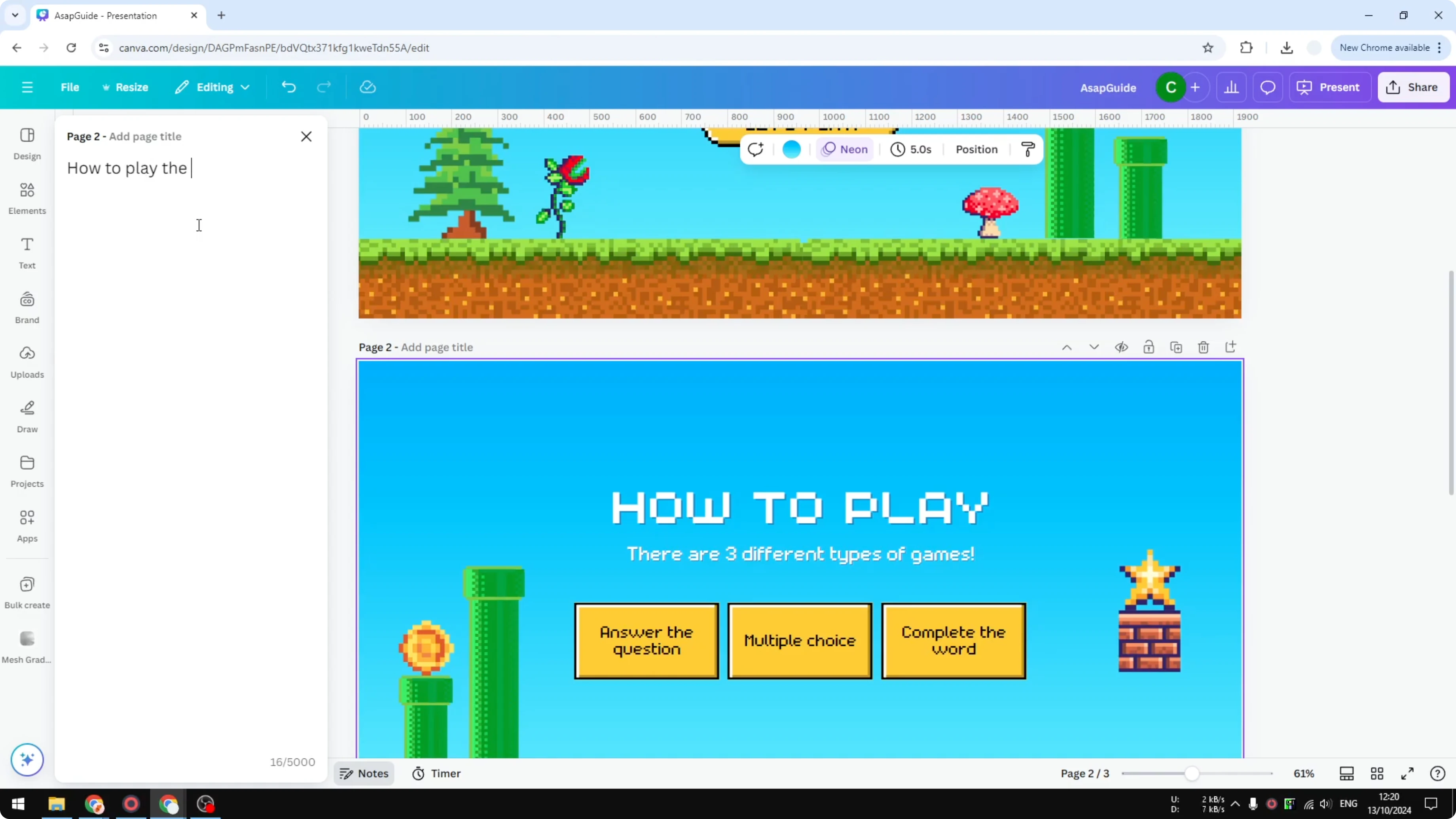
For the third slide, you might write be prepared.
Read More: Add Accent Marks Canva
Presenter view
Go to Present and enable presenter view.
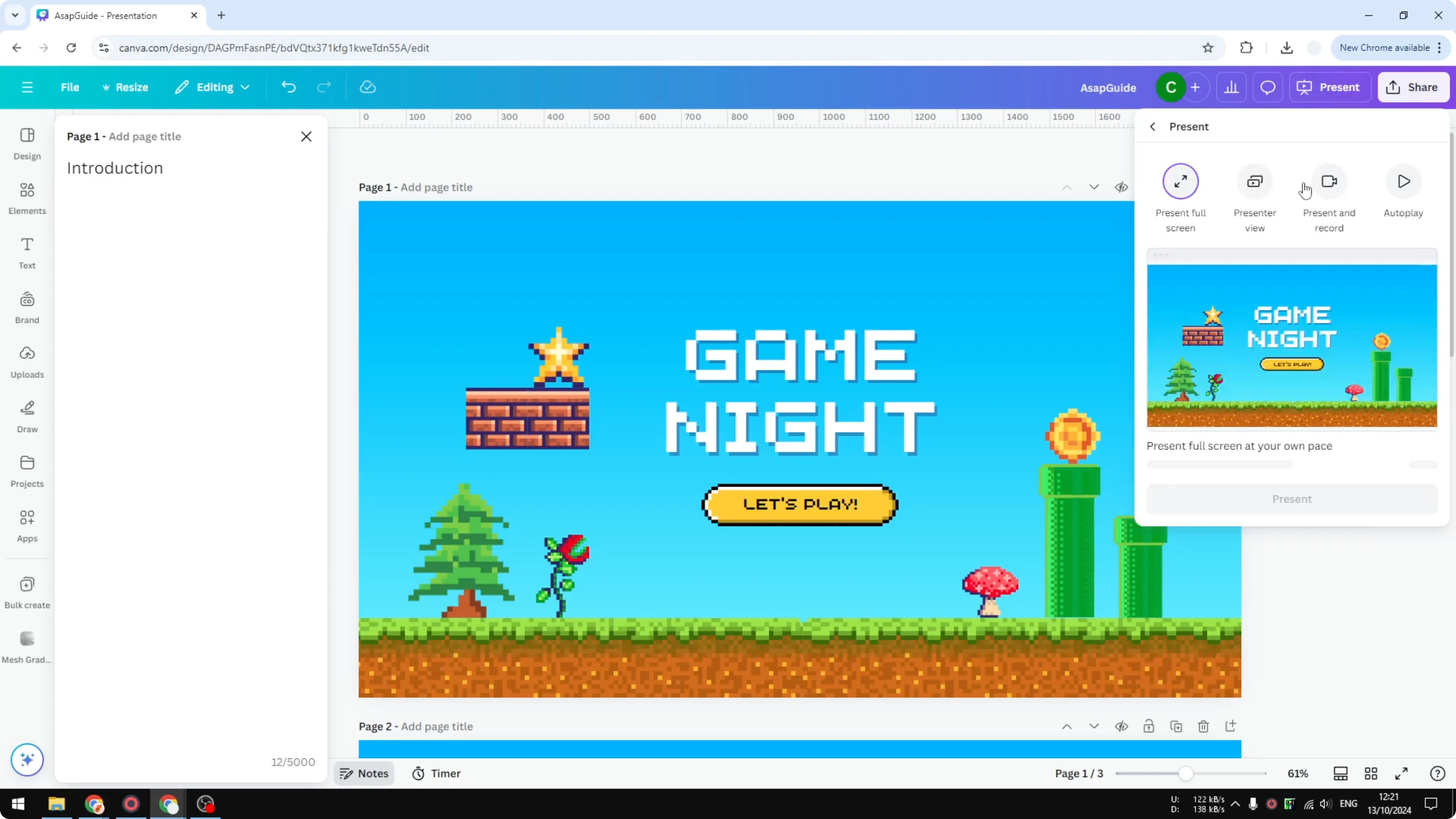
Click Present and Canva will open another window.
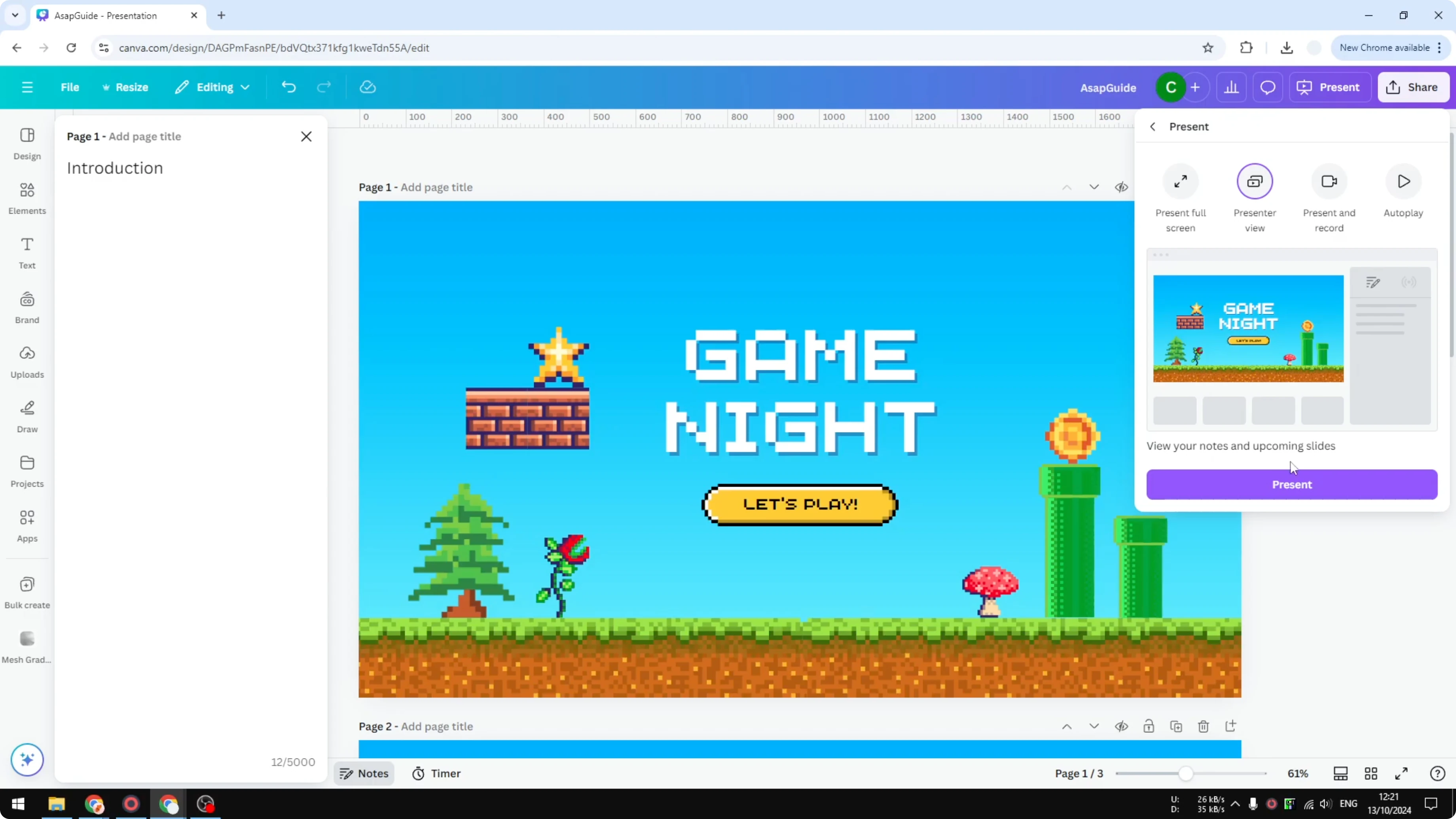
Click Got it to continue.
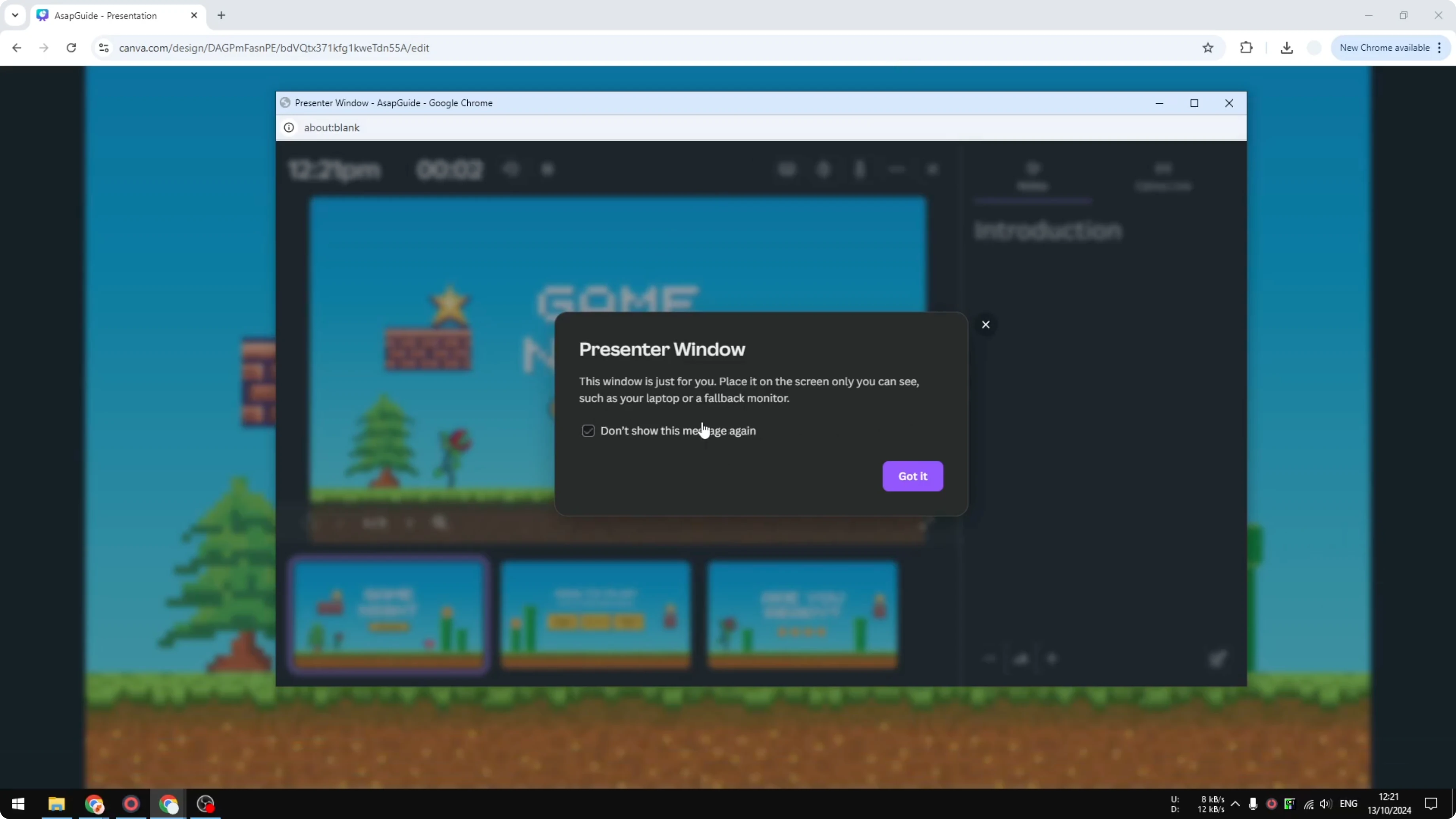
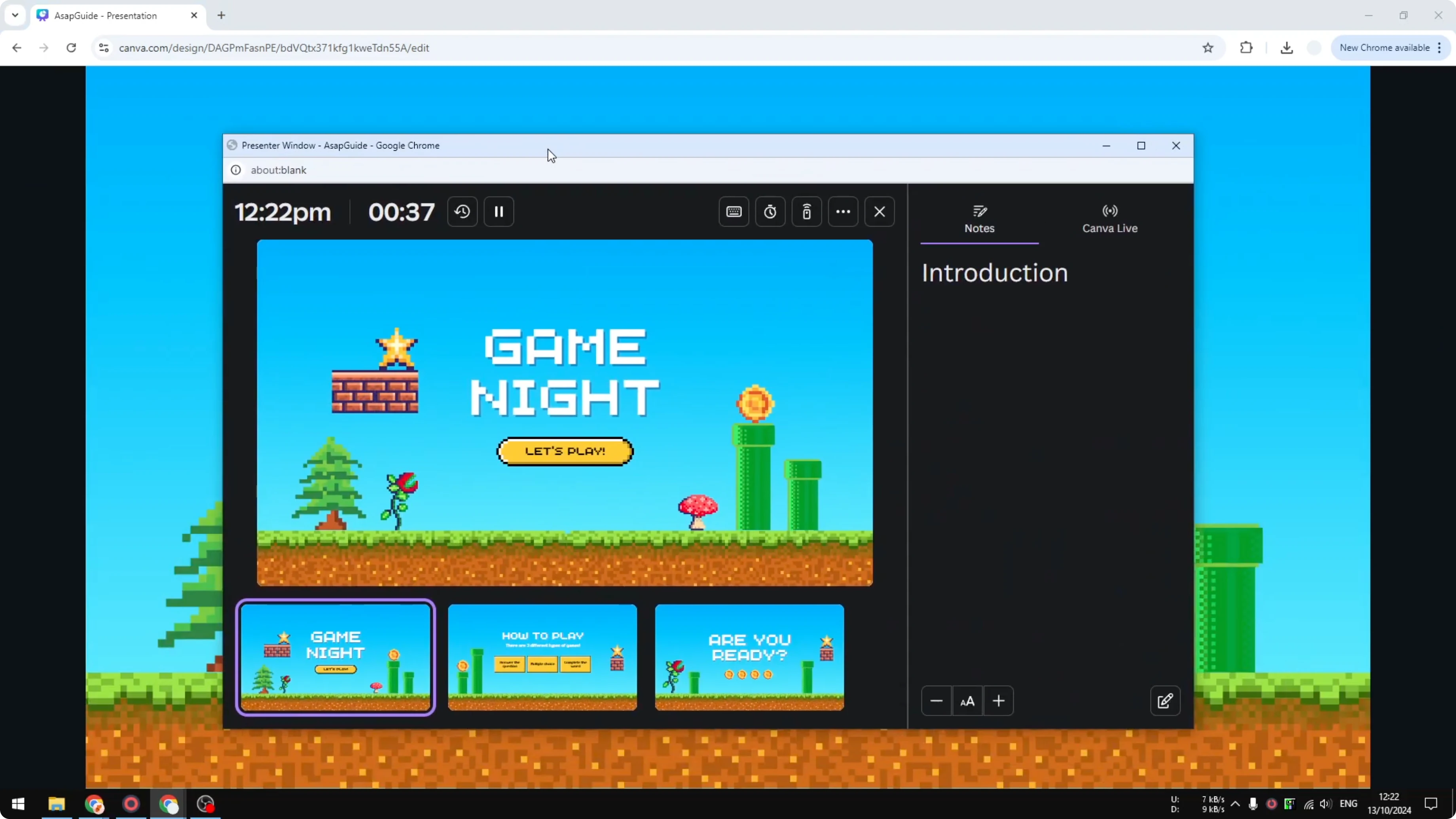
This new window is the presenter window that lets you see your notes and control the presentation.
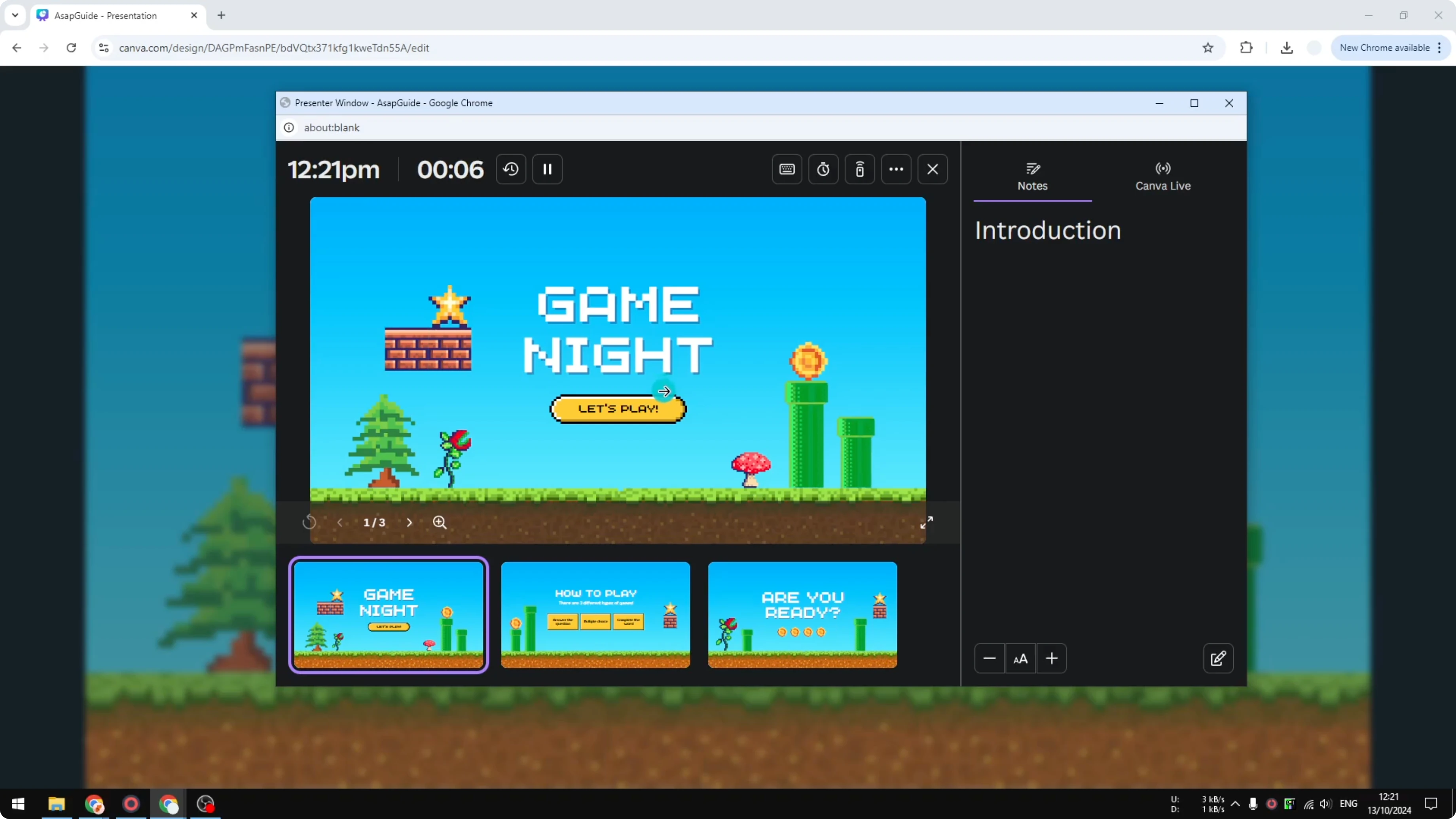
You will see your notes displayed there while you move through the slides.
Only you can see the notes, and your audience will only see the main presentation on the projector or external display.
Read More: Add Background Photo Canva
Final thoughts
That is how you can create notes on each slide and use them while presenting in Canva. Presenter view is for you, not for your audience, and it keeps your delivery on track. If you are preparing a shareable deck, remember accessibility best practices too.
Read More: Add Alt Text Picture Canva
Recent Posts

How to Visualize Yourself as a Pixelized Character with AI?
How to Visualize Yourself as a Pixelized Character with AI?

How to Revive Faded Memories and Enhance Image Clarity with AI?
How to Revive Faded Memories and Enhance Image Clarity with AI?

How to Visualize Yourself as an Animal Crossing Character with AI?
How to Visualize Yourself as an Animal Crossing Character with AI?