How to Add Google Maps to Canva
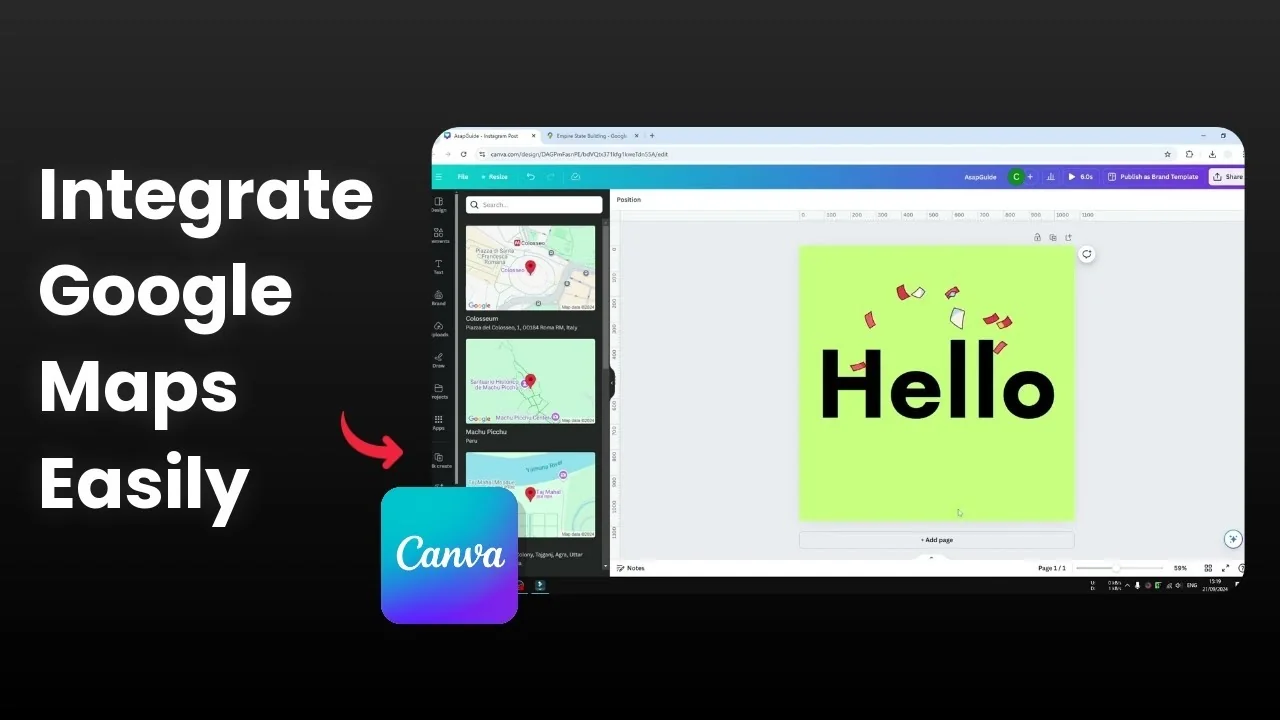
I want to show you how to embed your Google Maps location inside a Canva design. The first question is simple. Is it still possible to place a live Google Maps view in Canva to showcase a business location for sharing on social media?
It used to be possible. From the apps that I tried, it doesn't work anymore.
Add Google Maps to Canva: current state
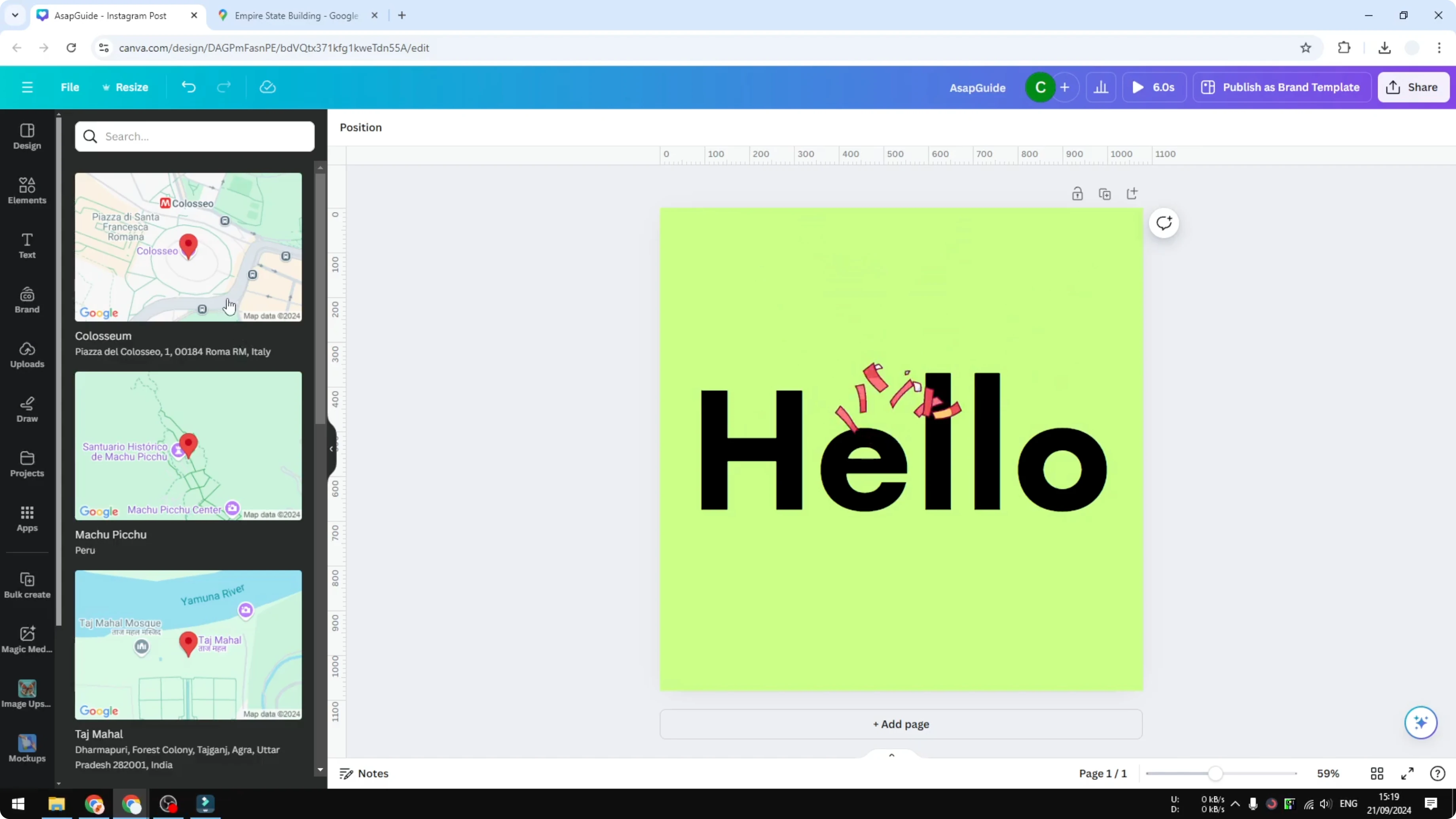
You can go to the Apps menu in Canva and search for an app called Map. You can open it and paste your Google Maps URL, or use the input field it provides.
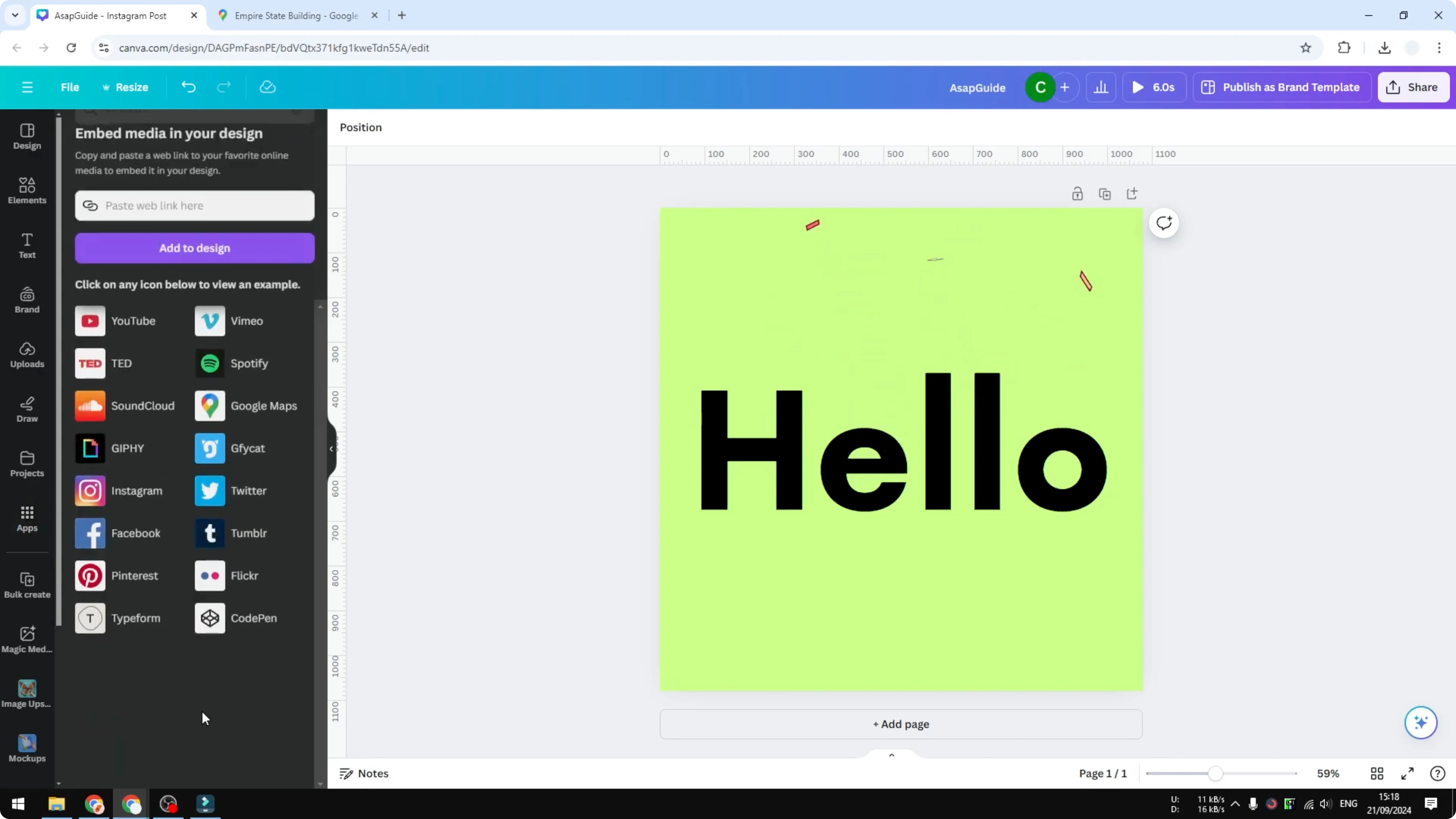
From my testing, it doesn't work. Google Maps refuses to connect to this app.
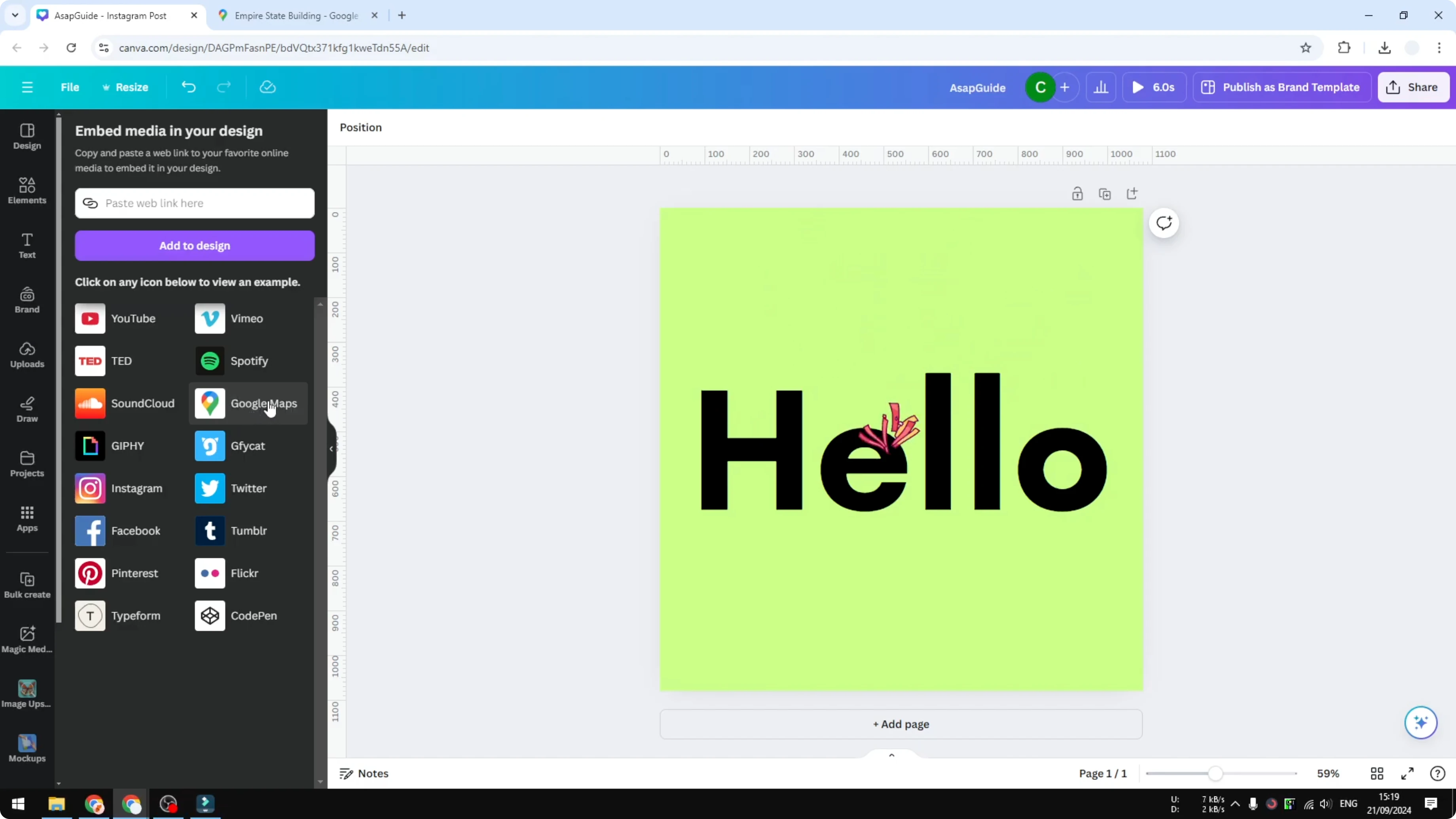
There is another third party app called Google Maps. The same is true for that one as well.
When you click on them, the map does not load. It just shows an error message.
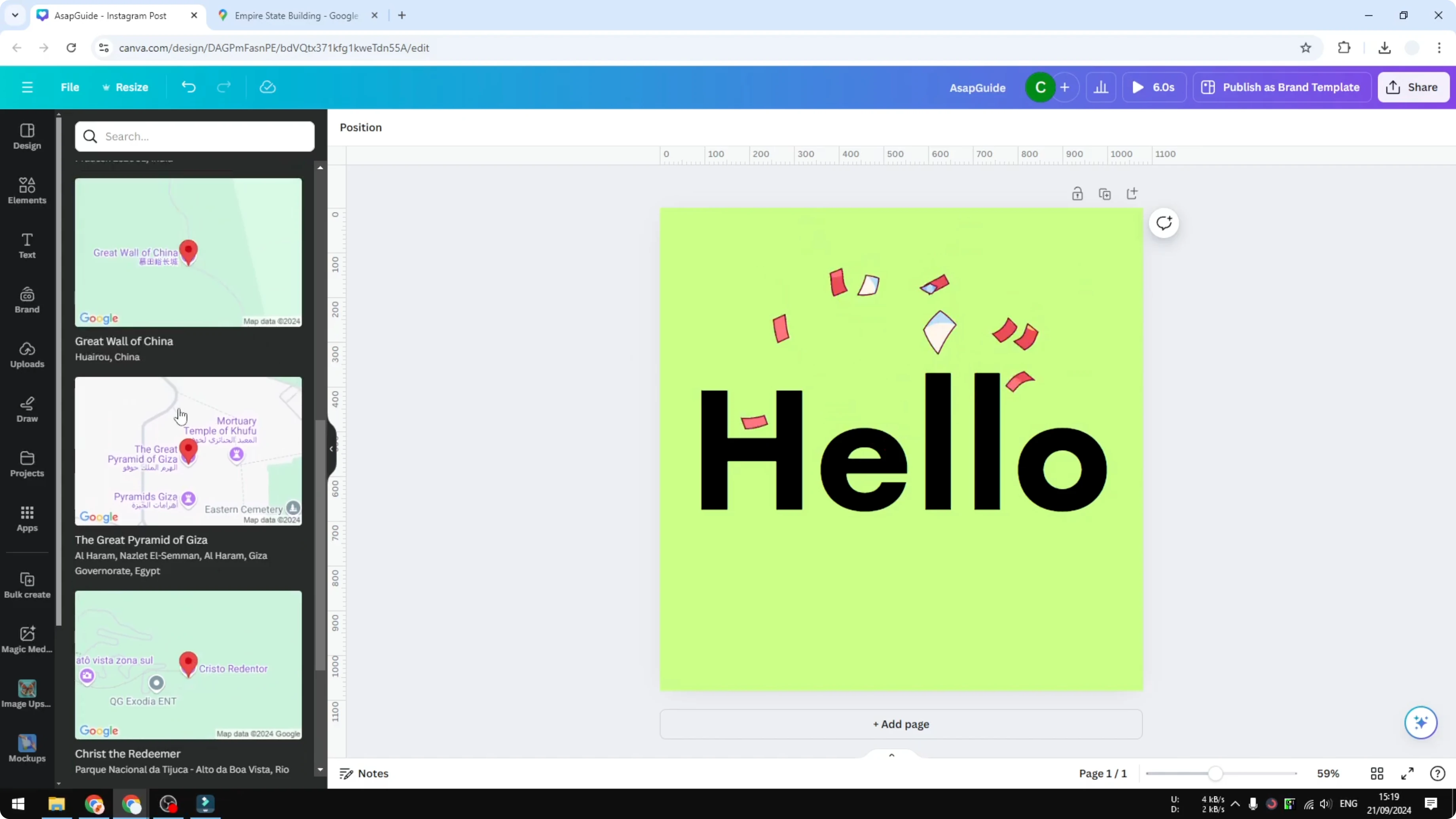
I do not know what happened. It might be a restriction from Canva that prevents third party websites from connecting to the design editor for security reasons.
Add Google Maps to Canva: screenshot method
There is a slightly less modern technique that you can try. I will show you how I do it.
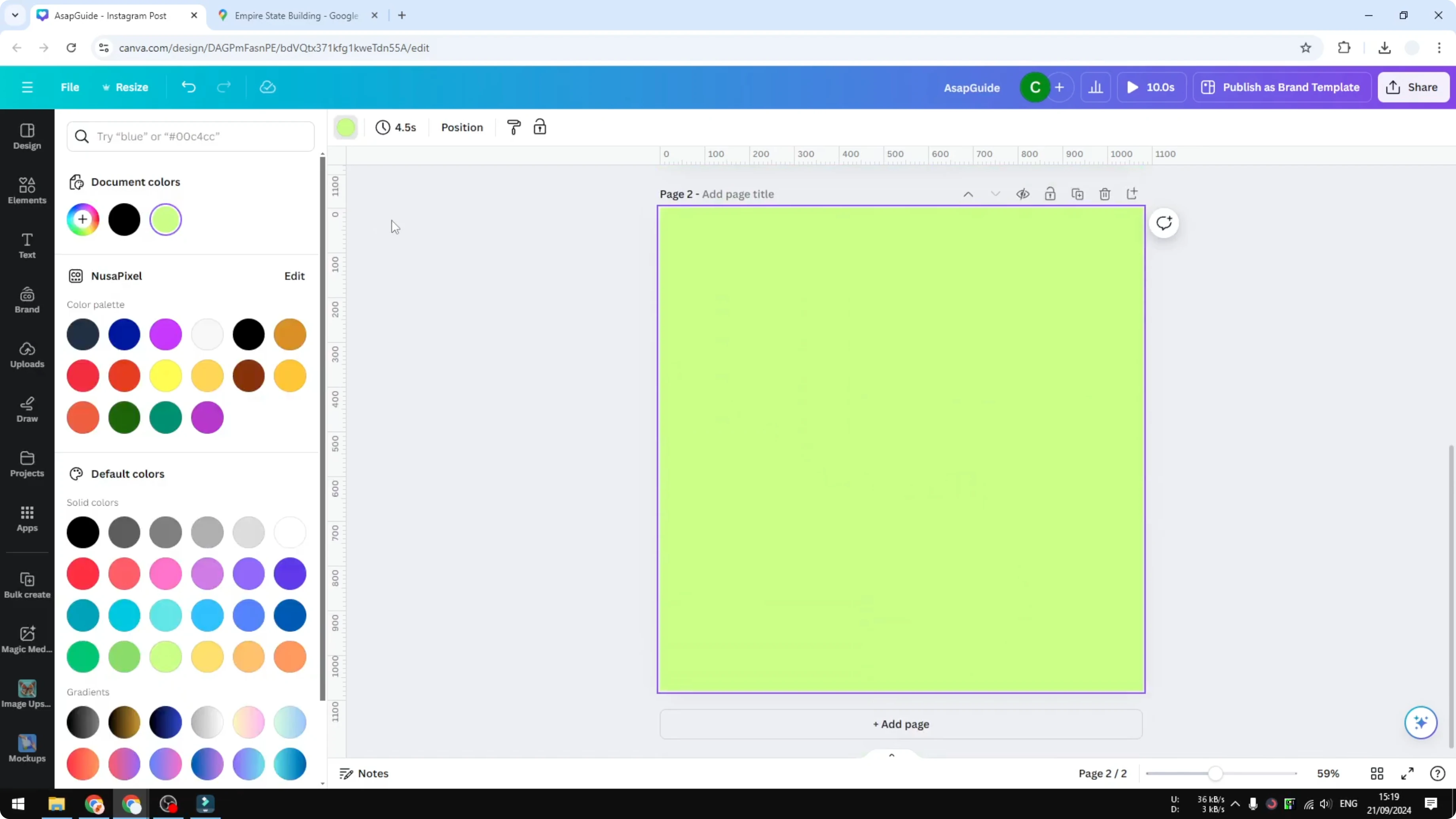
I add a new page in Canva. I change the background to black to frame the map better. If you prefer a photo background, see how to add a background photo first.
Prepare the map
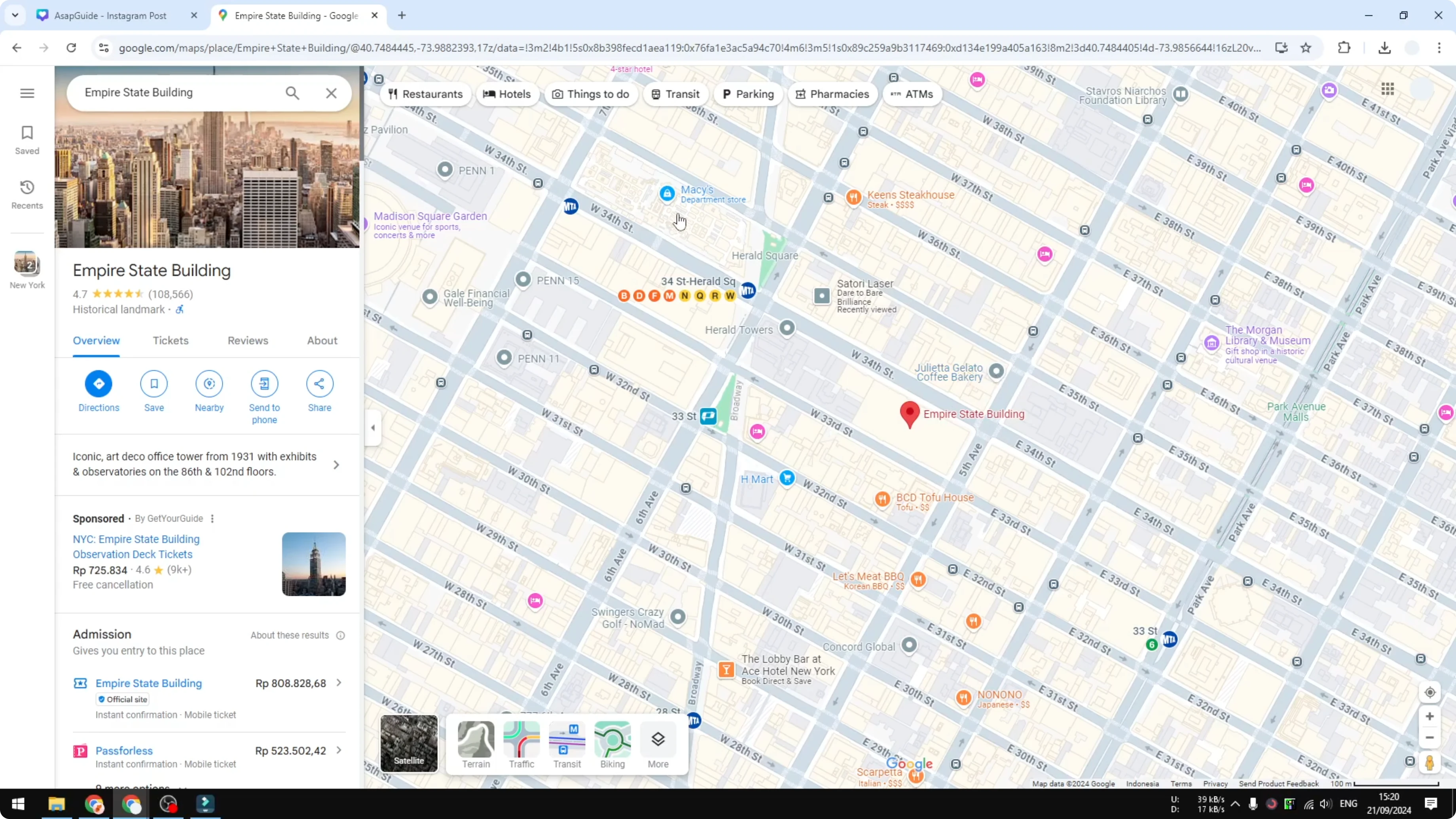
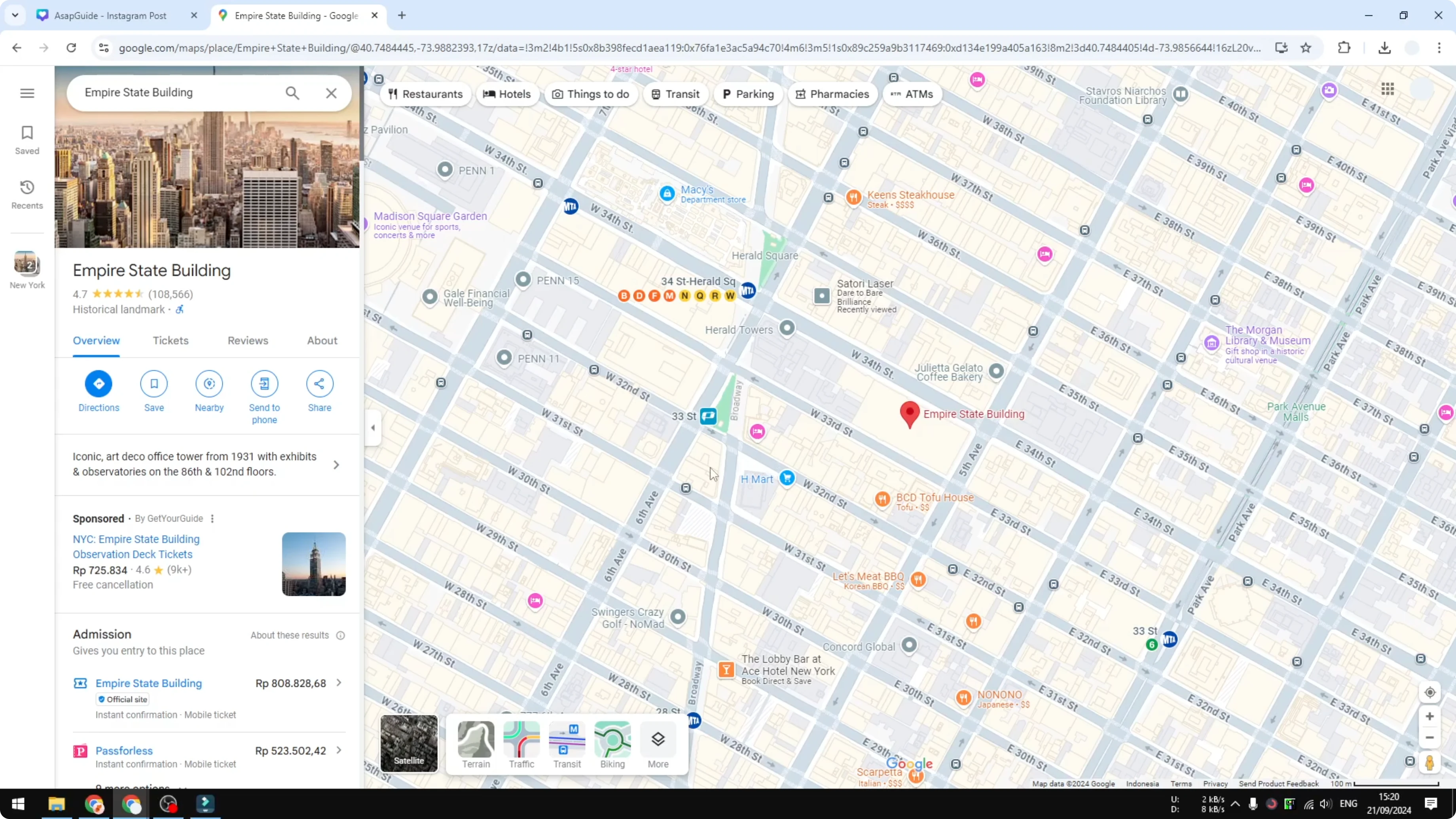
Go to Google Maps. Search for your business location. Adjust the zoom and view to the exact area you want to show.
Capture on Windows
If you are using Windows, there is a quick way to capture the map area you want.
Use this shortcut to start a snip, then select the area you want. The capture is copied to your clipboard automatically.
Start snip: Windows + Shift + S
Paste in Canva: Ctrl + V
Add link: Ctrl + K
Paste in Canva
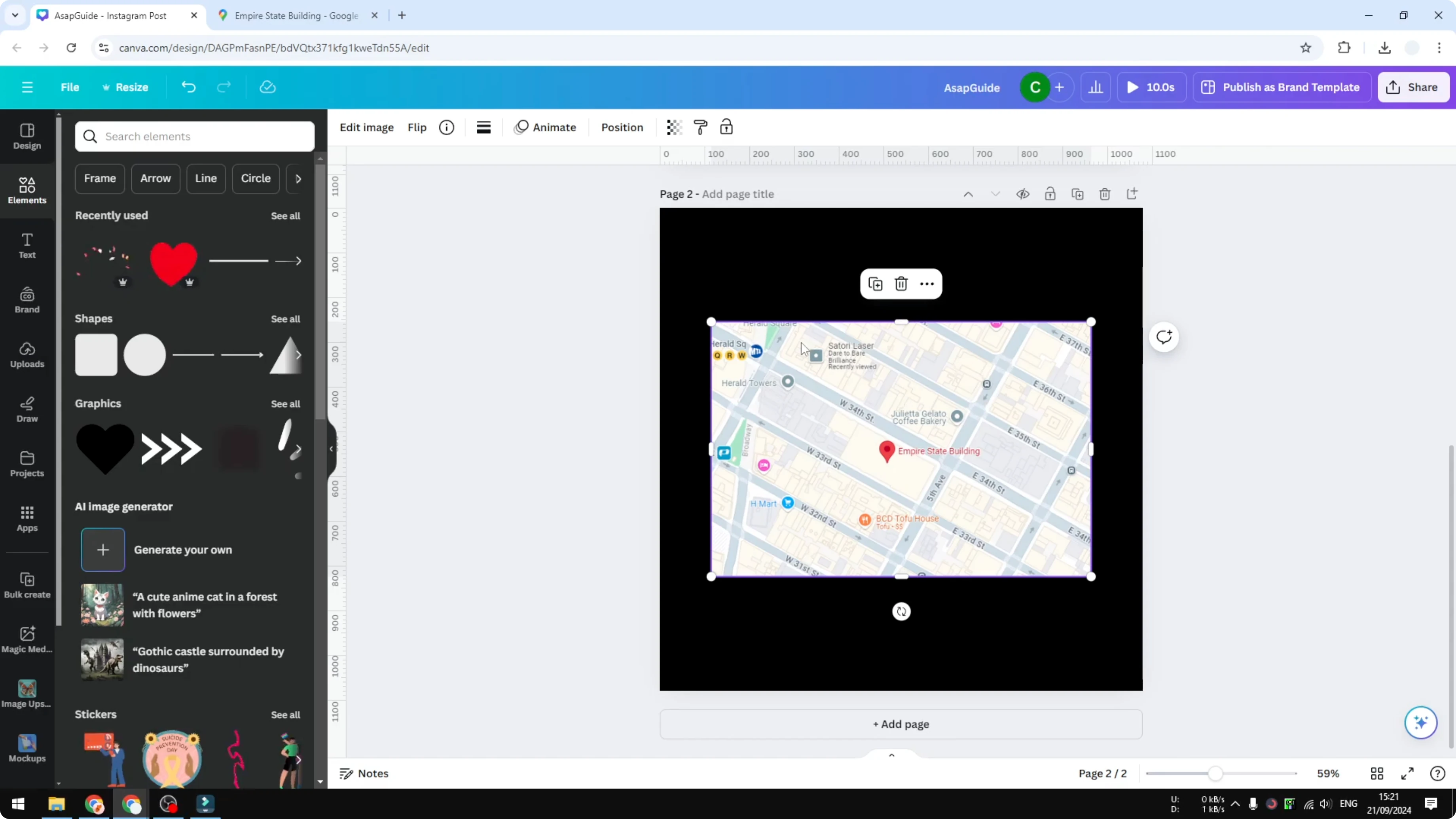
Go back to Canva. Press Ctrl + V to paste the screenshot onto your design.
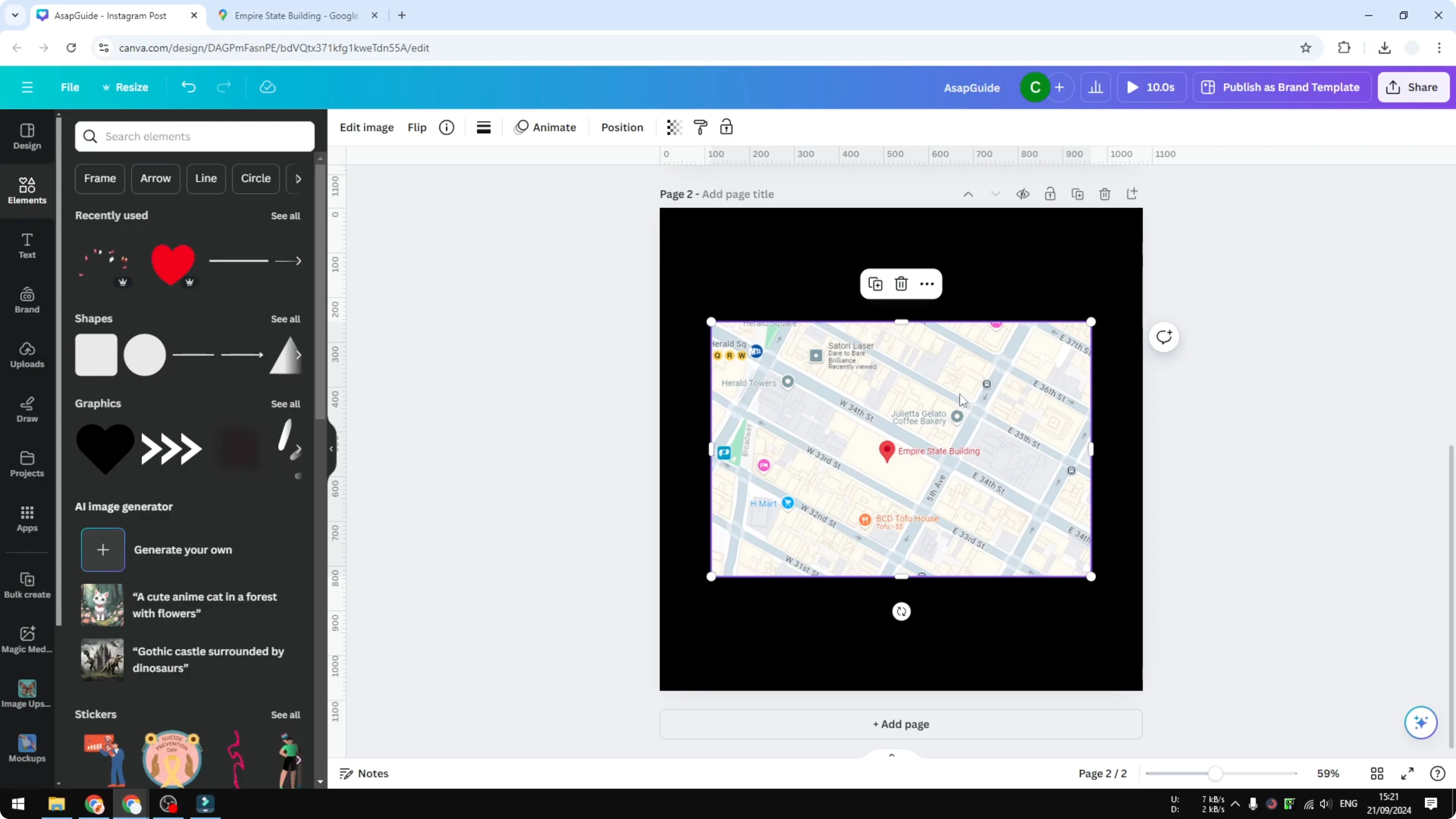
It is not perfect. It is far from it. But it looks very similar to a traditional embedded map for most sharing needs.
If you add text labels or captions on top of the map, and you need special characters, see how to add accent marks in Canva.
Add a hyperlink
You can add a hyperlink to the image so viewers can open your location on Google Maps.
Get the link from Google Maps. Click Share, then in the Send a link tab, click Copy link.
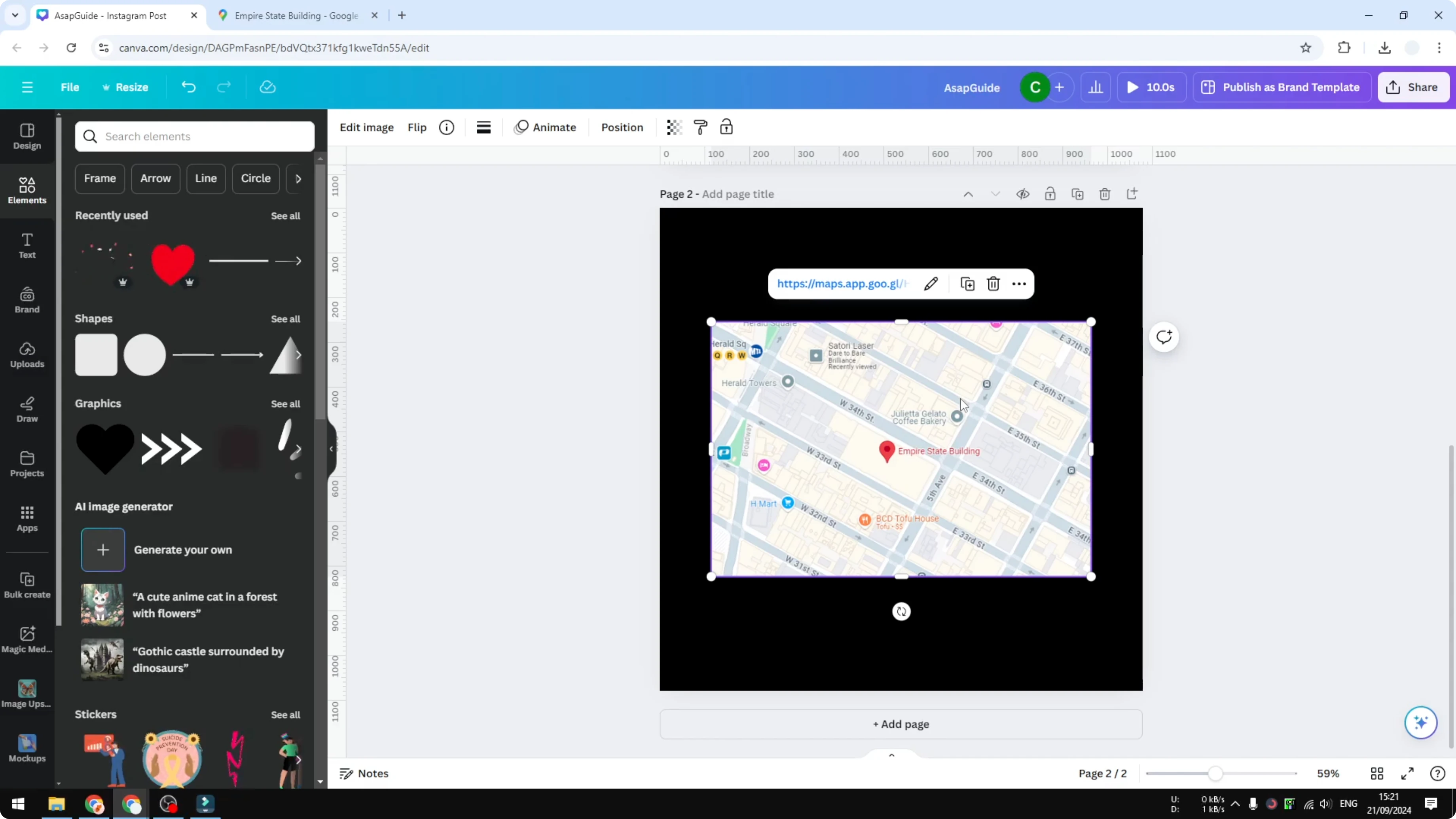
Return to Canva. Right click the pasted image, add a link using Ctrl + K or the link menu, paste the URL, then click Done.
When someone opens your shared Canva design and clicks the image, they can navigate directly to your location on Google Maps. For accessibility, you can also add a short description to the image. See how to add alt text to a picture in Canva.
Final thoughts
This method is not perfect. At least it is a practical alternative while the apps are failing to load live Google Maps.
It is quick, it looks clean, and the clickable link still takes people exactly where they need to go.
Recent Posts

How to Visualize Yourself as a Pixelized Character with AI?
How to Visualize Yourself as a Pixelized Character with AI?

How to Revive Faded Memories and Enhance Image Clarity with AI?
How to Revive Faded Memories and Enhance Image Clarity with AI?

How to Visualize Yourself as an Animal Crossing Character with AI?
How to Visualize Yourself as an Animal Crossing Character with AI?