How to Add GIFs to Canva GIPHY
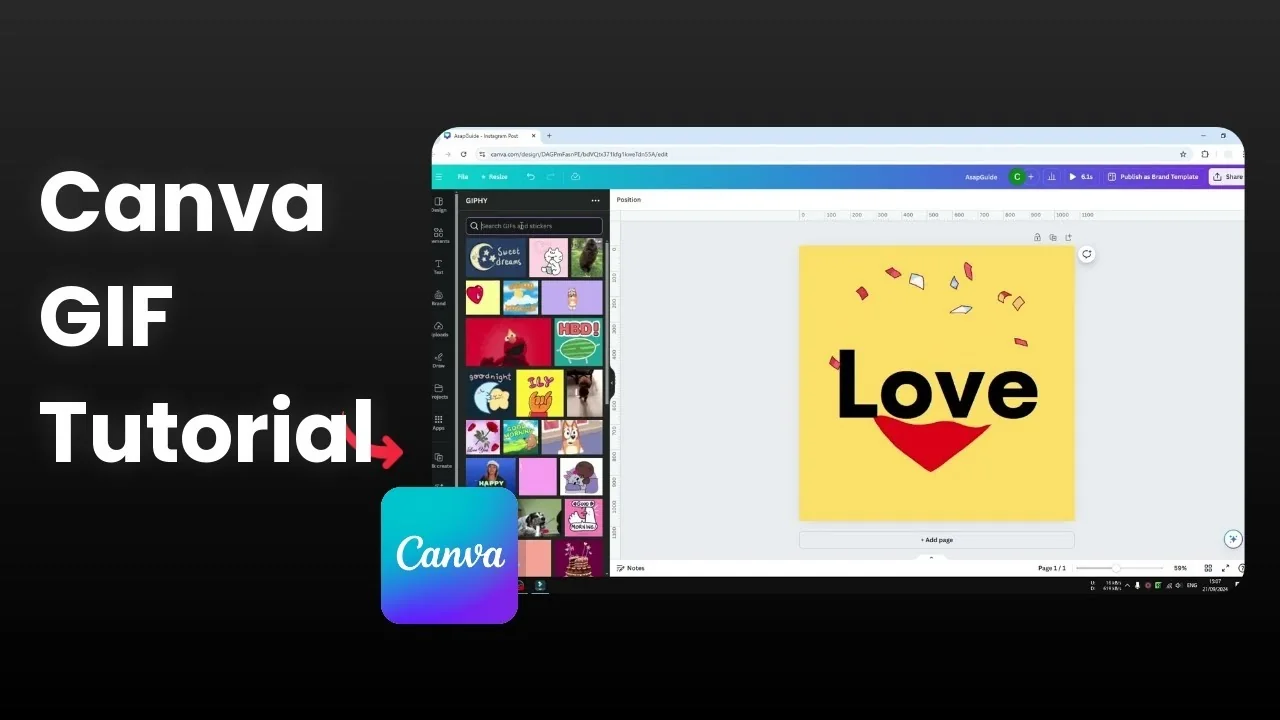
I will show you how to add a GIF animation to your Canva design. A GIF is an image format with multiple frames similar to video, so it plays like a short loop. GIFs are popular for uploading content to the internet.
From Elements Add GIFs to Canva GIPHY
There are two methods. The first method uses the Canva stock library.
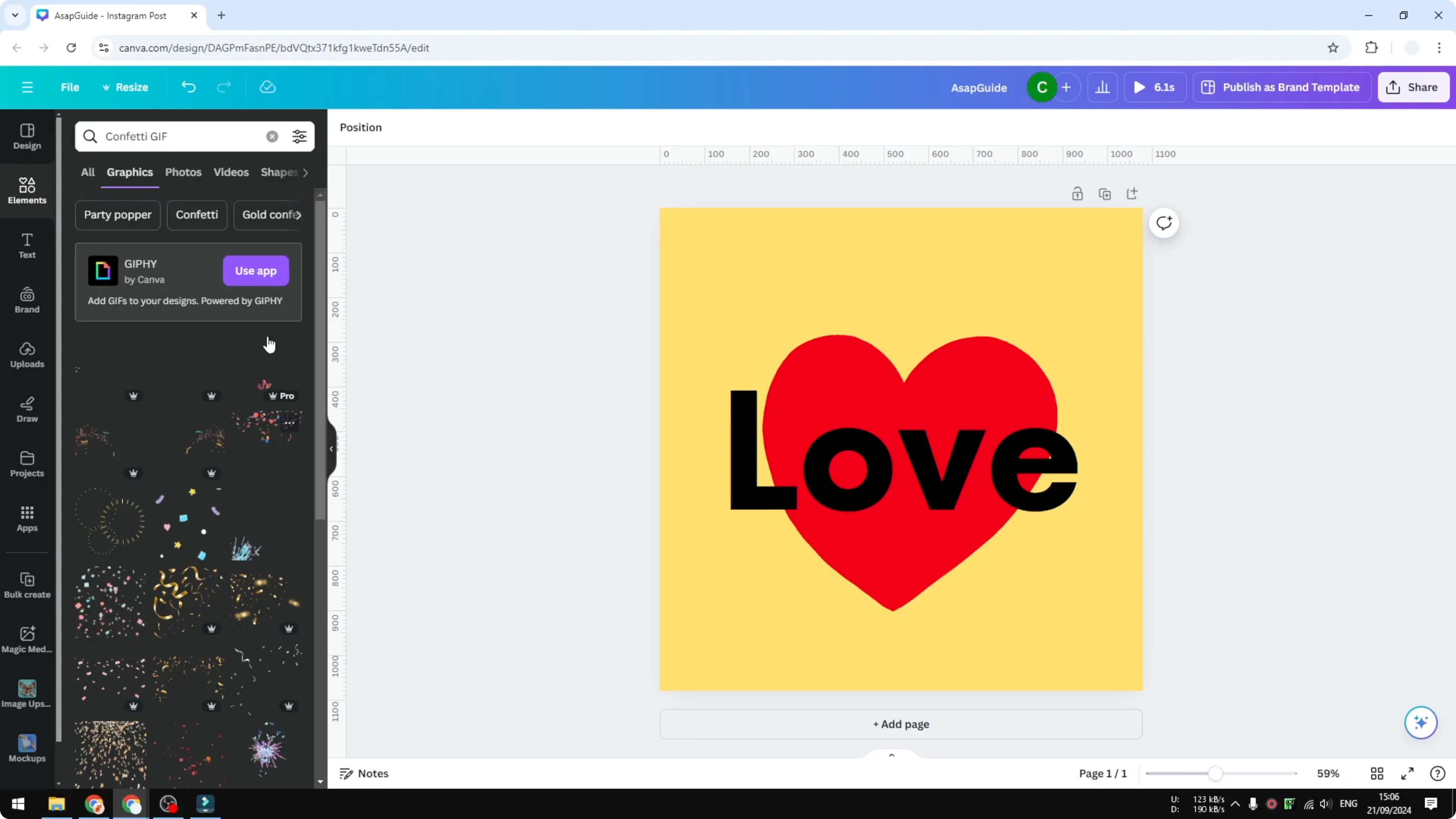
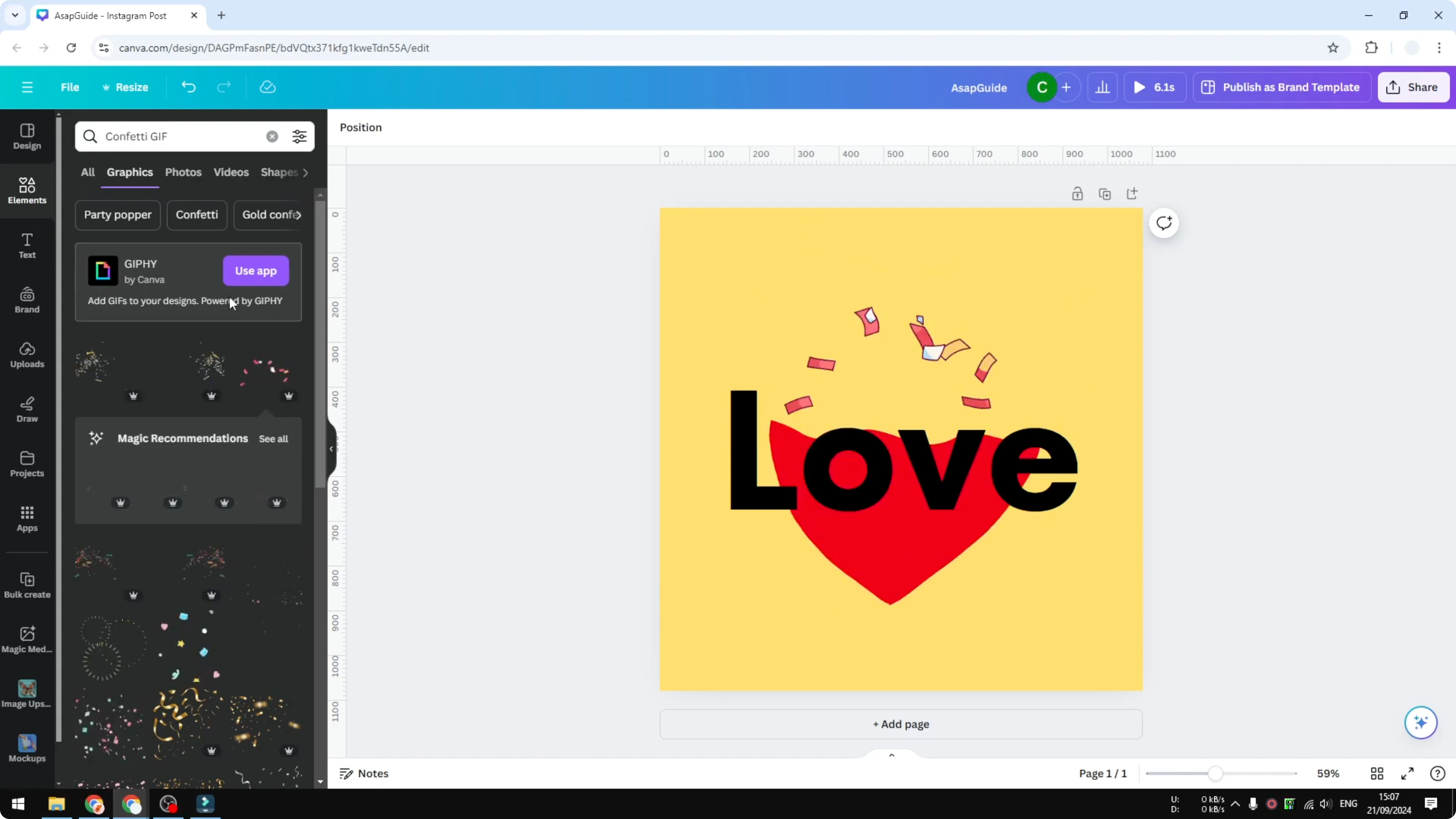
Go to the Elements section.
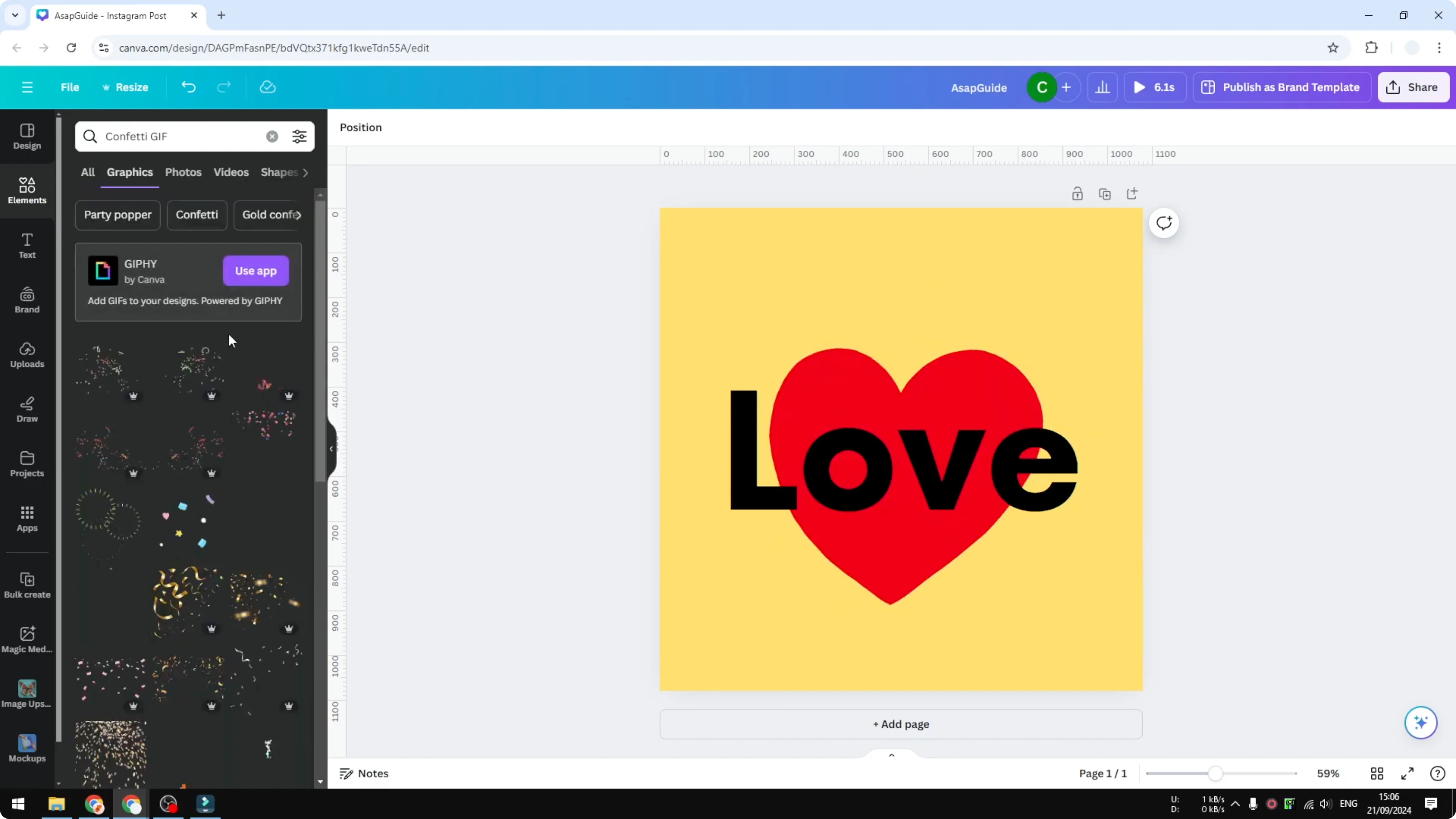
Search for the content you want, for example confetti.
Add the keyword gif to the search to filter the results to animated options.
Navigate to the Graphics section to see animated images.
Click an option to insert it into your document.
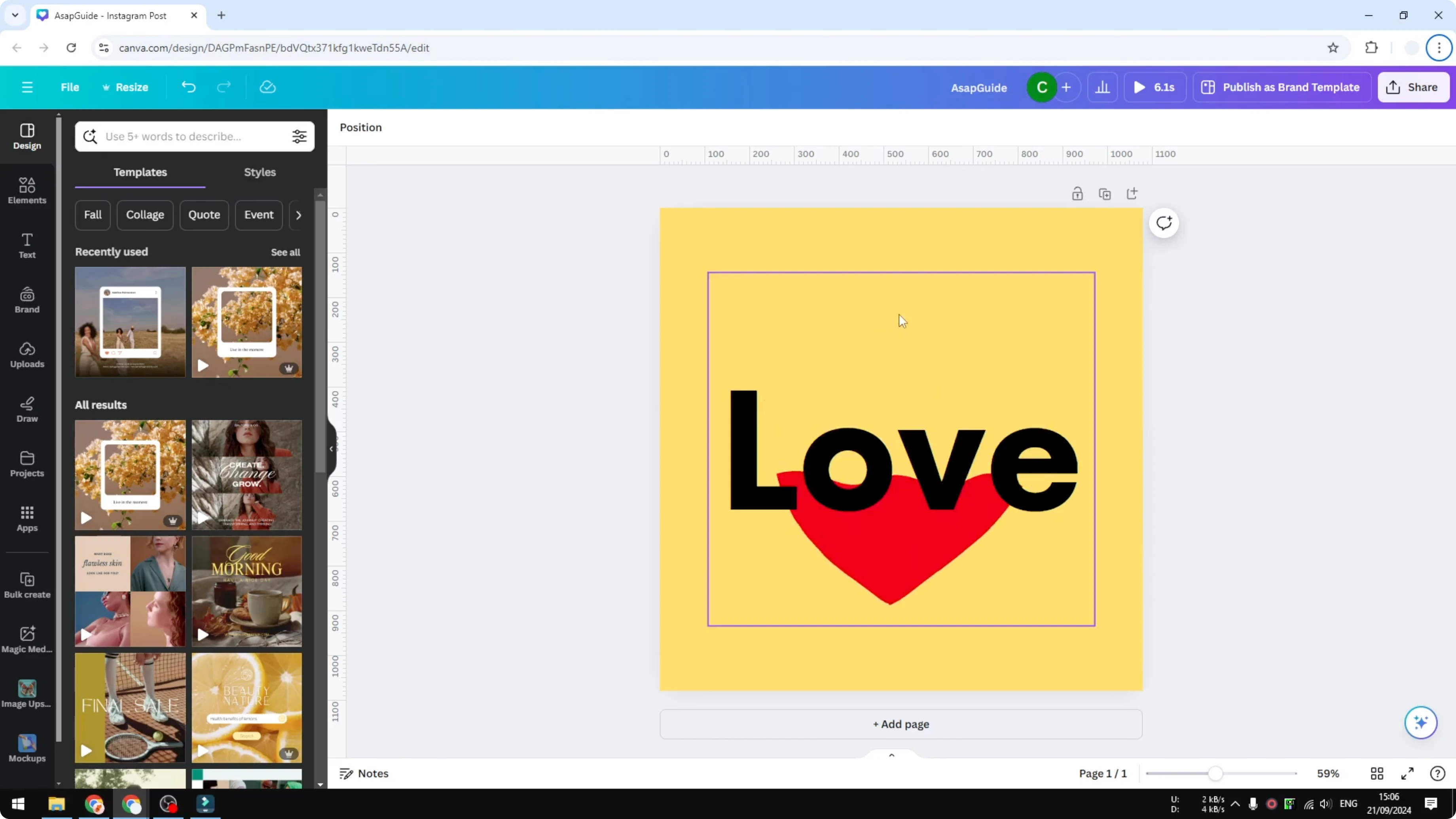
If you are building your scene first, you can add a background photo in Canva and then place your GIF on top.
With the GIPHY app Add GIFs to Canva GIPHY
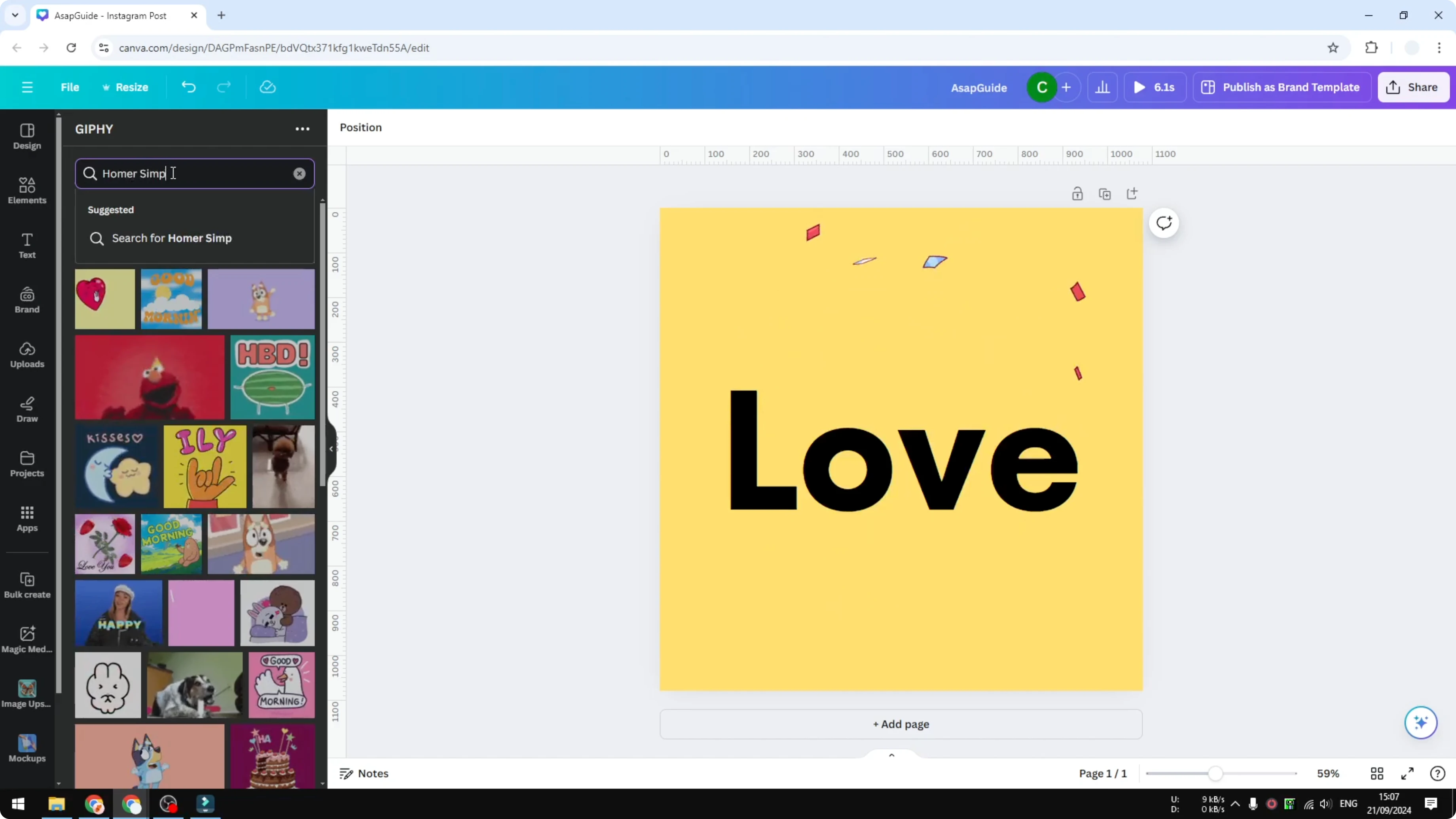
The second method is to use the GIPHY app inside Canva. This gives you access to popular GIFs on the internet that you can place into your design.
Click the GIPHY button or go to Apps and search for GIPHY.
Click Open to install it to your Canva account.
Browse or search and insert a GIF into your design.
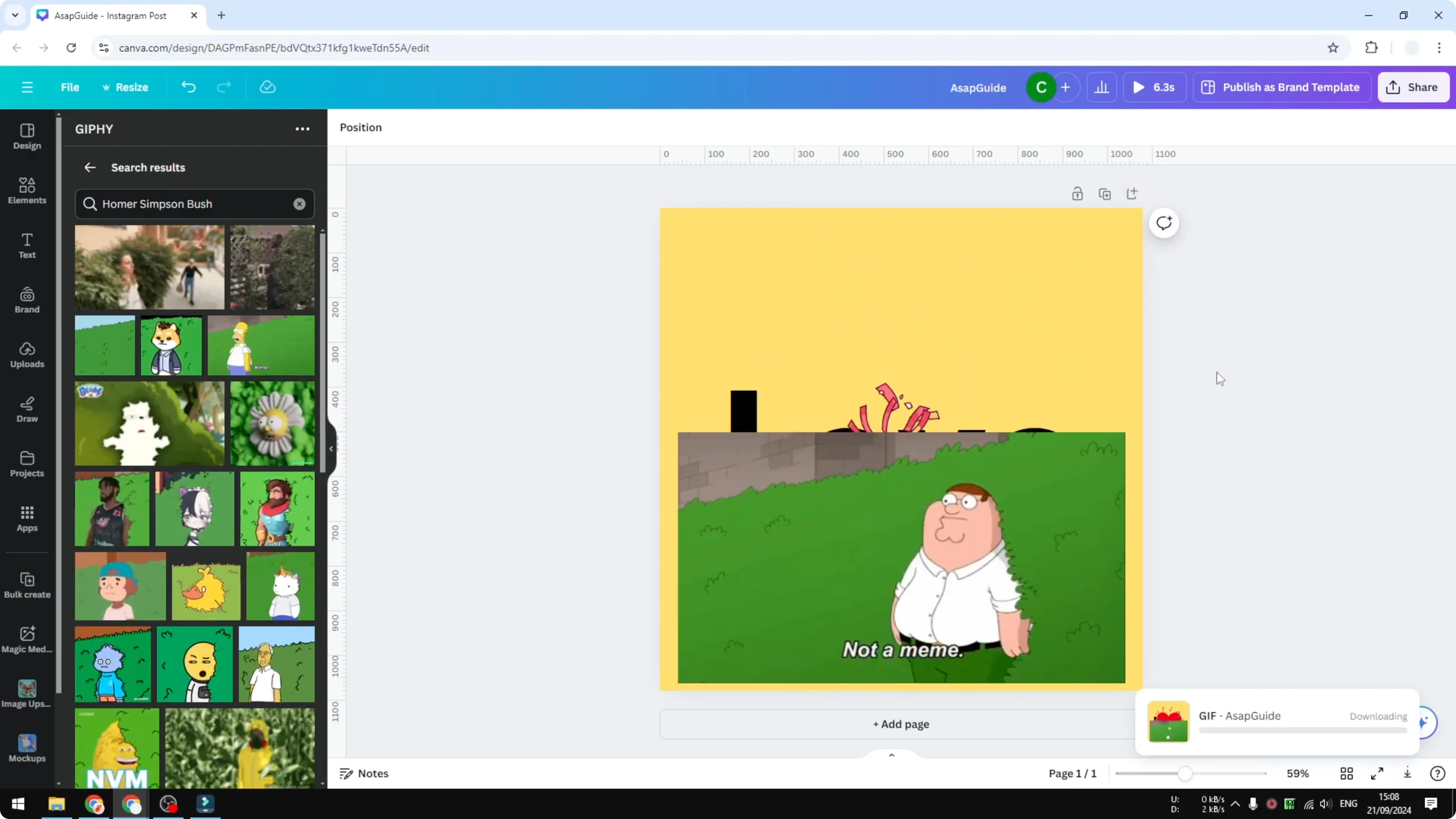
For example, I can search for Homer Simpson hiding in a bush GIF and use it.
If accessibility is part of your workflow, see how to add alt text to a picture in Canva after you place your elements.
Export Add GIFs to Canva GIPHY
If you want to download the design with the animation running, there are two options.
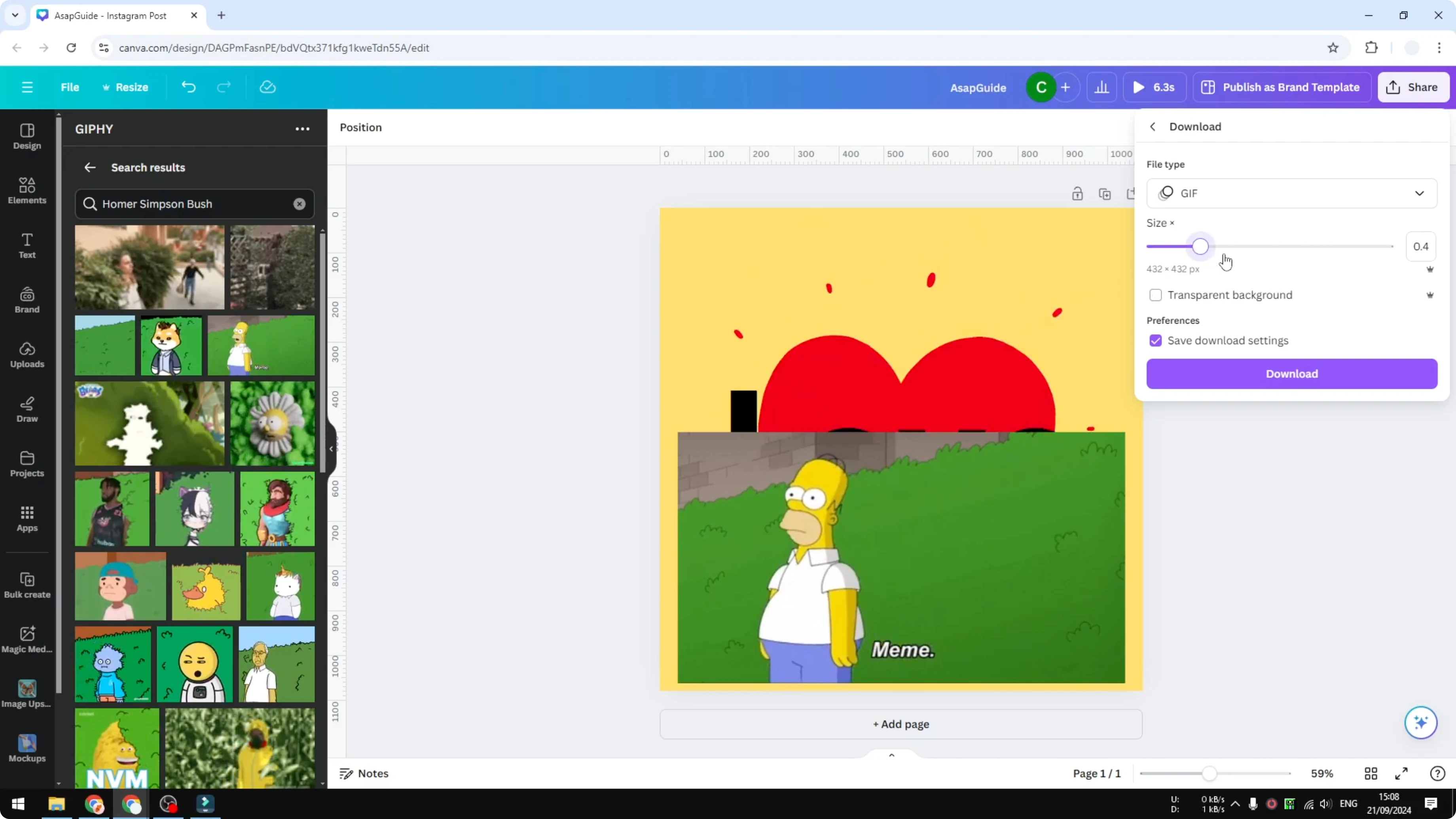
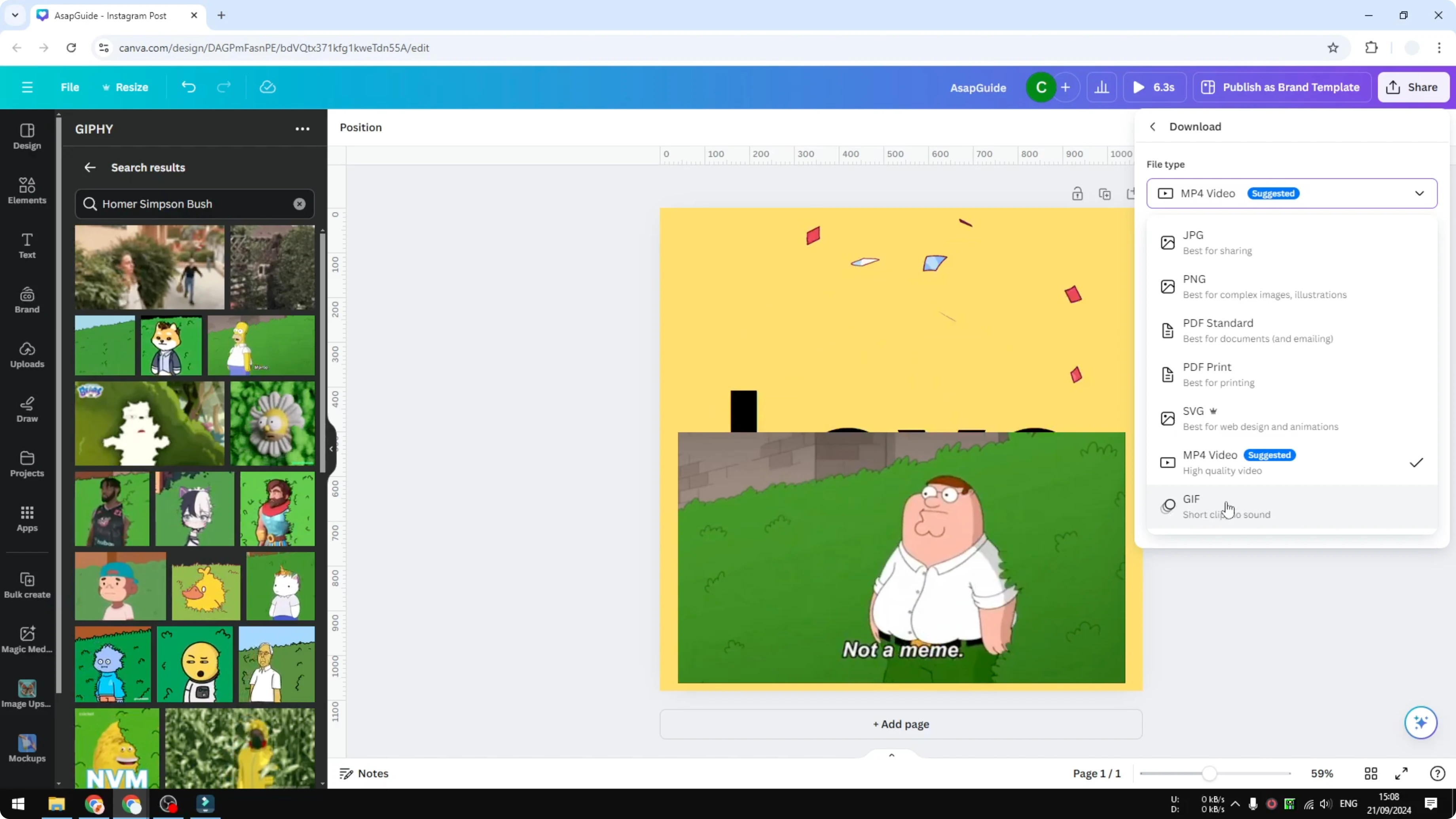
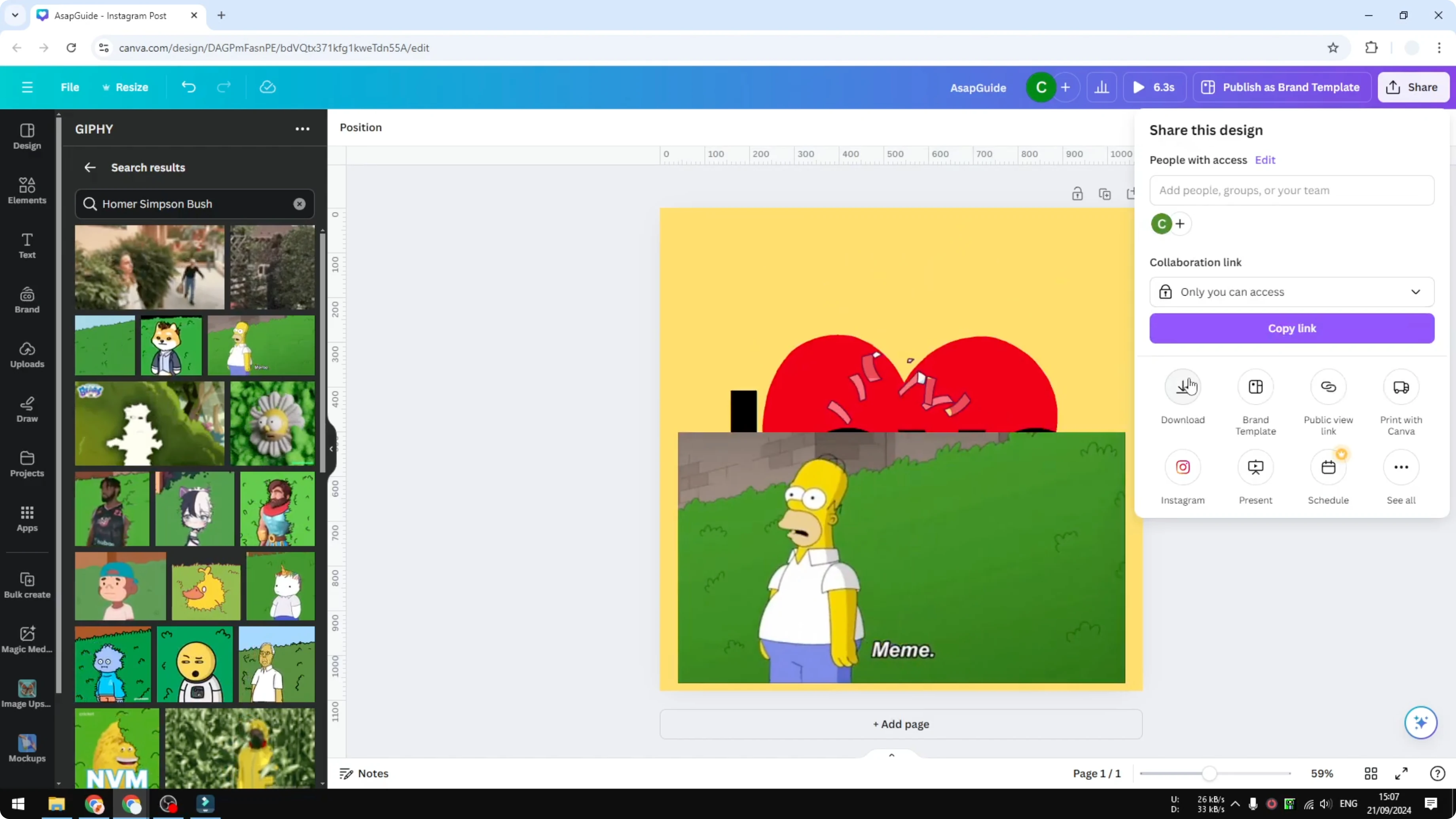
Go to the Share menu and click Download.
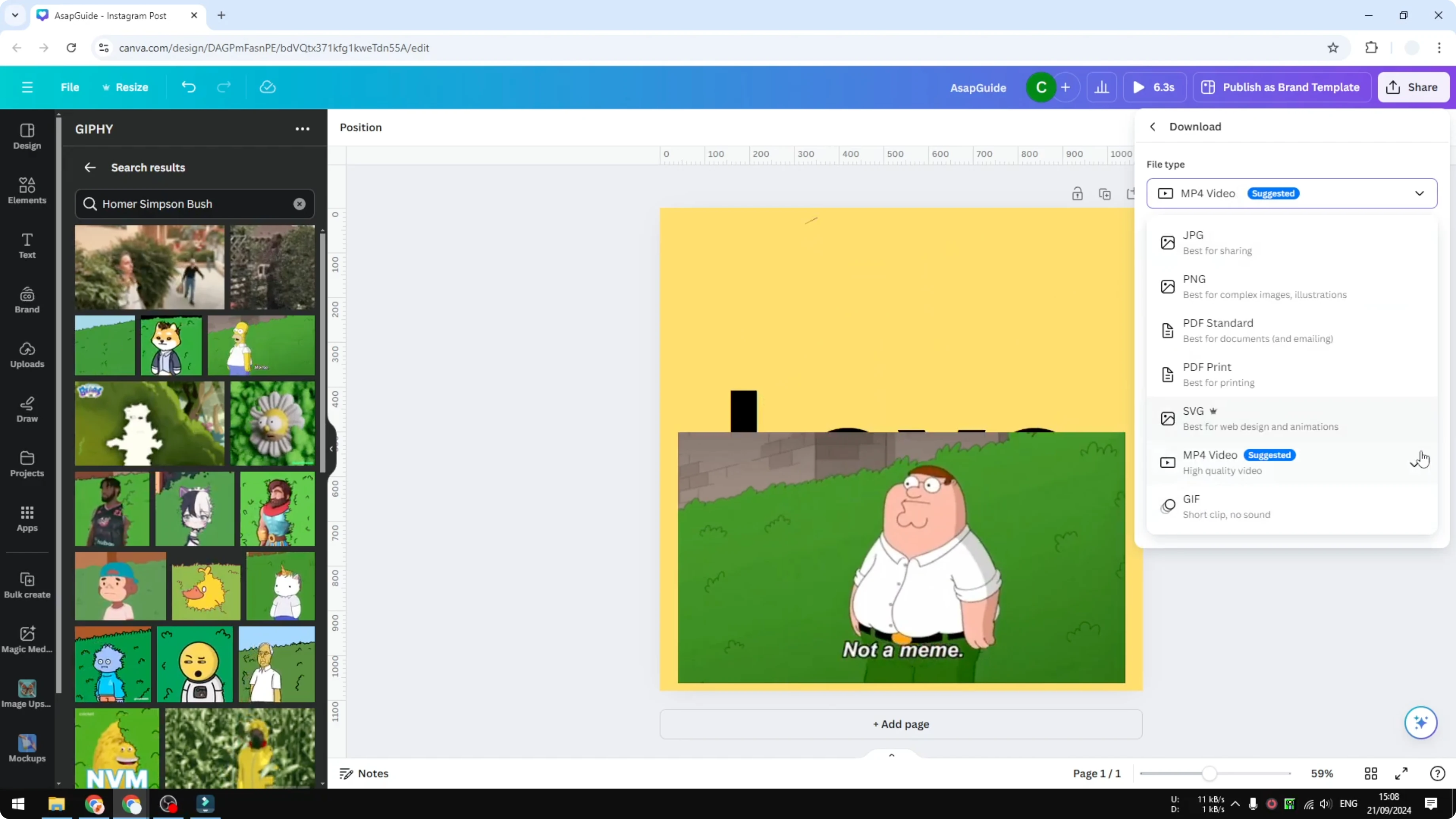
For File type choose MP4 or GIF.
If your design has audio or runs longer than 10 seconds, choose MP4 because it is more efficient.
If it is shorter and has no audio, choose the GIF option.
Adjust the resolution if needed and enable transparent background if you need it.
Click Download, wait for rendering, then play it on your computer or upload it to your social platforms.
For finishing touches like special characters in your captions or text overlays, learn how to add accent marks in Canva.
Final thoughts on Add GIFs to Canva GIPHY
You can add animated elements from the Elements library or pull from the GIPHY app inside Canva. Export as MP4 for longer designs with audio, or as GIF for short loops without audio. Adjust resolution and background settings, then download and share your animation.
Recent Posts

How to Visualize Yourself as a Pixelized Character with AI?
How to Visualize Yourself as a Pixelized Character with AI?

How to Revive Faded Memories and Enhance Image Clarity with AI?
How to Revive Faded Memories and Enhance Image Clarity with AI?

How to Visualize Yourself as an Animal Crossing Character with AI?
How to Visualize Yourself as an Animal Crossing Character with AI?