How to Visualize Yourself Wearing Different Eyeglasses with AI?
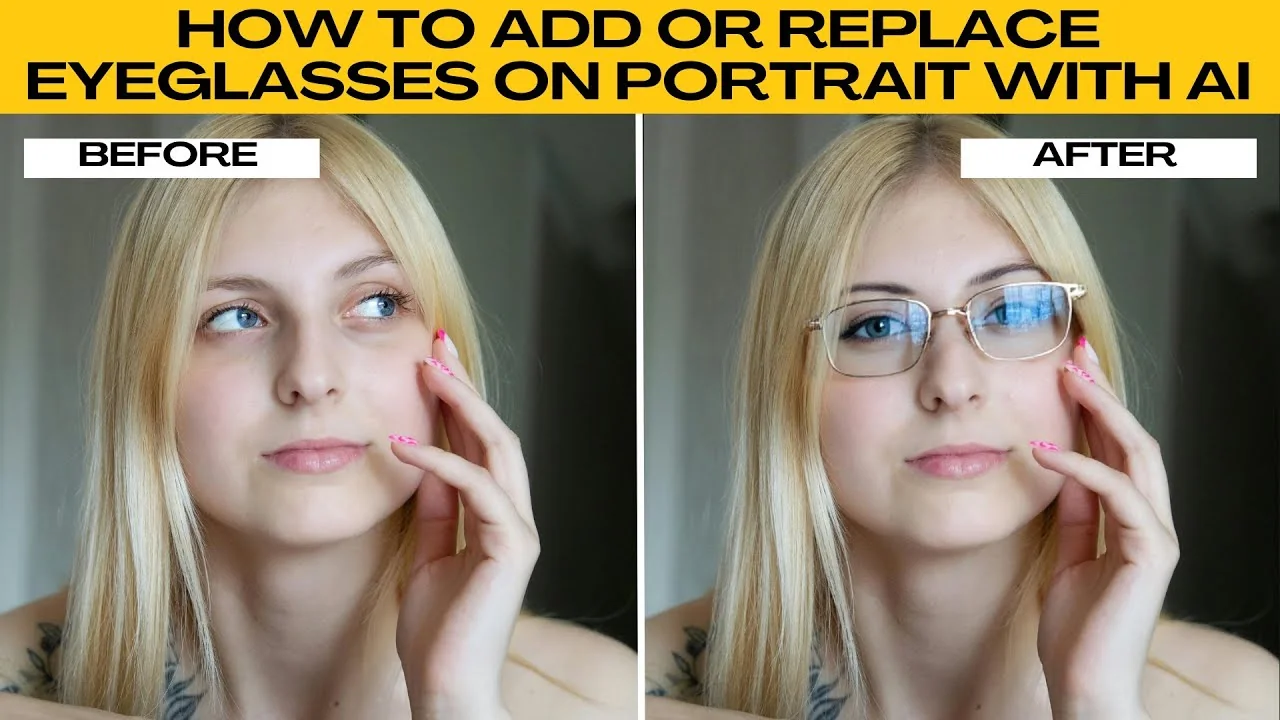
I will teach you how to add or replace eyeglasses on a portrait with AI. If you want to see how you look with stylish frames, try on virtual glasses for fun, or update existing eyewear in a portrait, you no longer need complex software or manual masking.
Photos AI replacer tool lets you add, swap, or upgrade glasses in seconds. No design skills needed.
For a broader walkthrough of photo editing with AI, check this guide to image editing with ICEdit.
Open the editor
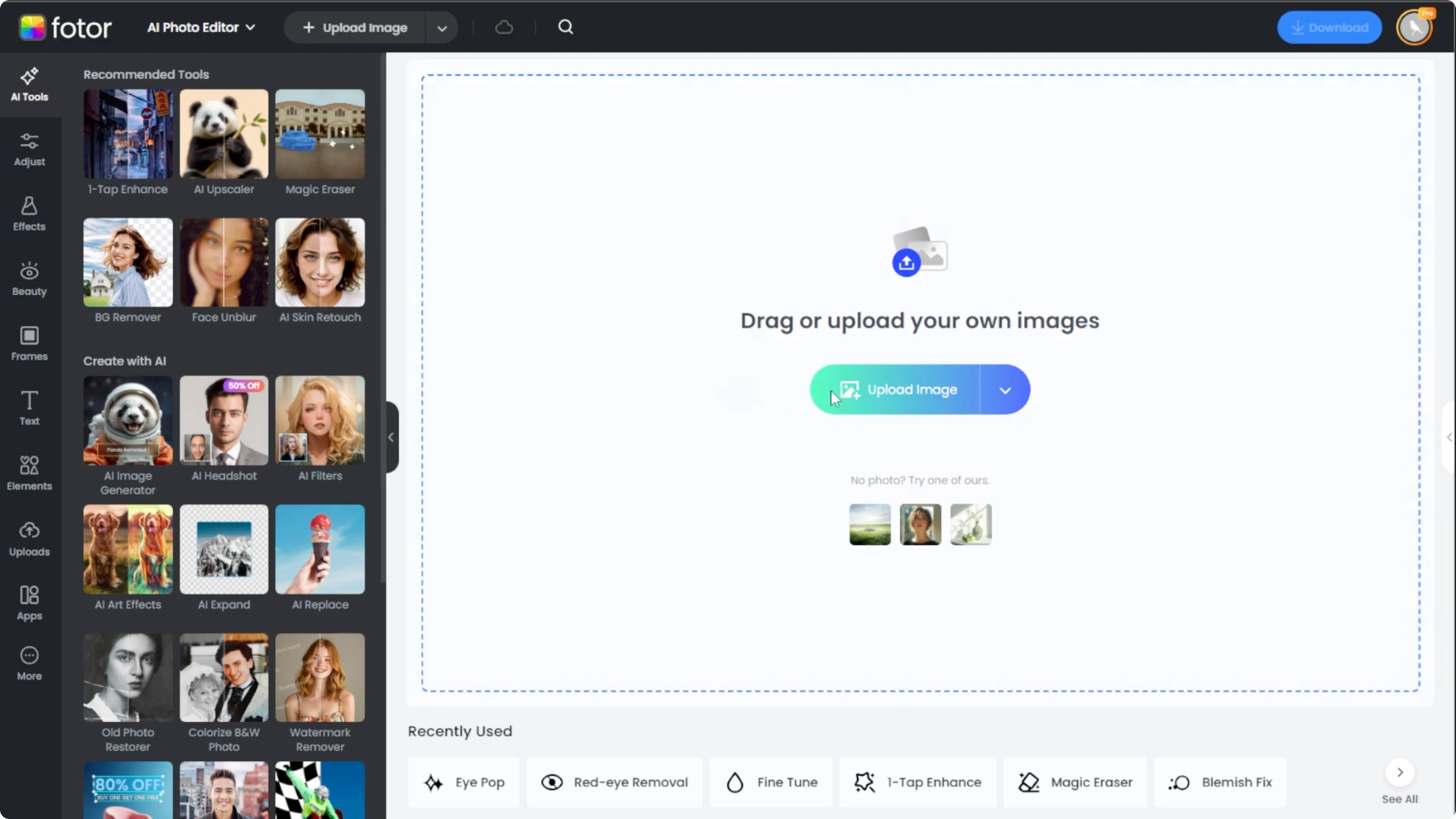
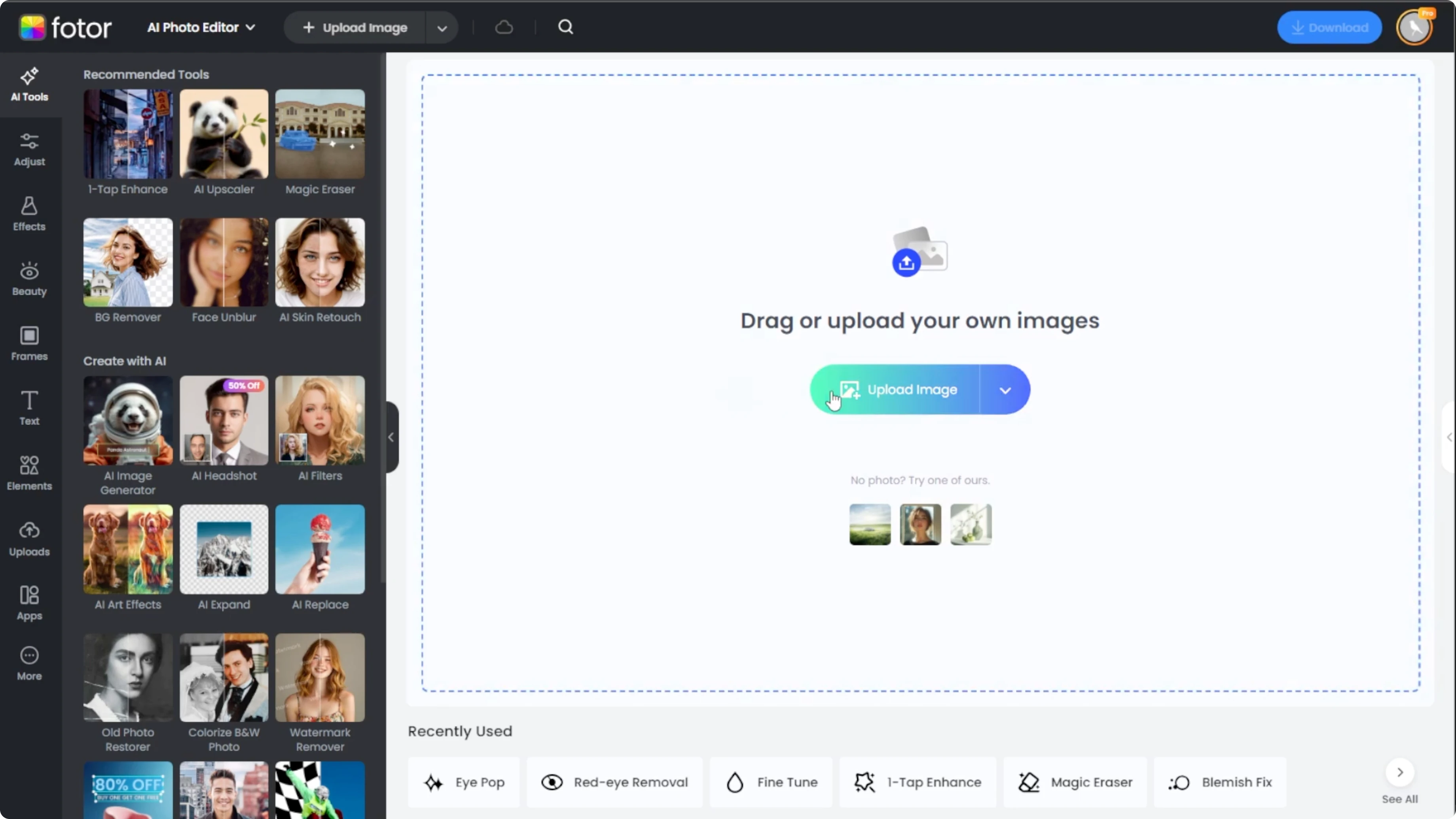
Open your browser and go to Photos AI photo editor. Click upload or drag and drop your image to import your portrait.
If you want a playful transformation for the same portrait, see how to turn yourself into a cartoon with AI.
Select the area
You have two selection methods.
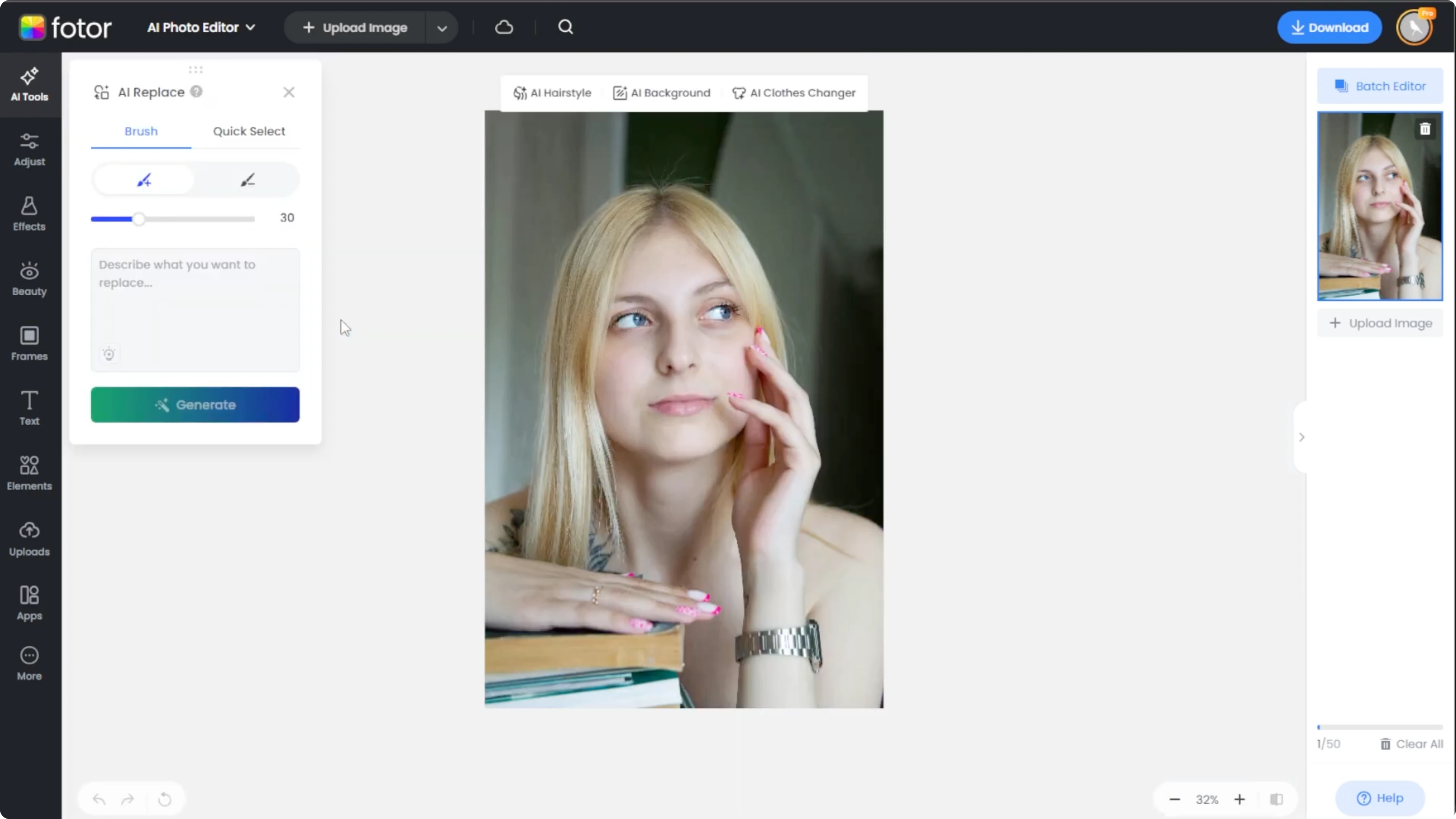
Brush tool
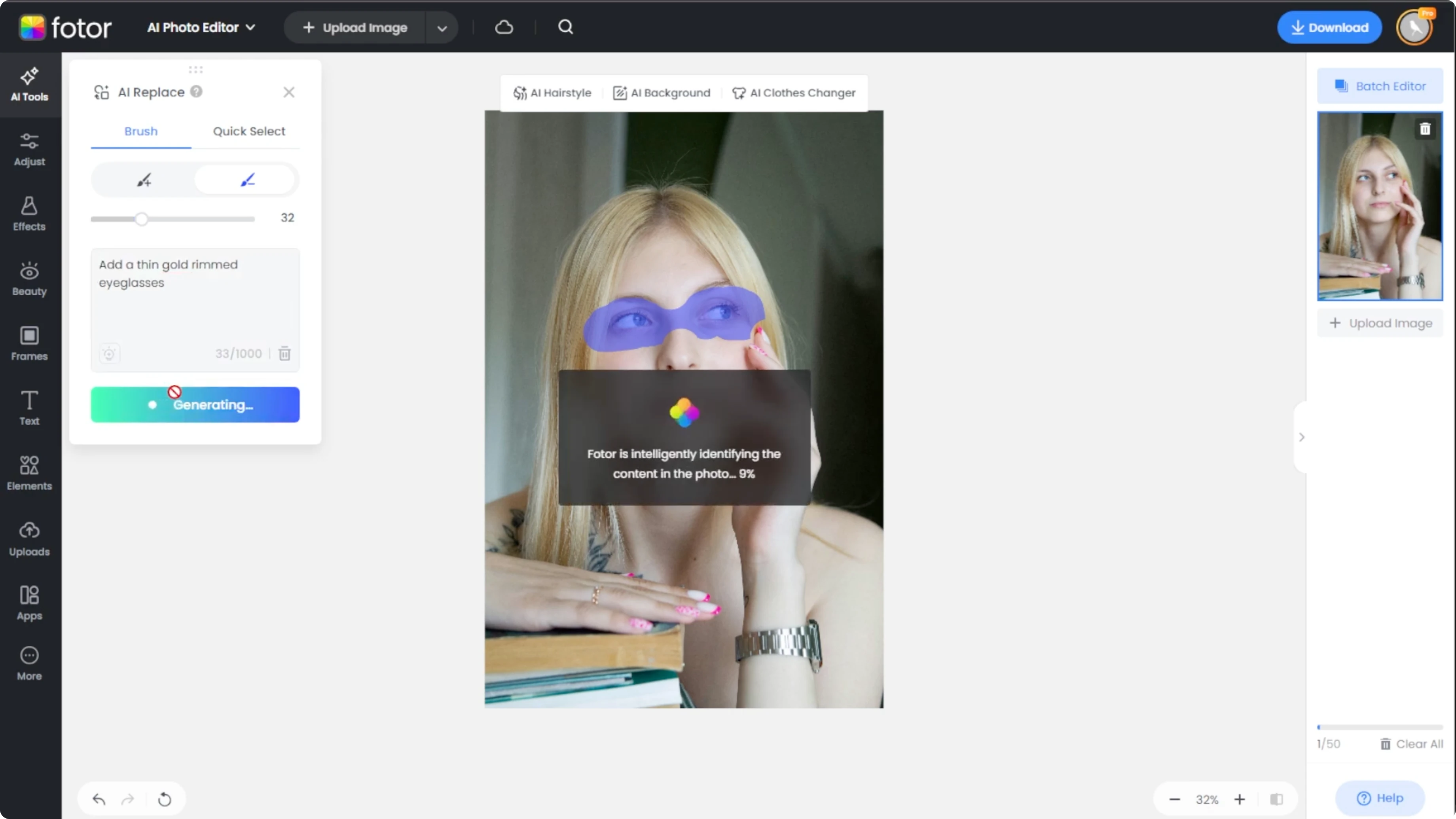
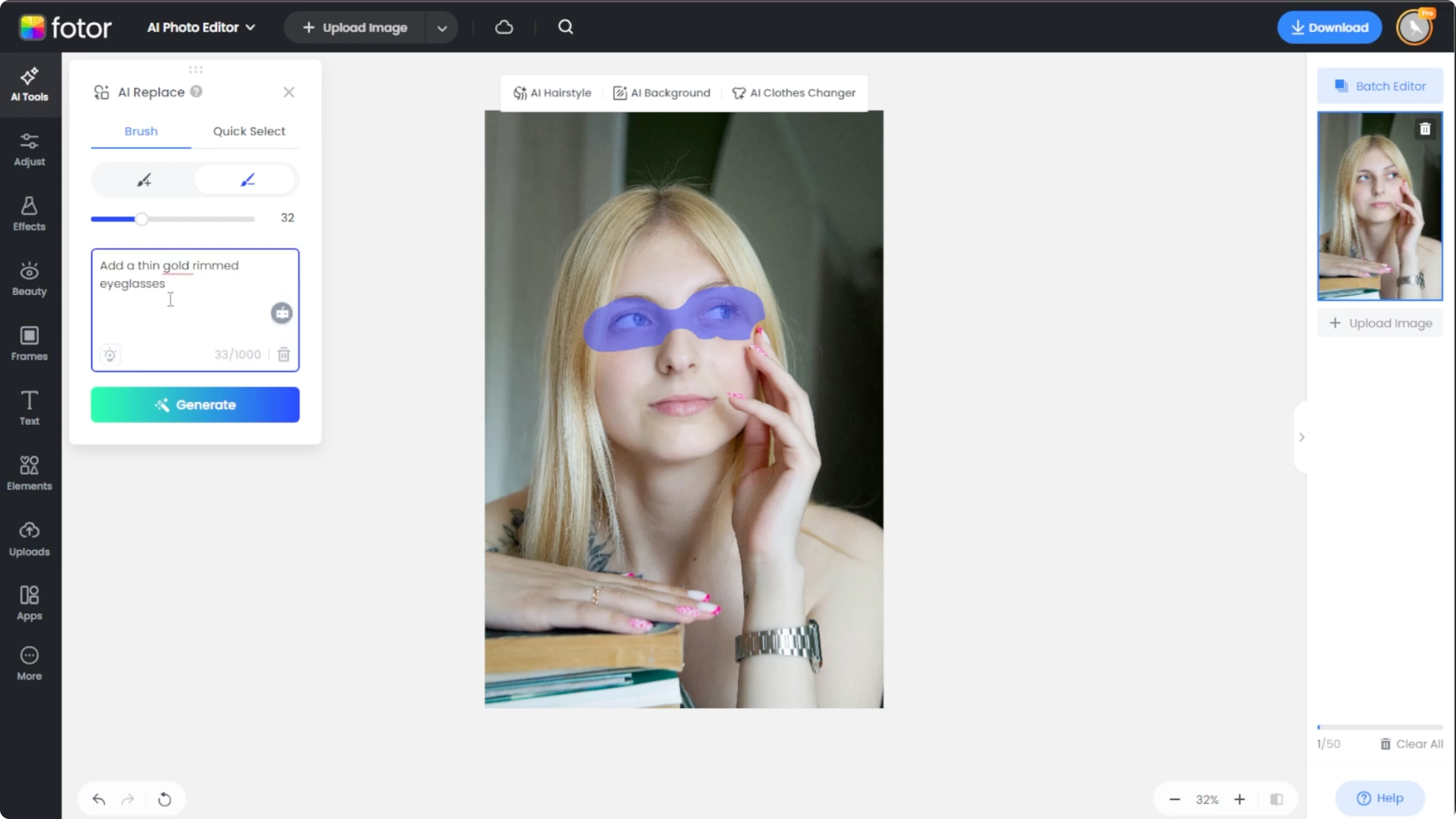
Make sure the sub mode is set to add and adjust the brush size so it comfortably covers the eye area. Paint over where the glasses should sit, preferably bridge of the nose through the temples. If you overpaint, switch to the subtract mode and clean up any excess.
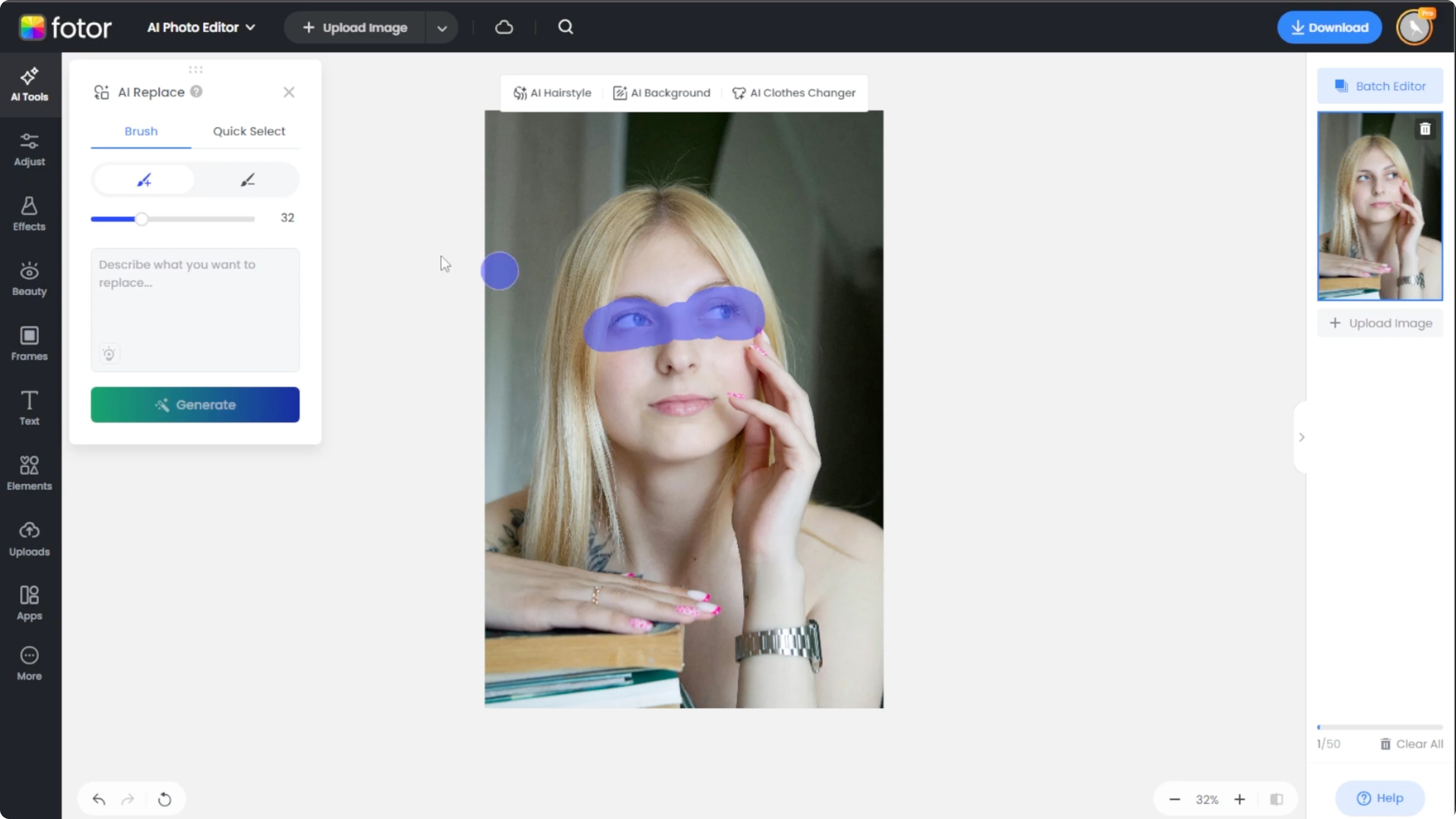
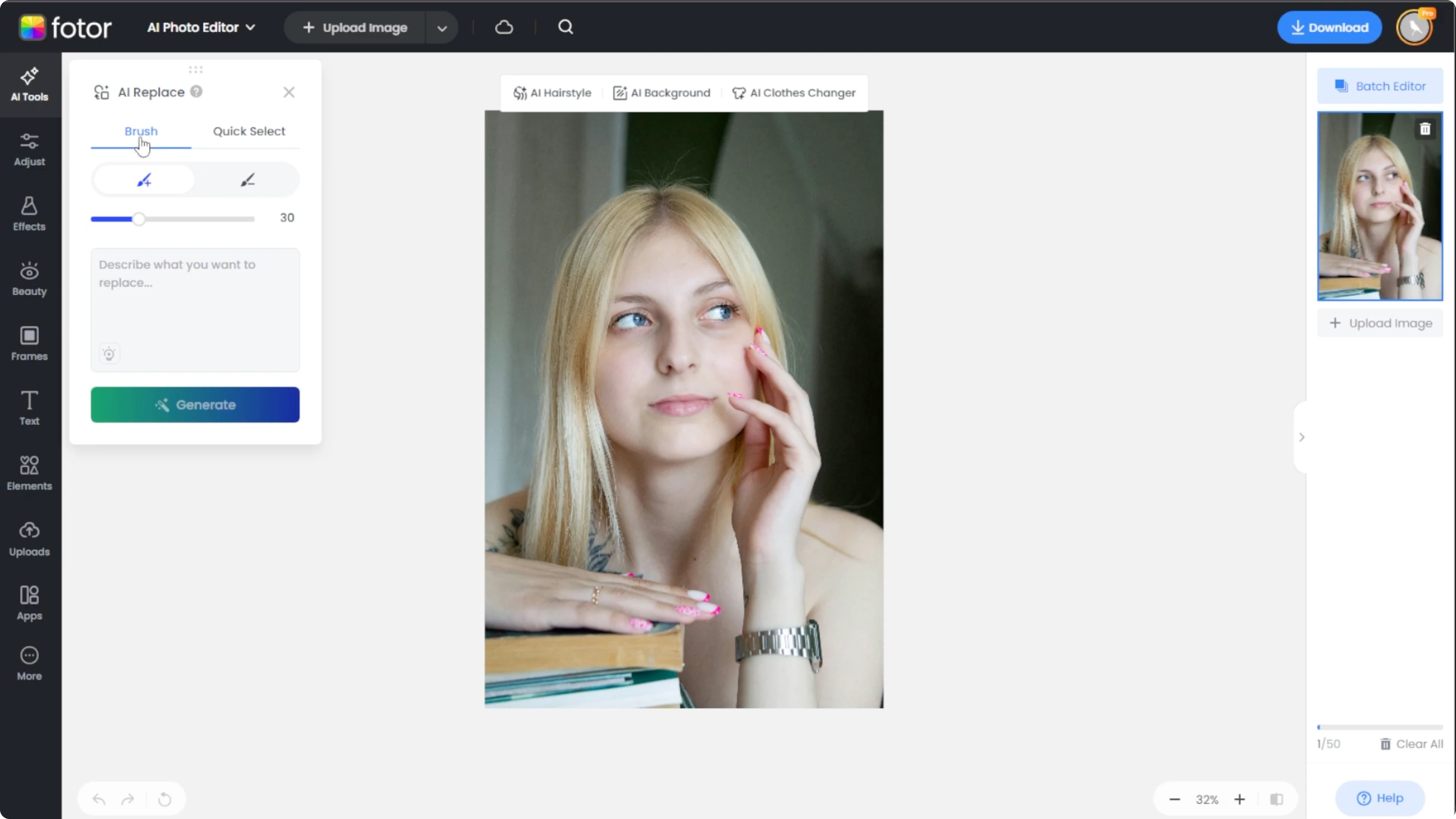
Quick select
Choose the quick select mode for automatic selection. Click on the existing pair of glasses and the selection will turn blue. If the AI misses bits, switch to the brush tool to refine.
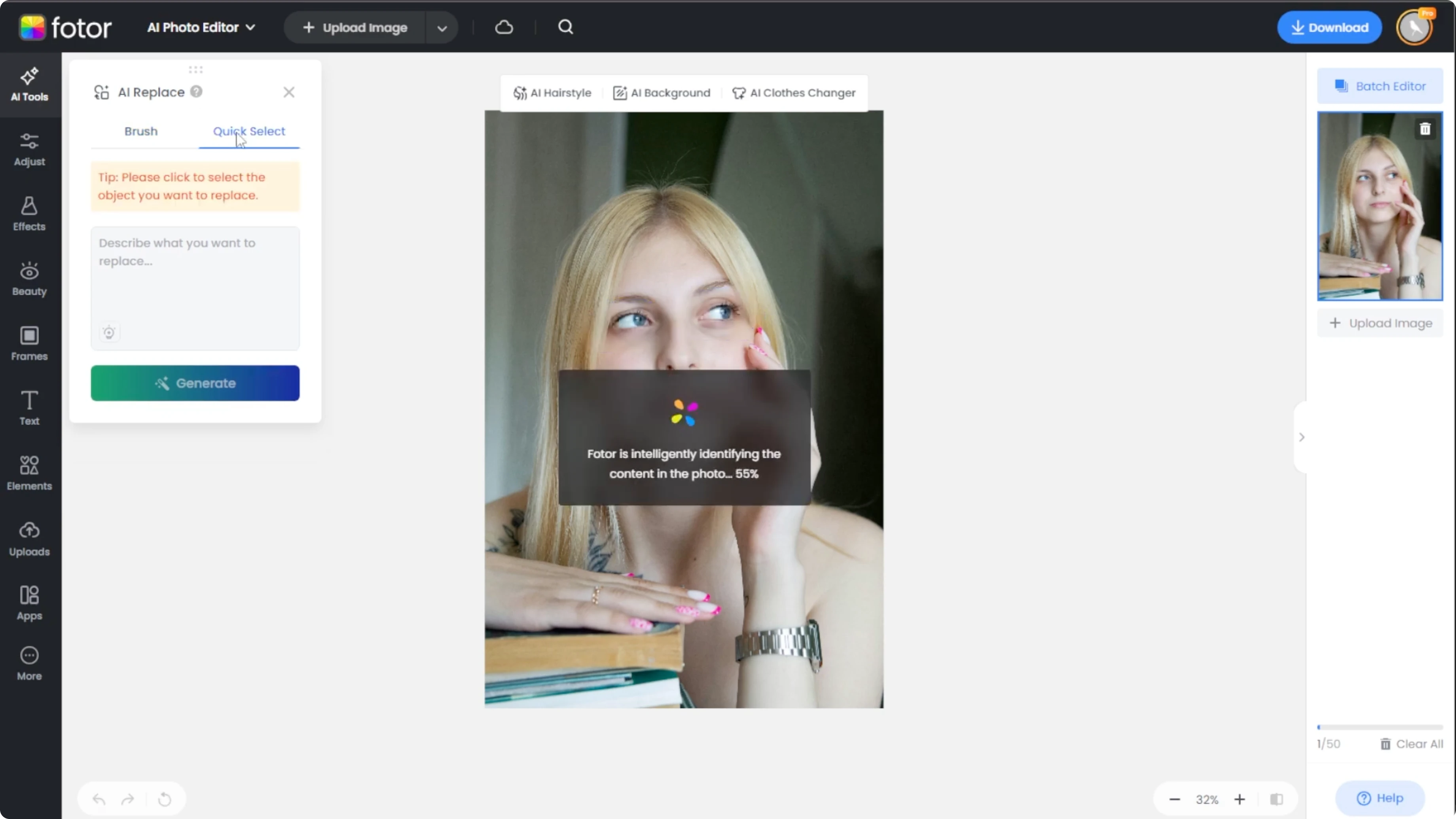
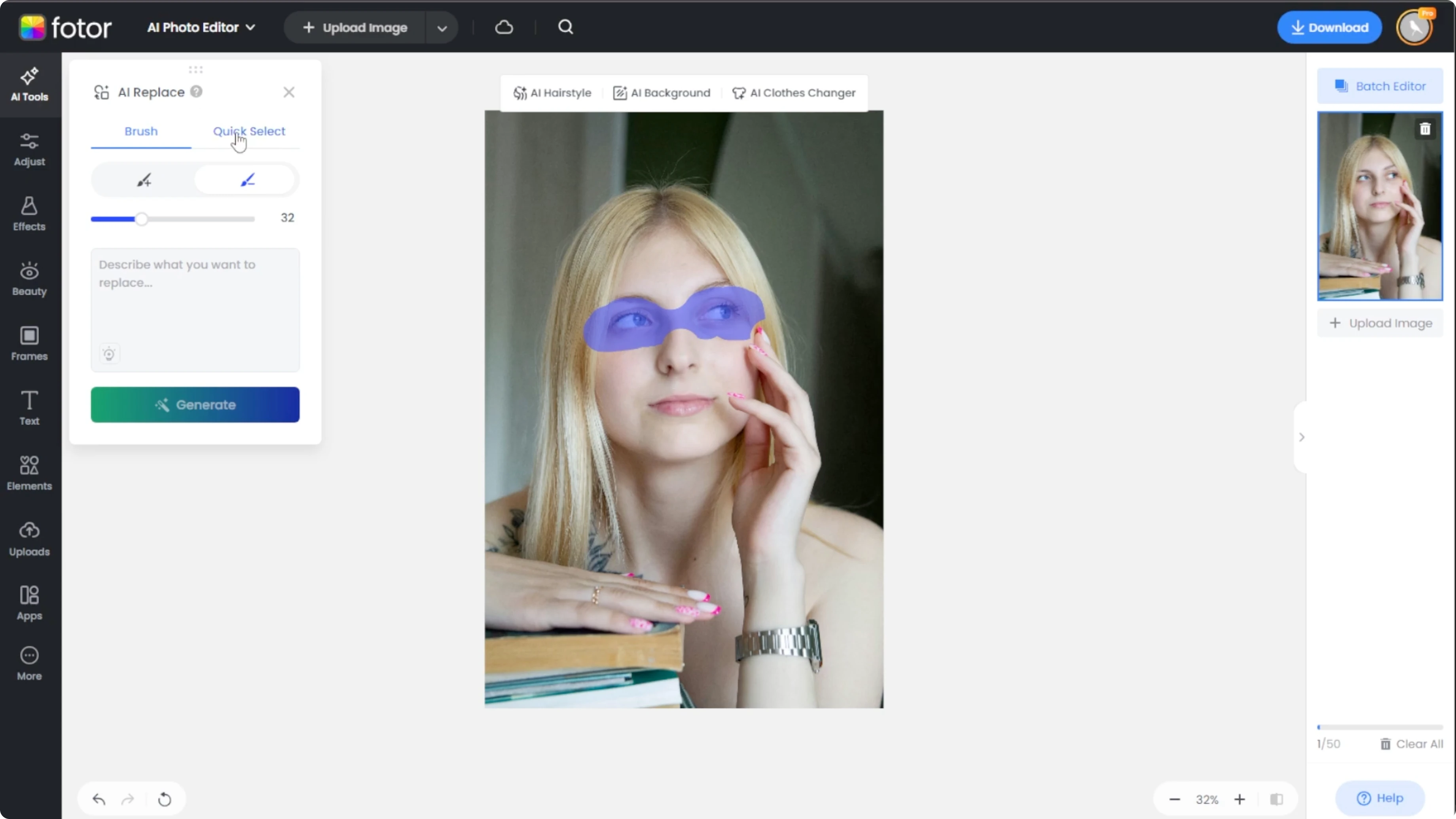
Describe and generate
In the text prompt box, type in a clear description of the frames that you want. You can include style, color, and any decorative elements. Click Generate and Photos will produce two variations per generation.
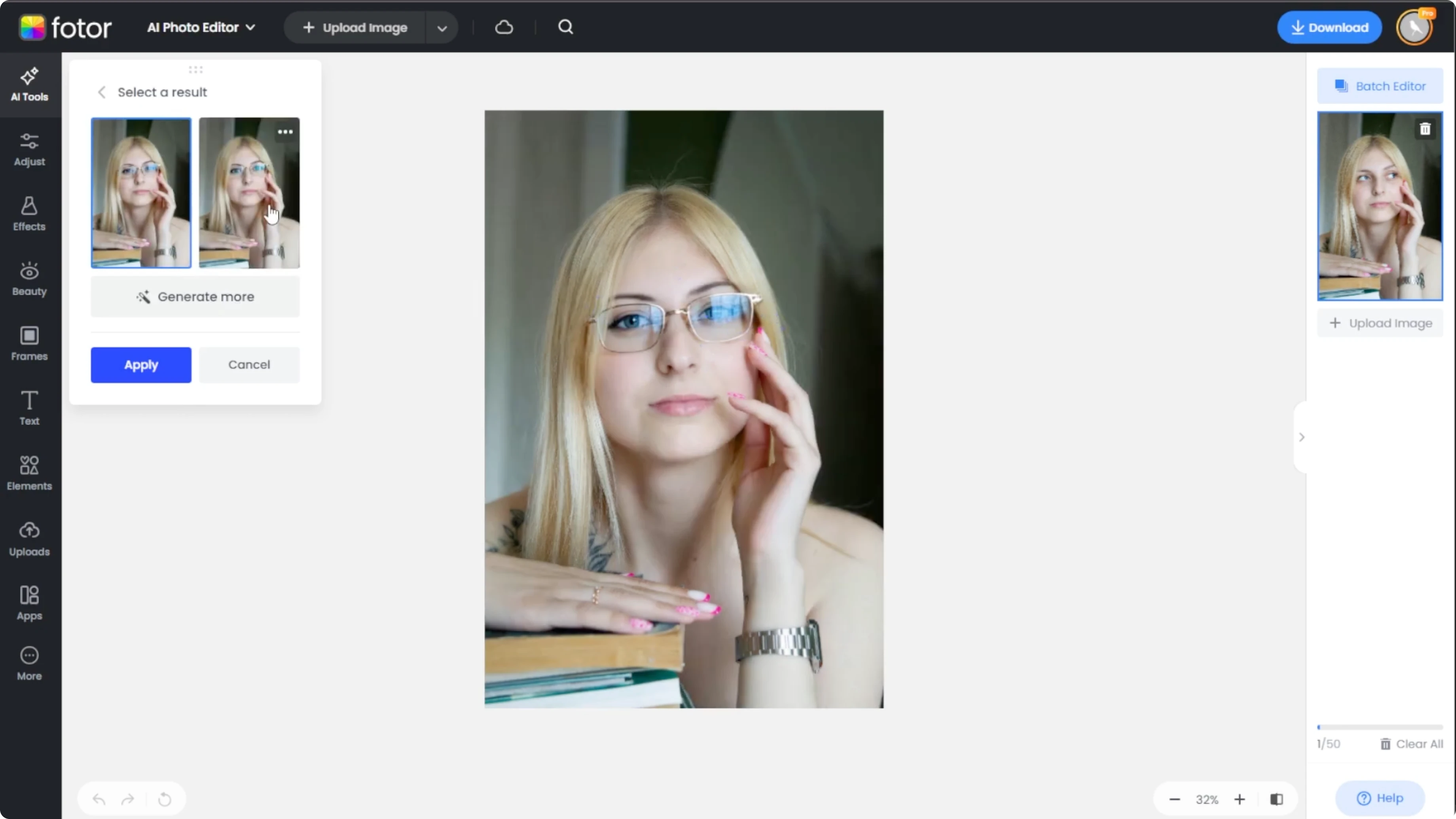
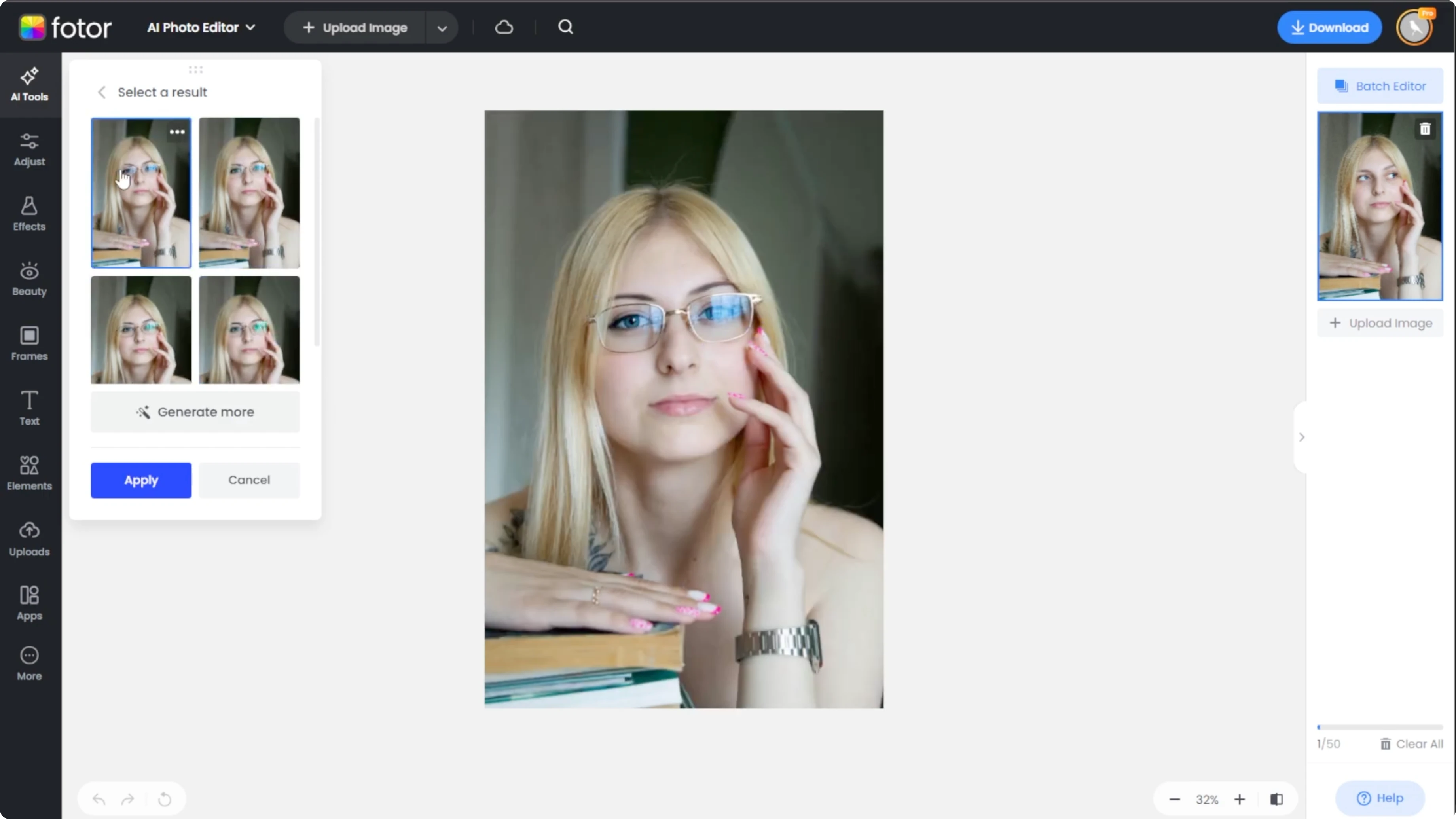
Click each thumbnail to preview in context. Click Generate more if you want additional options.
Compare and export
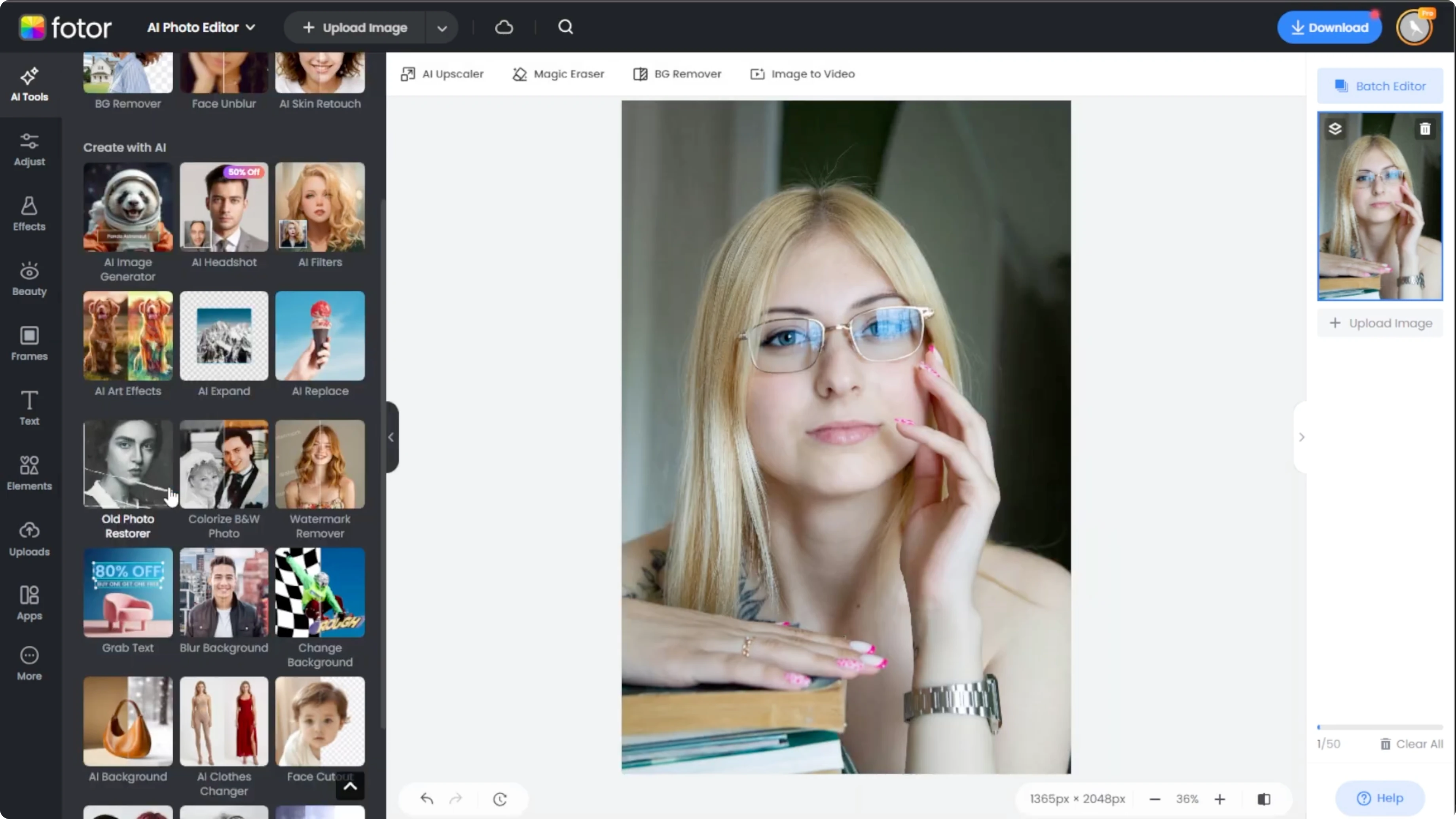
Click the compare button at the bottom left to toggle between the original and the new one. Once you love a version, select it and click apply. Click download to save your edited photo.
If you are exploring portrait edits to boost your look, you might also want to make yourself look more muscular using AI.
Final thoughts
This workflow makes trying on eyewear fast and fun. Set your selection precisely, describe the frames clearly, and review variations until one fits your style. Save the result and repeat to explore more looks.
Recent Posts

How to Visualize Yourself as a Pixelized Character with AI?
How to Visualize Yourself as a Pixelized Character with AI?

How to Revive Faded Memories and Enhance Image Clarity with AI?
How to Revive Faded Memories and Enhance Image Clarity with AI?

How to Visualize Yourself as an Animal Crossing Character with AI?
How to Visualize Yourself as an Animal Crossing Character with AI?