How to Transform a Photograph Into a Stunning Mosaic Using AI?
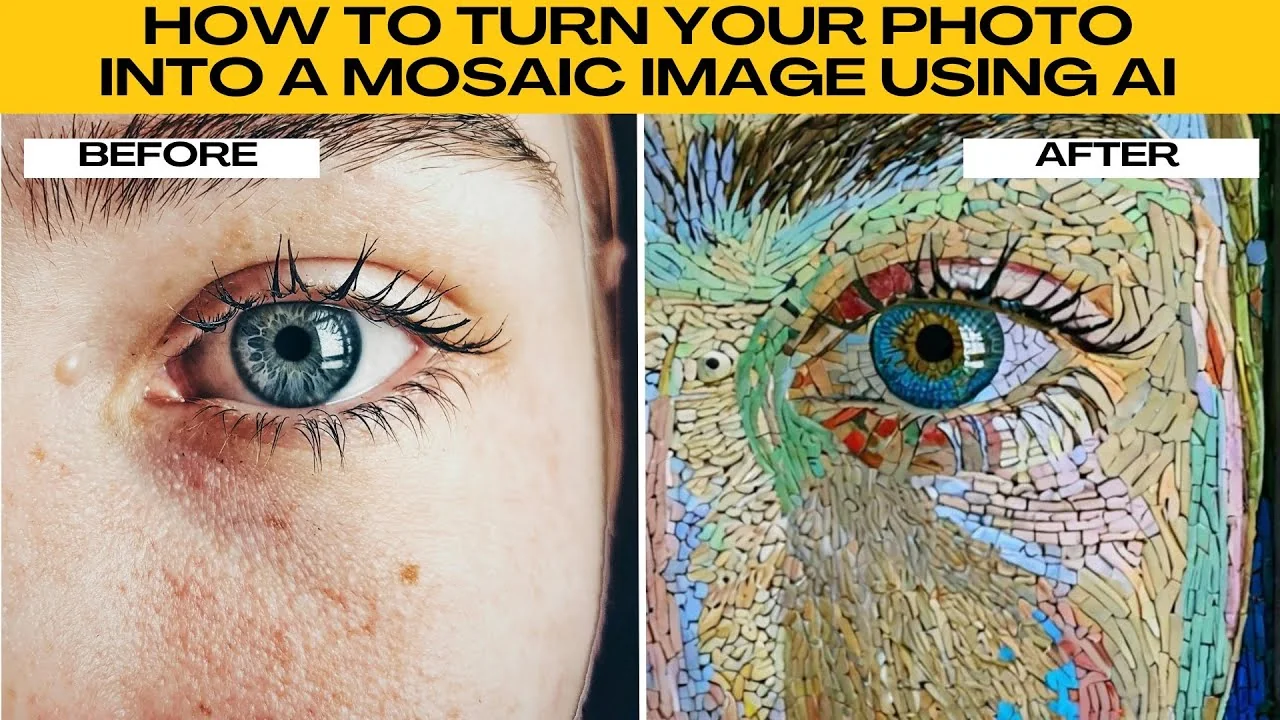
I will teach you how to turn your photo into a mosaic image using AI.
This quick guide walks you through uploading, selecting a mosaic style, comparing results, and saving your image.
If you enjoy creative transformations, you can also convert daytime photos into night scenes with a simple AI workflow.
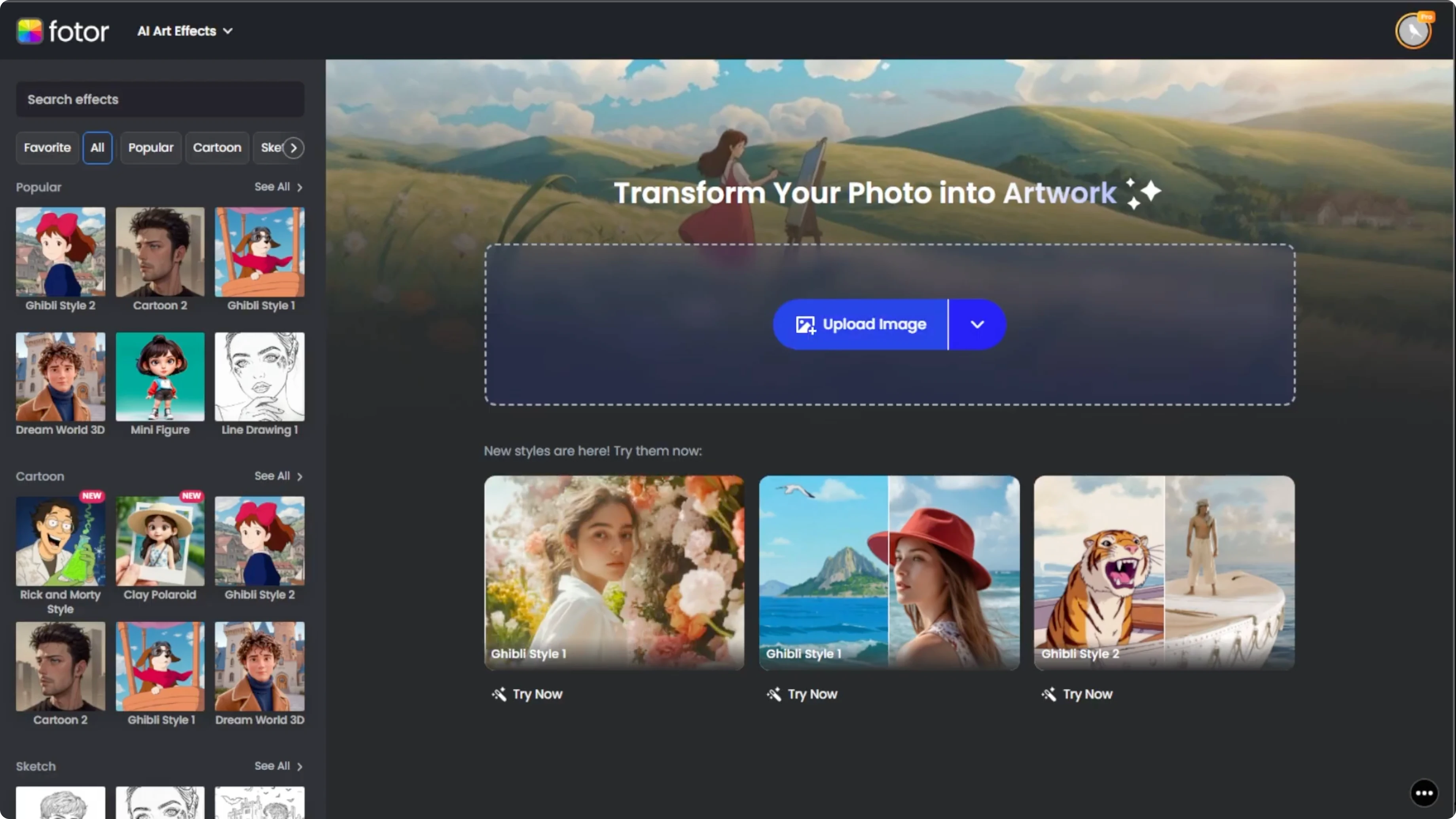
Upload
Open your browser and go to photo AI artifacts.
Click Upload and select the photo you want to turn into a mosaic.
You can also drag and drop your image into the editor.
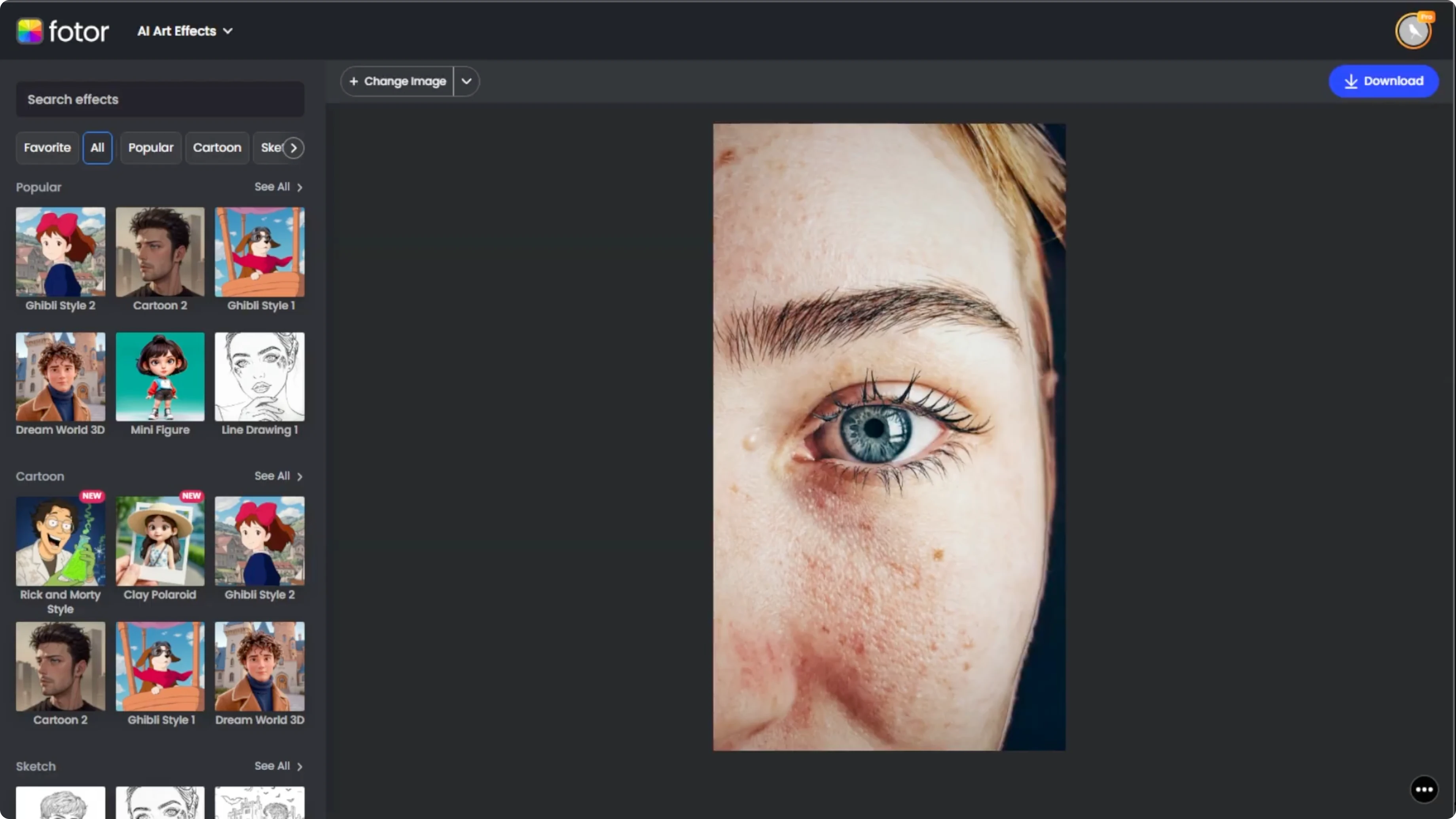
Pick a style
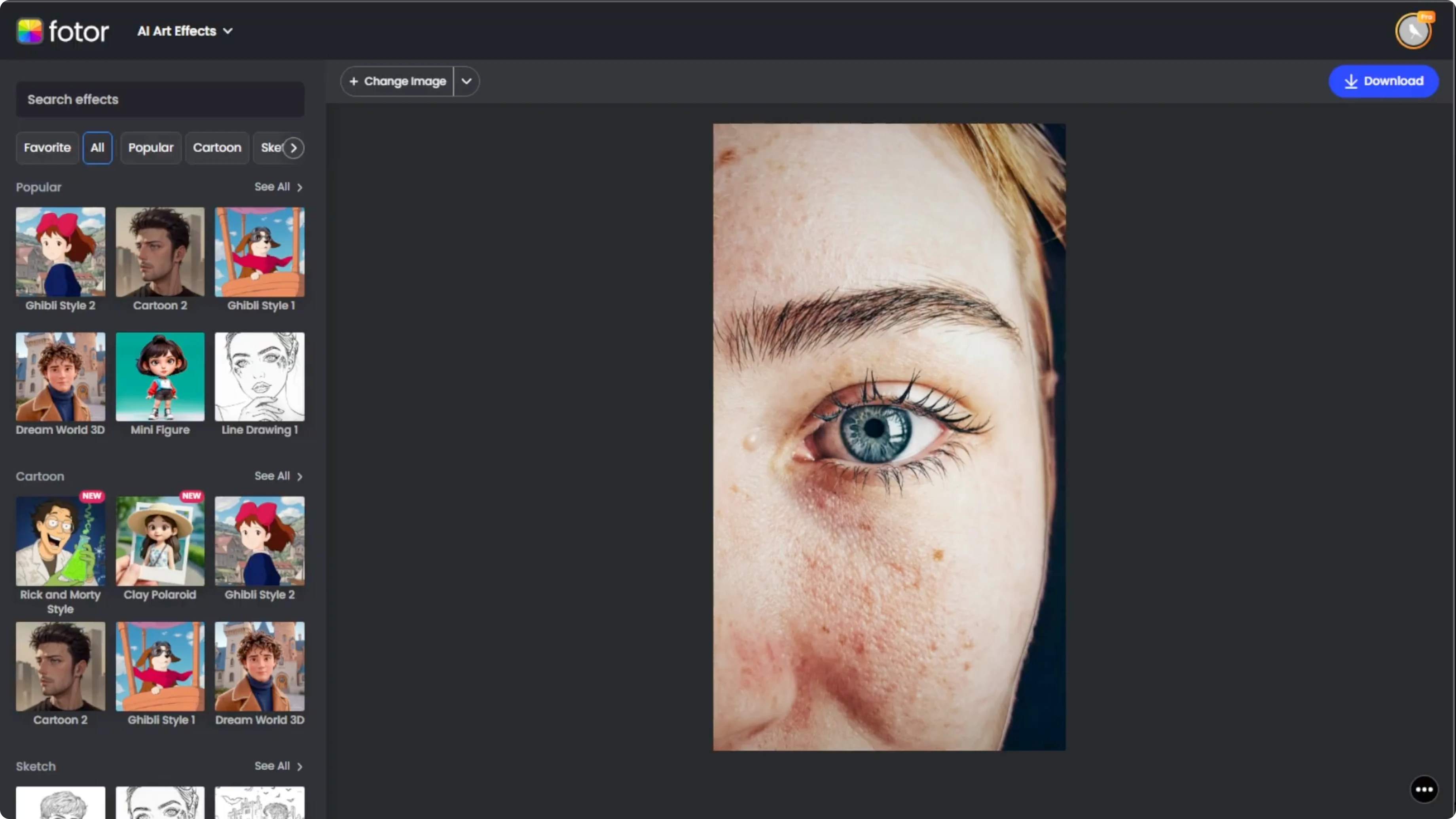
Browse the art styles on the left panel.
Scroll the categories or use the search bar to find a mosaic effect.
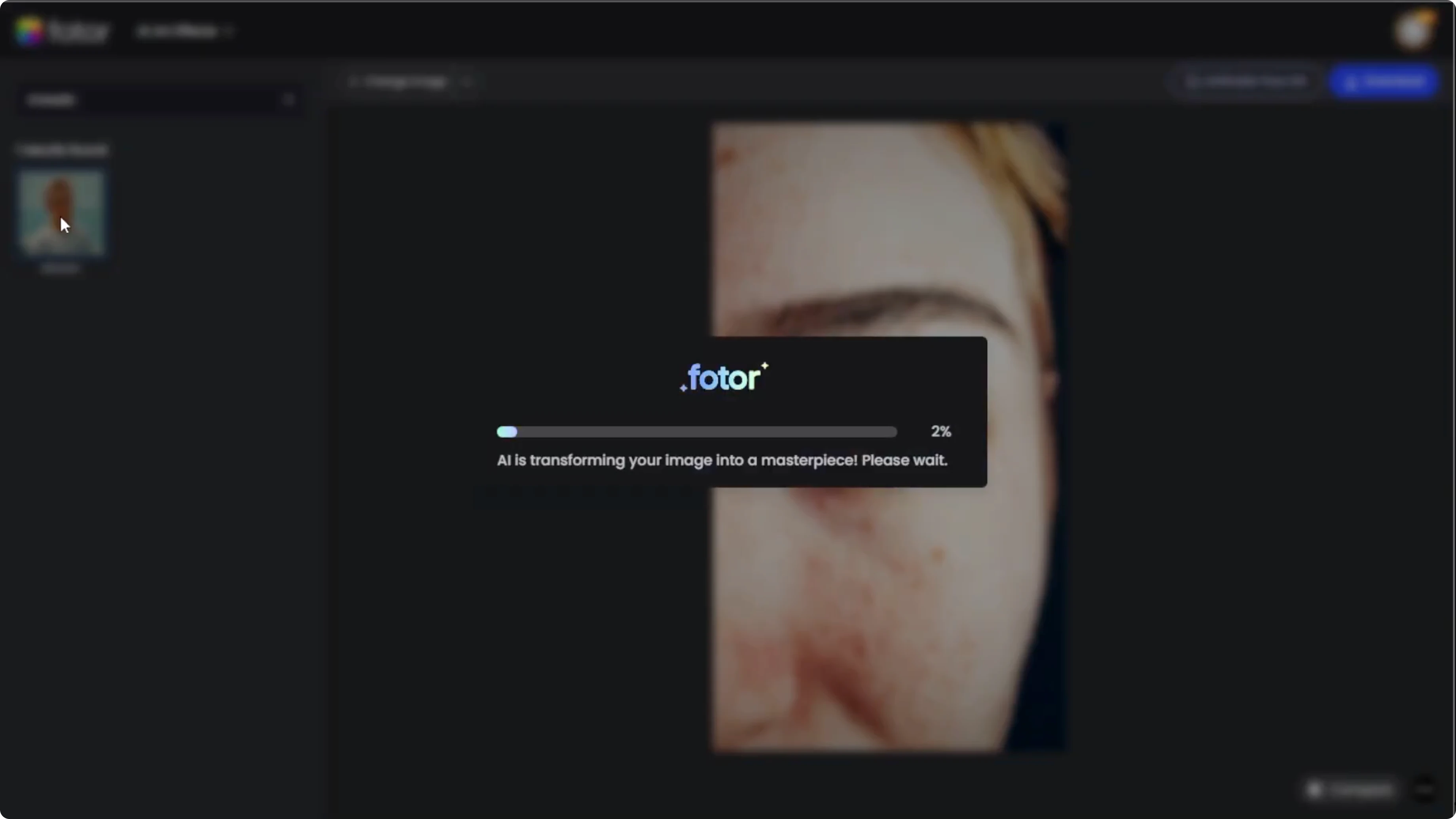
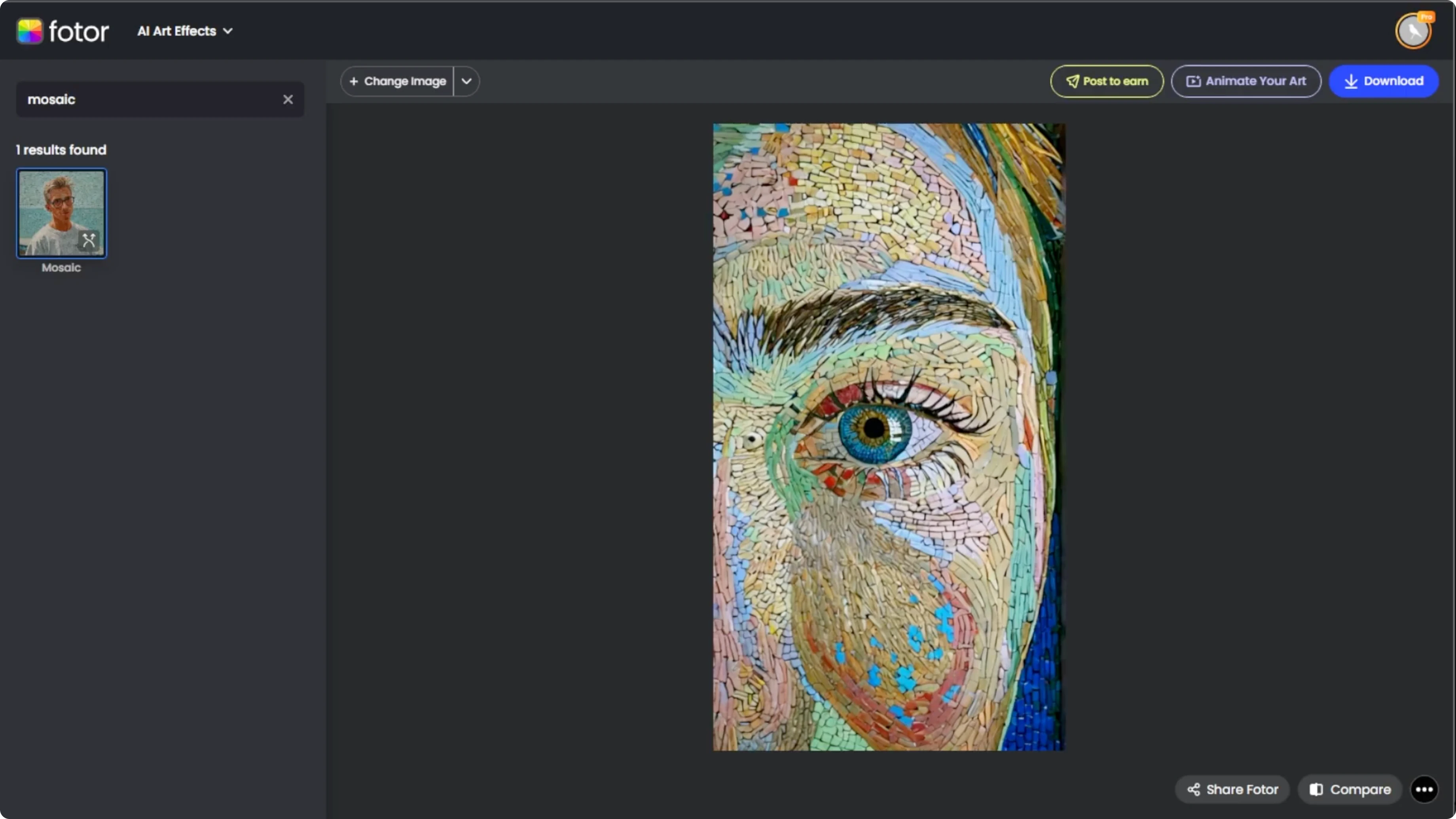
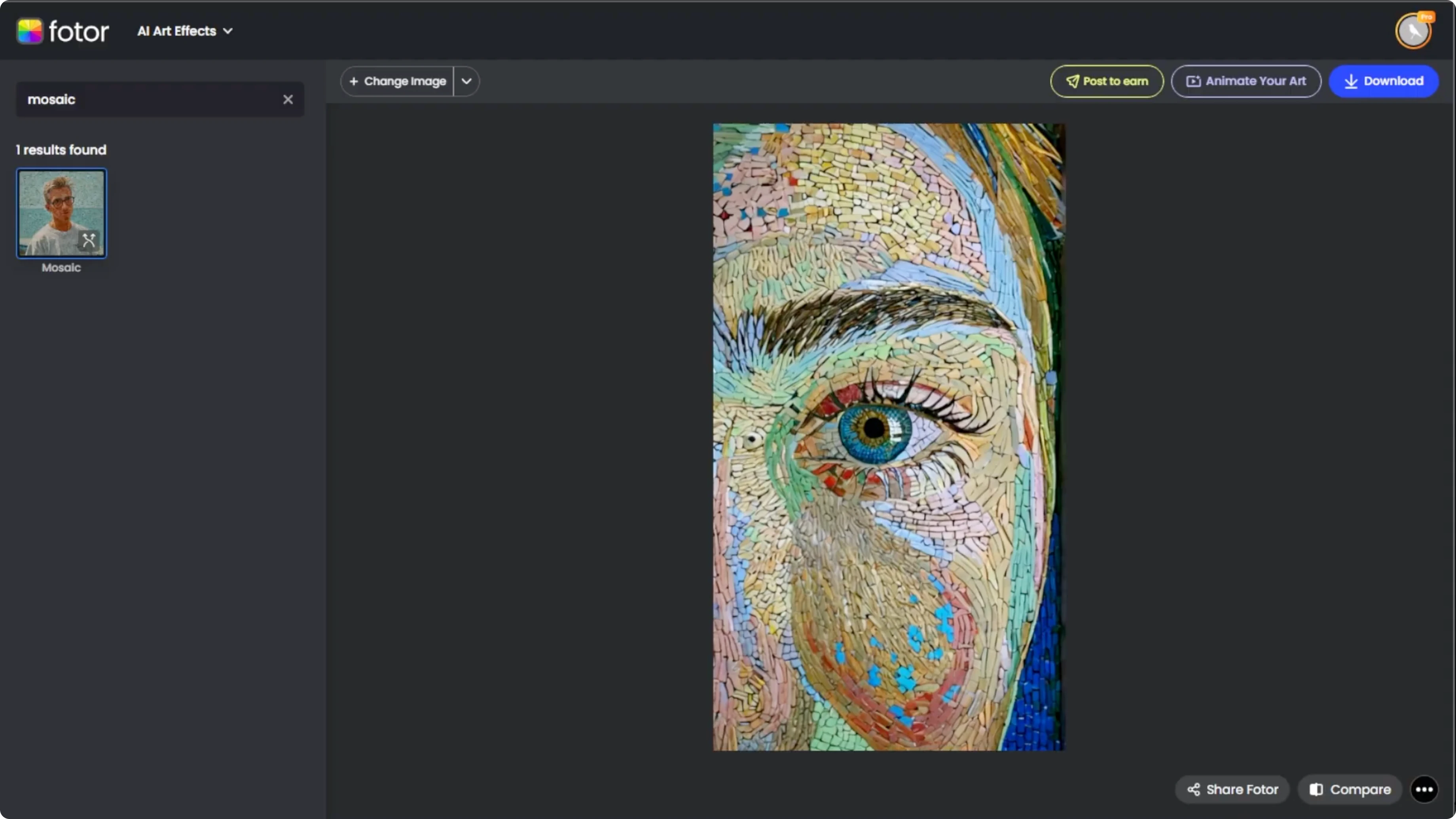
Click the mosaic style you like and PhotoR will apply the effect in about 10 seconds.
For a different creative look, you can also turn a portrait into a cartoon using an AI style workflow.
Compare and save
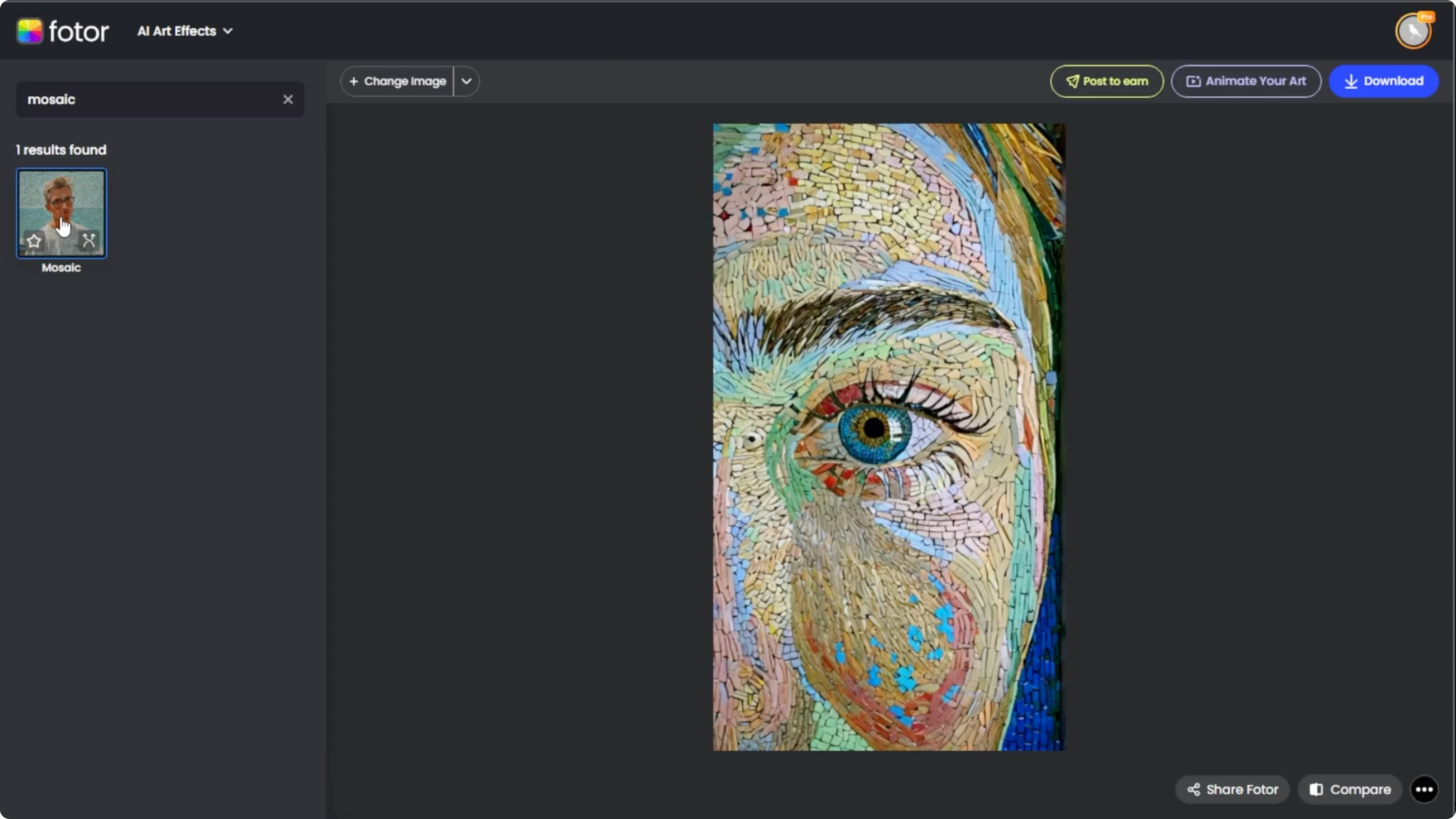
Click Compare at the bottom right to toggle between your original and the stylized version.
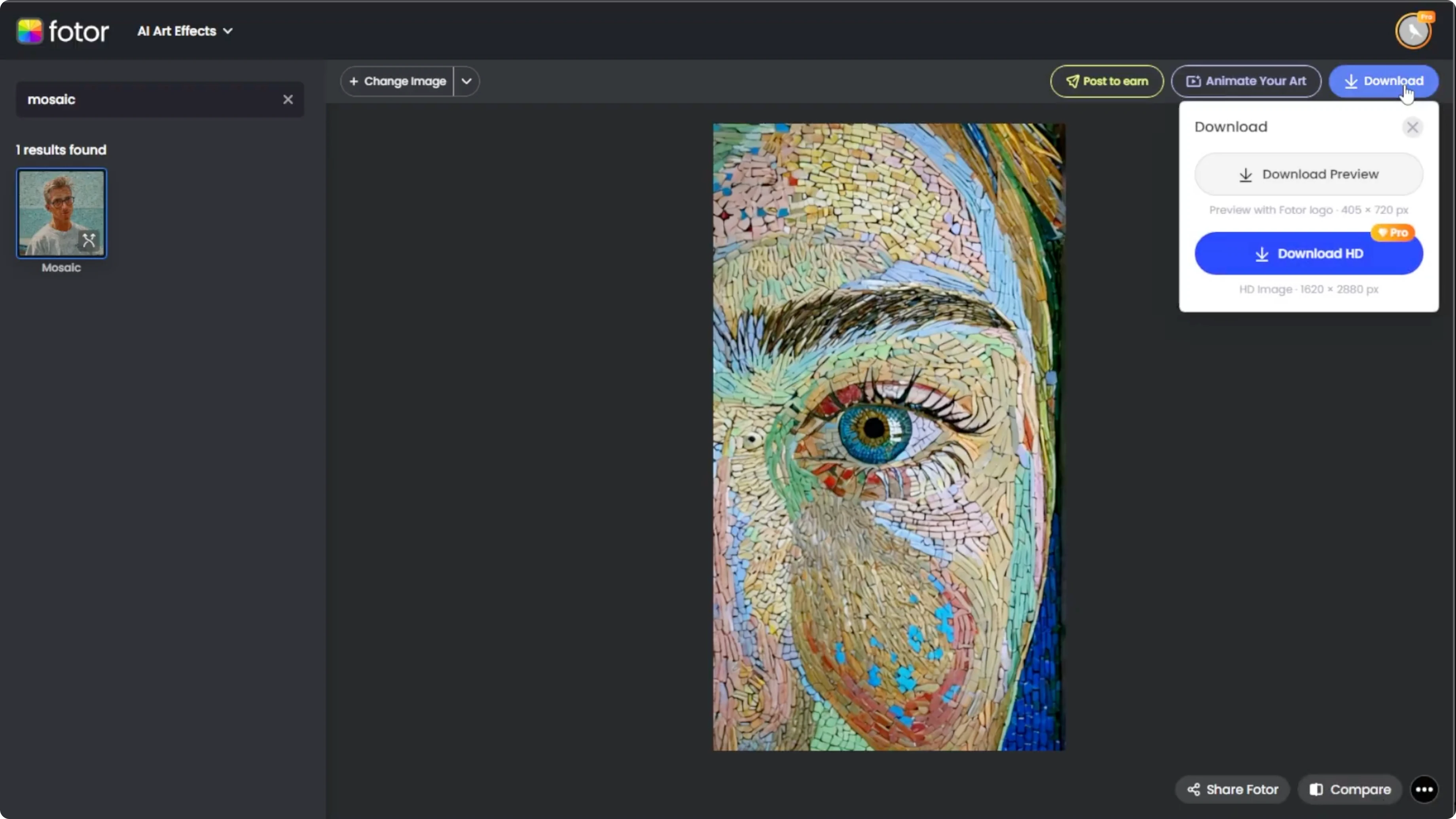
Once you are satisfied, click Download to save the final image to your computer.
With a few clicks, you can transform any photo into a mosaic style image using Photor's AI.
Final thoughts
This workflow is quick, fun, and gives your pictures a fresh artistic spin.
Experiment with different mosaic styles to match the mood of your photo.
For broader editing tasks and guided tools, explore the Icedit AI guide to expand your options.
Recent Posts

How to Visualize Yourself as a Pixelized Character with AI?
How to Visualize Yourself as a Pixelized Character with AI?

How to Revive Faded Memories and Enhance Image Clarity with AI?
How to Revive Faded Memories and Enhance Image Clarity with AI?

How to Visualize Yourself as an Animal Crossing Character with AI?
How to Visualize Yourself as an Animal Crossing Character with AI?