How to Replace an Image in Canva

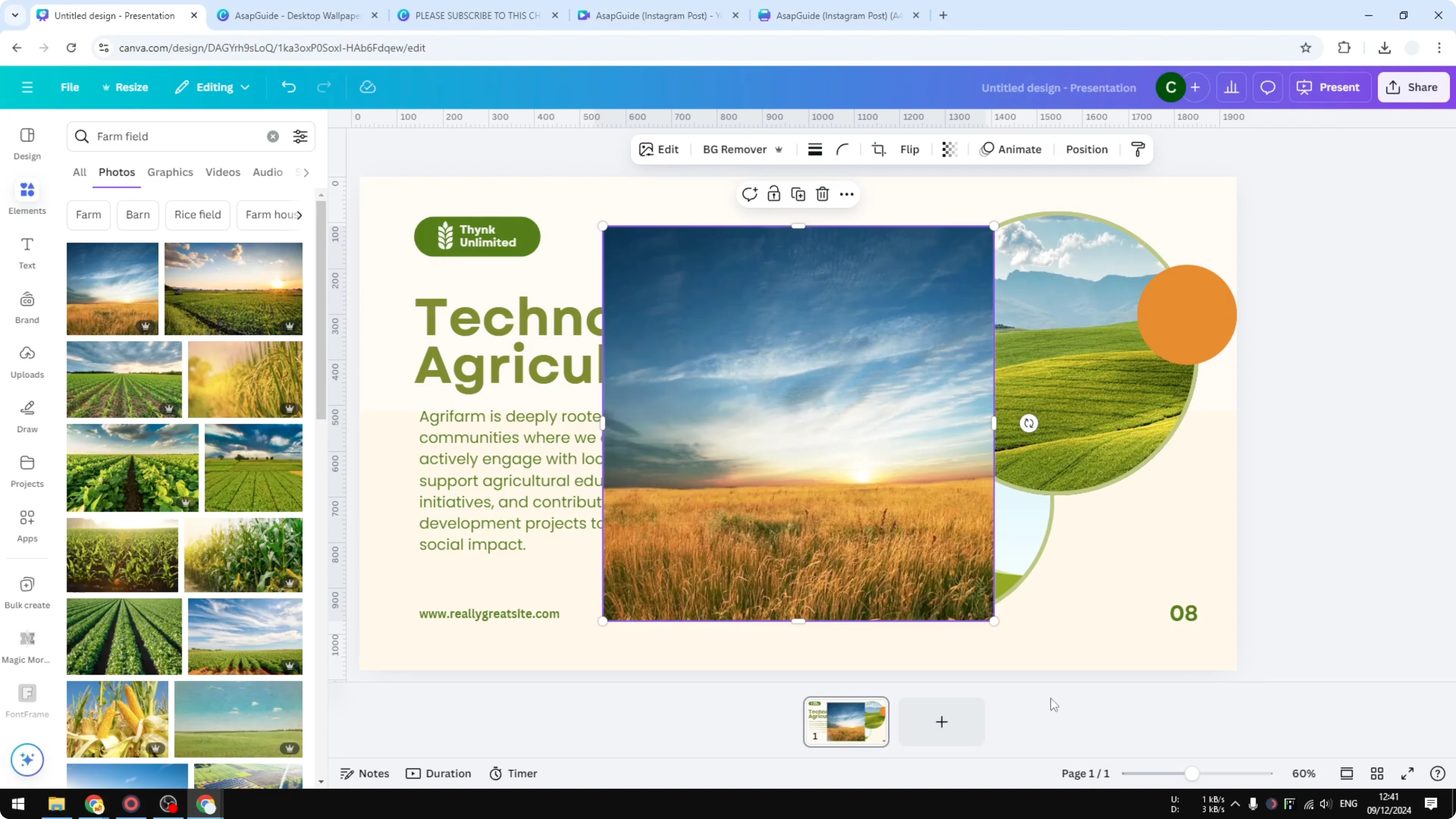
Here is how to replace an image in Canva. The process is the same for a background, an illustration, or a decoration. I want to replace the image in this frame because I have two pictures that are basically the same, and I prefer a unique picture for every frame.
Replace an Image in Canva
Choose the photo
I visit Elements and search for farm field. You can also use a picture from the Uploads menu. Upload a picture from your computer and place it into Canva.
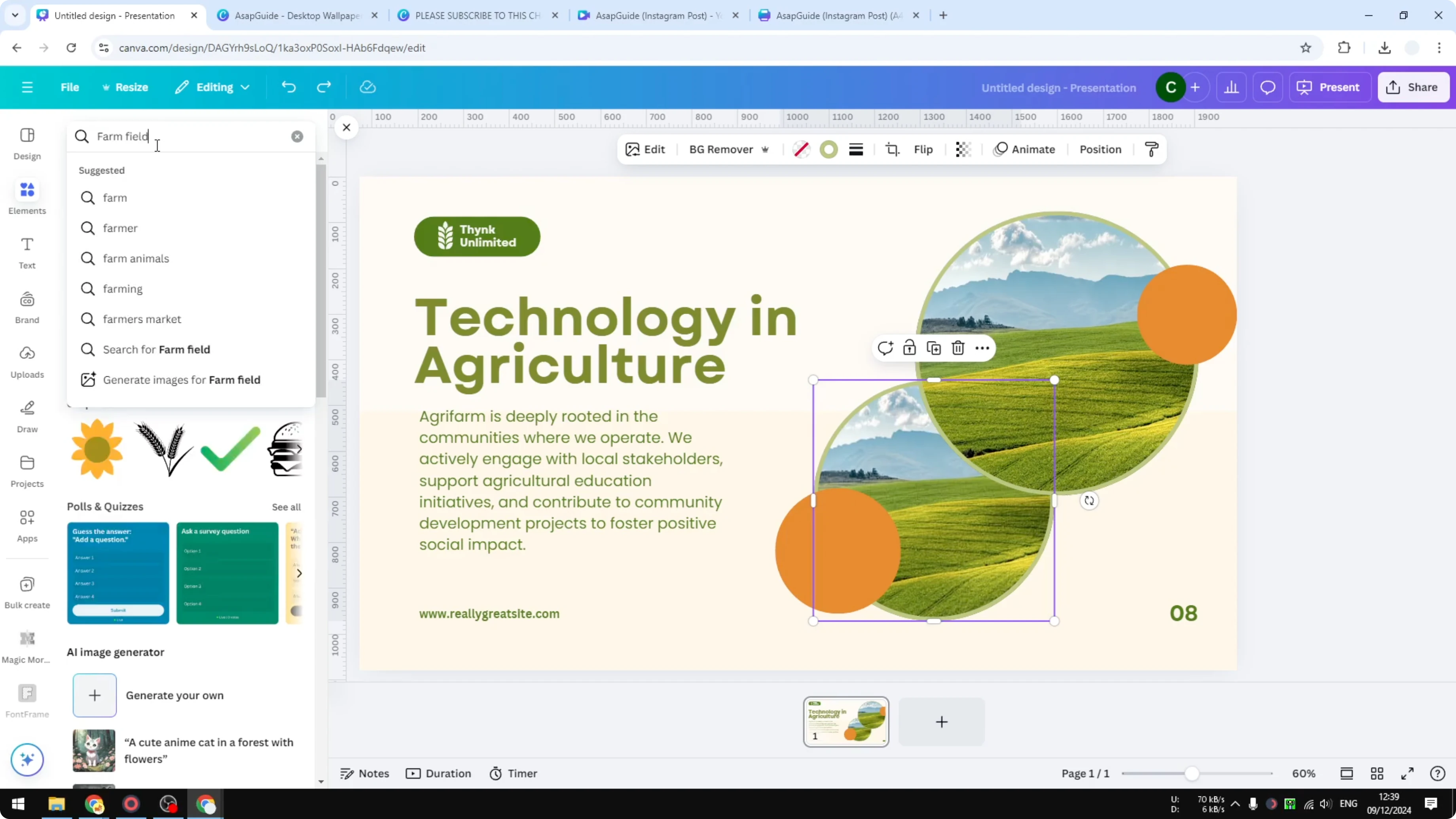
Drag to replace
Click the picture you want to use.
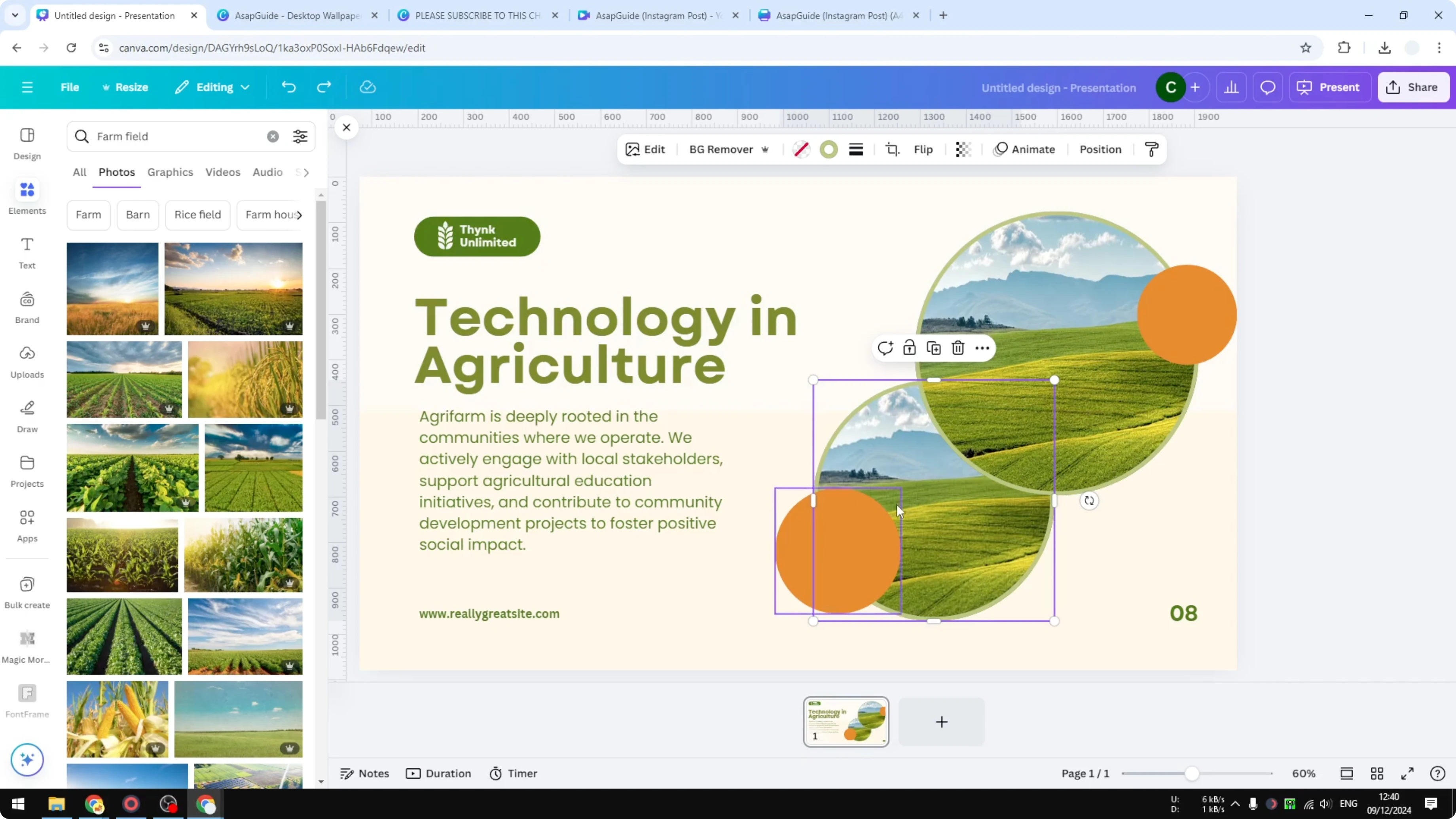
Drag it over the frame you want to replace.
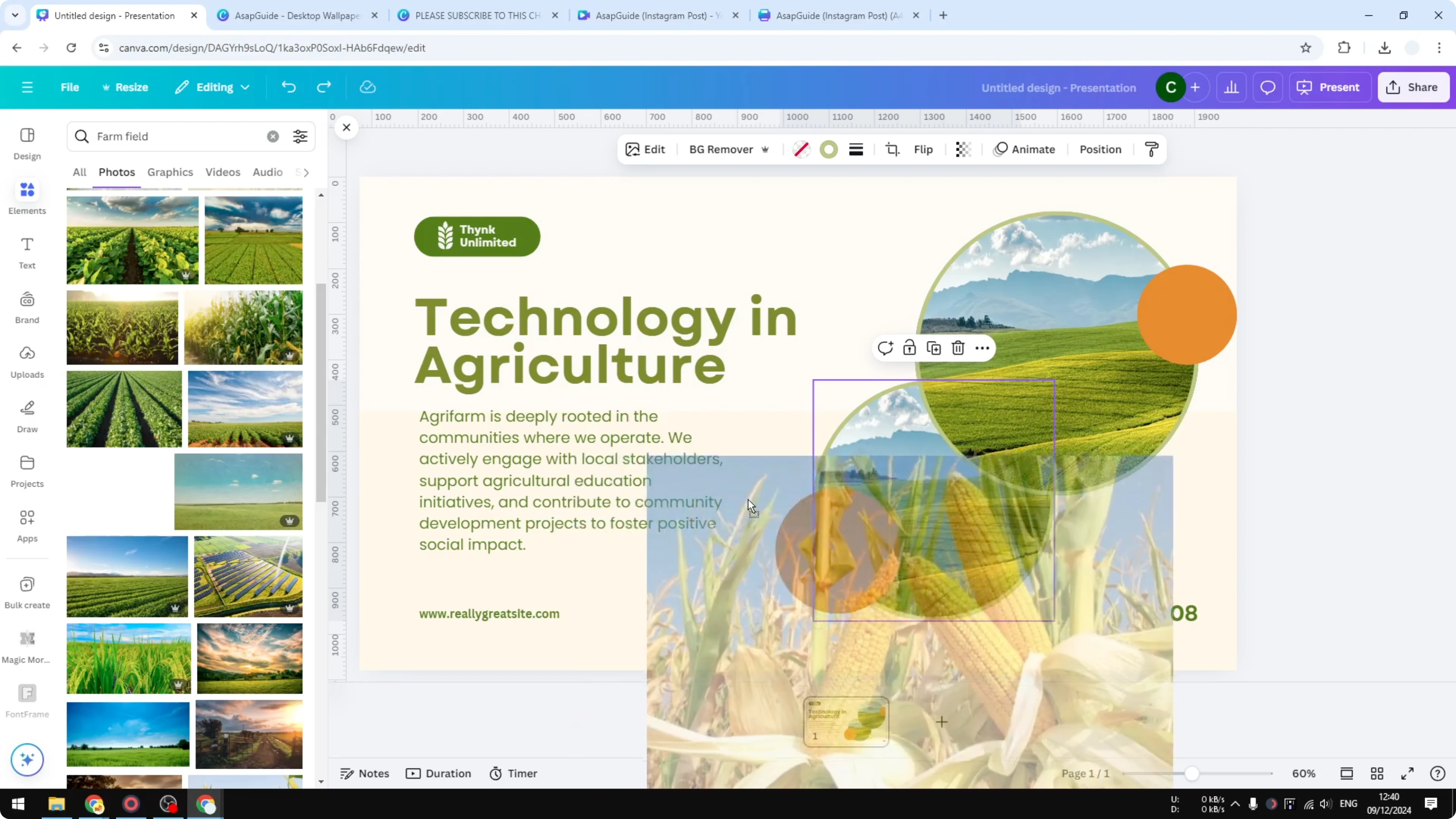
Wait for the preview that shows the image will fill the frame.
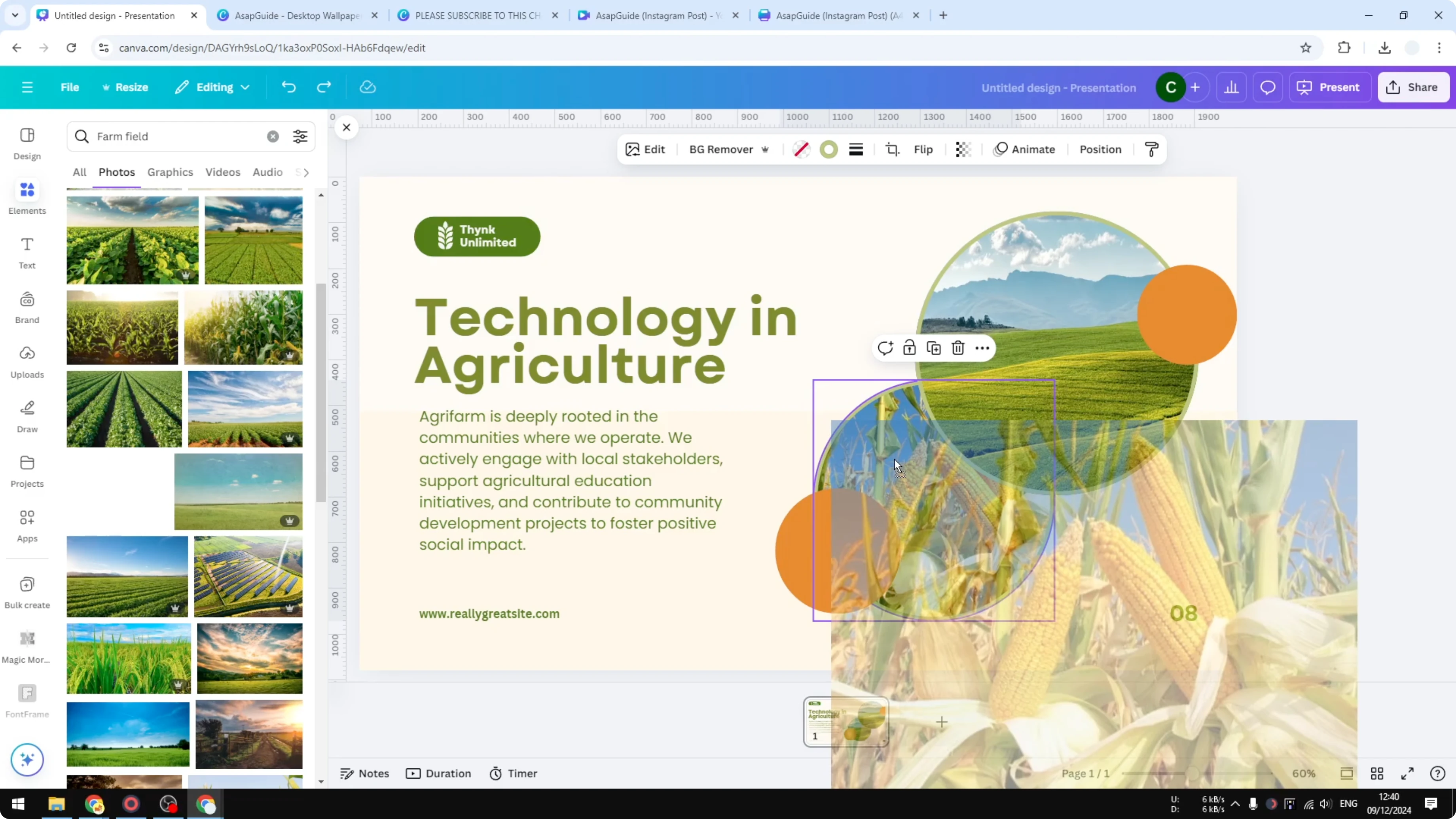
Release the click to apply the new picture.
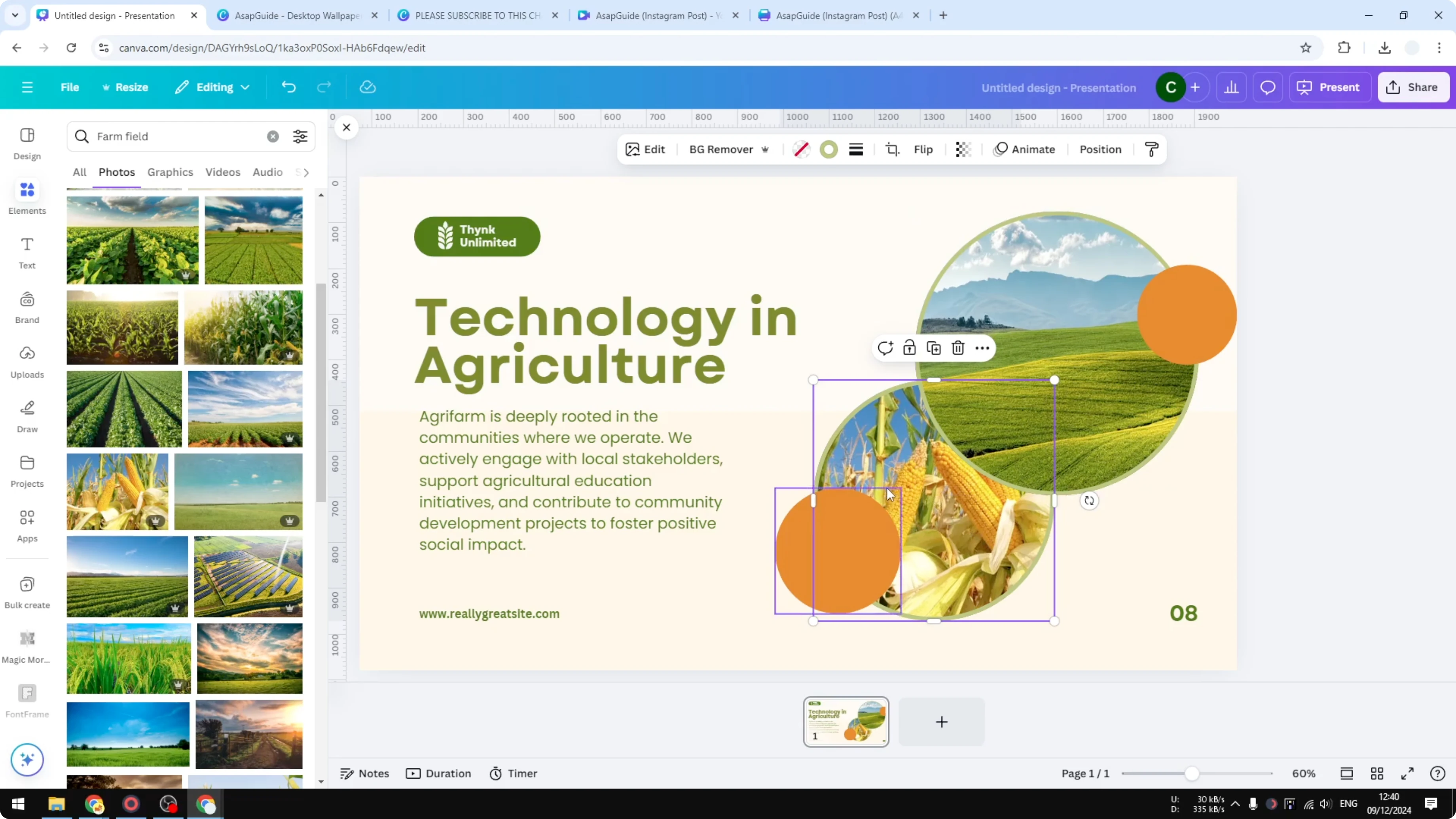
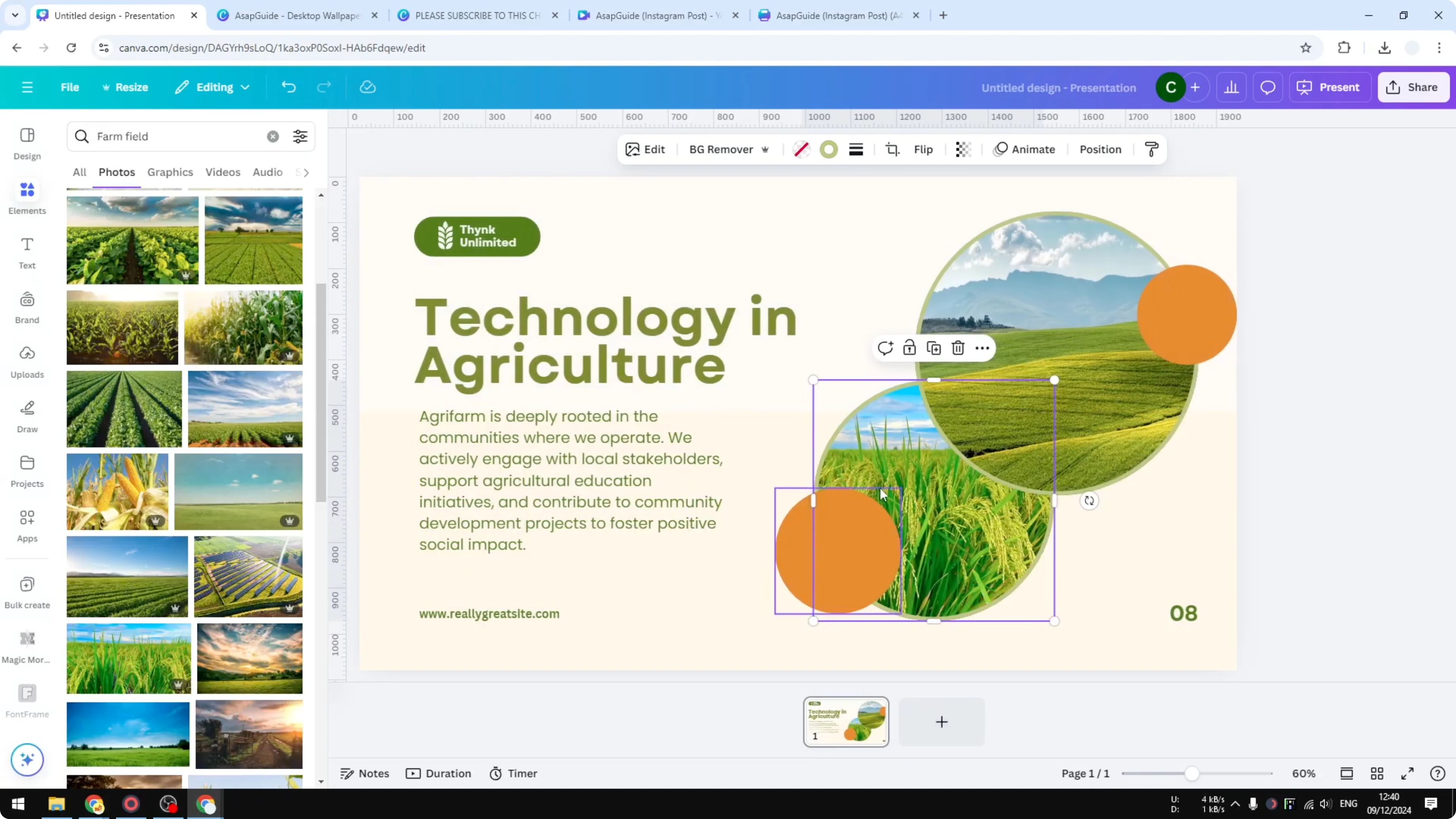
Repeat with a different picture if you want to try another option.
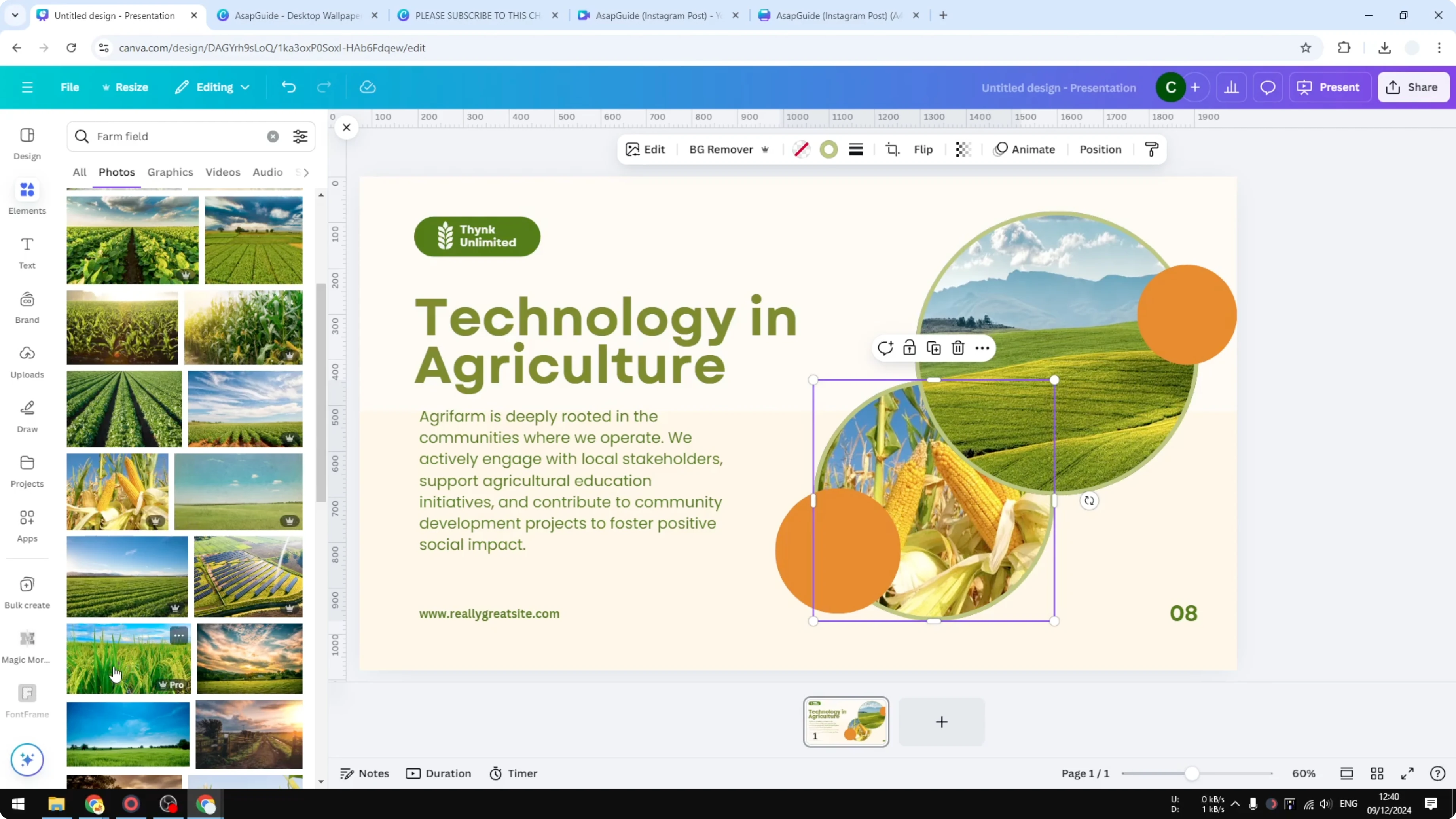
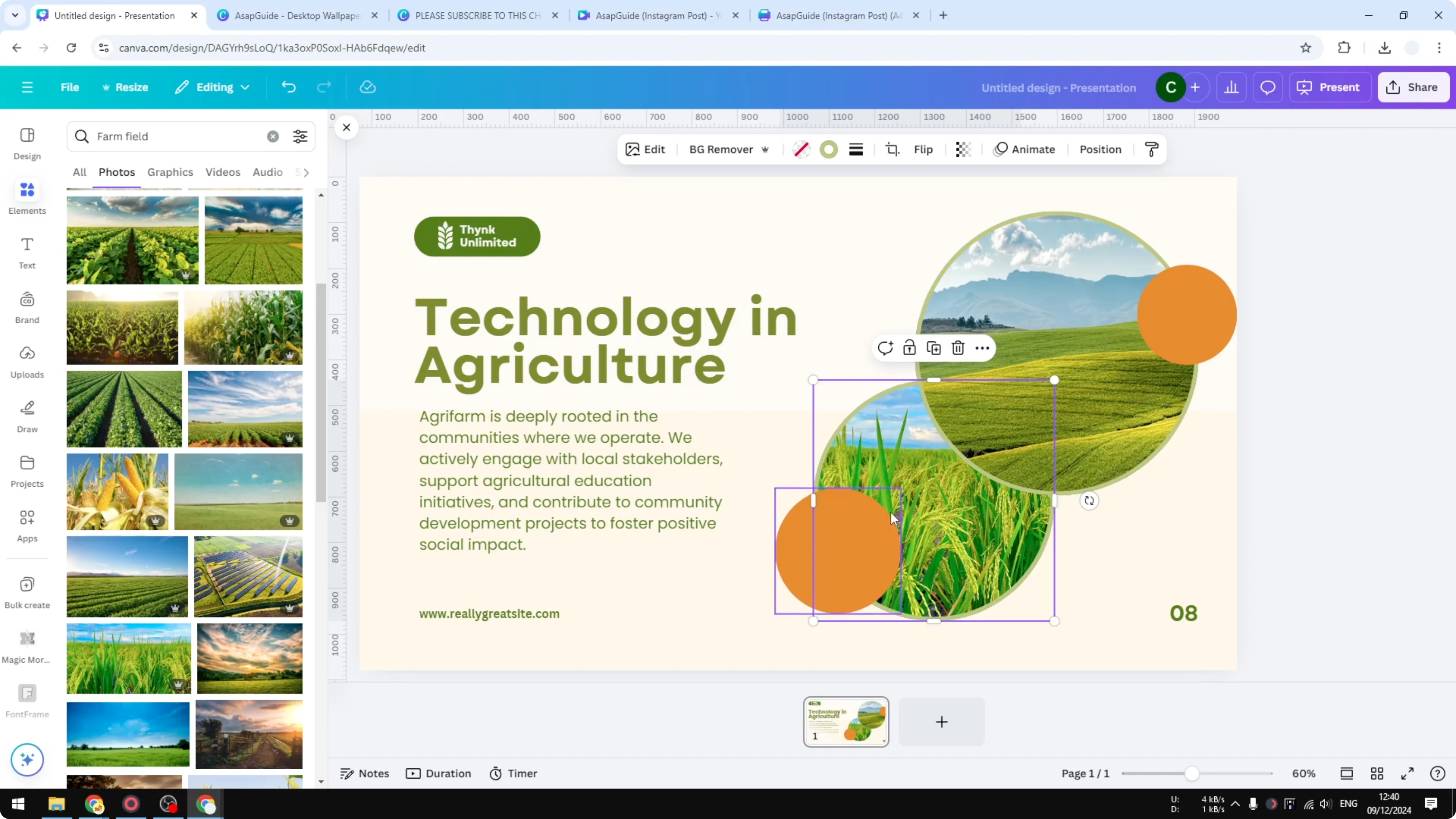
Adjust the crop
Double click the image in the frame to choose the area you want to show. Slide left or right, or up or down, to reposition the photo inside the frame. Click Done to confirm the visible section.
Detach and reuse
Right click on the picture and choose Detach image. You get the original picture, and the frame becomes empty. Drag a different picture into the empty frame to place a new one.

Final thoughts
Replacing an image in Canva is a quick drag and drop into the frame you want to change. Use Elements or Uploads to pick your photo, adjust the visible area with a double click, and detach the image if you need an empty frame. That is all you need to keep each frame unique.
Recent Posts

How to Visualize Yourself as a Pixelized Character with AI?
How to Visualize Yourself as a Pixelized Character with AI?

How to Revive Faded Memories and Enhance Image Clarity with AI?
How to Revive Faded Memories and Enhance Image Clarity with AI?

How to Visualize Yourself as an Animal Crossing Character with AI?
How to Visualize Yourself as an Animal Crossing Character with AI?