How to Zoom In Video in Canva
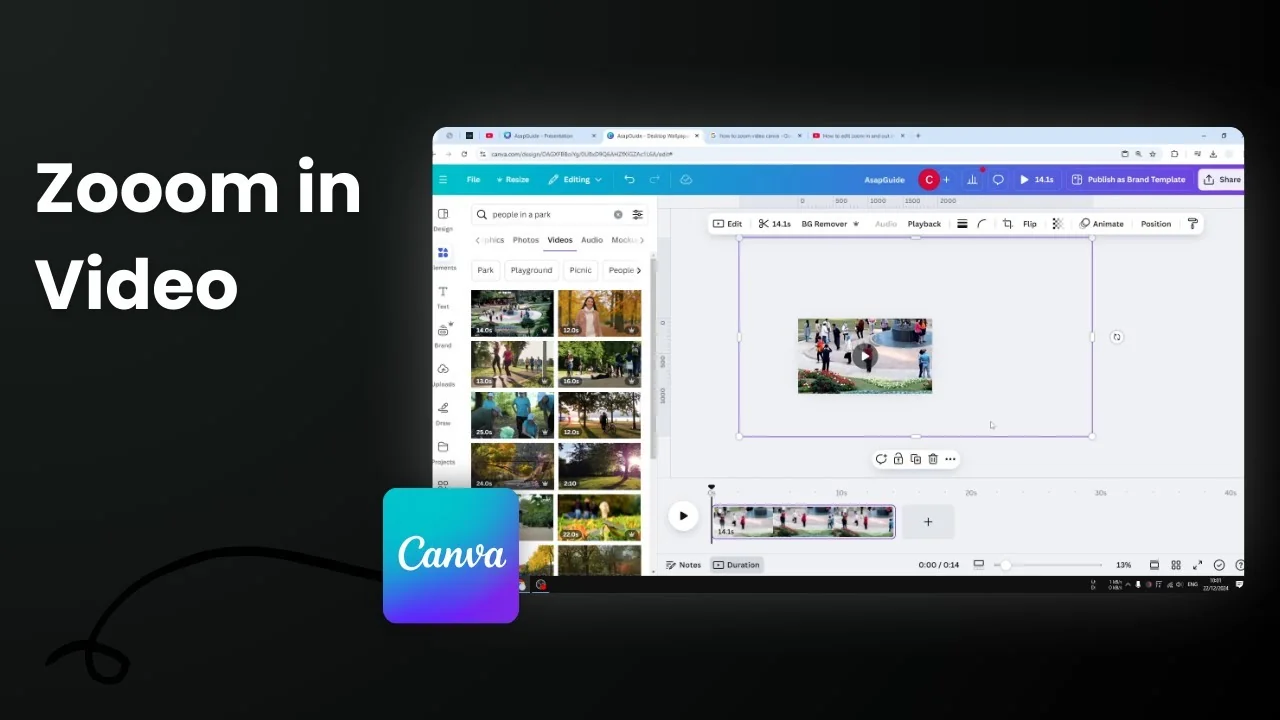
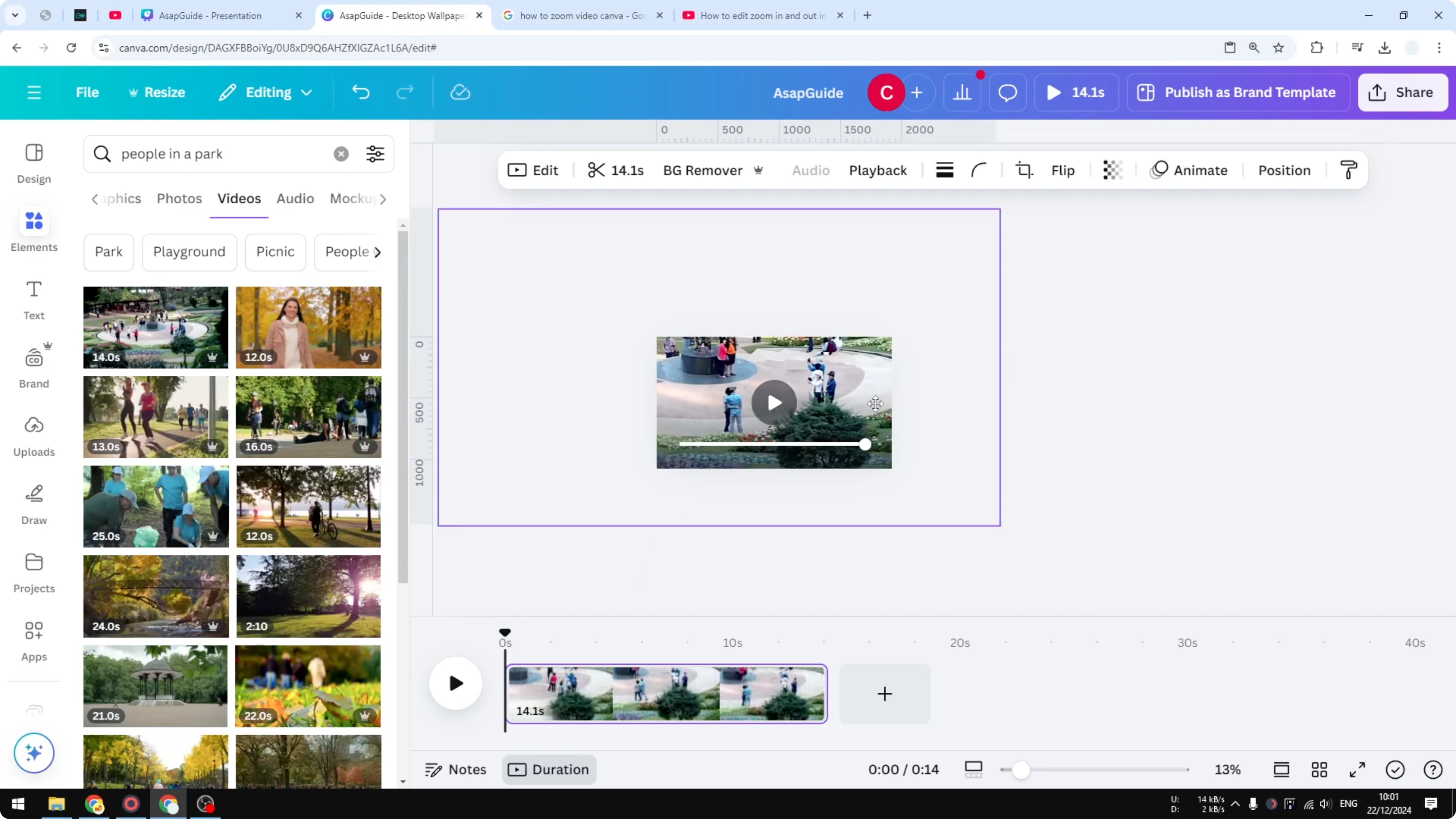
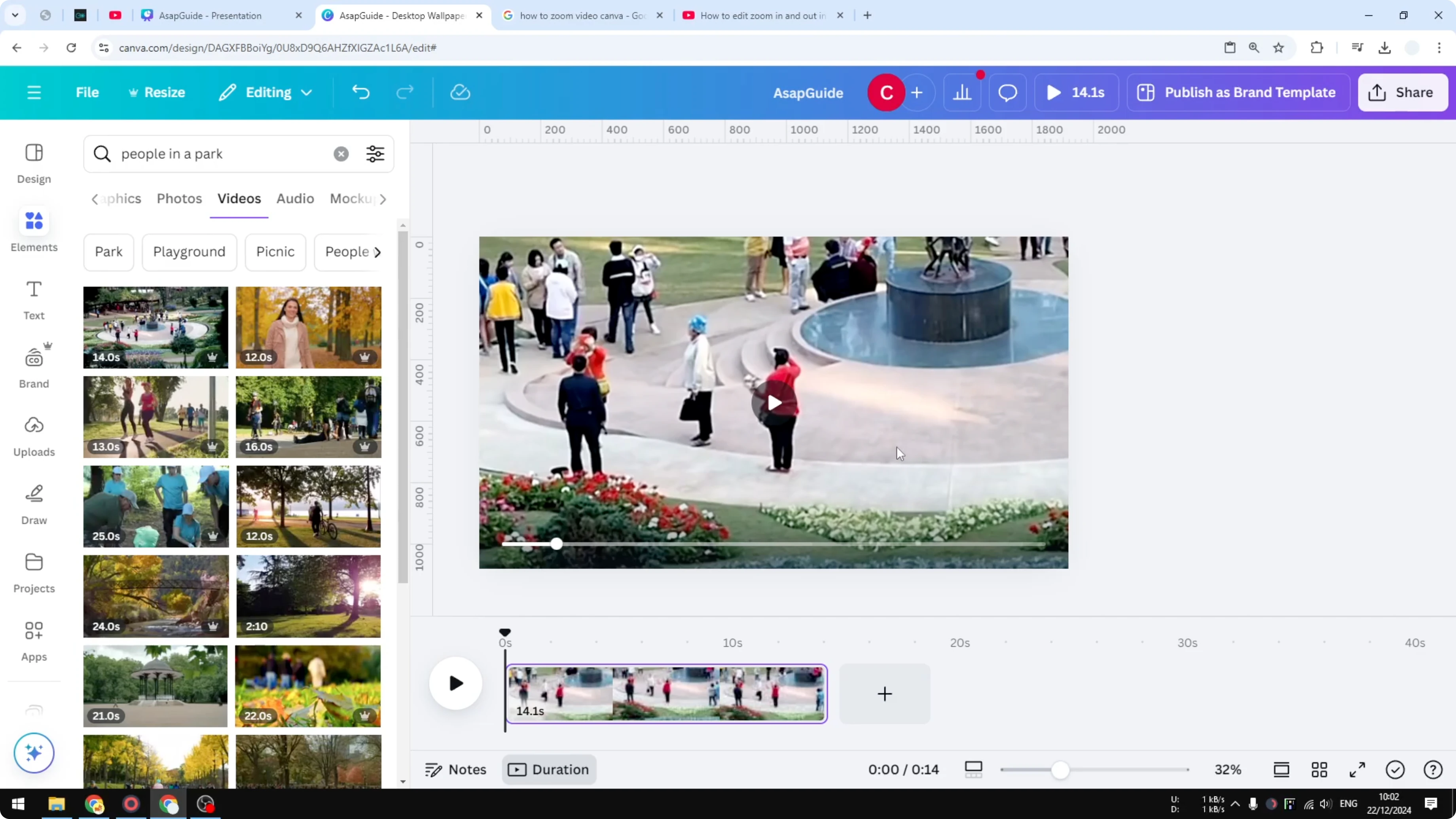
I’m going to show you how you can zoom in a video using Canva. I’ll use a clip that shows a group of people in a park, and I want to zoom into a specific person - this woman who is standing and trying to pose. I’m going to zoom in exactly around that area.
Zoom In Video in Canva: Step-by-Step
- Extend the size of the video inside the frame
- Click on any of the four corner points on the video.
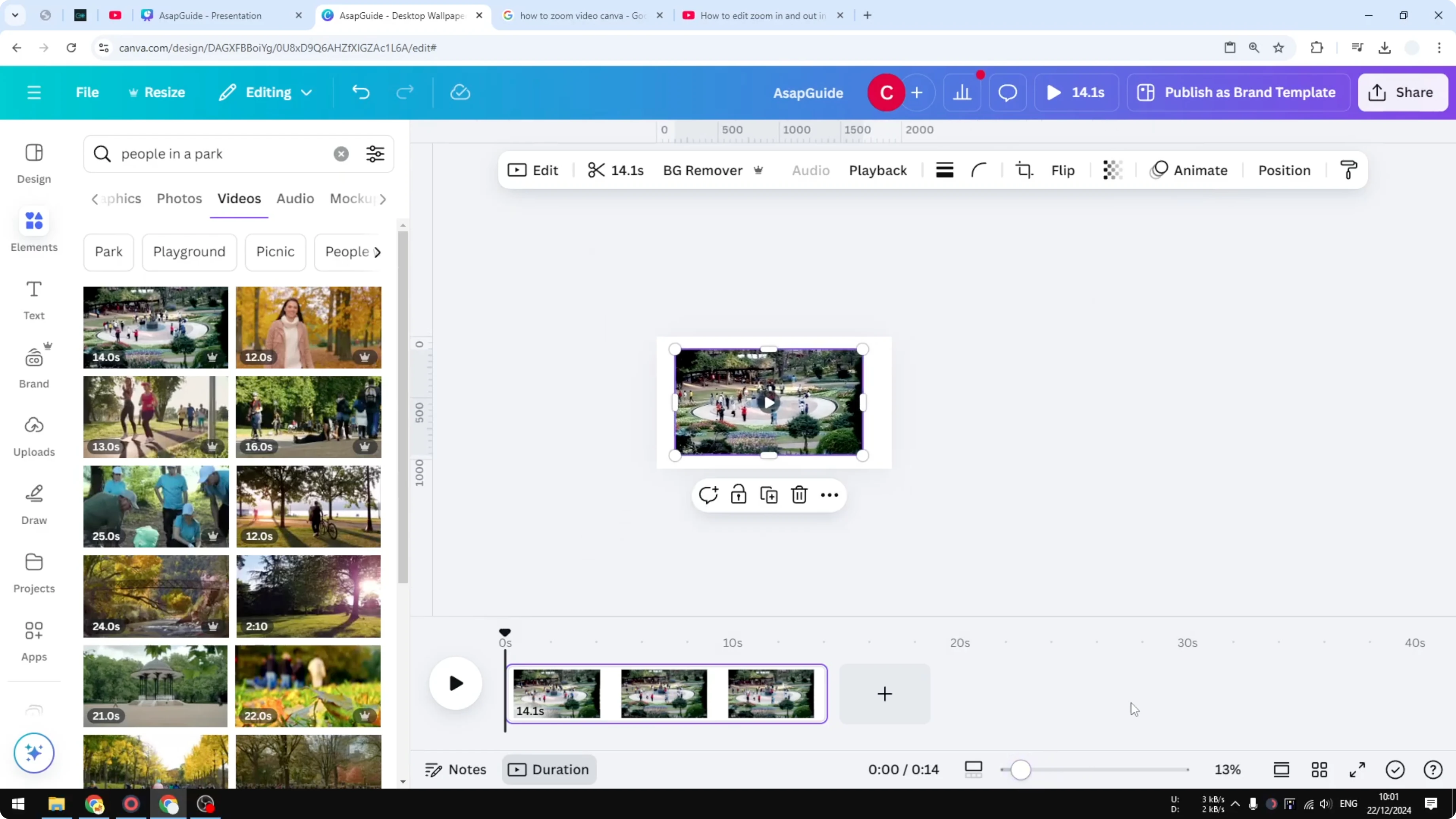
- Zoom out the Canva interface a little so you have more area to work with.
- Click and drag the point you chose to scale and position the video.
- Make sure the area you want to zoom into stays visible inside the frame.
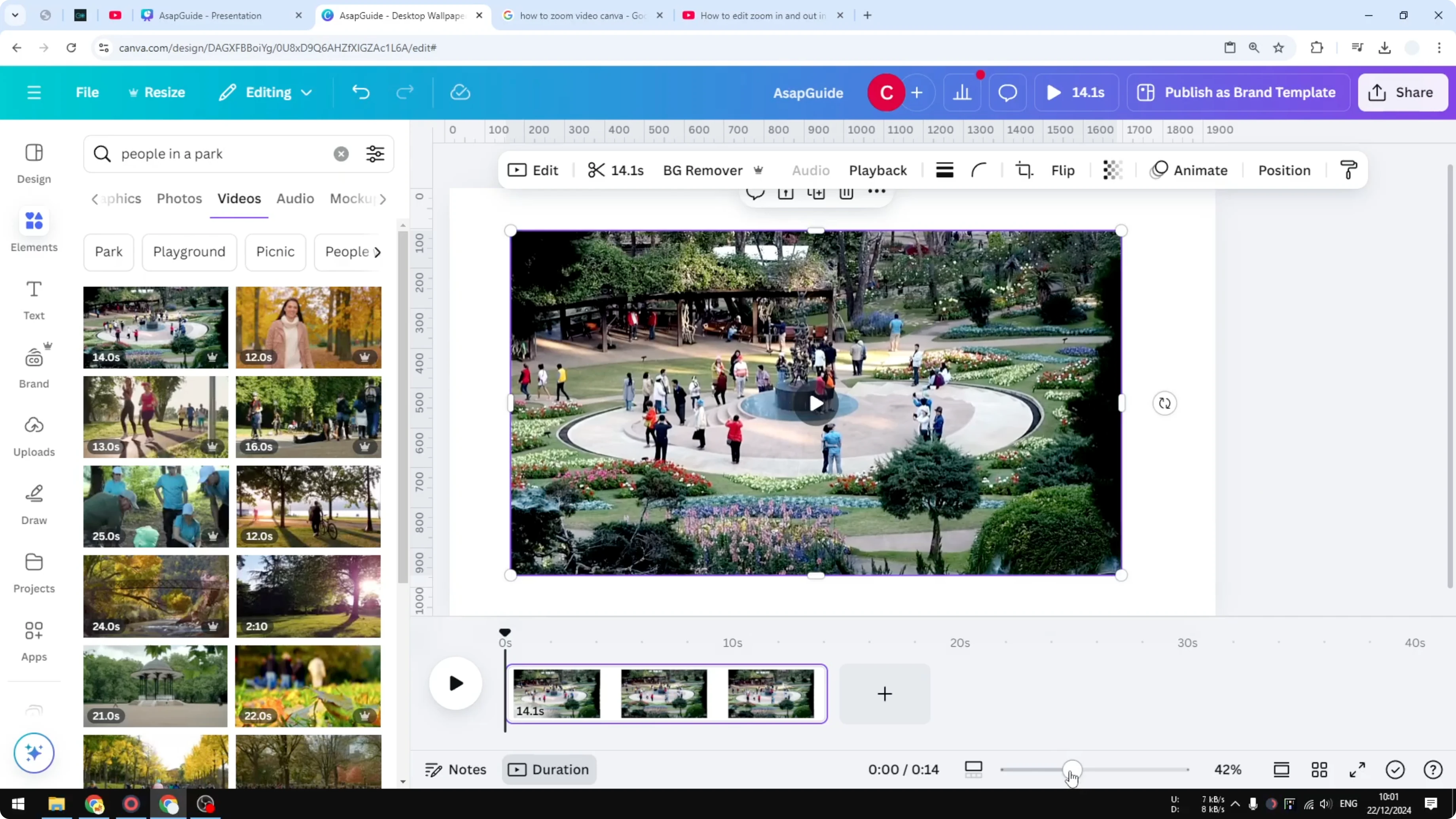
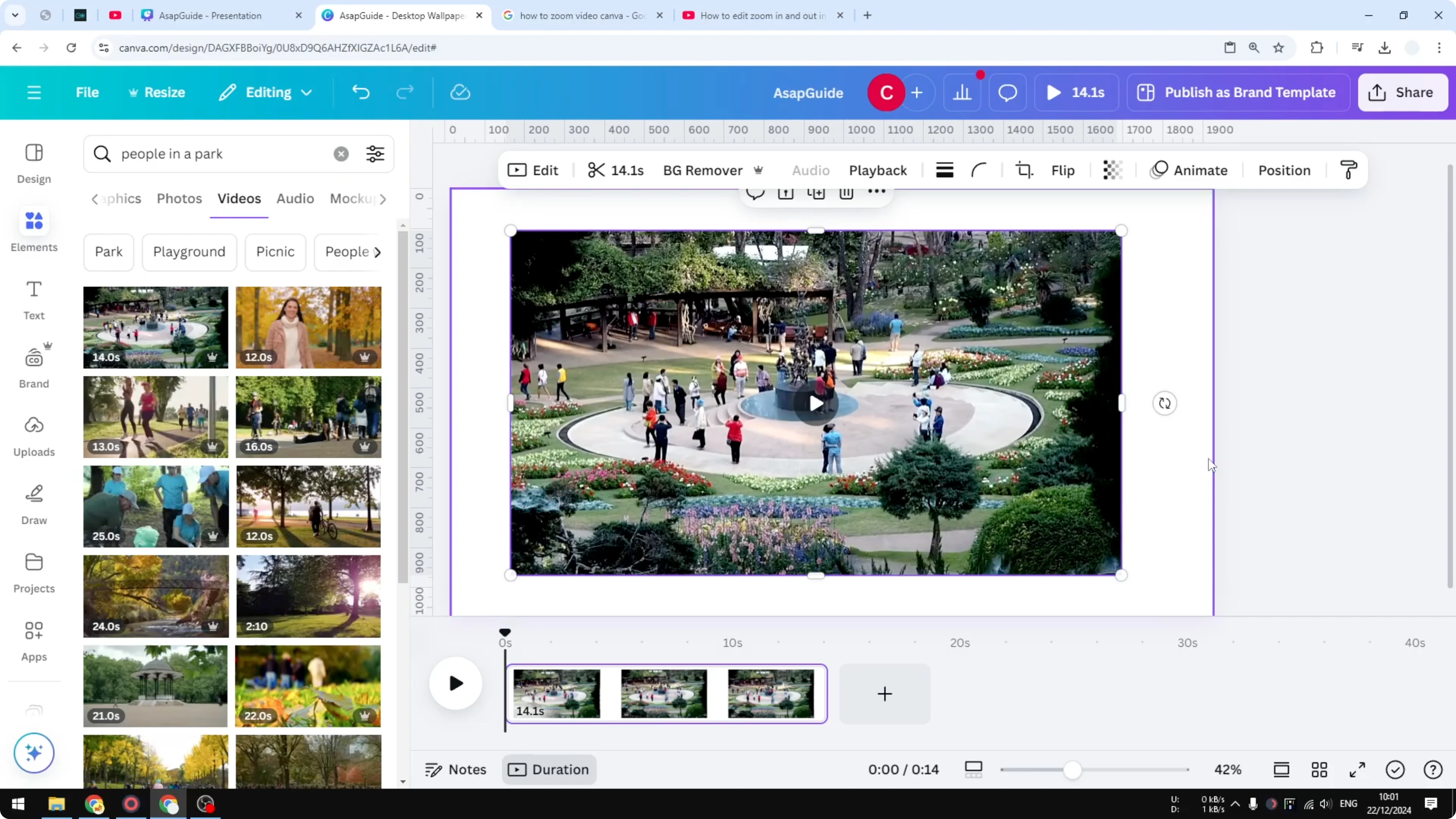
- Return your interface zoom to normal
- Go back to your previous interface zoom level to check the composition.
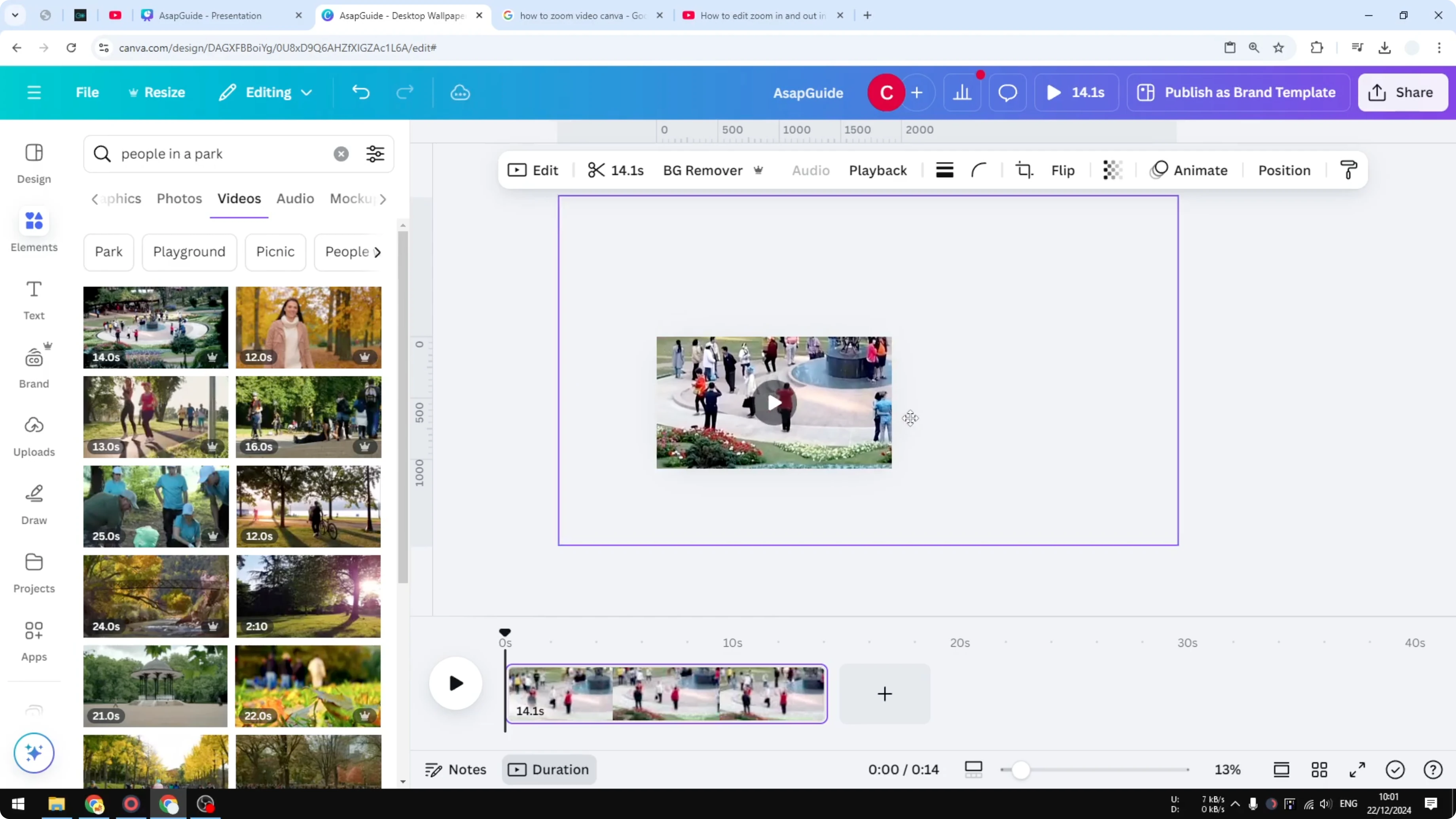
- Review the result
- Compare the original video to the zoomed version. The actual video is much closer. You can see that woman right there. This versus this looks so different.
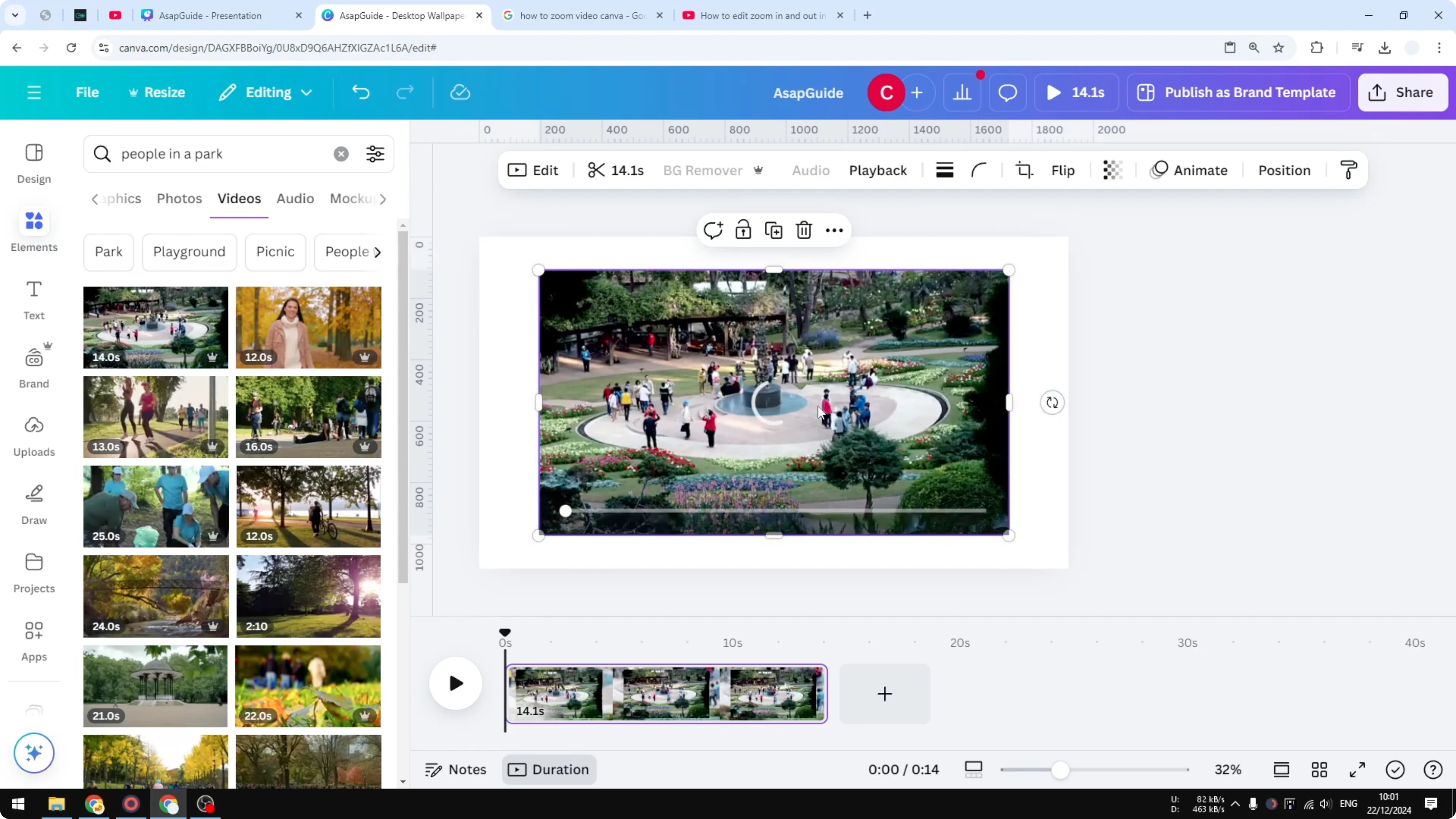
Why Zoom In Video in Canva
One benefit of using the zoom in feature is you can get closer to the subject you want to show.

Quality and Control Tips for Zoom In Video in Canva
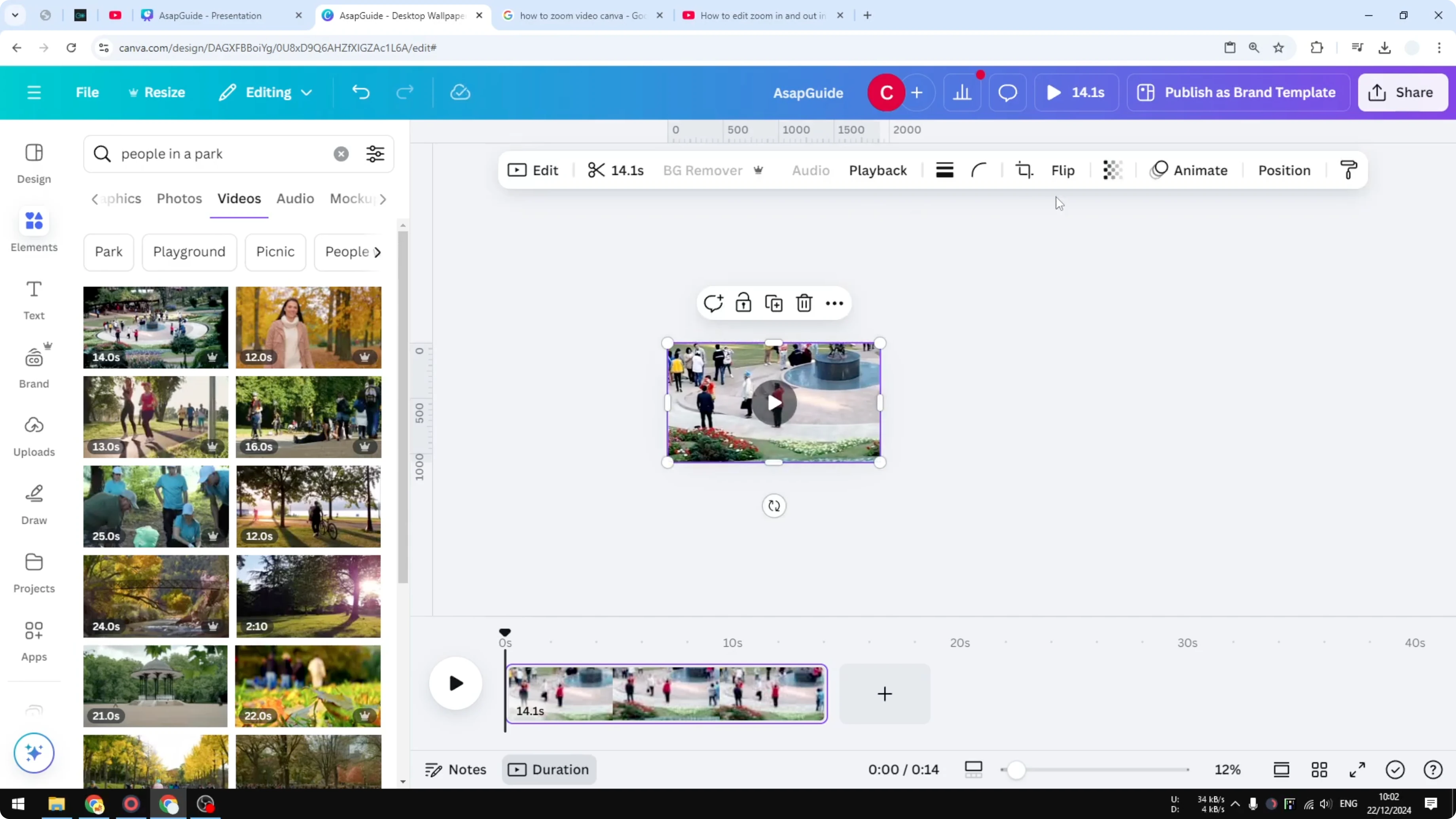
- Keep in mind you will get lower quality as you zoom in. Zooming introduces pixelation in the video, so don’t zoom too much.
- If you don’t want to accidentally change the zoom level, clean the excess and crop so the video fits exactly to the size of the frame.
- Lock the video so you won’t accidentally change or move it.

Final Thoughts
Zooming in a video in Canva is straightforward: scale the video within the frame, position the subject you want, and then preview the result. Watch your zoom amount to avoid pixelation, crop to fit the frame, and lock the layer to keep everything in place.
Recent Posts

How to Visualize Yourself as a Pixelized Character with AI?
How to Visualize Yourself as a Pixelized Character with AI?

How to Revive Faded Memories and Enhance Image Clarity with AI?
How to Revive Faded Memories and Enhance Image Clarity with AI?

How to Visualize Yourself as an Animal Crossing Character with AI?
How to Visualize Yourself as an Animal Crossing Character with AI?