How to Unsplit a Video in Canva
I show how to unsplit a video in Canva. If you split a video into multiple segments, you can stitch them together so they become one clip again. There are two methods you can try to unsplit clips in Canva.
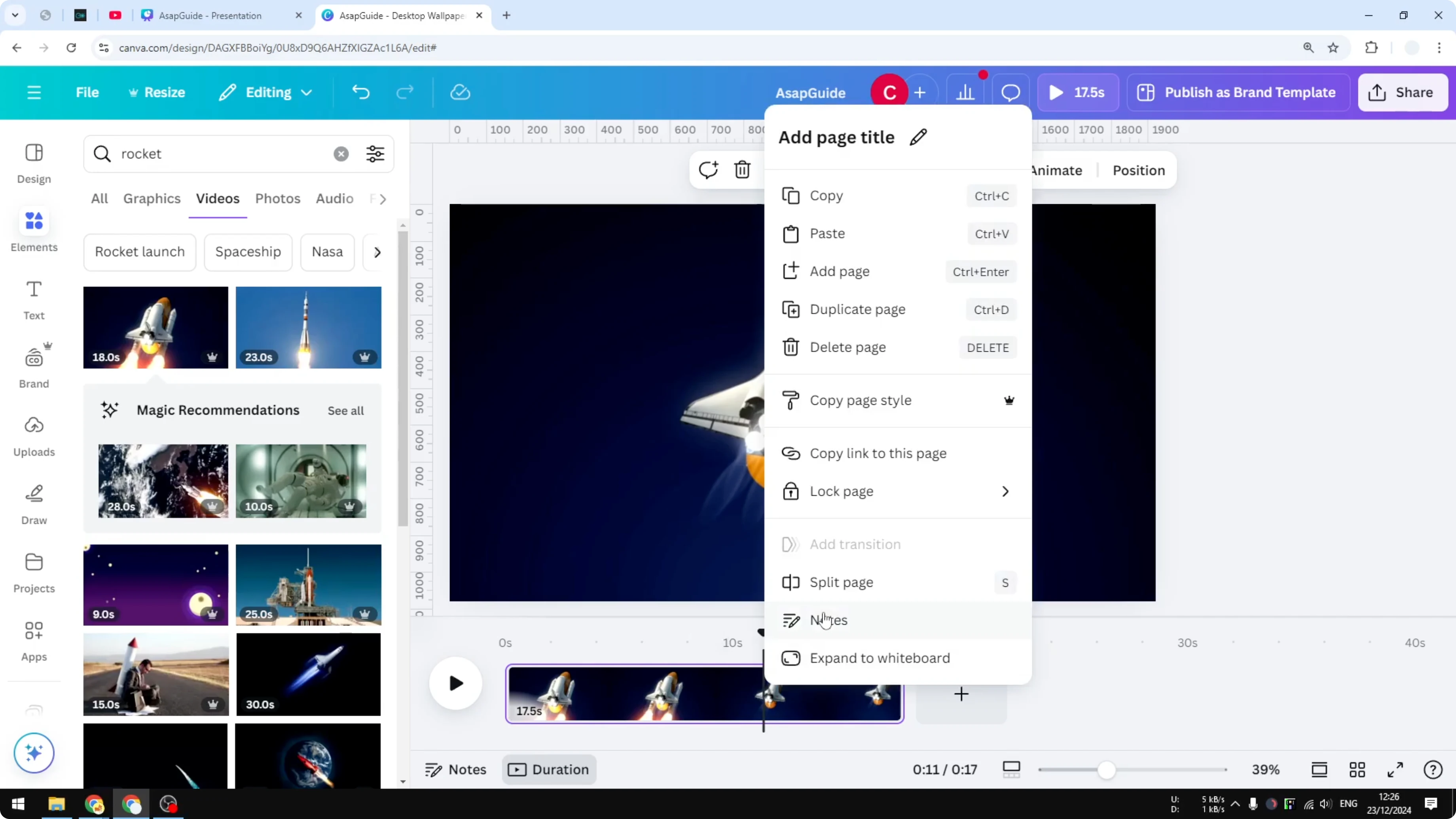
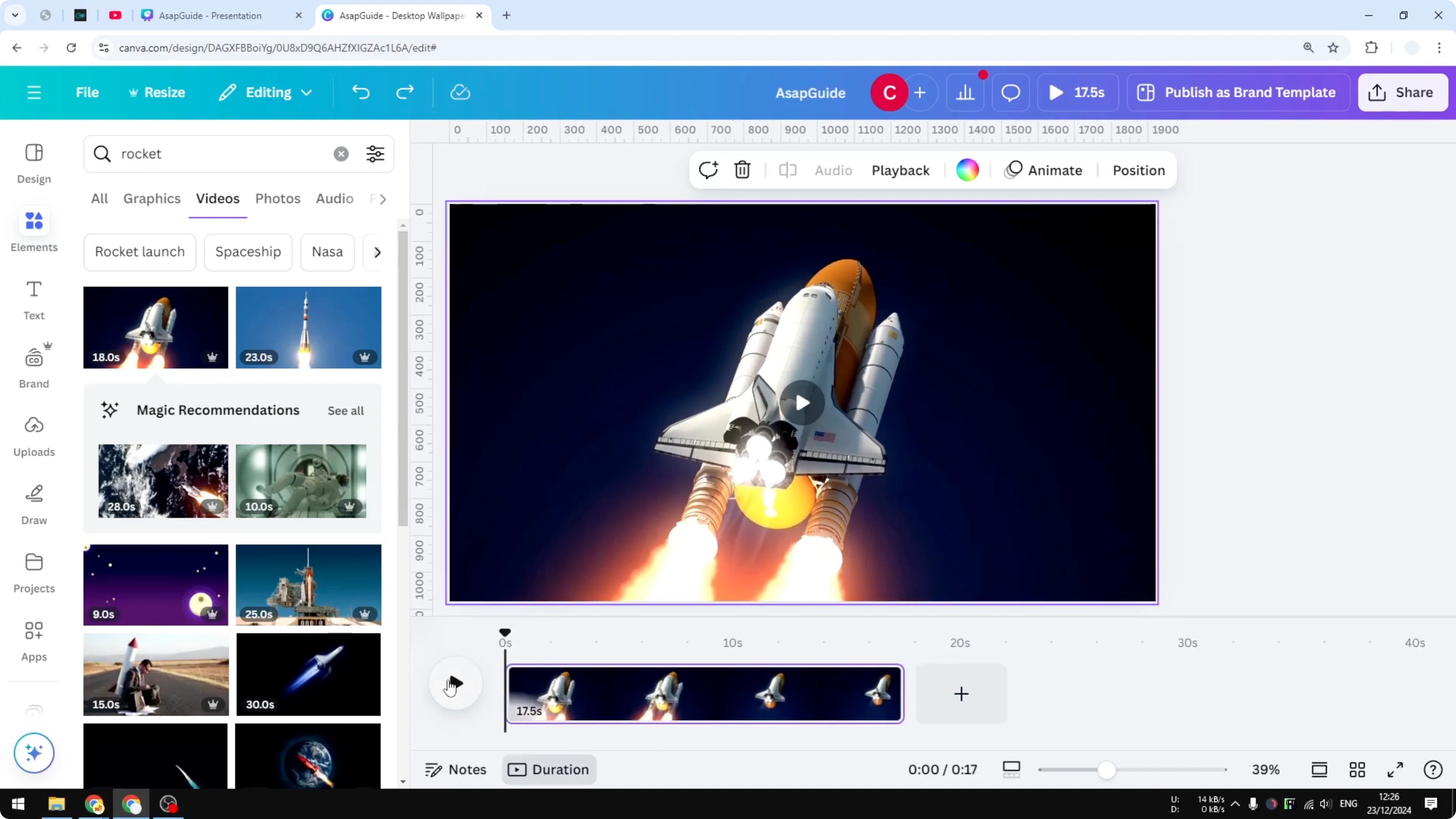
Open the Timeline View and the Duration View to see your video clearly. The video is a single continuous stream with no split. To demonstrate the split, right-click and click Split page so each part is on a different page.
Unsplit a Video in Canva - Method 1: Extend the video
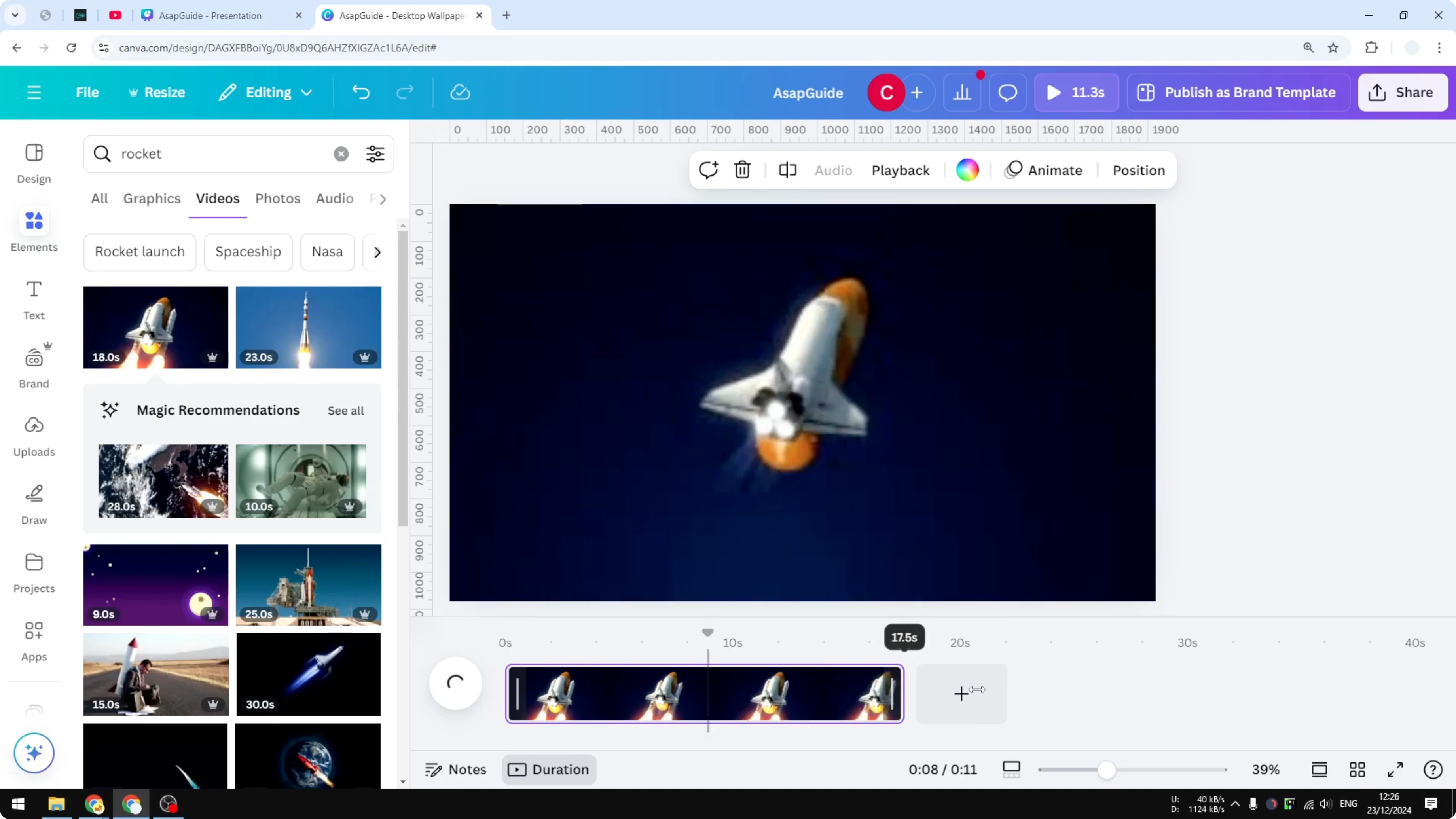
If you removed a section and changed your mind, extend the video and it will return the clip that was deleted. It becomes one clip again.
- Right-click and Split page to create a split if you want to test this.
- Extend the video to bring the removed part back until it is one continuous clip.
Unsplit a Video in Canva - Method 2: Undo and Version History
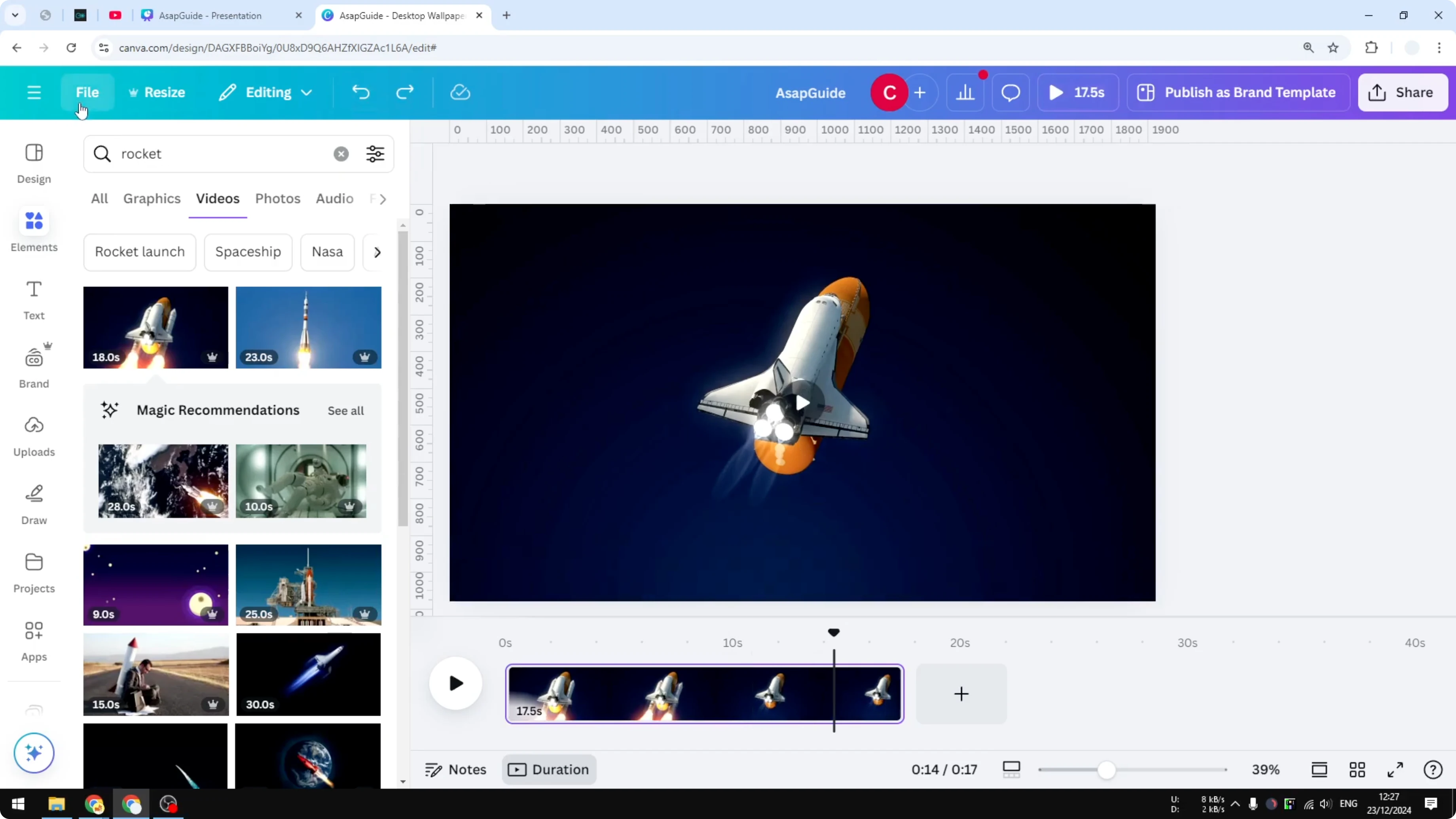
The simple option is the Undo button. If two elements are separated, click Undo and they go back to normal.
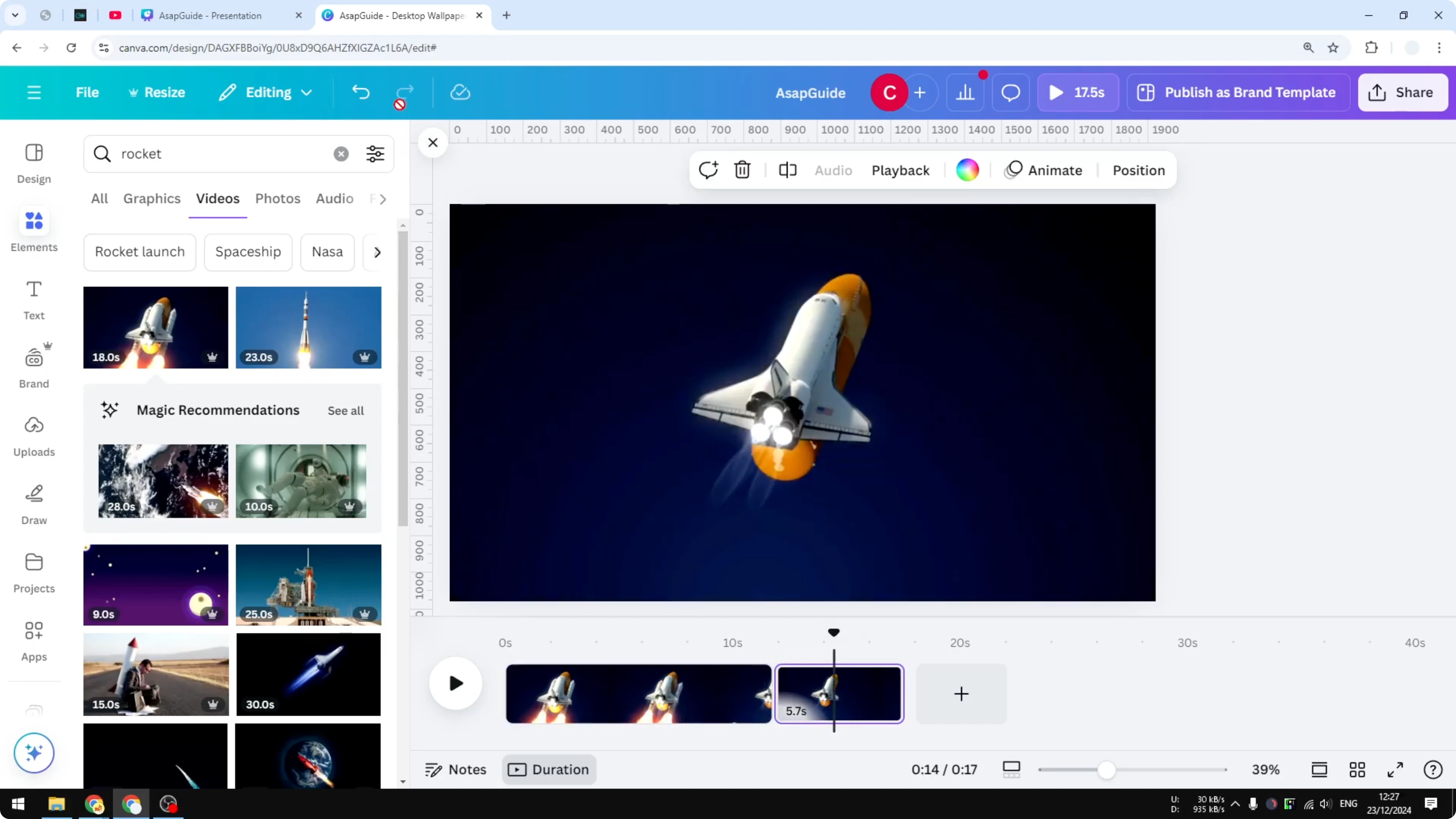
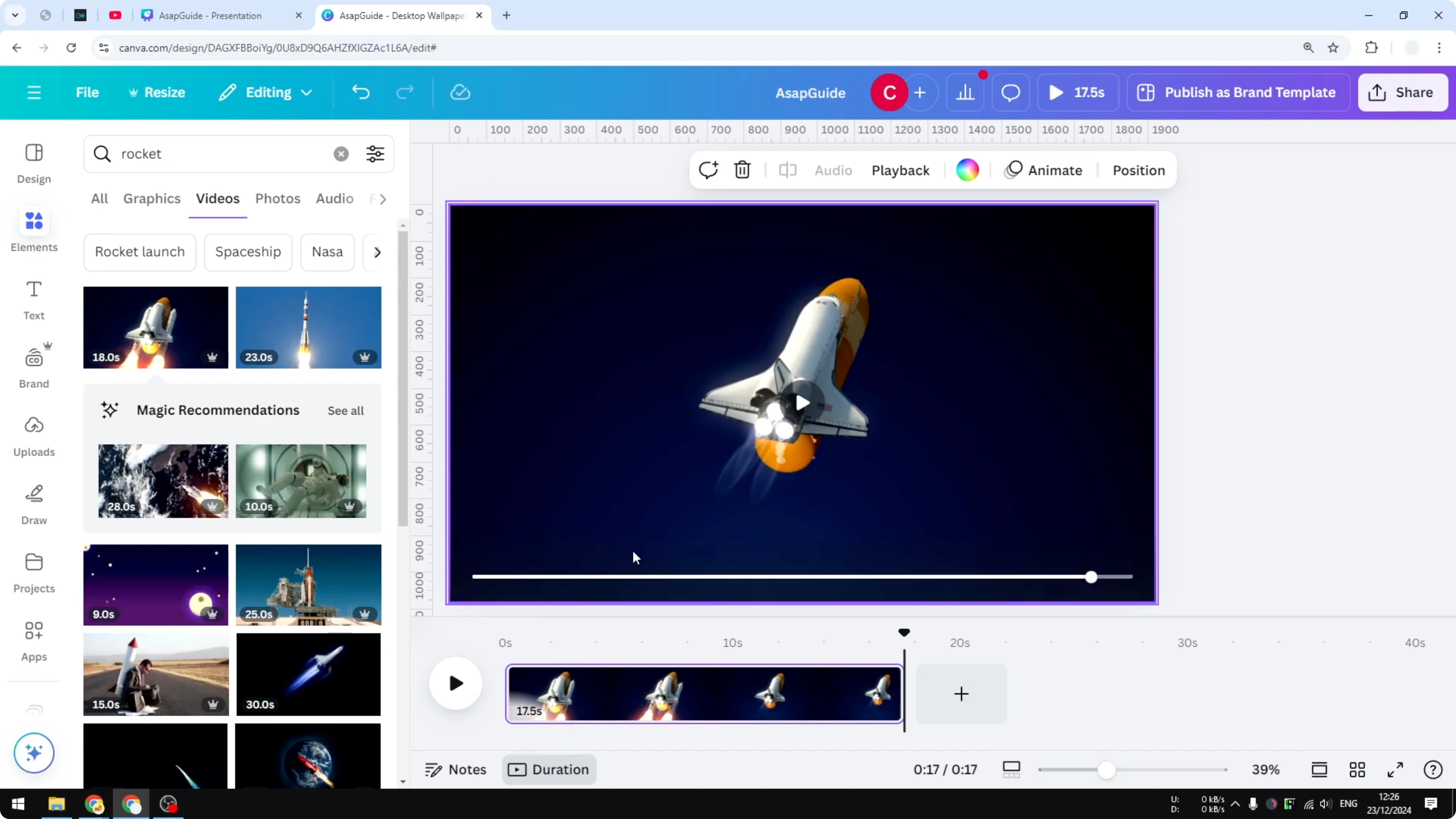
- Split the video in the middle, then click Undo to revert the split.
- You can also go to the File menu and click Version history to see the previous state of the document before you split the video. This is useful if you do not remember when you clicked Undo. It is similar to Undo, except it has a longer history of your document.
Final Thoughts
Those are the two workarounds to unsplit a video in Canva: extend the video to bring back a deleted section, or use Undo and Version history to revert to a previous state.
Recent Posts

How to Visualize Yourself as a Pixelized Character with AI?
How to Visualize Yourself as a Pixelized Character with AI?

How to Revive Faded Memories and Enhance Image Clarity with AI?
How to Revive Faded Memories and Enhance Image Clarity with AI?

How to Visualize Yourself as an Animal Crossing Character with AI?
How to Visualize Yourself as an Animal Crossing Character with AI?