How to Reverse a Video in Canva?
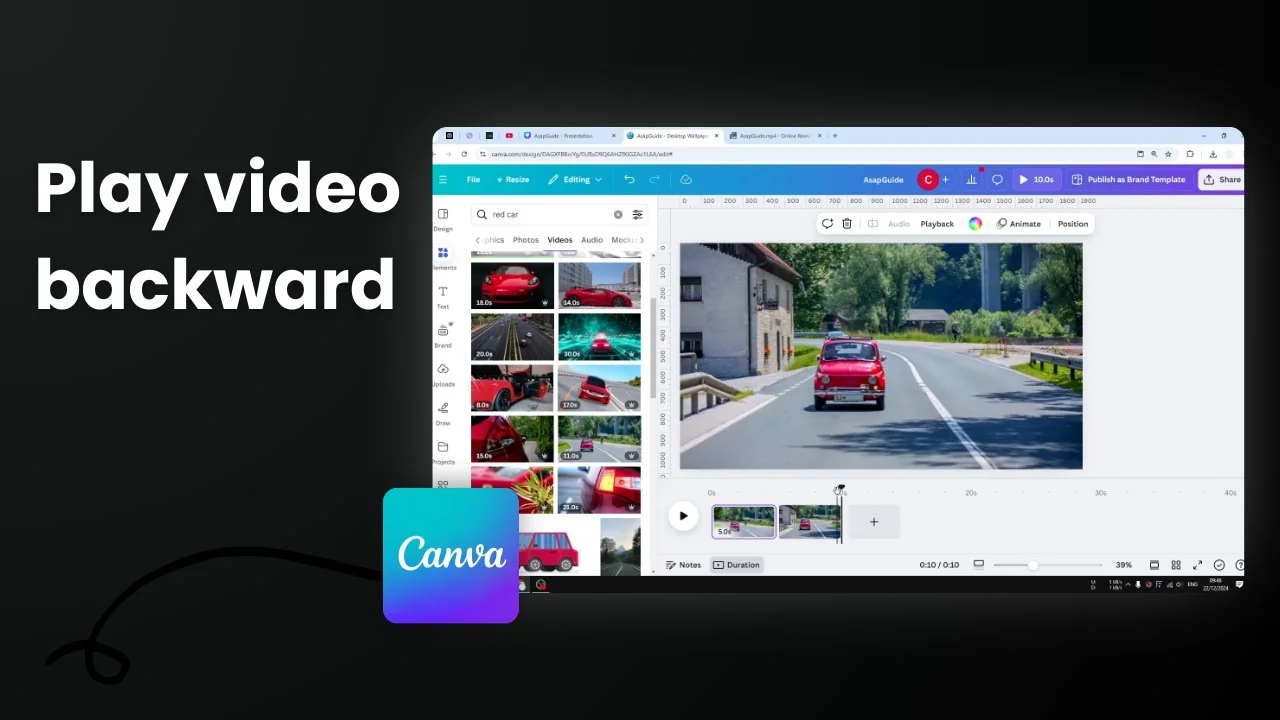
Can you reverse a video in Canva? The short answer is no, you cannot. Right now there is no feature in this platform that allows you to reverse a video. For example, I have a video where a red car is going forward and there is no way in this platform to reverse the car to make it look like it is going backward.
Since there is no feature in Canva to do such a thing, we have to use a third-party tool. I highly recommend Ezgif Reverse Video.
Reverse a Video in Canva? Use an Alternative Tool
Export the video from Canva
- In your Canva project, click Share.
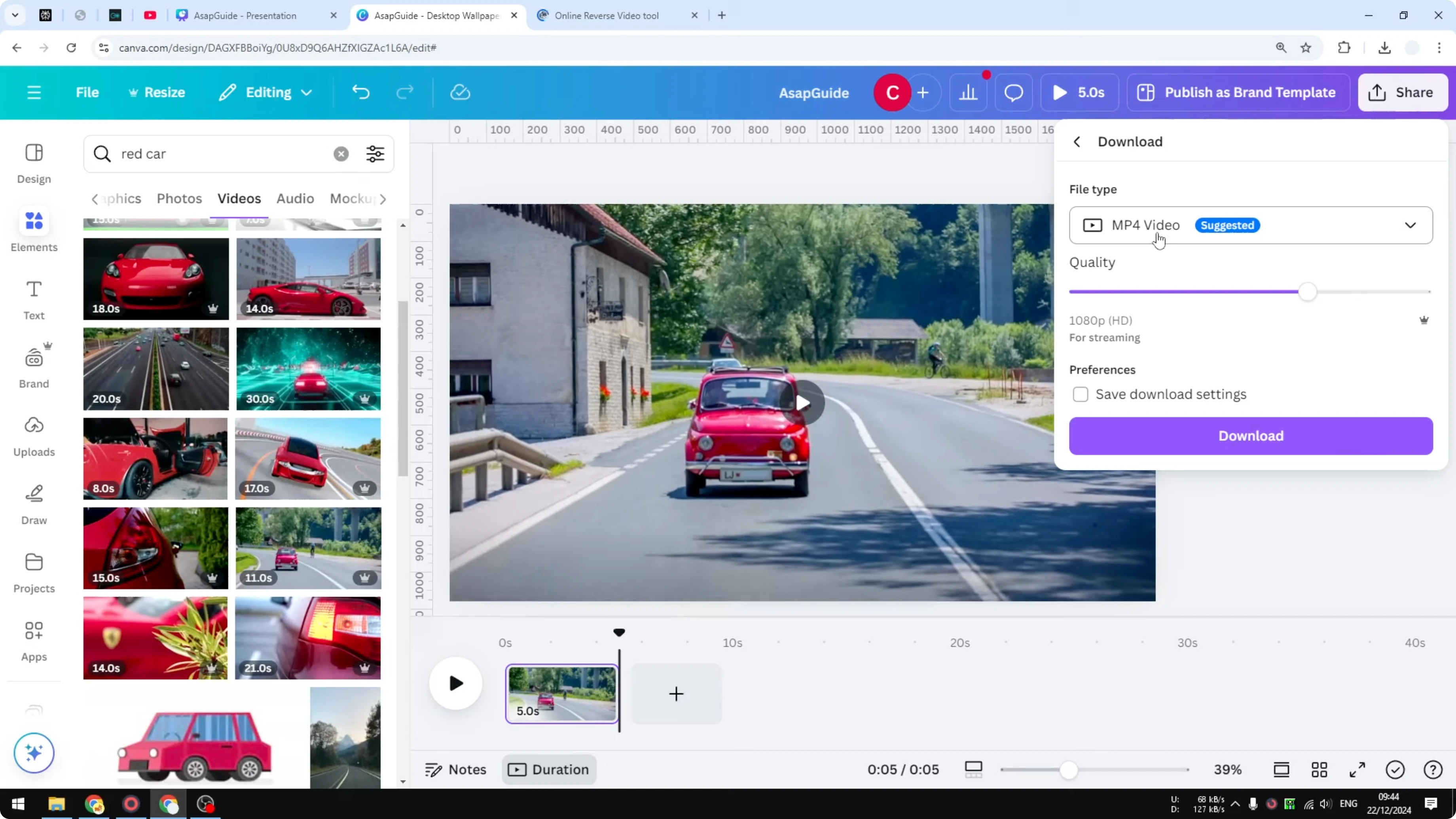
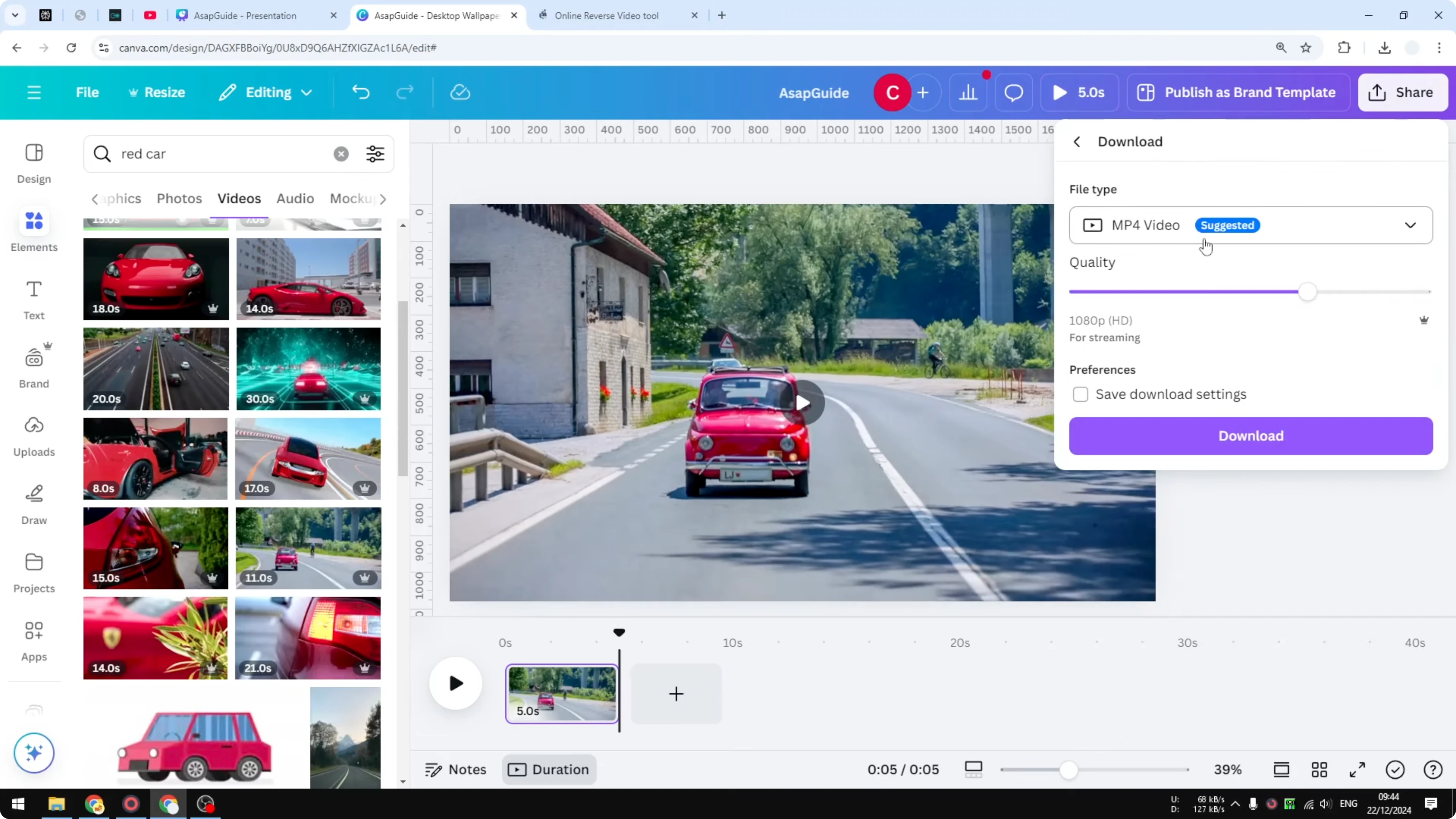
- Click Download.
- Select the format as MP4.
- Adjust the quality as needed. I set a 720p resolution.
- Click Download.
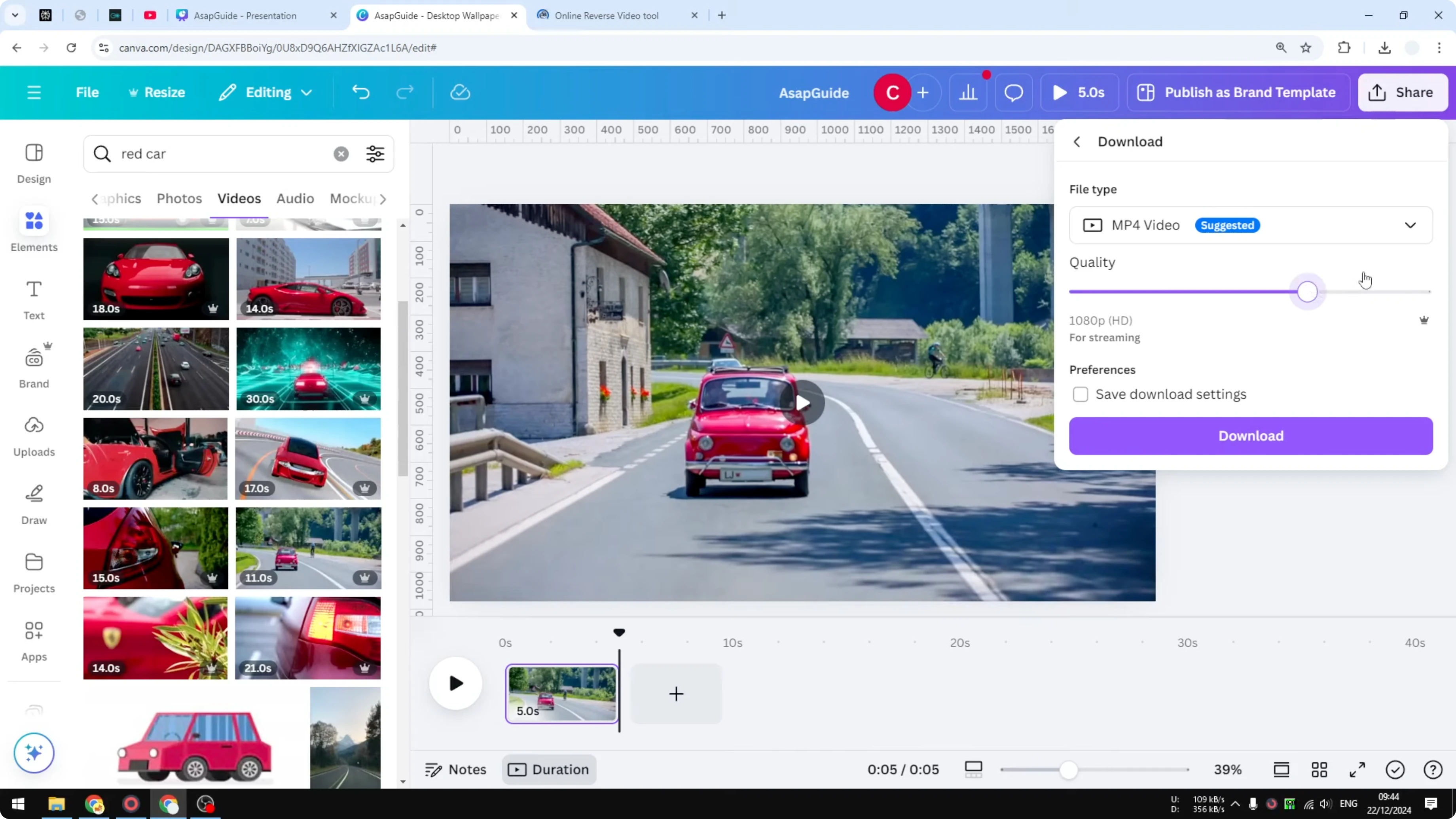
This is pretty much the only way to reverse a video in Canva because there is no feature that allows us to do so in Canva, which is disappointing because there are a lot of features in Canva that are great, but there are also some basic features that are missing.
Reverse the video with Ezgif
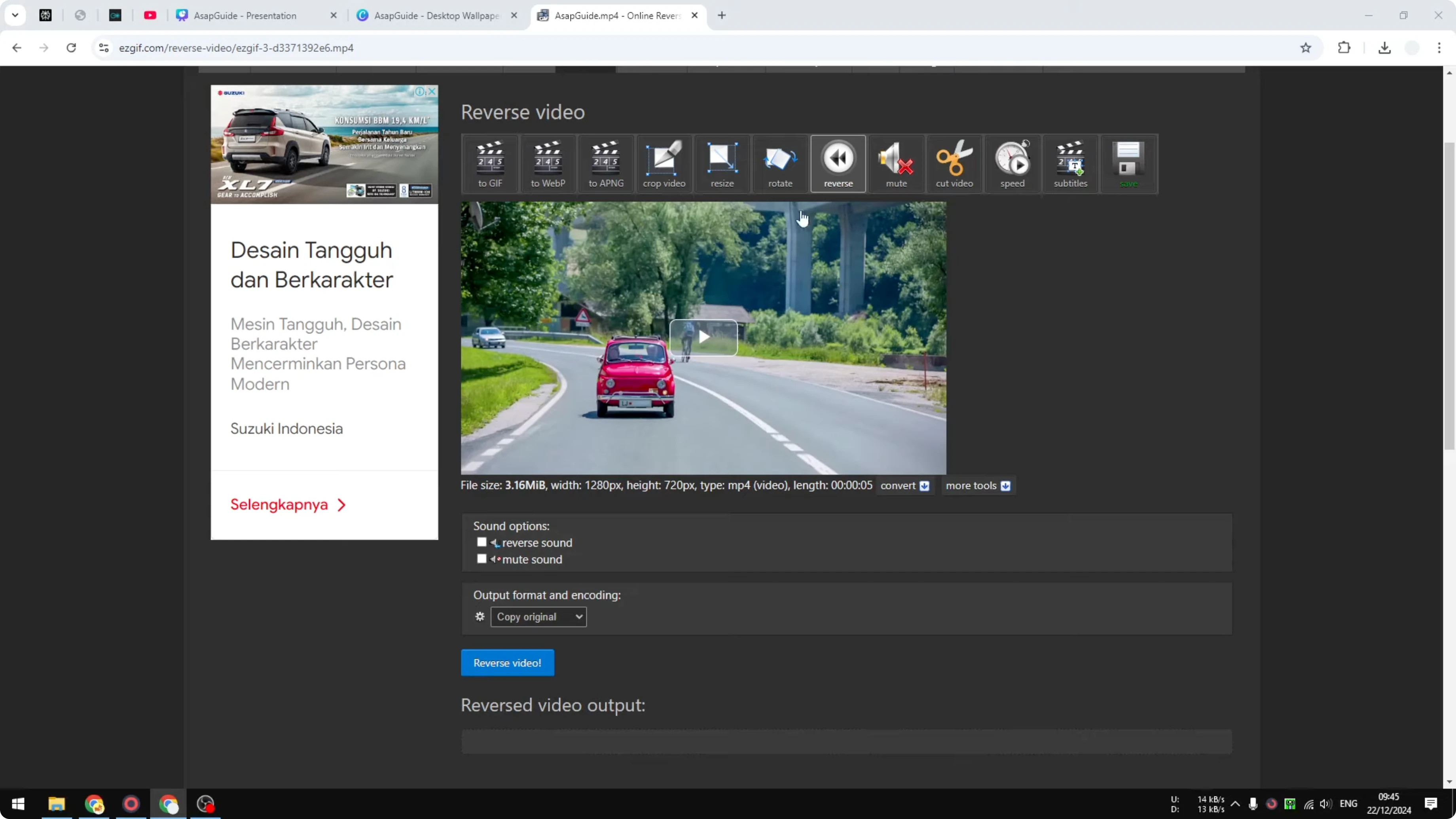
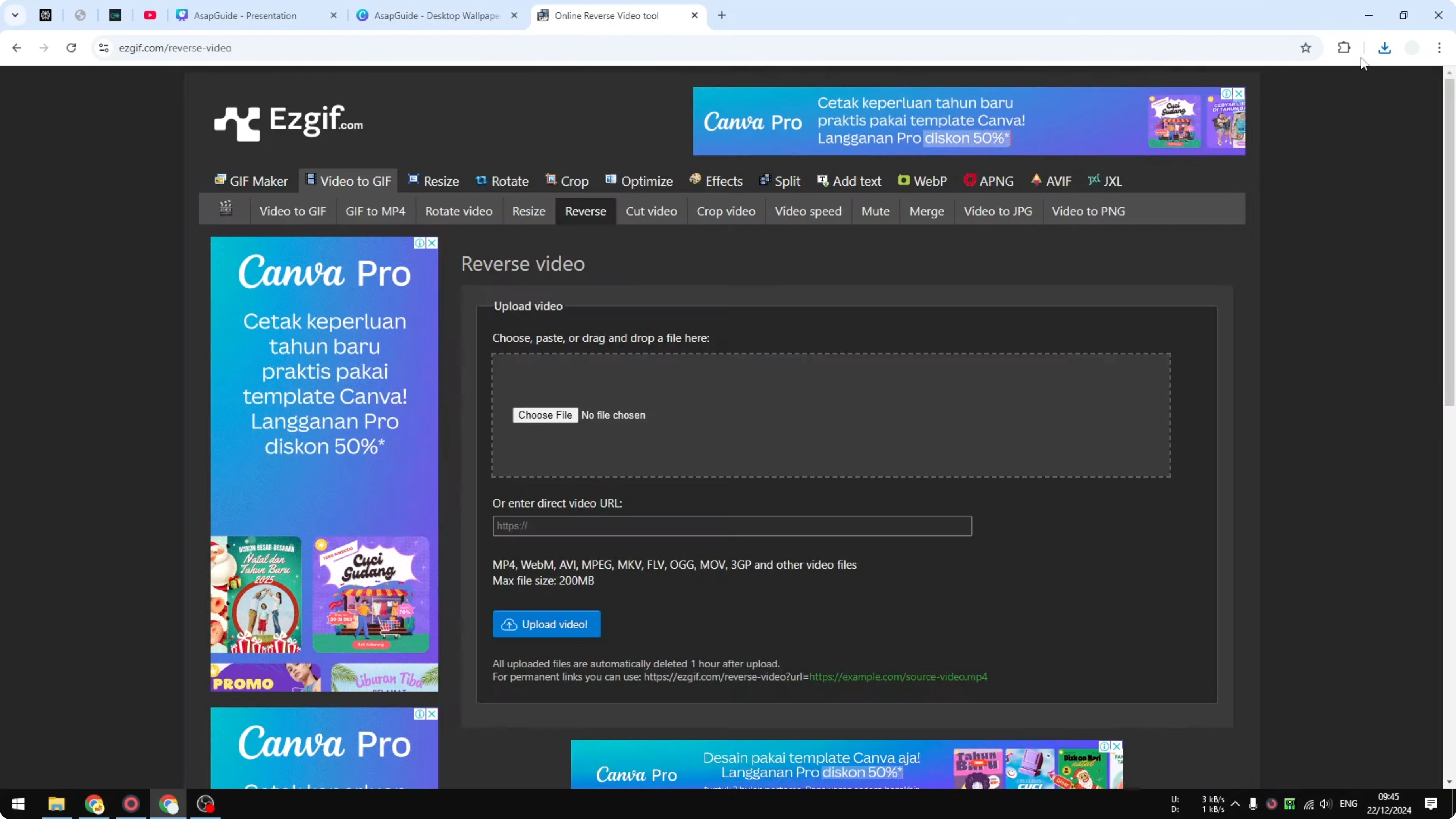
- Open Ezgif Reverse Video.
- Drag and drop your downloaded file into the upload area.
- Wait for the upload. The time depends on your internet speed and the size of the video.
- Click the Reverse Video button. There is also a refresh video button, and you can adjust a few things, but here we only want to reverse the video.
- Wait until the video is rendered.
- Play the video to confirm it is going backward.
- Click Save to download the reversed file to your computer.
Bring the reversed video back into Canva
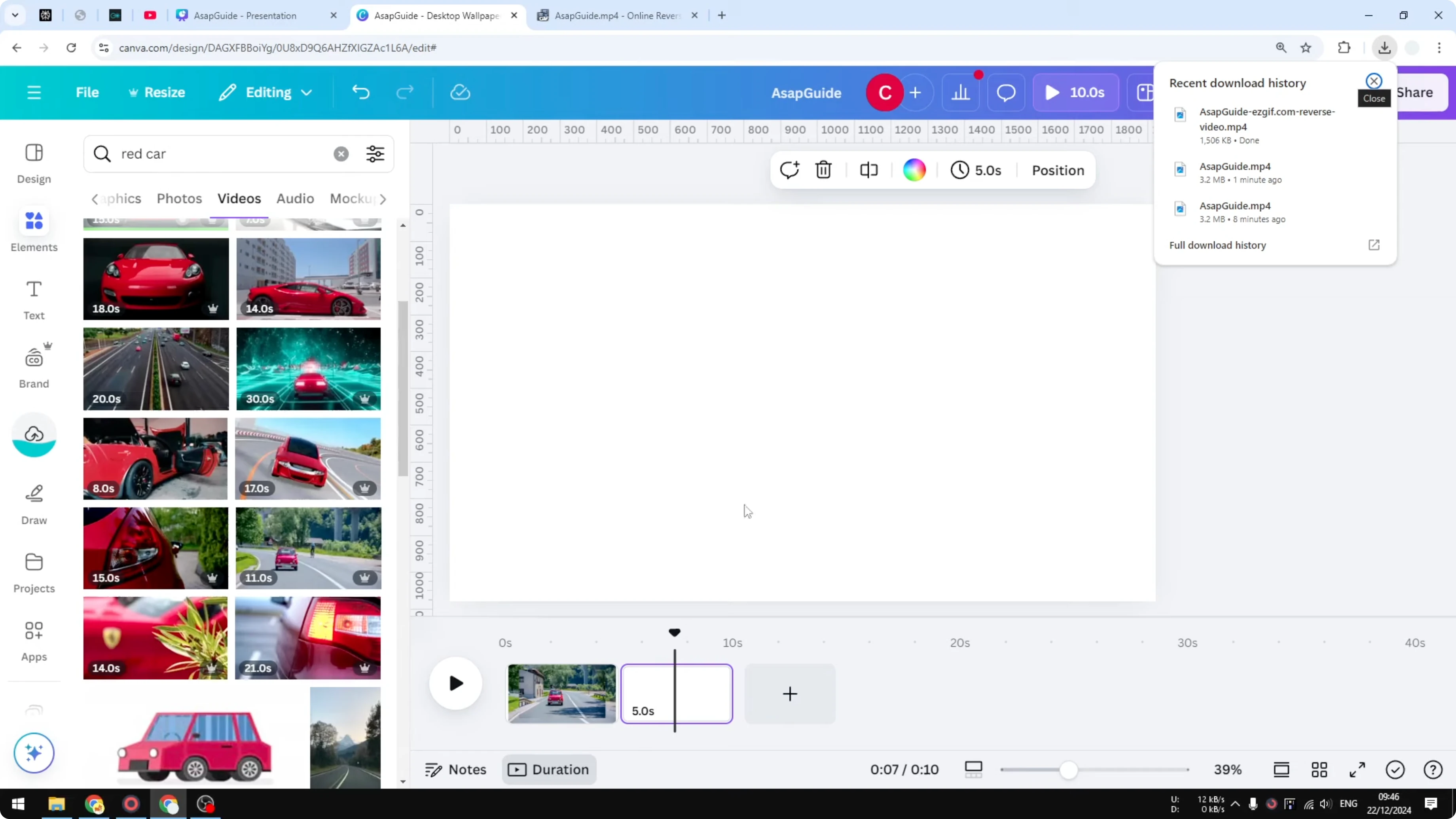
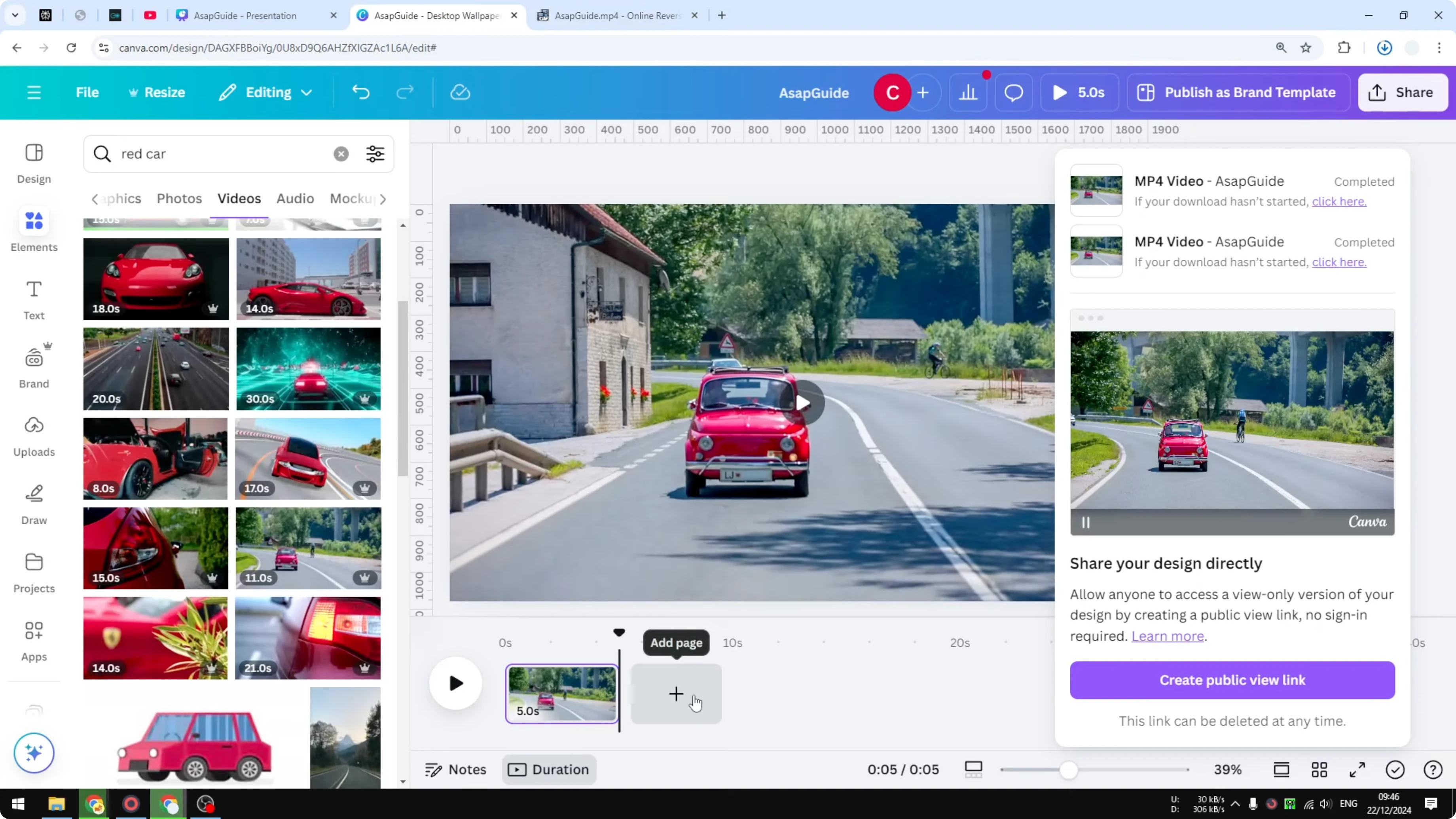
- Drag and drop the reversed file into Canva.
- Add it to a new page.
- The first page shows the car going forward, and the second page shows the car going backward.
Reverse a Video in Canva? Final Thoughts
This is the alternative that works. The process in Ezgif is quick, and you can bring the reversed file back into Canva with a simple drag and drop. I hope you find this helpful, and I wish you a great day ahead.
Recent Posts

How to Visualize Yourself as a Pixelized Character with AI?
How to Visualize Yourself as a Pixelized Character with AI?

How to Revive Faded Memories and Enhance Image Clarity with AI?
How to Revive Faded Memories and Enhance Image Clarity with AI?

How to Visualize Yourself as an Animal Crossing Character with AI?
How to Visualize Yourself as an Animal Crossing Character with AI?