How to Rearrange Pages in Canva with Drag and Drop
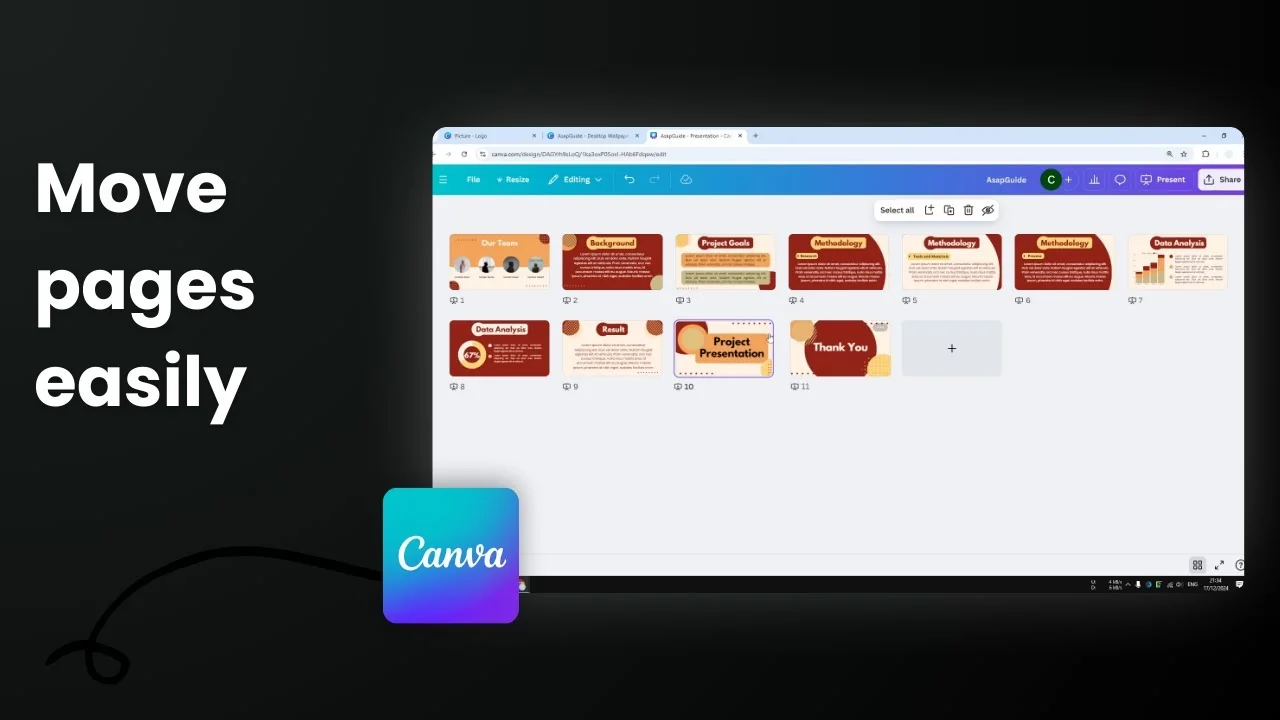
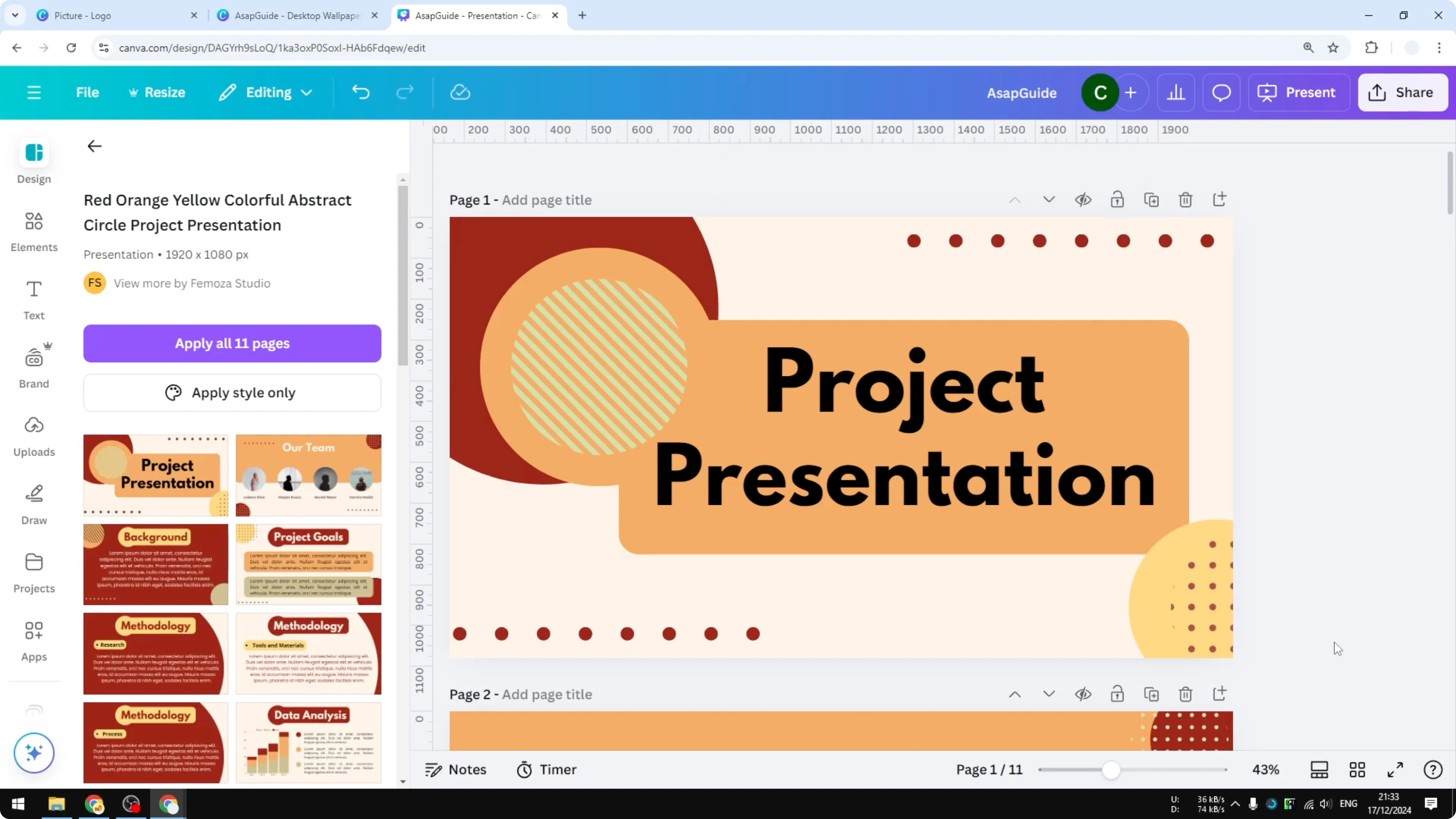
I’m going to show you how to rearrange pages in Canva. I have a presentation and I want to move a slide to a different location in the whole presentation.
Rearrange Pages in Canva with Drag and Drop
Method 1: Move Up and Move Down buttons
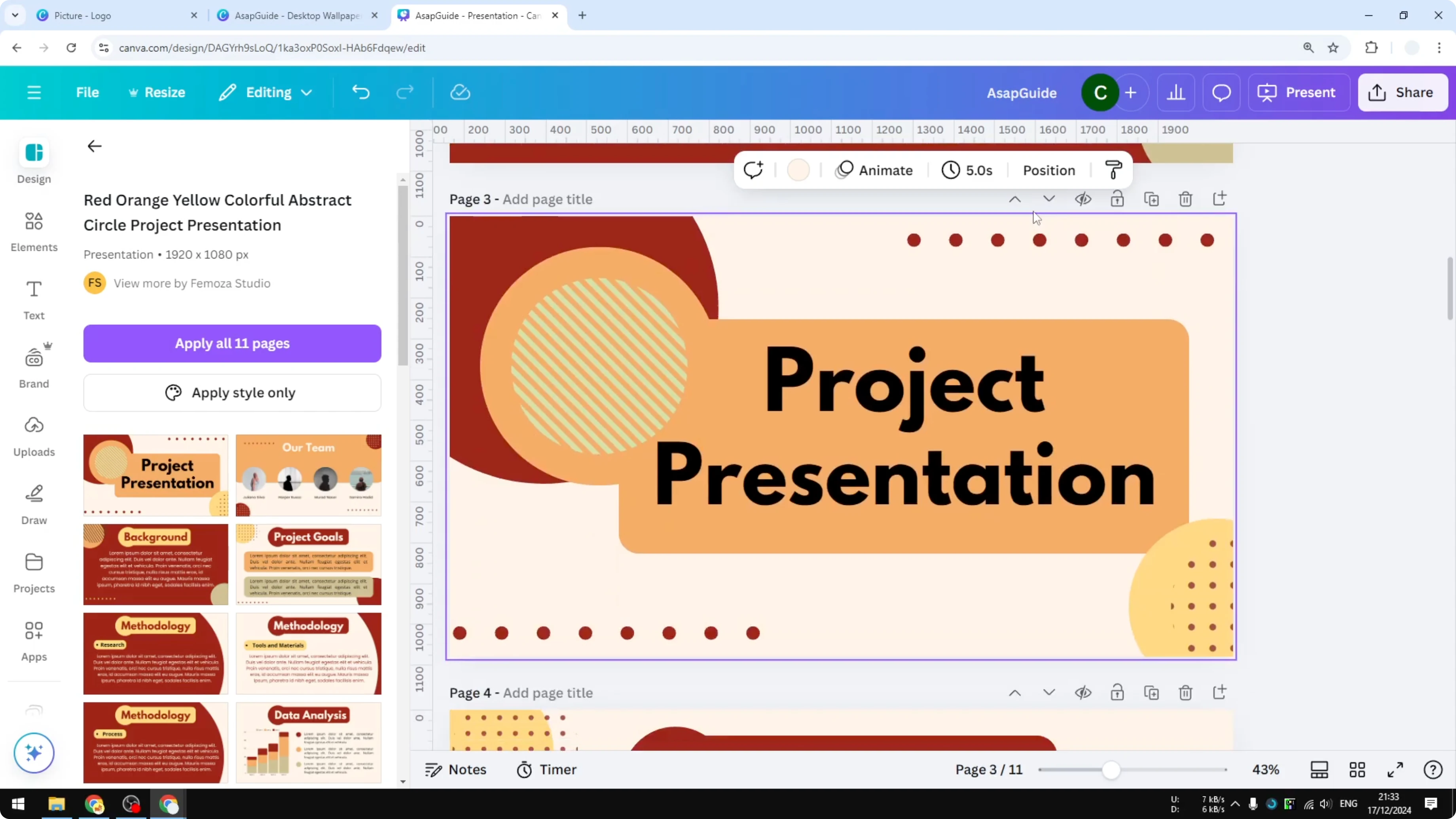
One way to move a slide to a different location is by using the feature on the top section of Canva. If I press the button, it will move the document or the slide down one page. If I click it again, it will do the same thing. If you want to go up, click the Move up button.
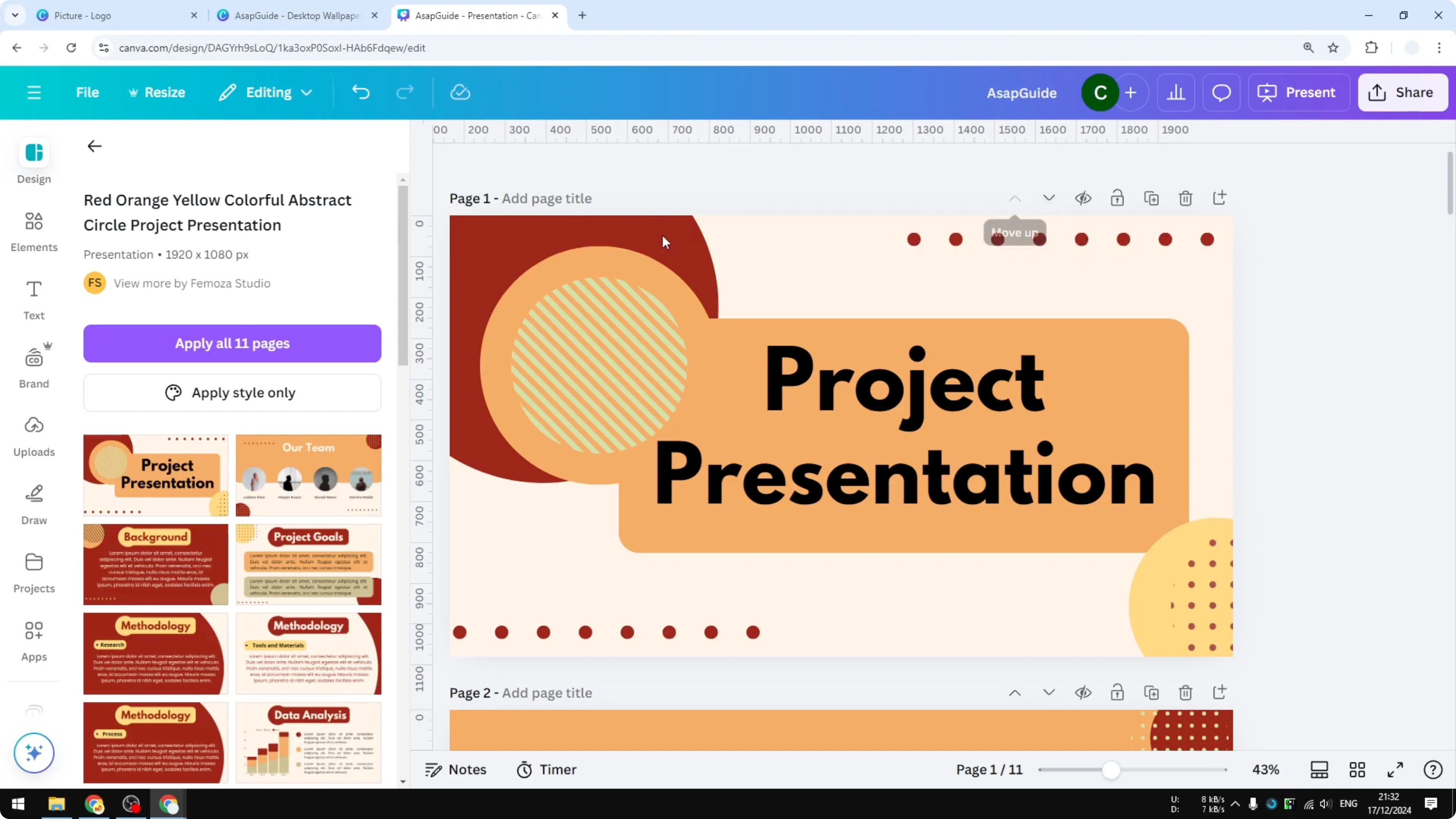
- Click Move down to shift the current page down one position per click.
- Click Move up to shift it up.
- This is not fast enough if you have a very long document or a document with a lot of pages.
Method 2: Thumbnail view (drag and drop)
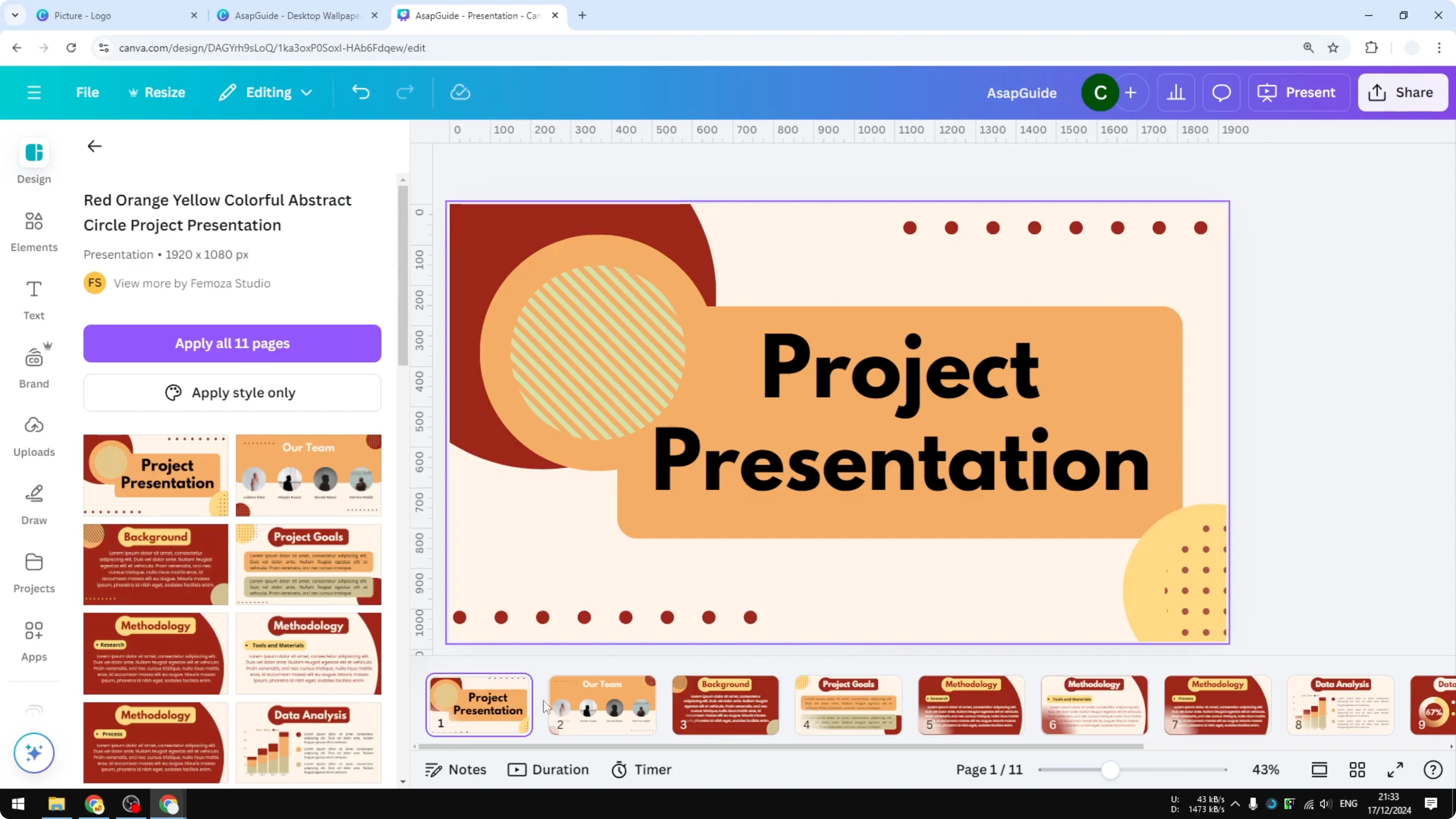
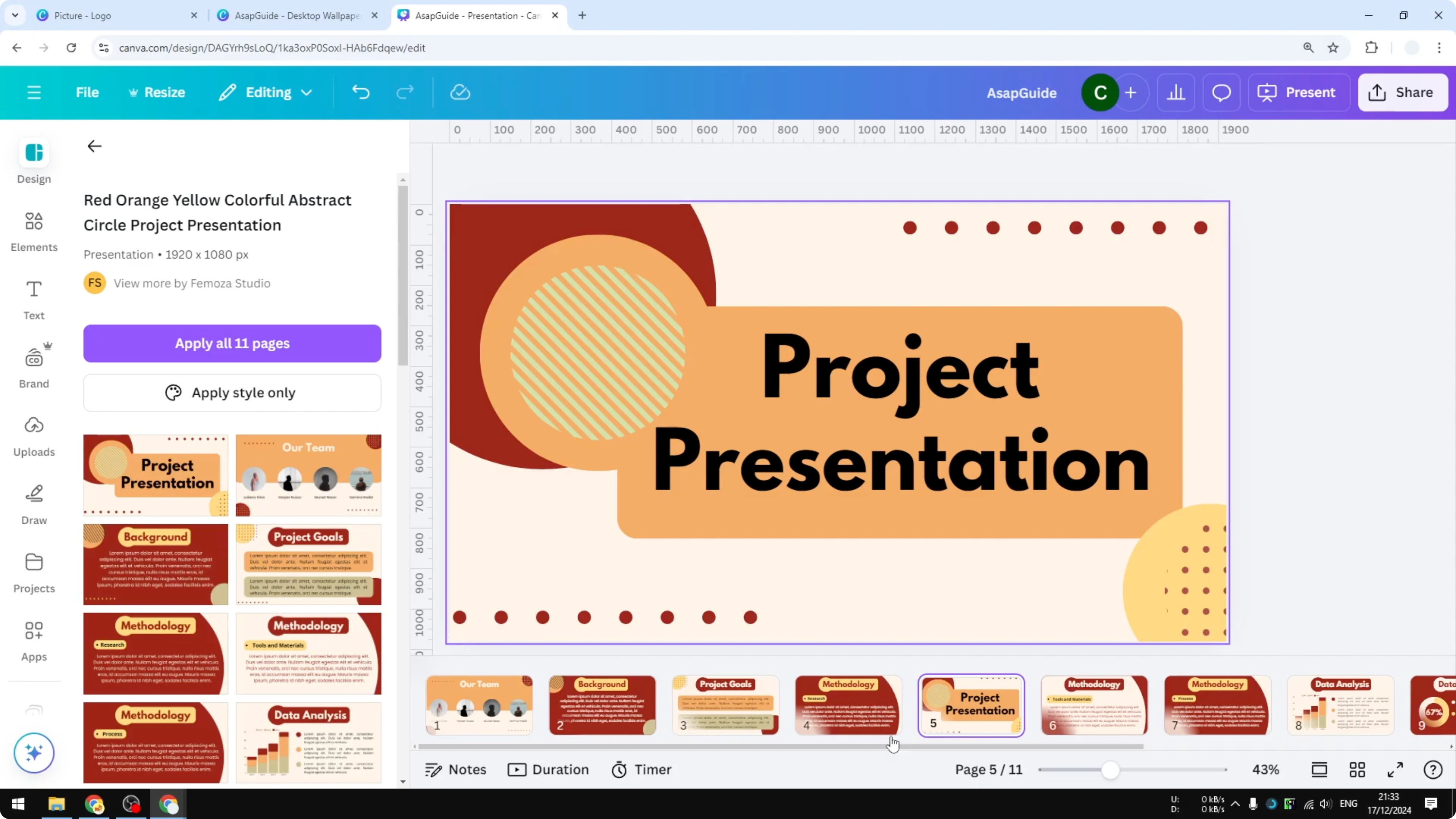
I highly recommend using the Thumbnail view. Click Thumbnail view and you will see a section at the bottom that allows you to click and then drag a slide or a page into a different location. This is a lot faster than the previous method.
Step-by-step:
- Click Thumbnail view.
- Click and drag the slide or page to the position you want.
- Release to drop it into place.
Method 3: Grid view for large documents
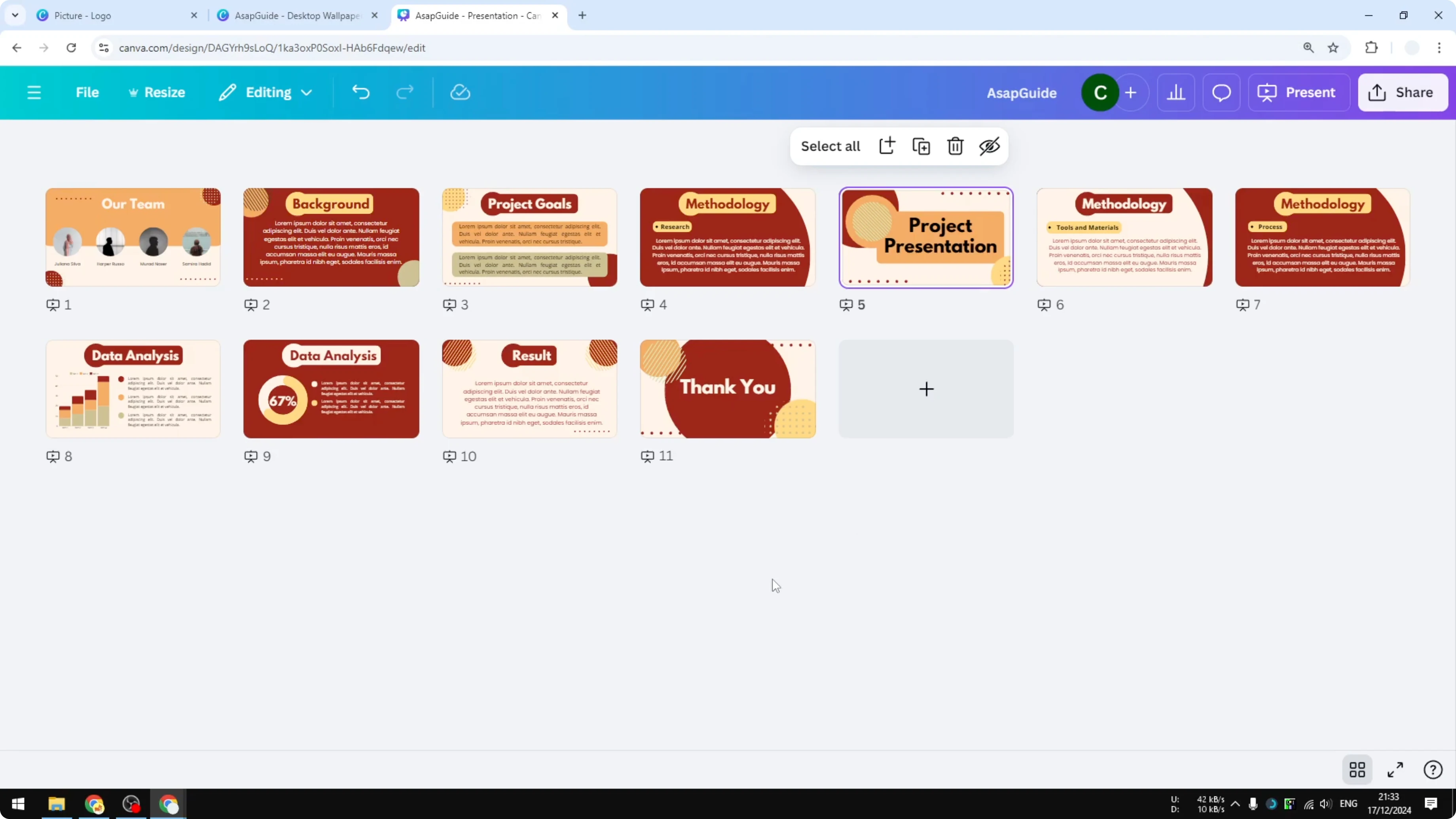
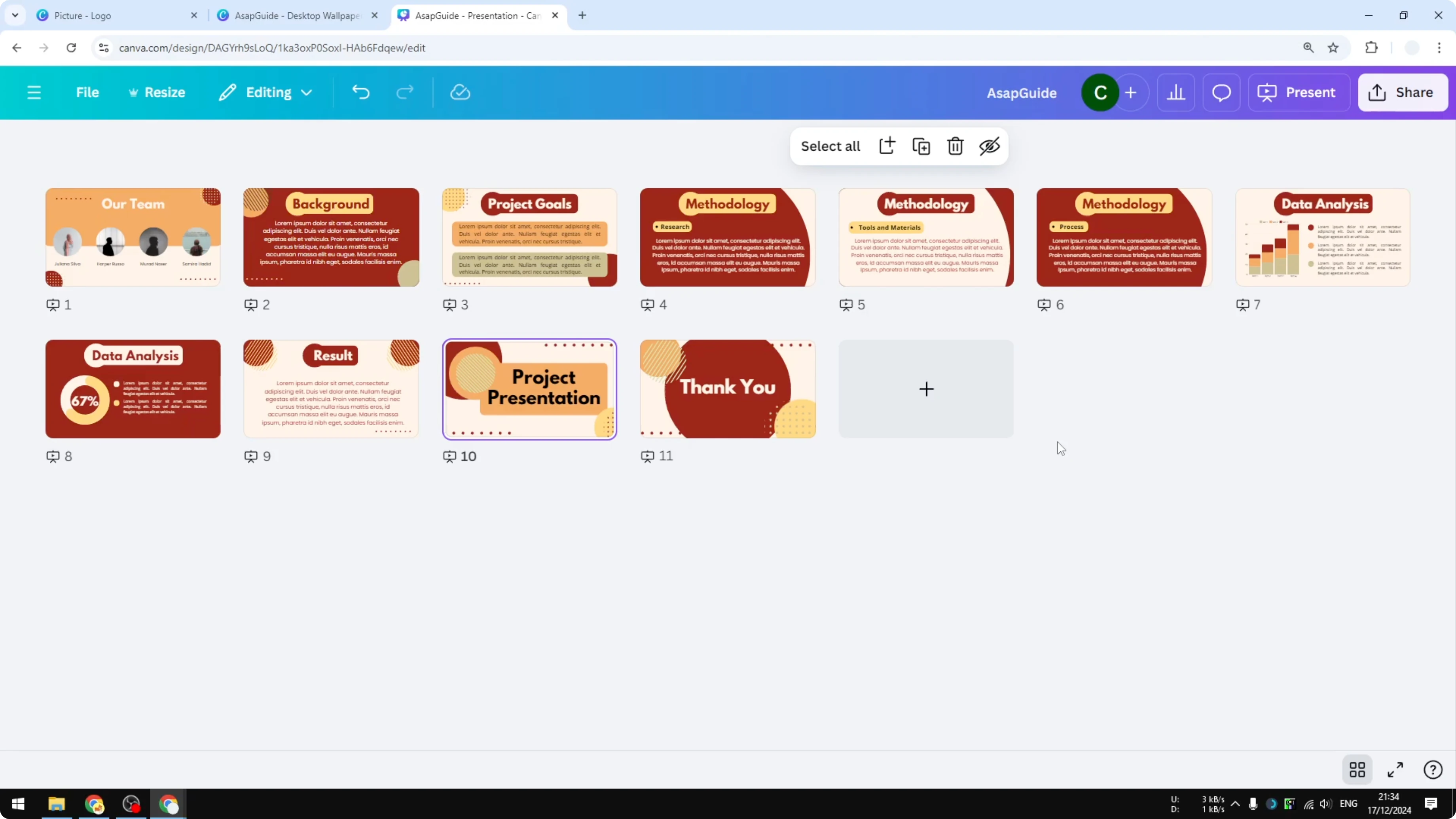
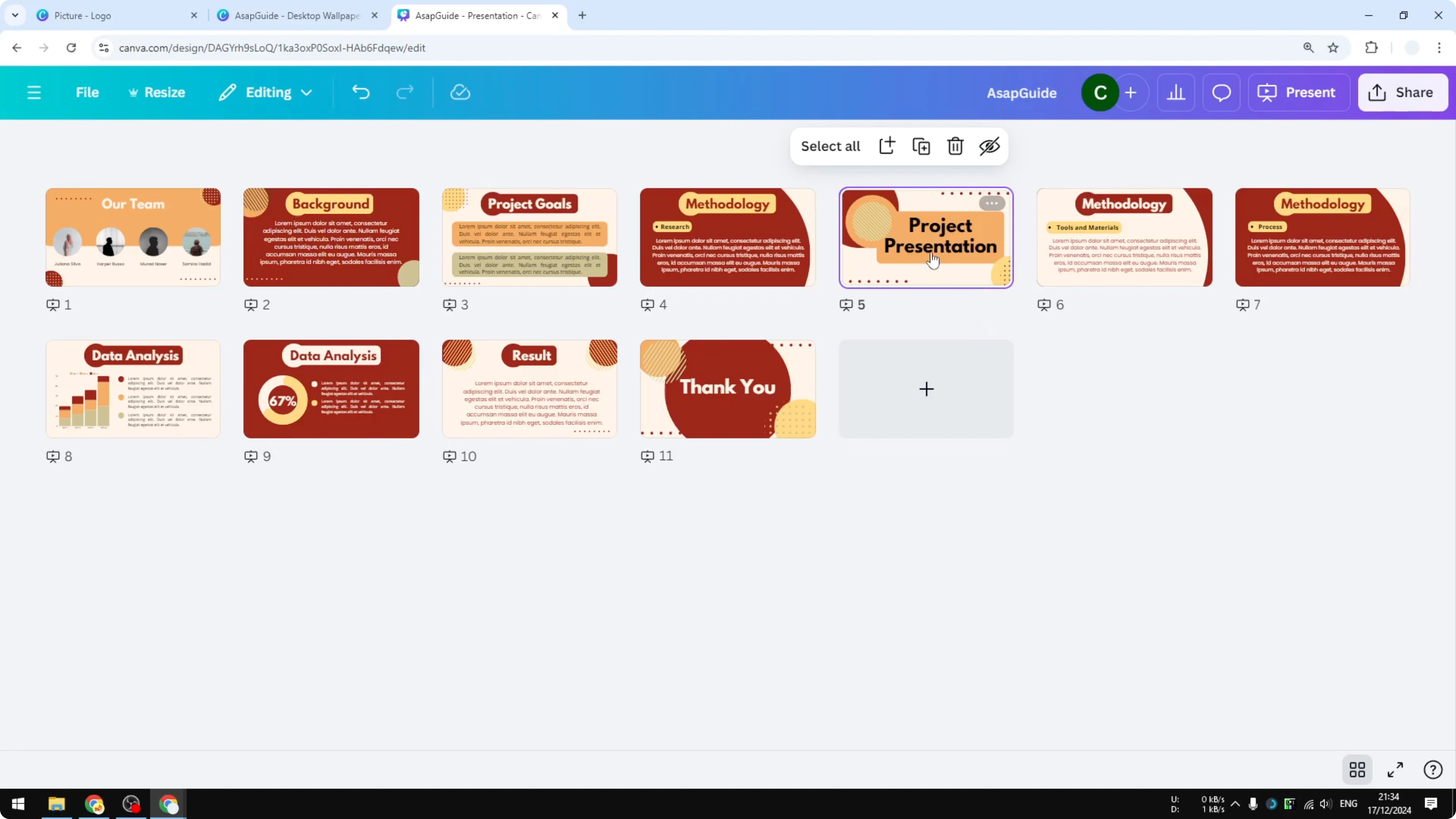
There is another method that is even faster, especially if you have even more pages or slides in your Canva document, and that is called Grid view. It is located next to the button you clicked before. Click Grid view and this will show you a bird’s eye view of your entire document. To move one page to another, click on that page and then drag it somewhere else. It will be placed exactly where you drop it, and the rest of the slides will be adjusted automatically.
Step-by-step:
- Click Grid view.
- Click and drag a page to the new position.
- Drop it between the target pages. The rest of the pages will adjust automatically.
- Click Grid view again to go back to your slide and continue editing after you arrange the pages.
Final Thoughts
That’s how you can rearrange pages in Canva. There are three methods you can try, and Grid view is the quickest for large documents, with Thumbnail view offering a simple drag-and-drop option at the bottom.
Recent Posts

How to Visualize Yourself as a Pixelized Character with AI?
How to Visualize Yourself as a Pixelized Character with AI?

How to Revive Faded Memories and Enhance Image Clarity with AI?
How to Revive Faded Memories and Enhance Image Clarity with AI?

How to Visualize Yourself as an Animal Crossing Character with AI?
How to Visualize Yourself as an Animal Crossing Character with AI?