How to Mute Video on Canva
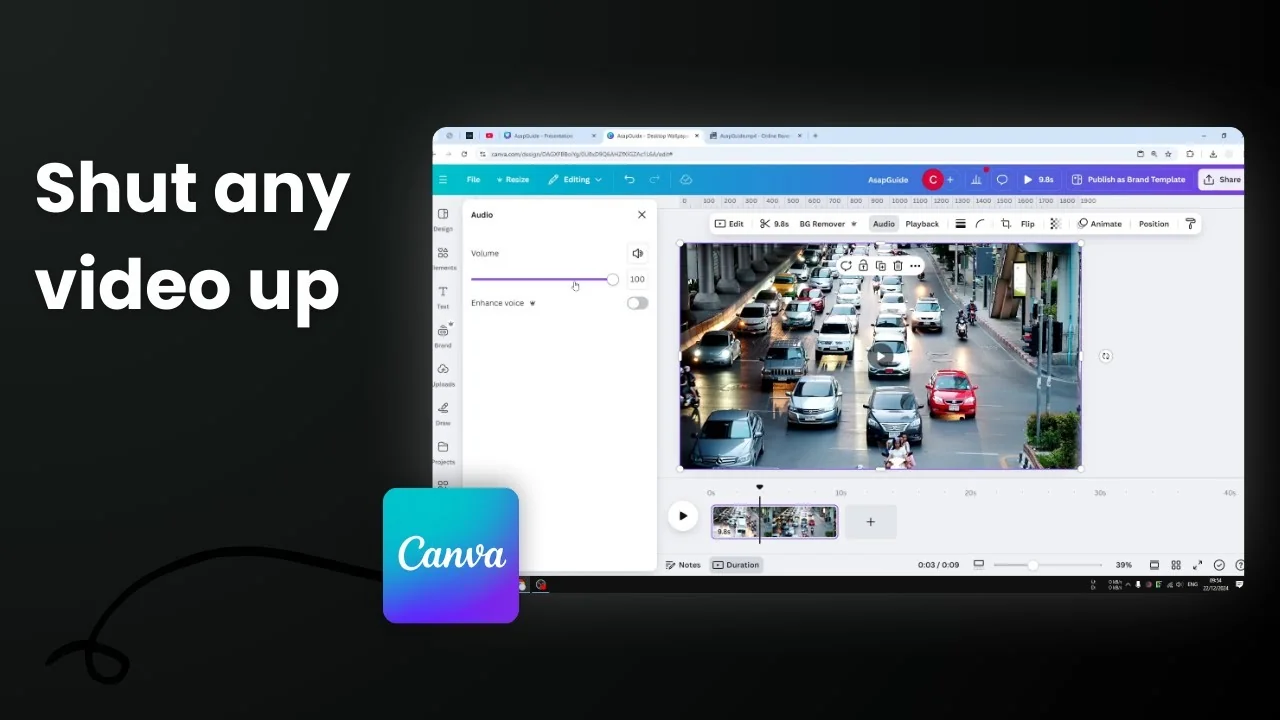
I have a stock video that shows a street with a lot of cars and some motorcycles. This video has some noise and it's not a very welcoming one. I want to remove the audio from this video and here's how you can do that.
Mute Video on Canva
- Select the video
- Click the video to select it.
- You can select multiple videos and apply the audio setting, but for now I'm going to select one video.
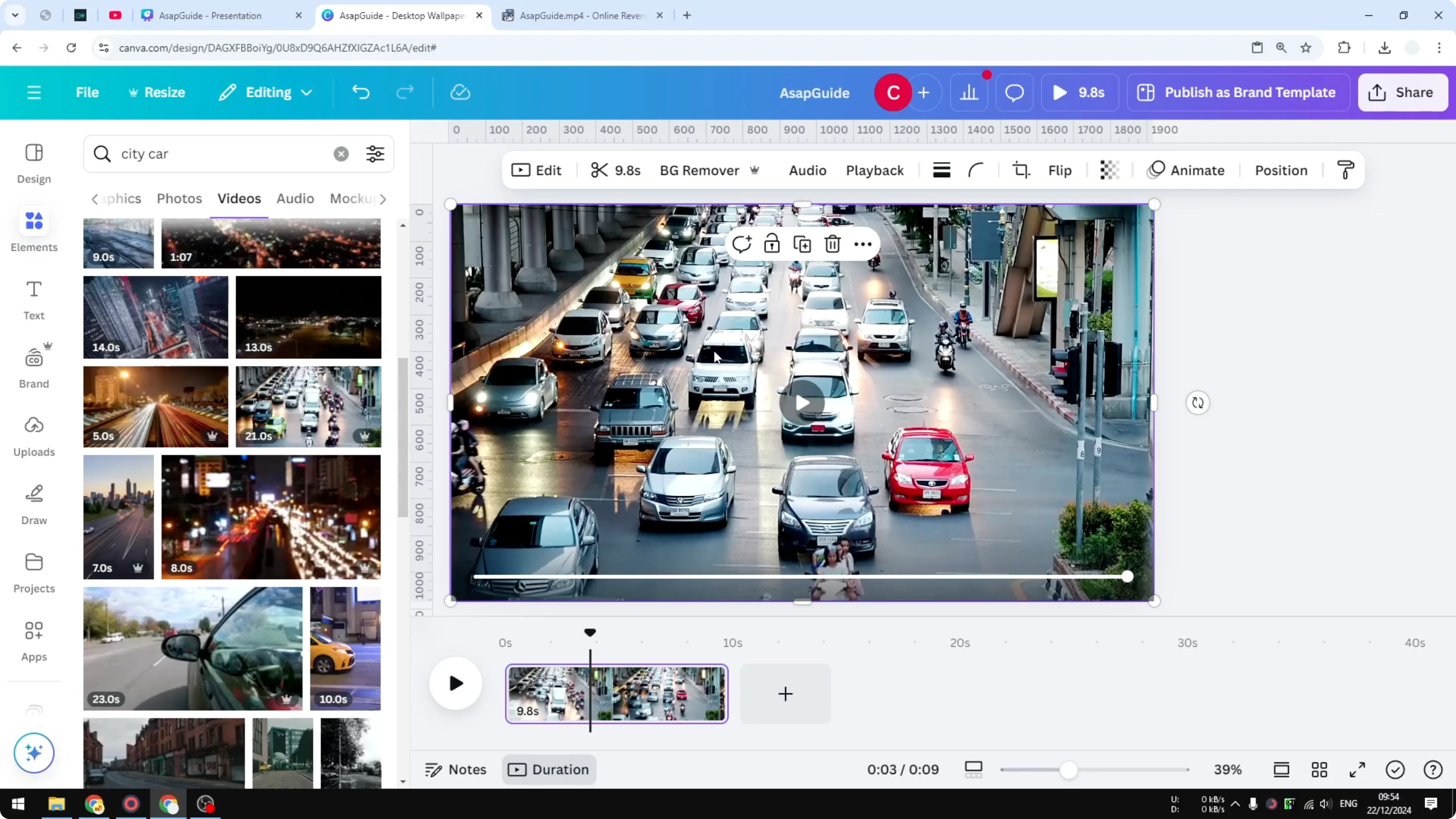
- Open the audio controls
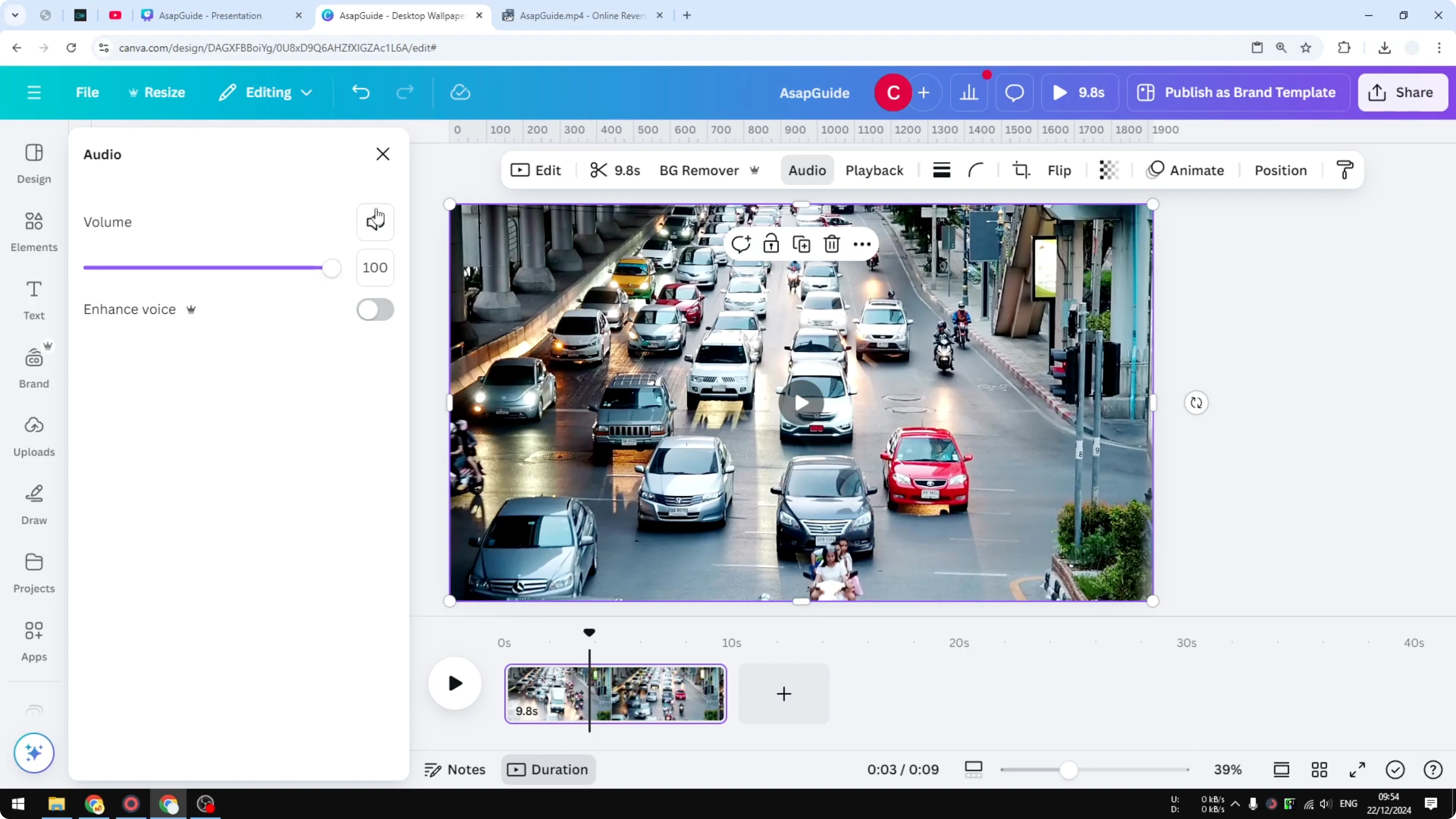
- Click the audio option.
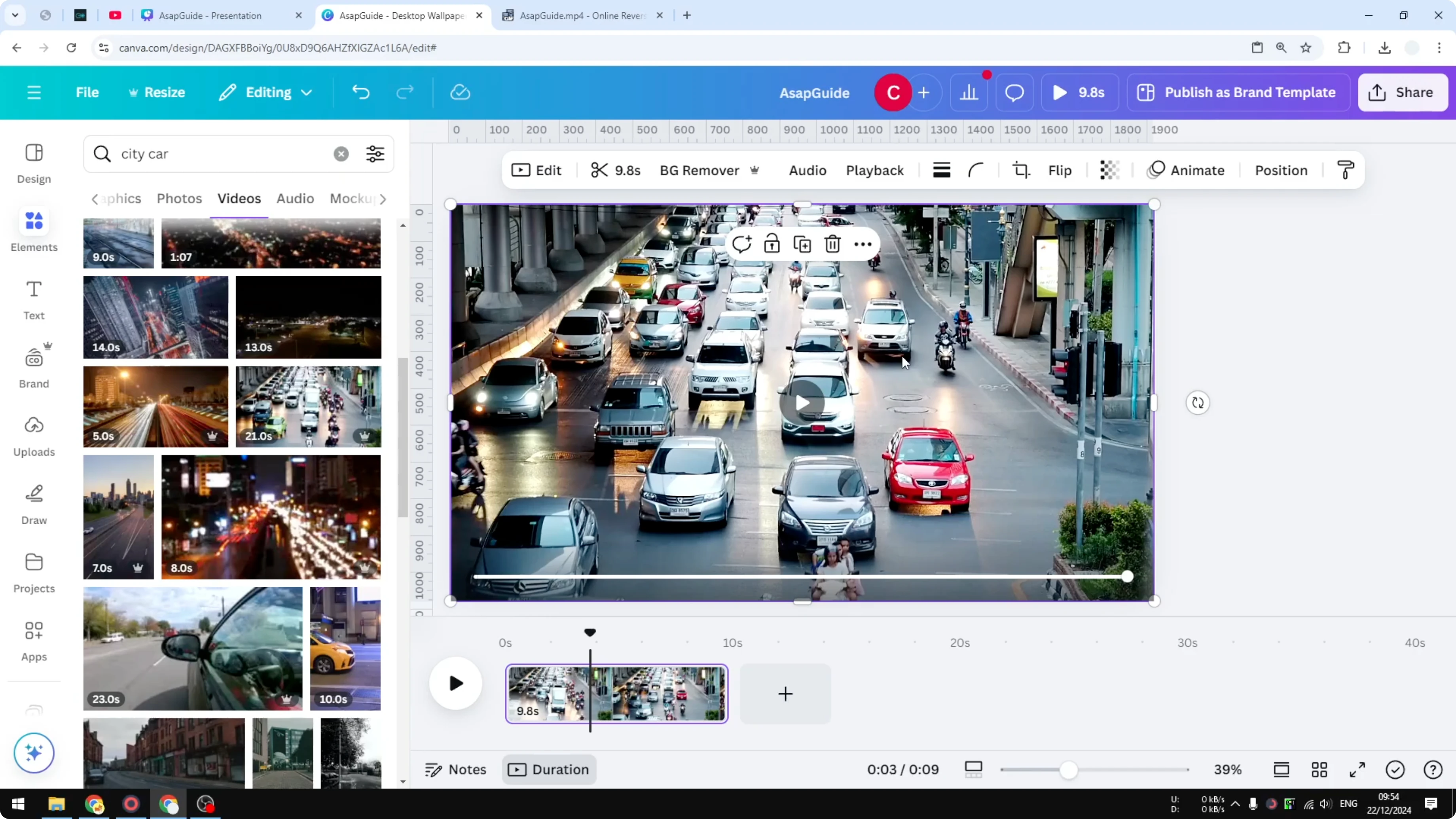
- Choose how to mute
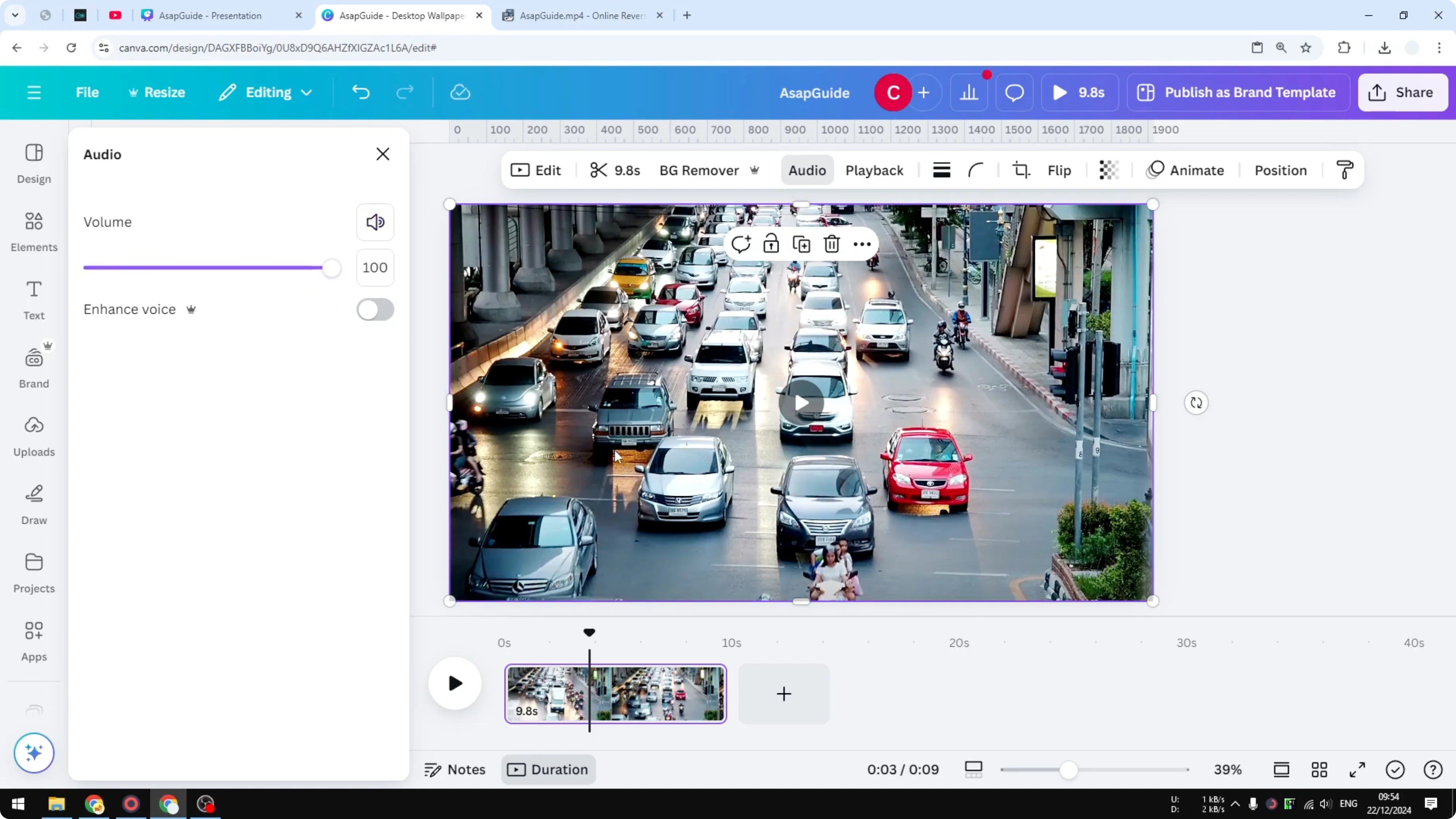
- Instant mute button: use the instant mute button, which instantly reduces the volume to zero.
- Volume slider: play around with the slider and set it to whatever level that you find is comfortable for the audience or the viewers of the video. You can set it to zero, which mutes the whole audio.
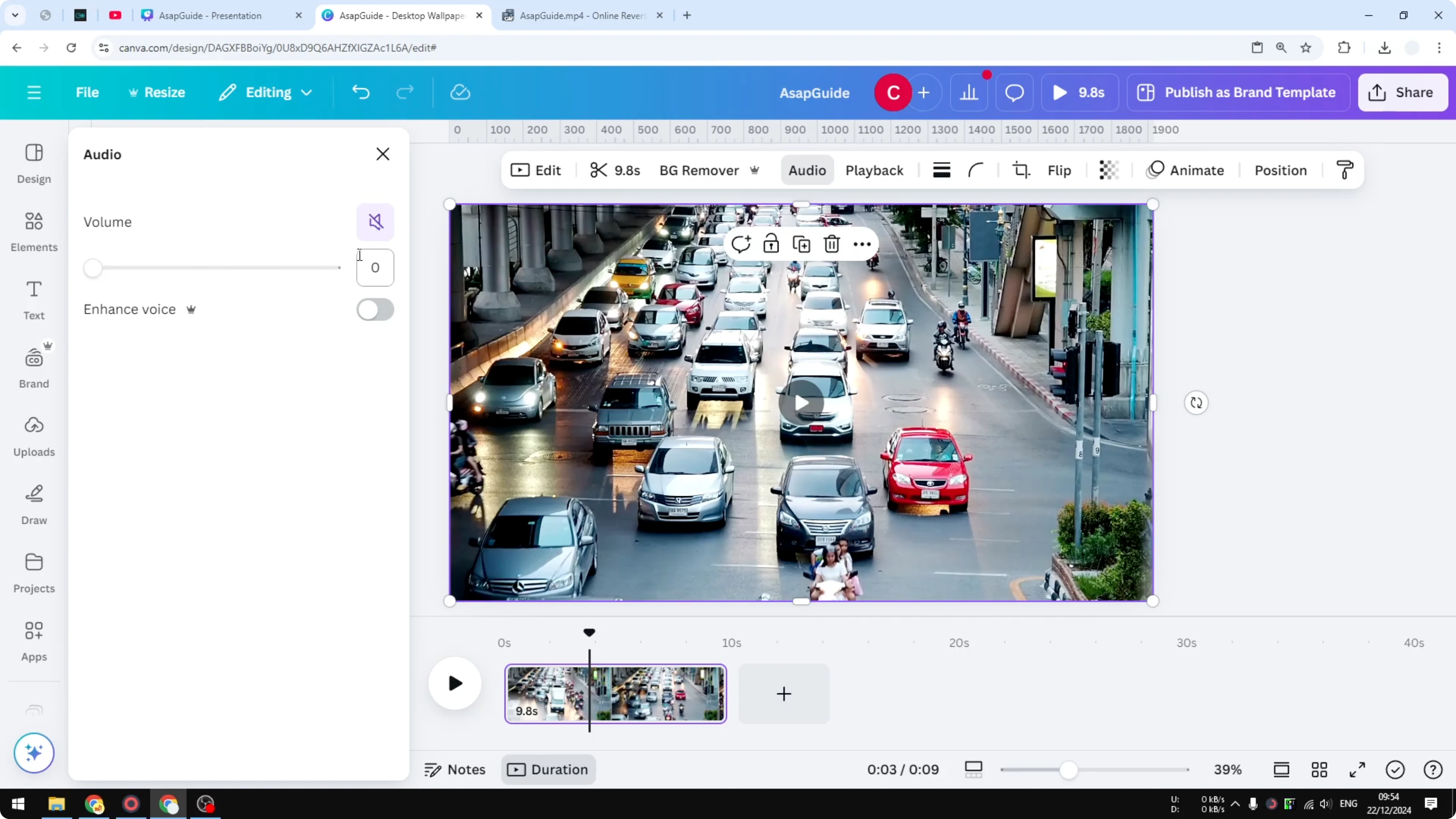
- Confirm the result at zero
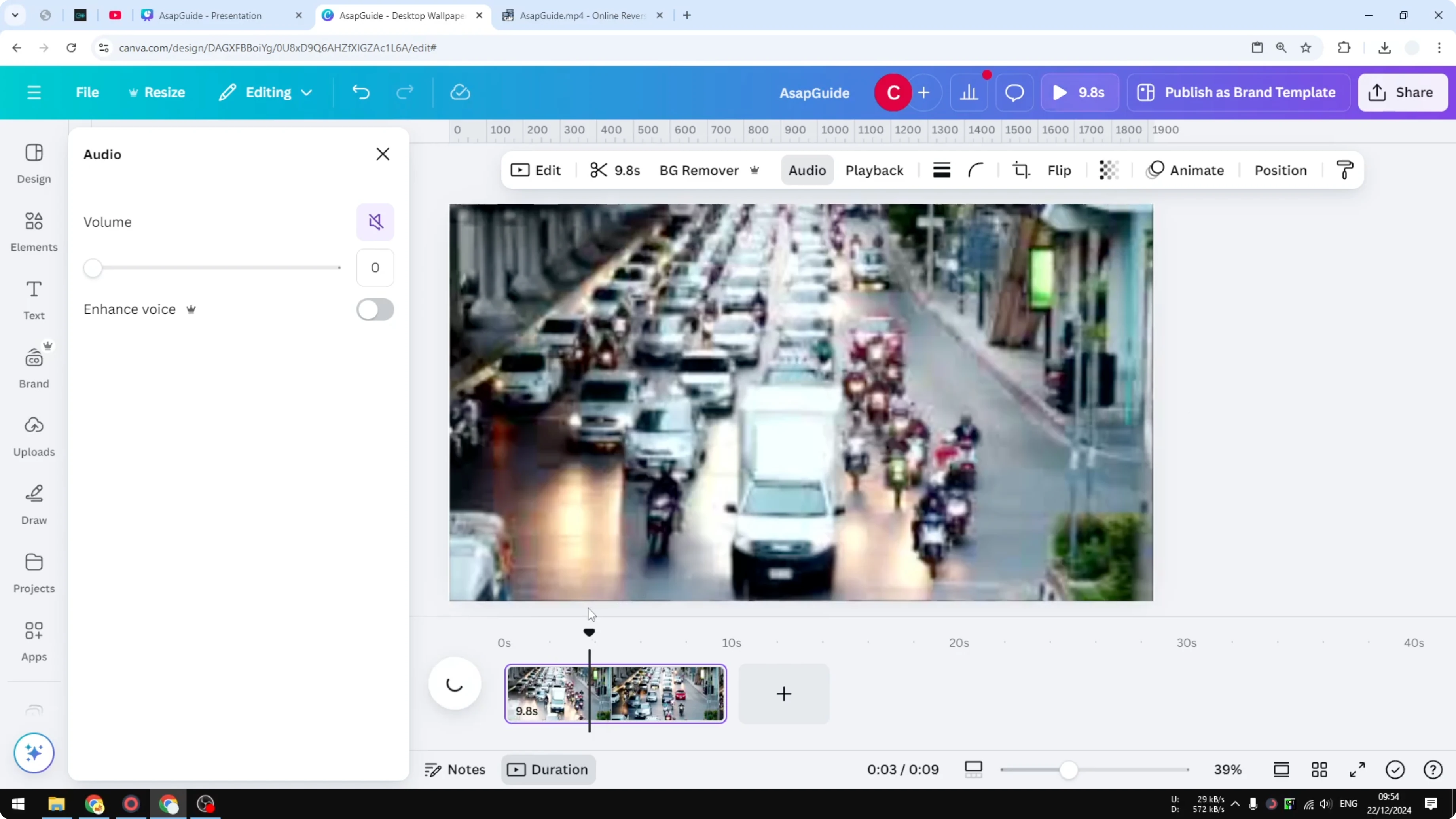
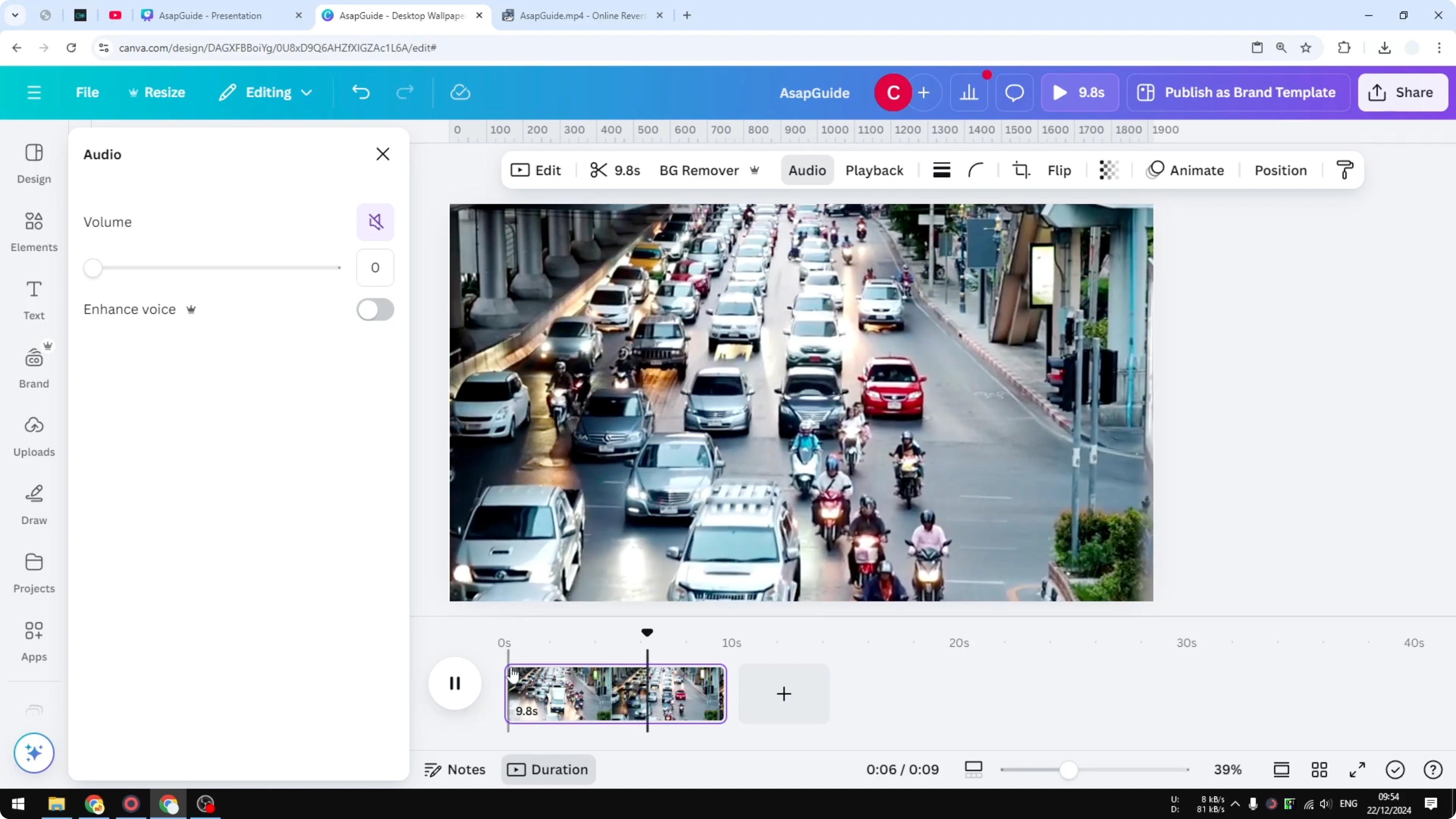
- If I set the audio to zero, it's just silent. There is nothing in this video that is audible. There is no audio whatsoever, only picture.
Add replacement audio or narration
Maybe you can use a different audio to fill the gap or you can use a narration for this clip.
Final Thoughts
Muting a clip in Canva is straightforward using the instant mute button or the volume slider. I hope you find this tutorial to be helpful.
Recent Posts

How to Visualize Yourself as a Pixelized Character with AI?
How to Visualize Yourself as a Pixelized Character with AI?

How to Revive Faded Memories and Enhance Image Clarity with AI?
How to Revive Faded Memories and Enhance Image Clarity with AI?

How to Visualize Yourself as an Animal Crossing Character with AI?
How to Visualize Yourself as an Animal Crossing Character with AI?