How to Export Canva Video with Transparent Background
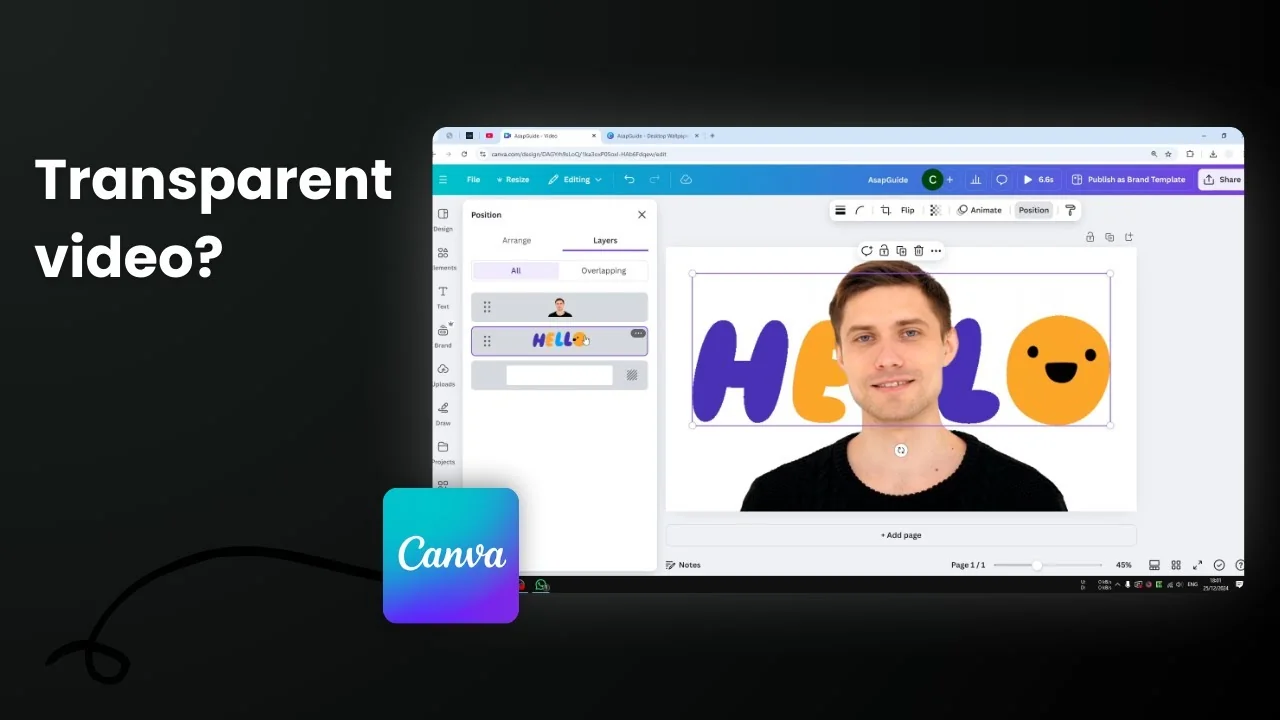
Exporting a transparent video from Canva is a tricky request because video cannot be truly transparent. It is not like a PNG or WebP image that has a transparency attribute to reveal content behind it. As far as I know, that is not possible with a video.
Maybe what you actually want is a solid color background for the video. It could be white, black, or a green screen background so you can key it later in another editor. For that, Canva has an AI feature that removes the background of a video, and it works quite well when you feed it the right kind of clip.
Export Canva Video with Transparent Background: What you can and cannot do
- True transparency in a video export is not available.
- You can remove the background inside Canva so the subject appears isolated on the canvas.
- You can place graphics or colors behind the subject to simulate transparency inside the design.
- When you export as MP4, the background will be whatever color or content sits behind the subject on the canvas.
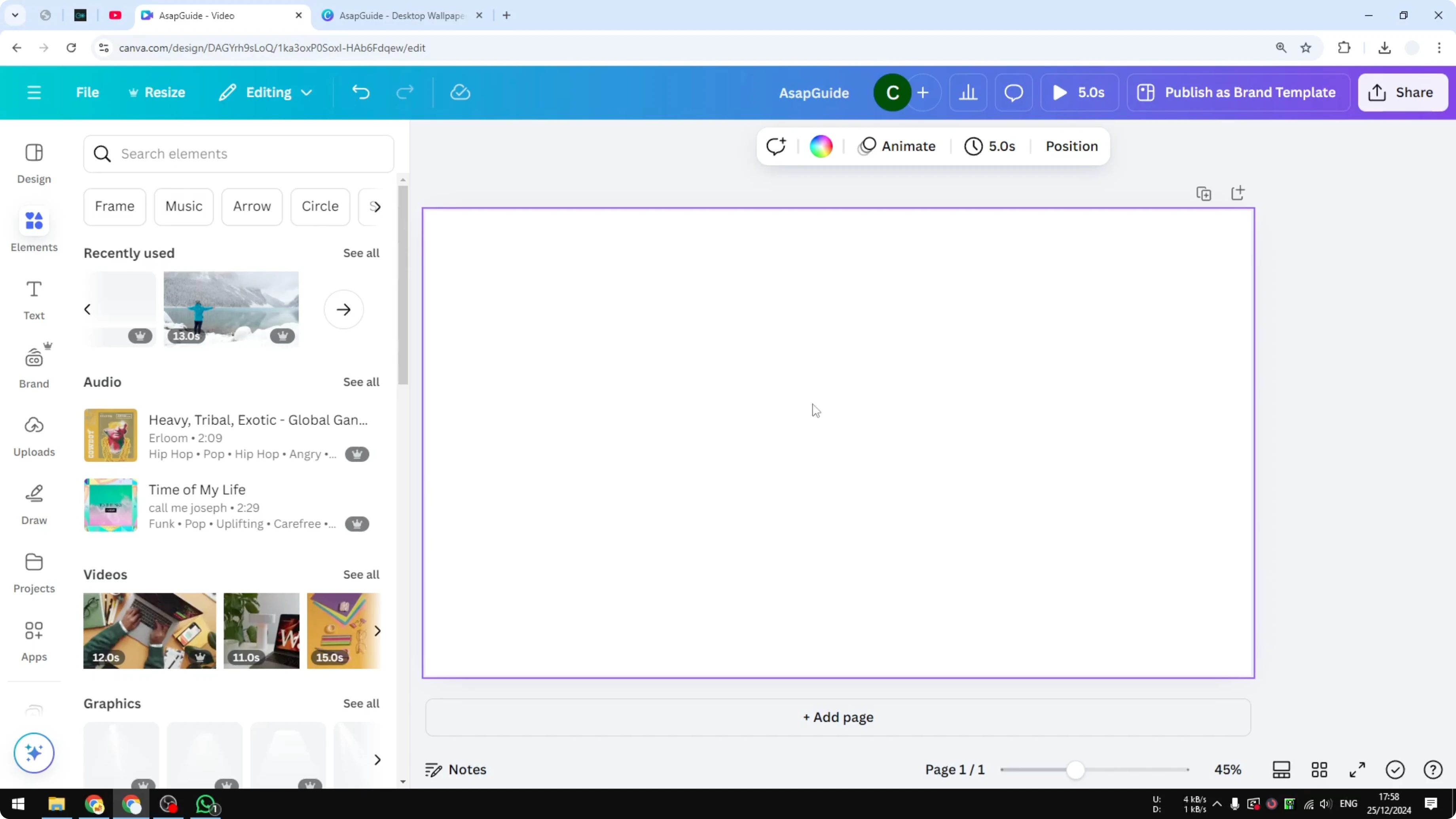
Export Canva Video with Transparent Background: Choose the right source clip
I prefer a simple video with only one person and a relatively clean background. That kind of clip is ideal.
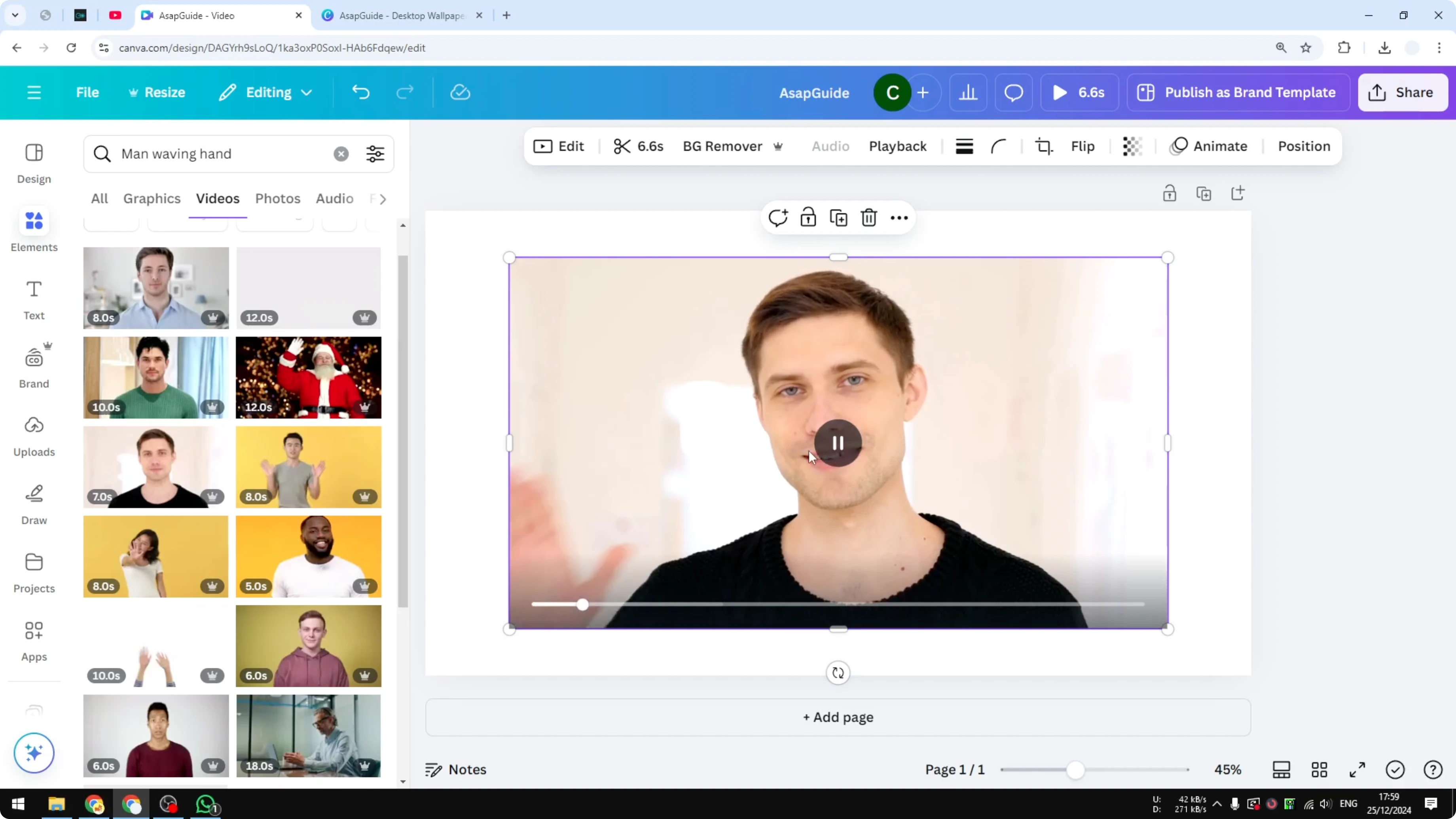
- One person is easier than multiple people.
- A clear, simple background works better than a busy one with lots of colors and structures.
- Complex scenes are difficult and challenging for the AI to remove cleanly.
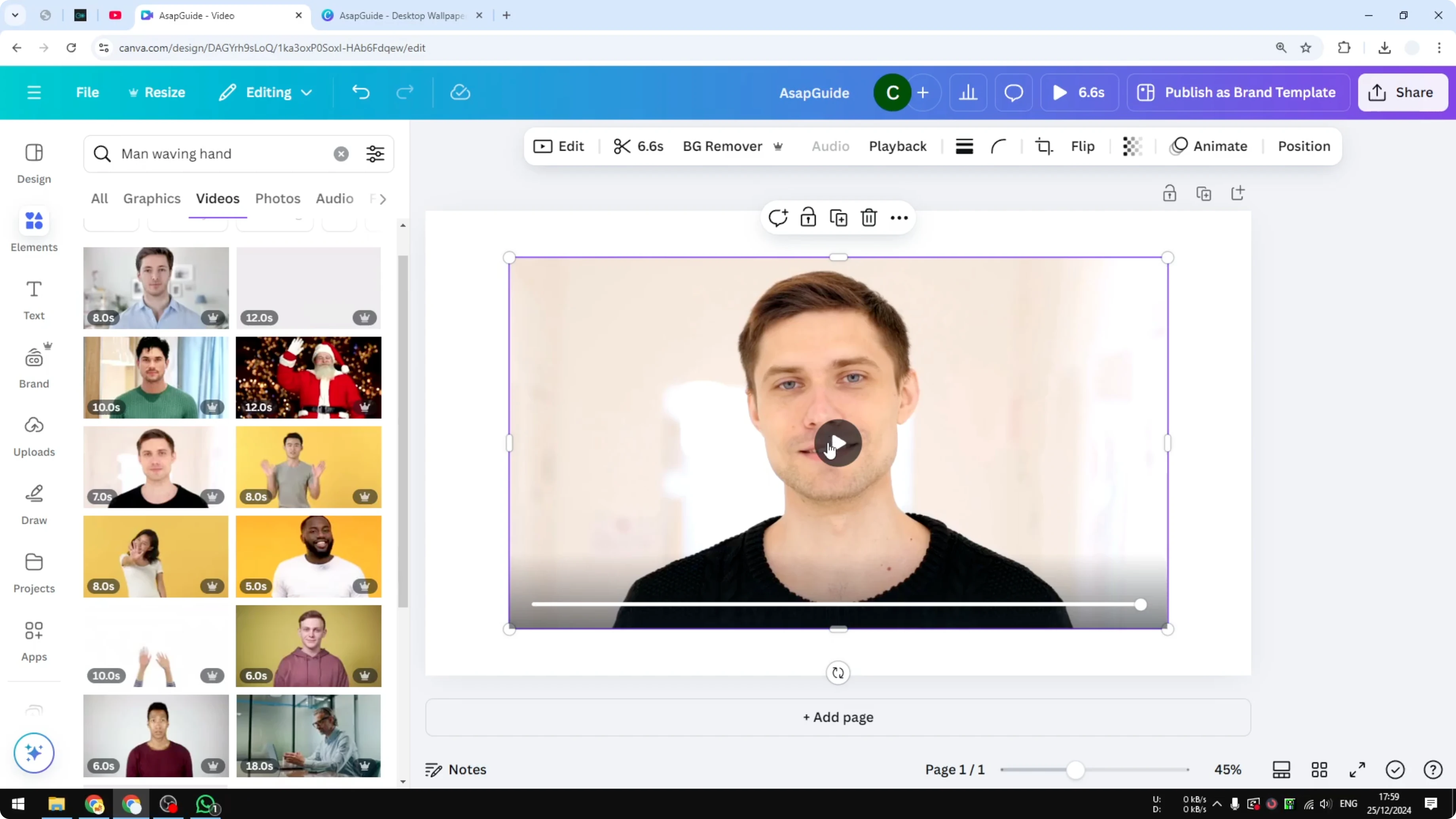
Export Canva Video with Transparent Background: Remove the background in Canva
The video Background Remover is similar to the one for images, but it works on video.
Step-by-step:
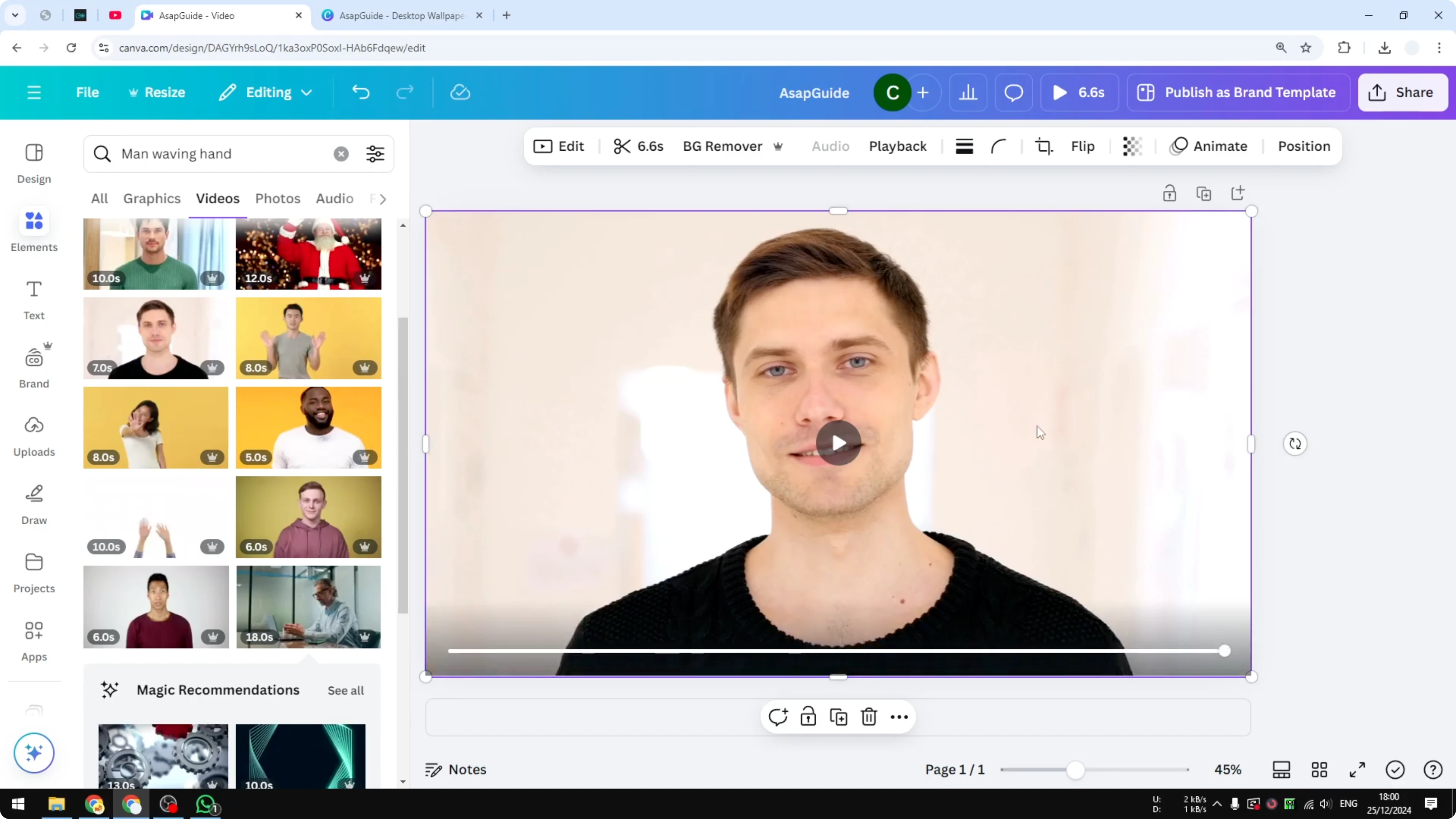
- Insert your video into a Canva document.
- Make the video fill the canvas if you want a full-frame result.
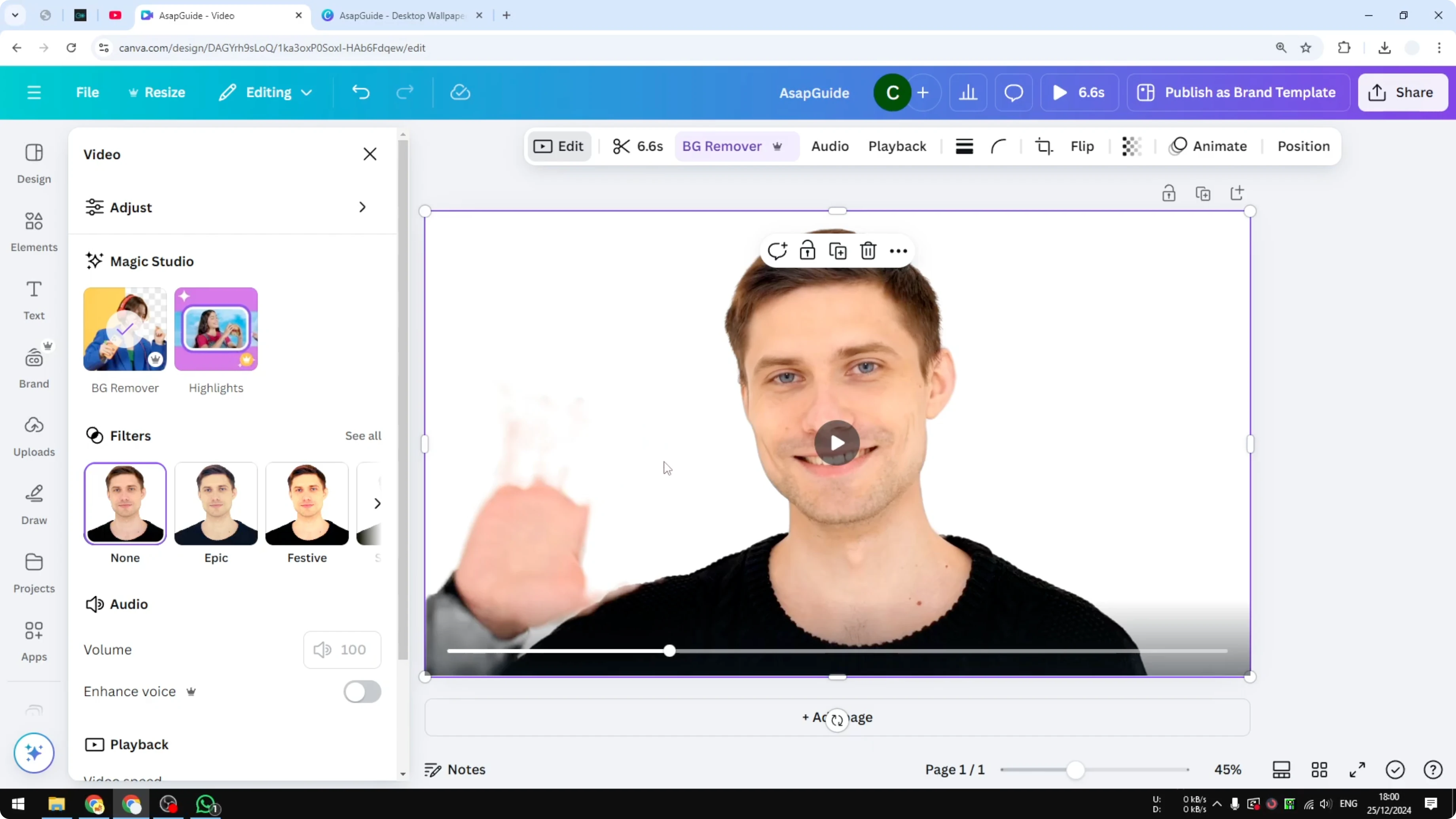
- Select the video, click Edit, then click Background Remover.
- Wait for the process to finish. The background should disappear while the video continues to play normally.
Notes:
- You may see artifacts depending on the clip. In my case, I could still see an annoying artifact, but the overall effect worked.
Place elements behind the subject
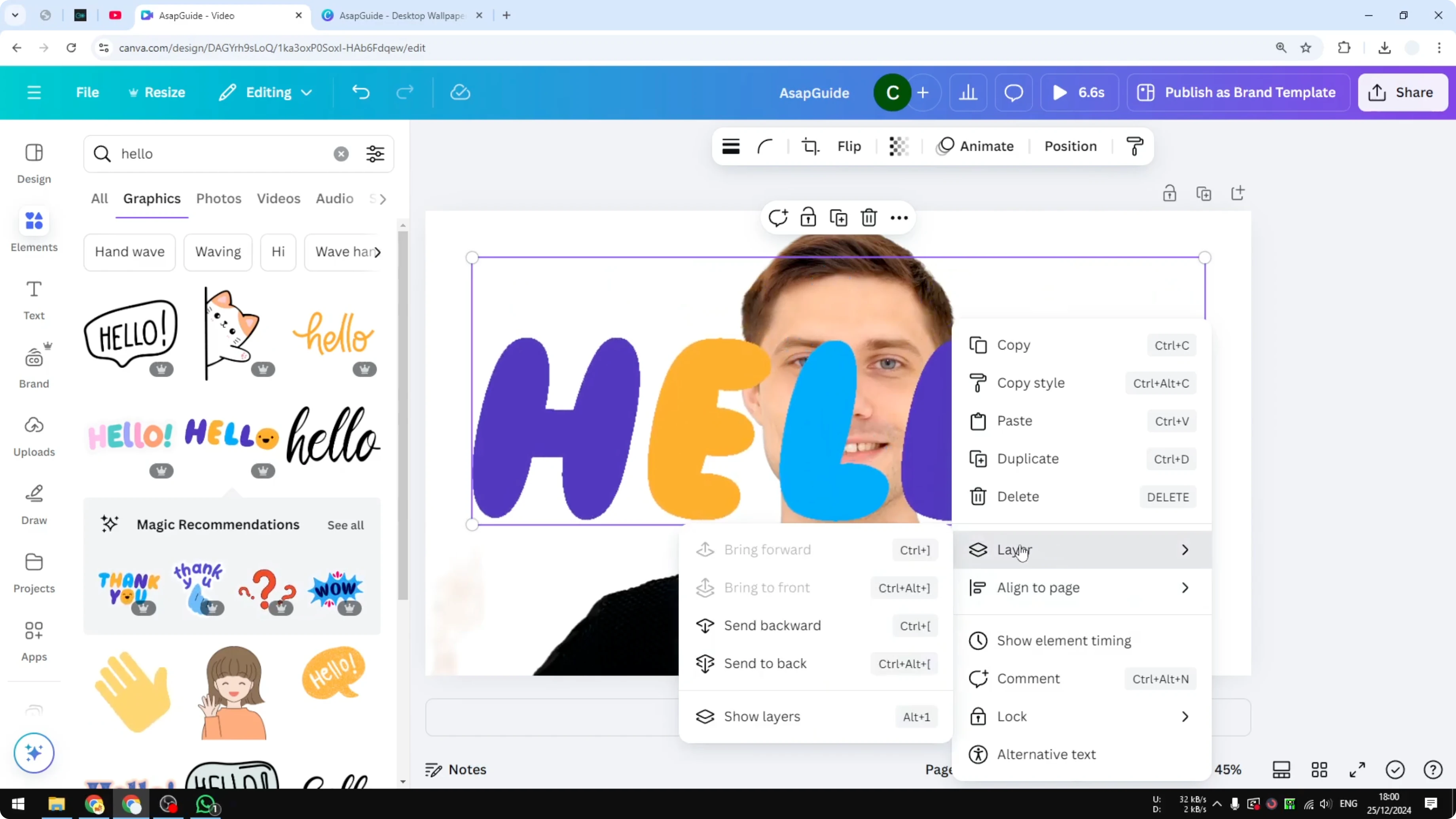
- Insert a shape, graphic, or animated element.
- Right click the element, go to Layer, and Send to backward so it sits behind the subject.
- The video will keep running, and the element or background color behind it will be visible. By that definition inside the design, the video looks transparent.
Export Canva Video with Transparent Background: Download and background color
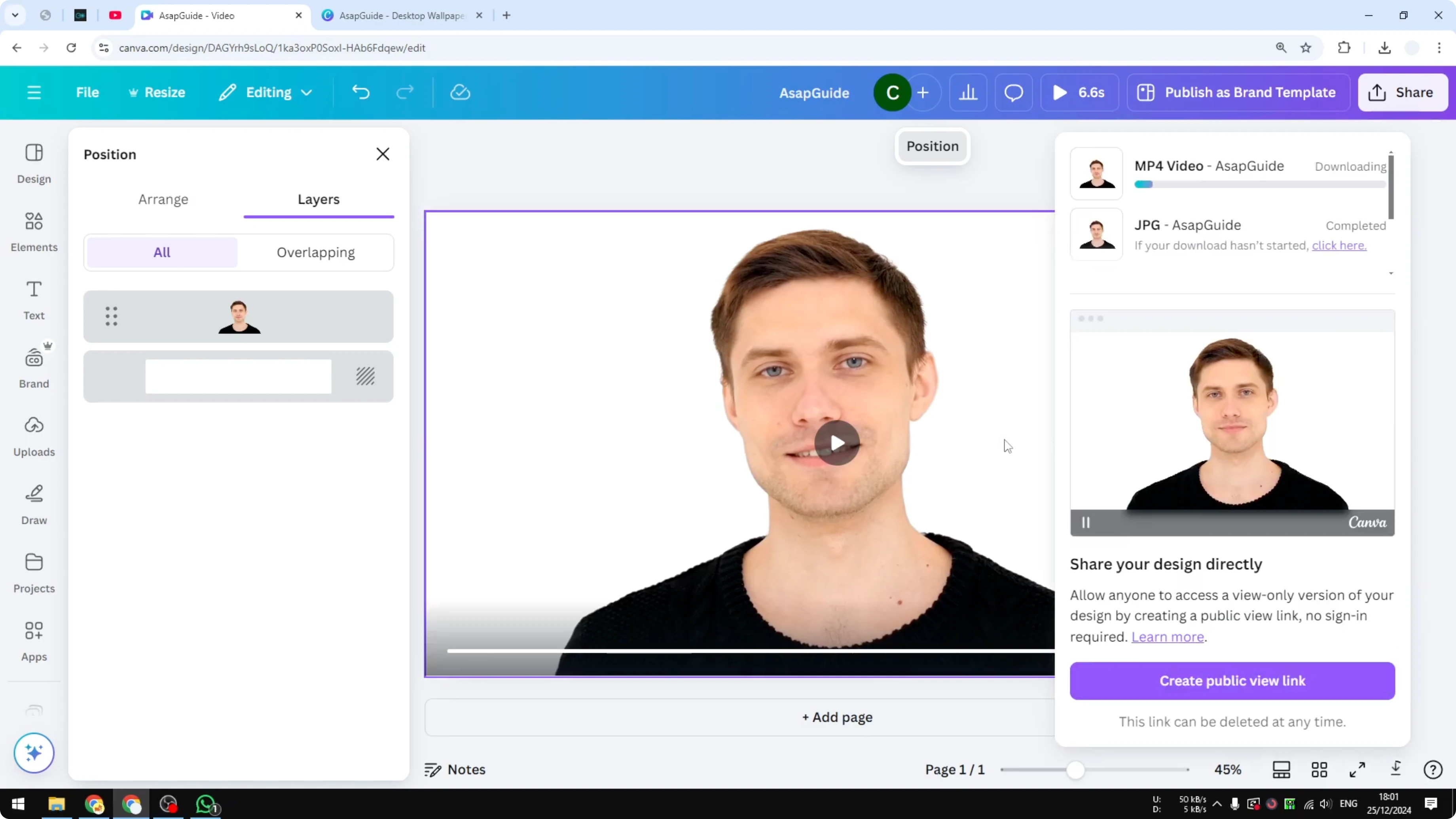
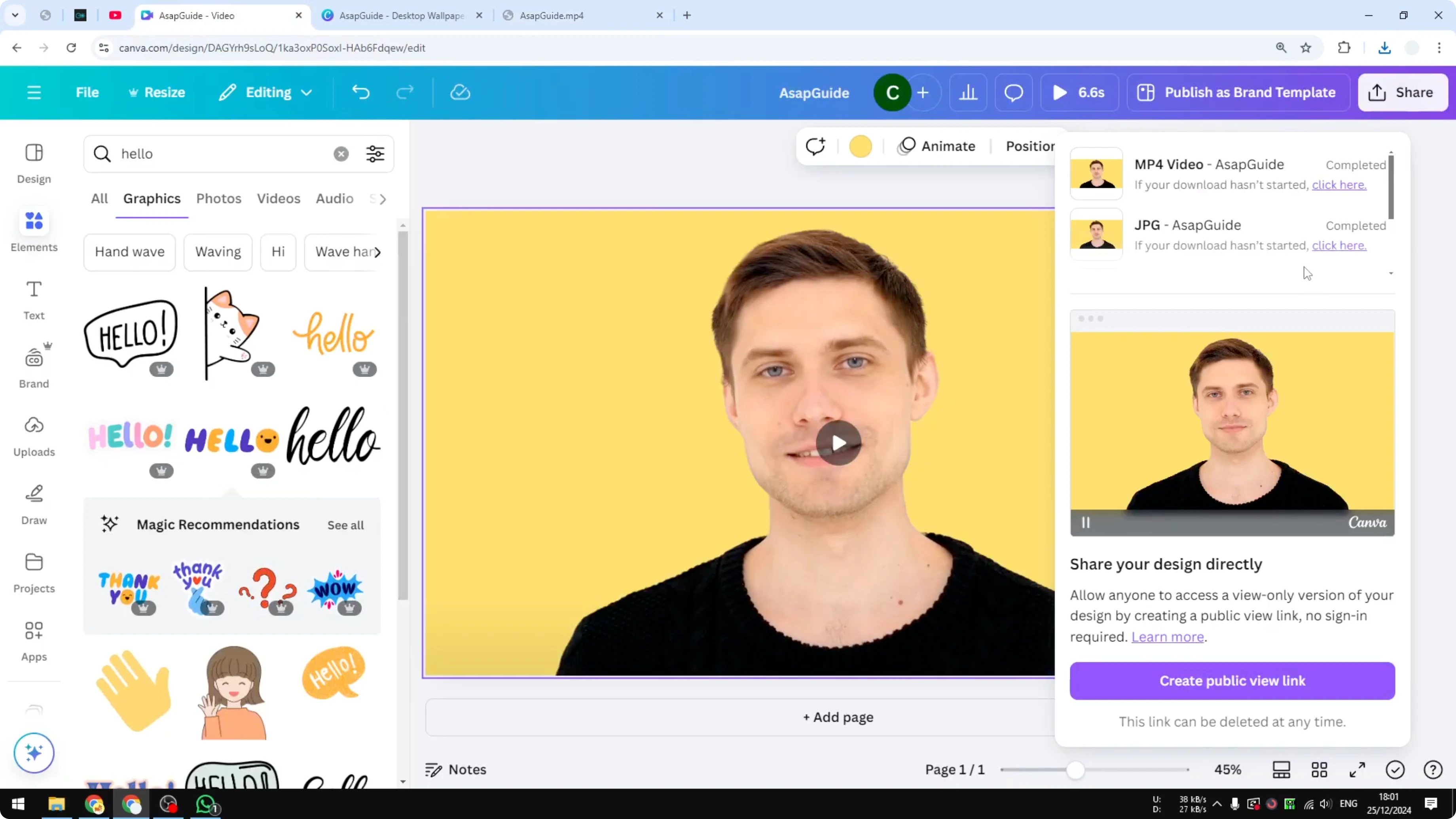
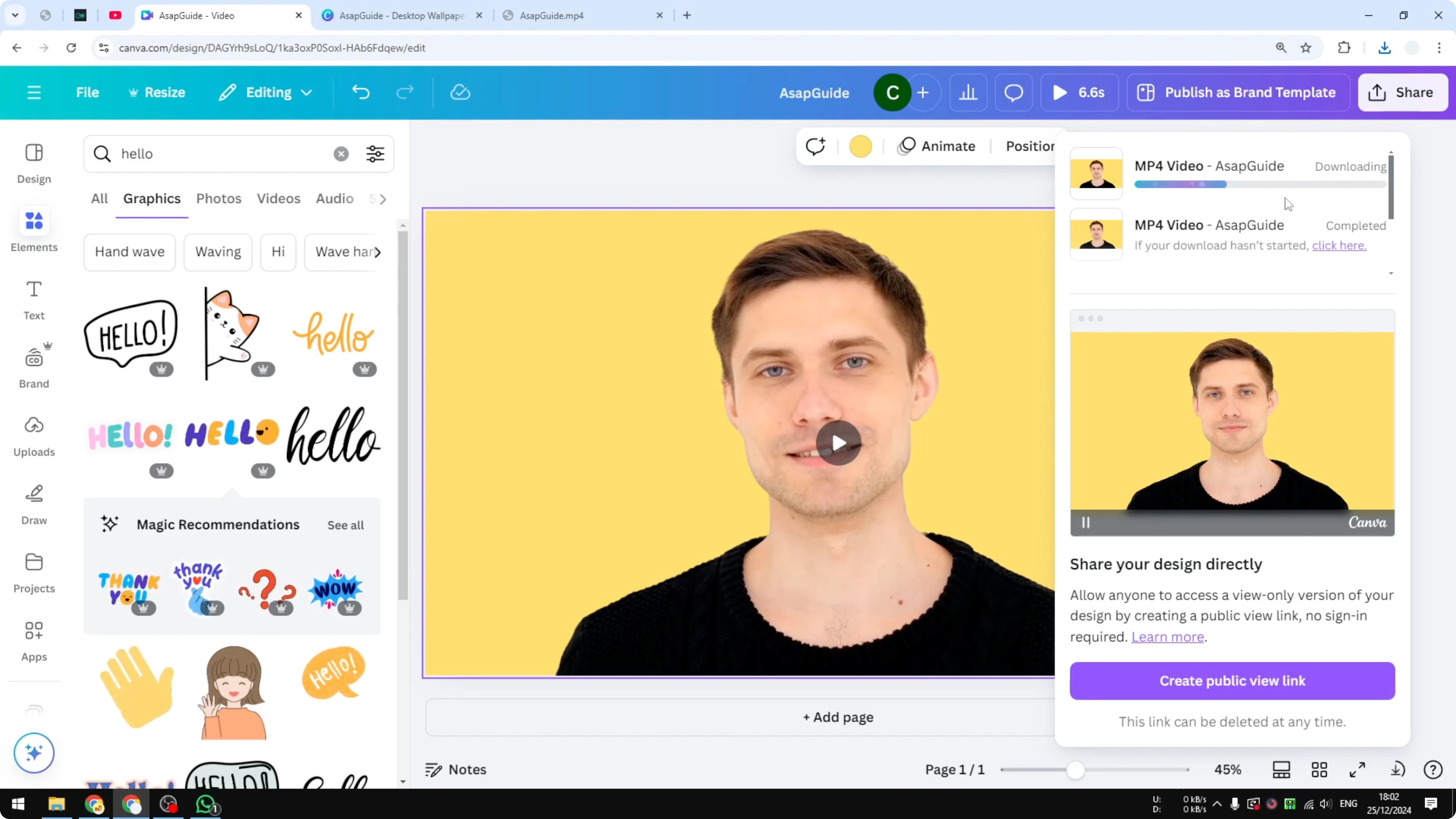
When you download as an MP4 file, the background will not be transparent. It will be whatever background or color you set on the canvas.
- Change the page background color to get the exported background you want. For example, switch it to black, white, yellow, or green.
- If you export after setting a yellow background, the downloaded MP4 will have a yellow background.
- This is the same idea for white or any other color you choose.
About green screen
If you plan to key the subject in another editor, set the Canva canvas to a green background before exporting. You can then key out that green later.
Final Thoughts
There is no such thing as a truly transparent video export here. What you can do is remove the background in Canva, place any color or graphic behind the subject, and export an MP4 with that chosen background. It is not exactly transparent, but it gets you close to the result many people want, and it is quick to set up with Canva’s background removal.
Recent Posts

How to Visualize Yourself as a Pixelized Character with AI?
How to Visualize Yourself as a Pixelized Character with AI?

How to Revive Faded Memories and Enhance Image Clarity with AI?
How to Revive Faded Memories and Enhance Image Clarity with AI?

How to Visualize Yourself as an Animal Crossing Character with AI?
How to Visualize Yourself as an Animal Crossing Character with AI?