How to Easily Record Voice Over in Canva

Recording your own voice over in Canva is extremely useful if you are planning to present your Canva document or presentation but you do not want to do it over and over again. You can record yourself once, share the document, and everyone can see and hear your voice. This guide shows exactly how to do it.
Easily Record Voice Over in Canva
Easily Record Voice Over in Canva - Step-by-step
Open a Canva document or presentation.
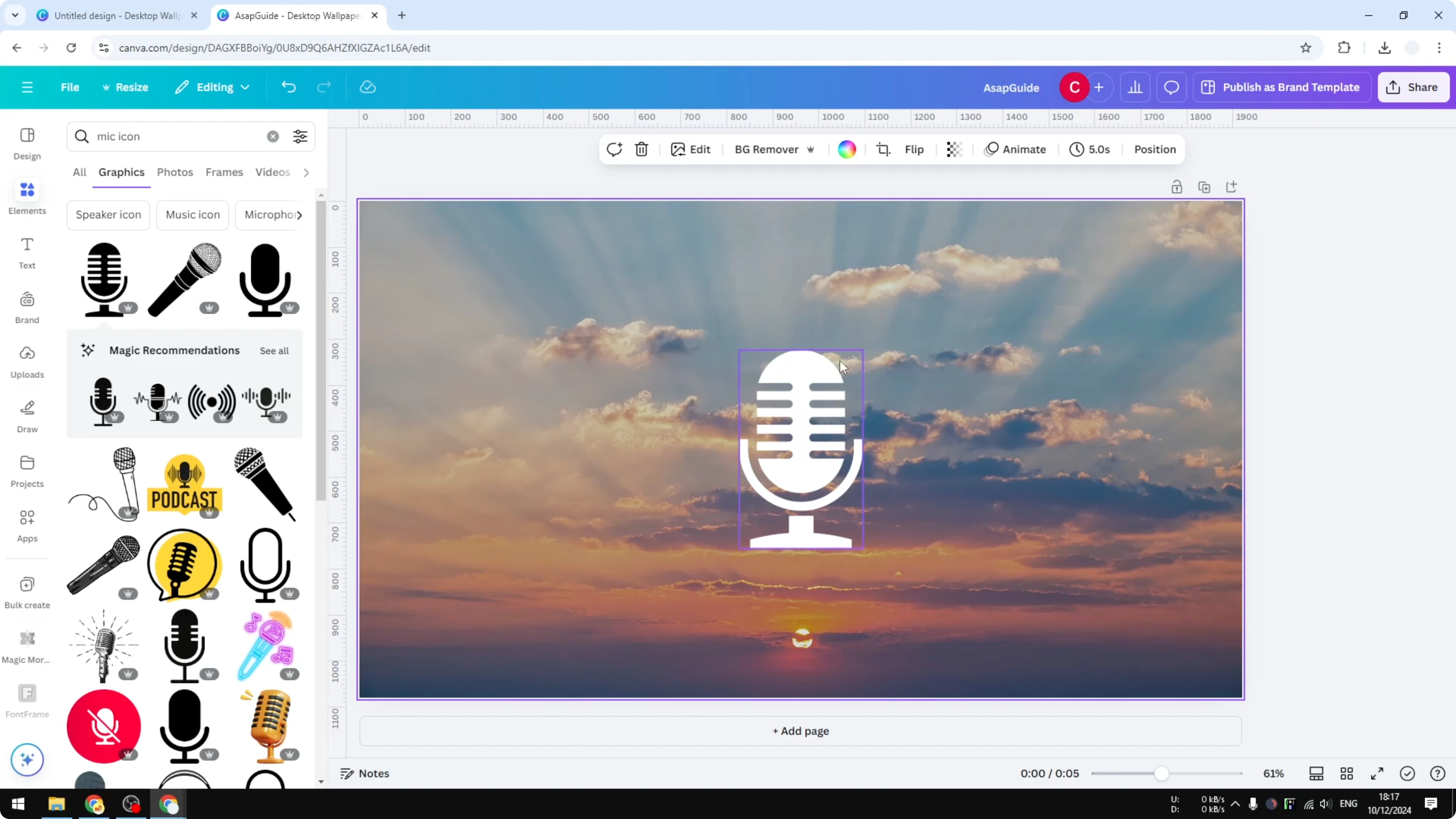
Go to Uploads.
Click Record yourself.
Grant Canva permission to access your microphone by clicking Enable or Accept.
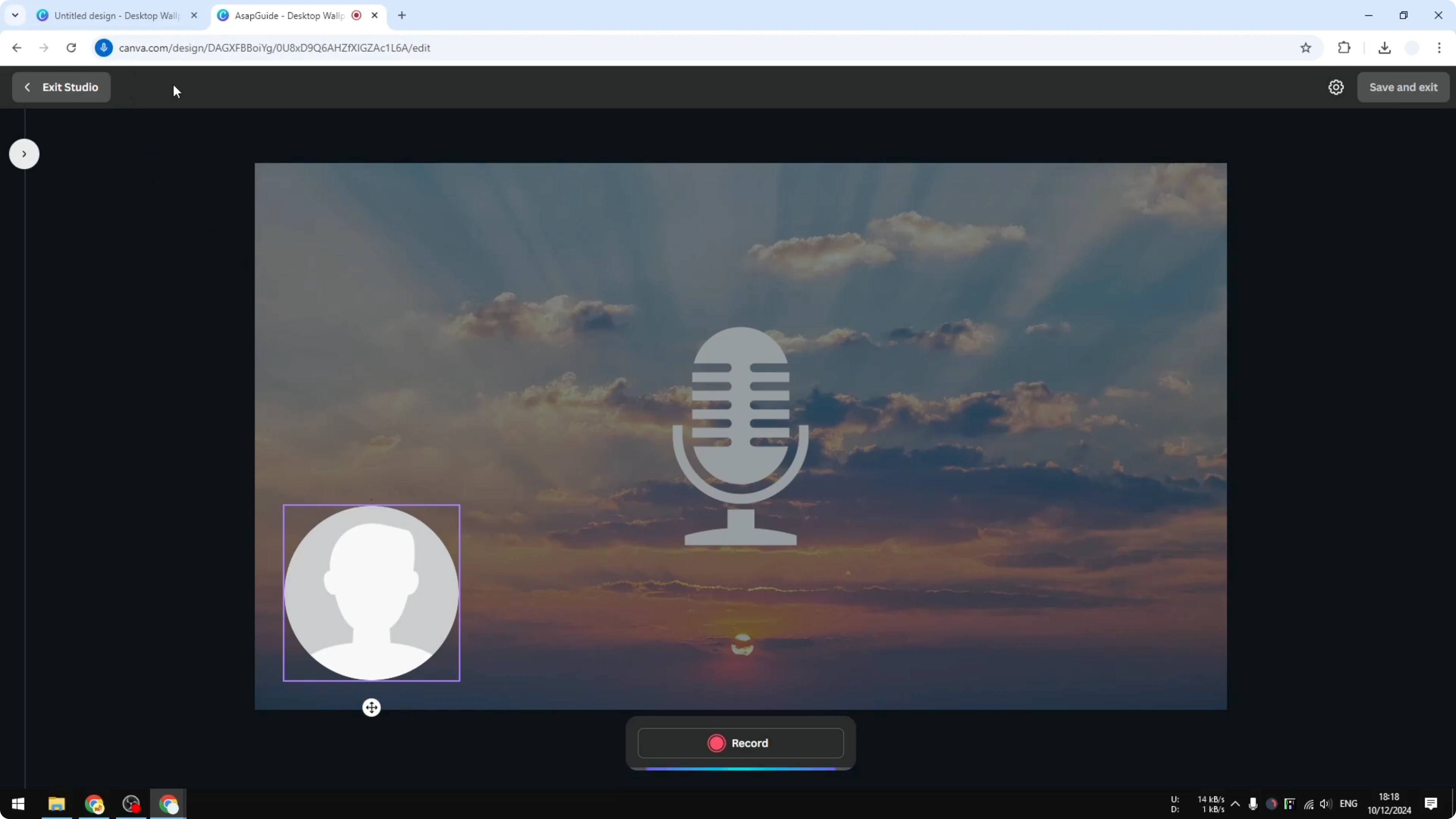
When prompted, select the correct microphone device.
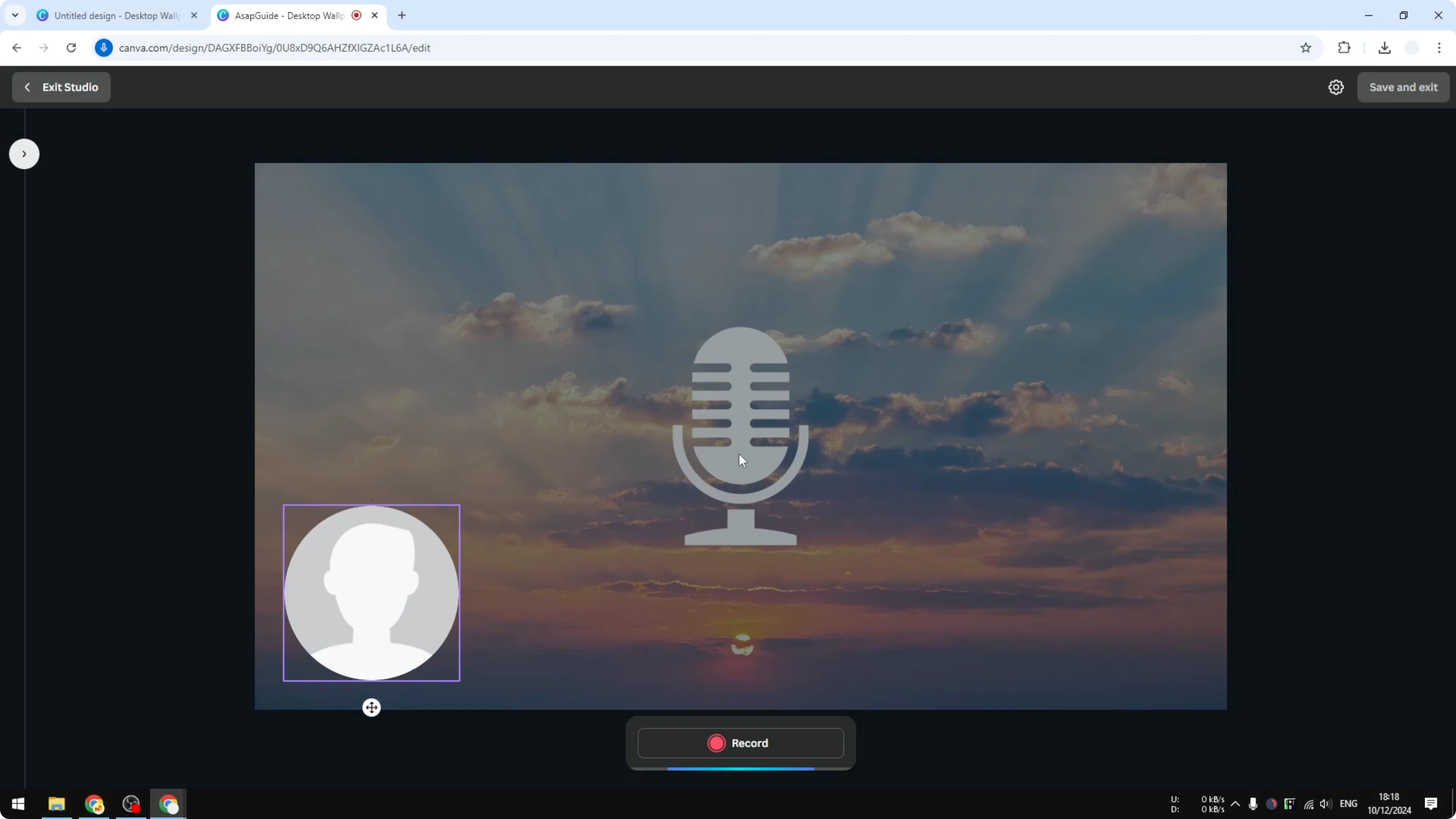
If you do not see the device prompt, I already had that set up before, and you only need to set it once.
Click the Record button and start talking.
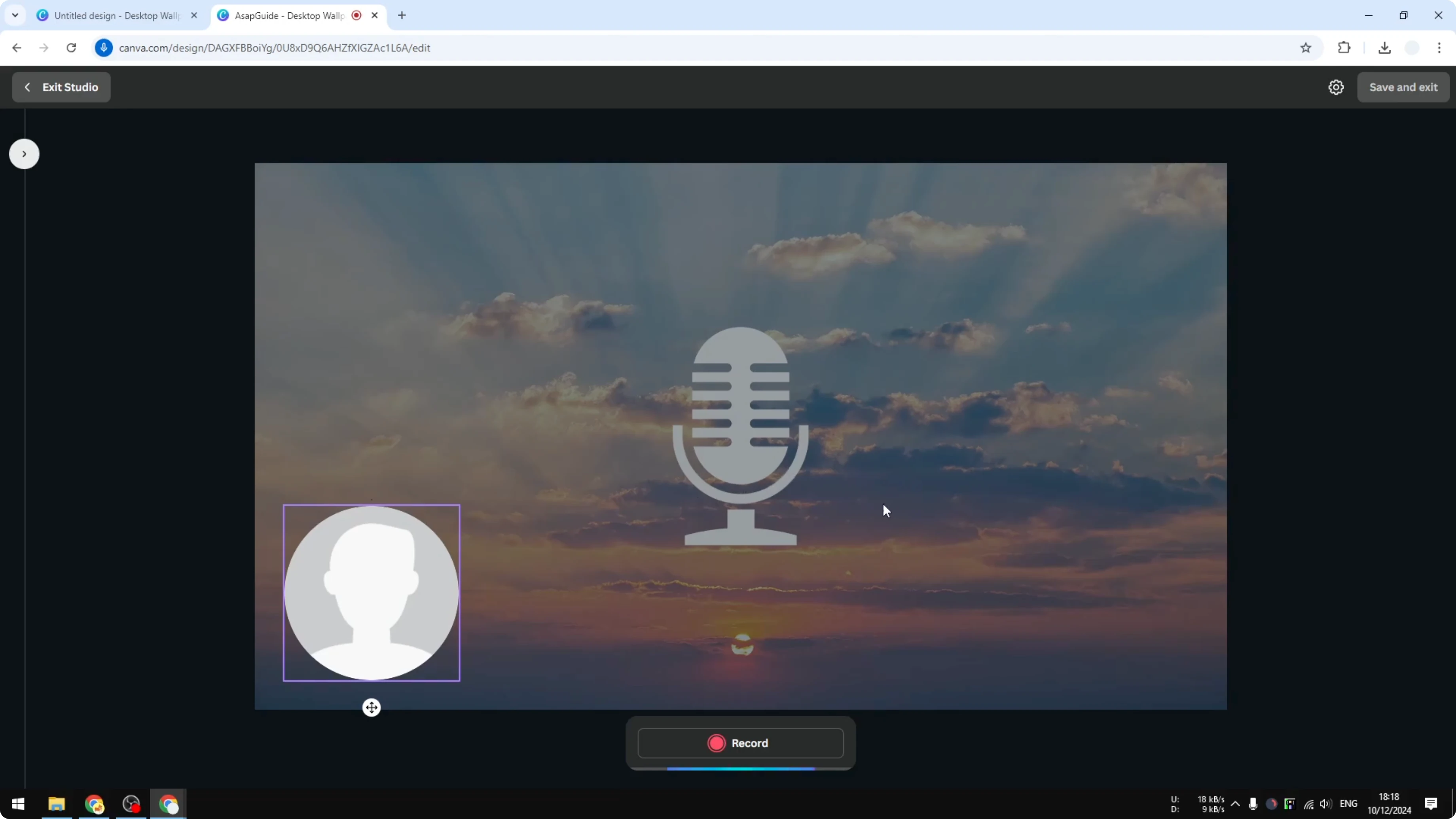
When you are done, click Save and exit, or click Delete to try again.
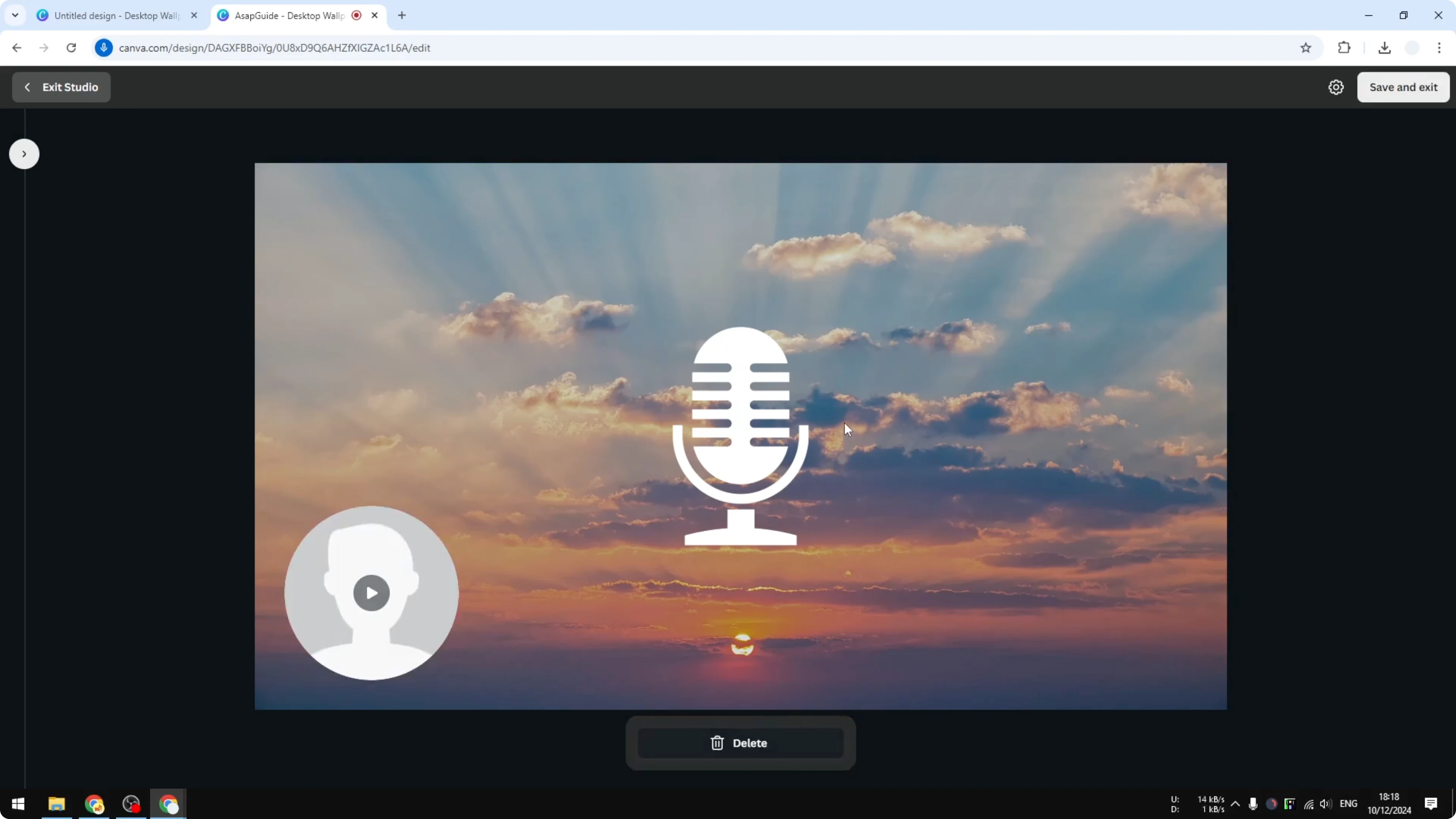
Easily Record Voice Over in Canva - What Canva Saves
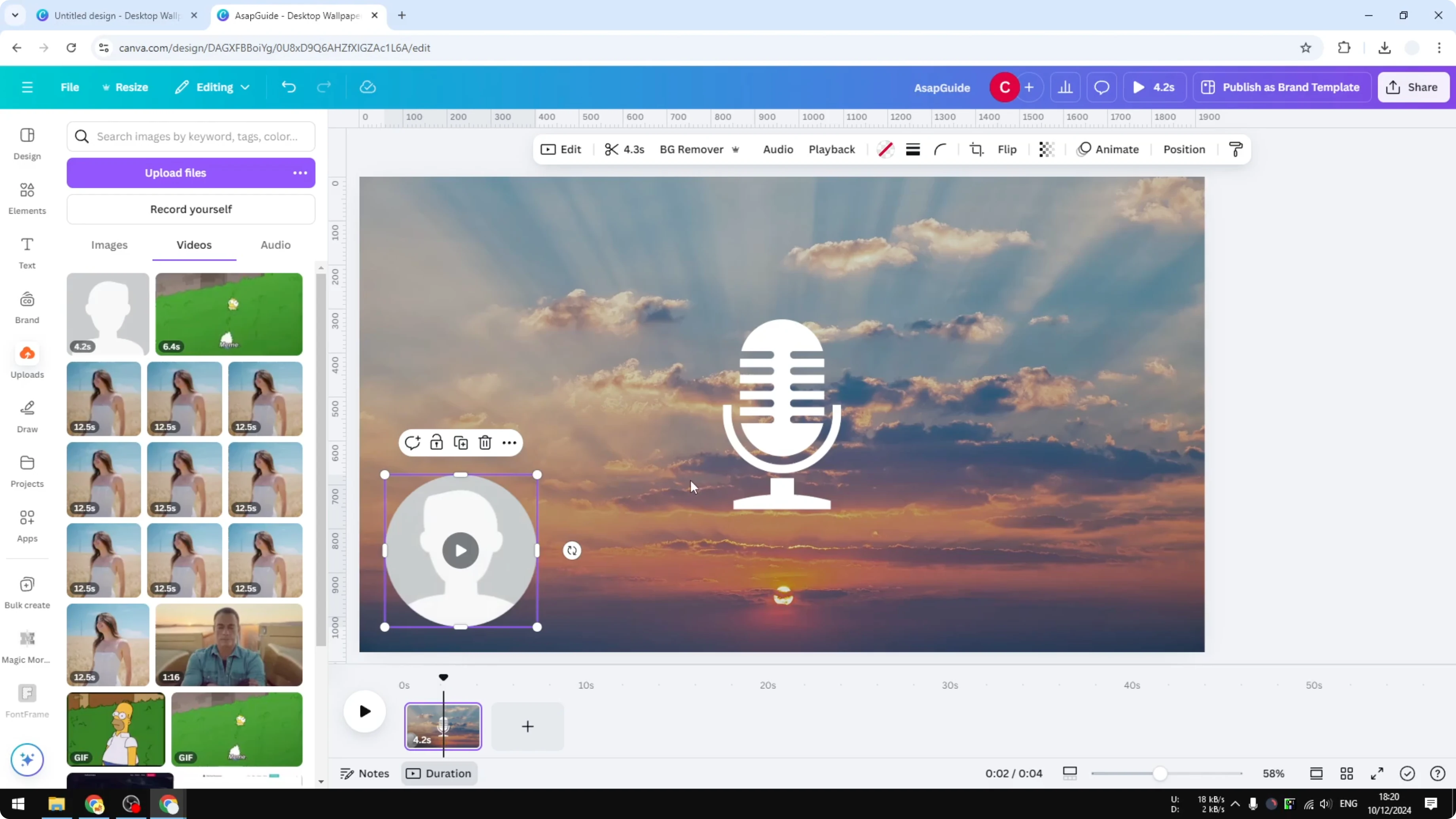
Canva will immediately put that recording into your document, and it is represented by an icon on the canvas. You can also go to the thumbnail view and enable Duration to see the clip on the page. This helps confirm the recording is attached to the page.
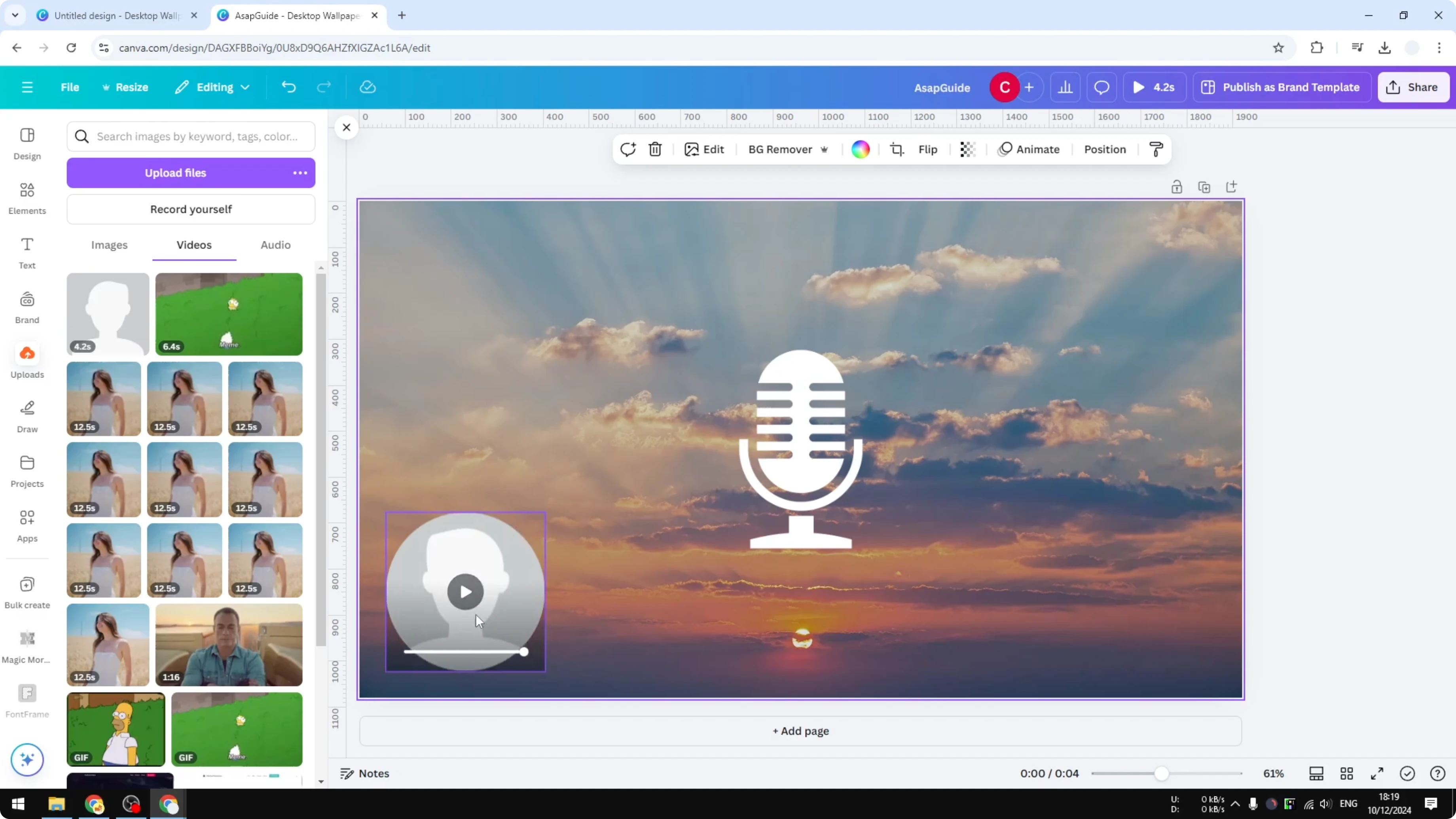
This is not just audio - Canva does not allow you to record audio only. You need to record video. If you disable the webcam, Canva gives you a photo placeholder, so this is a video with your voice, not an audio-only track.
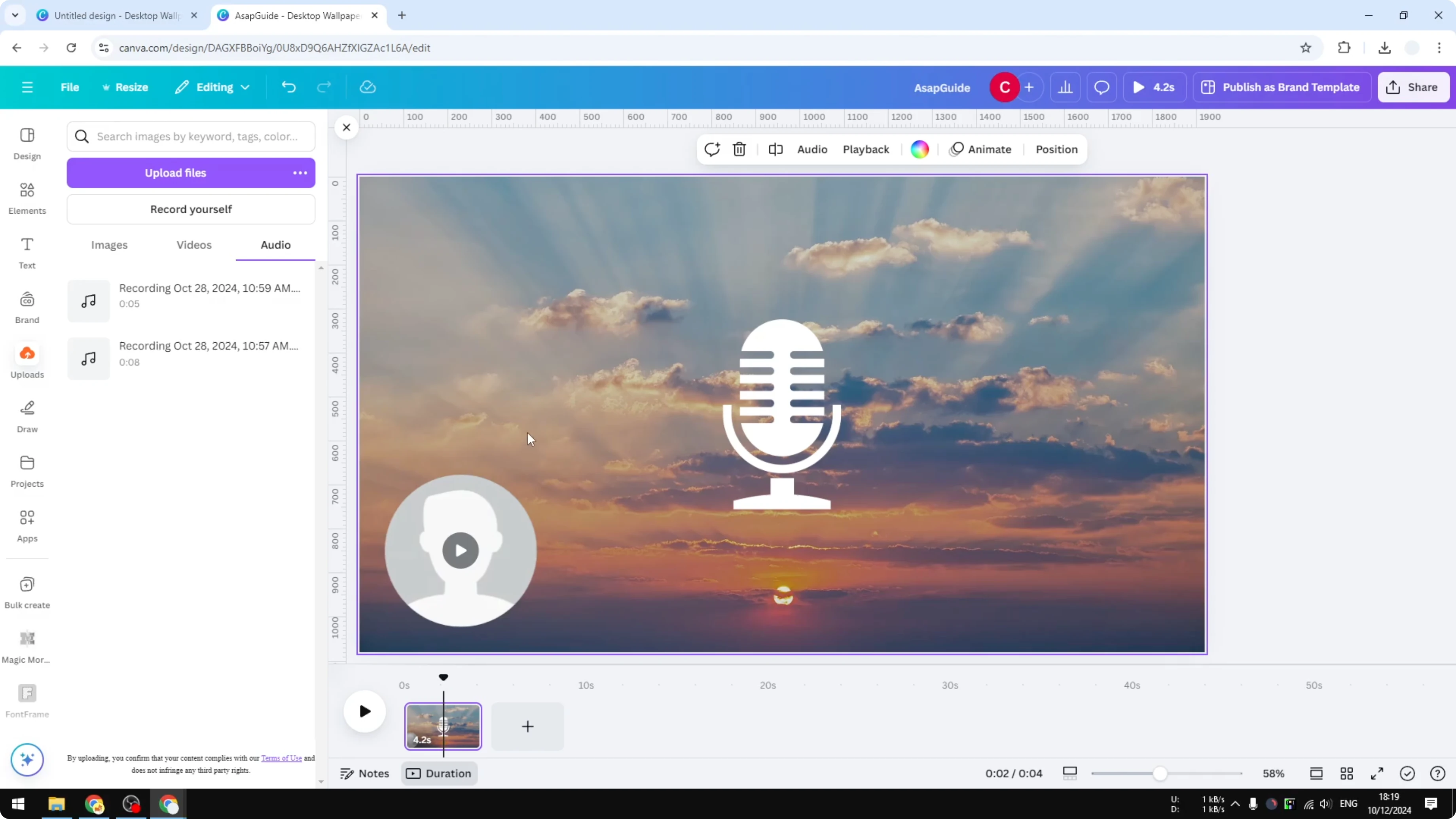
Easily Record Voice Over in Canva - Playback and Visibility
This file can be played during presentation, and your voice will be heard on that page. In Playback settings, you can set it to automatically play or to play on repeat. These options help the voice over start without extra clicks.
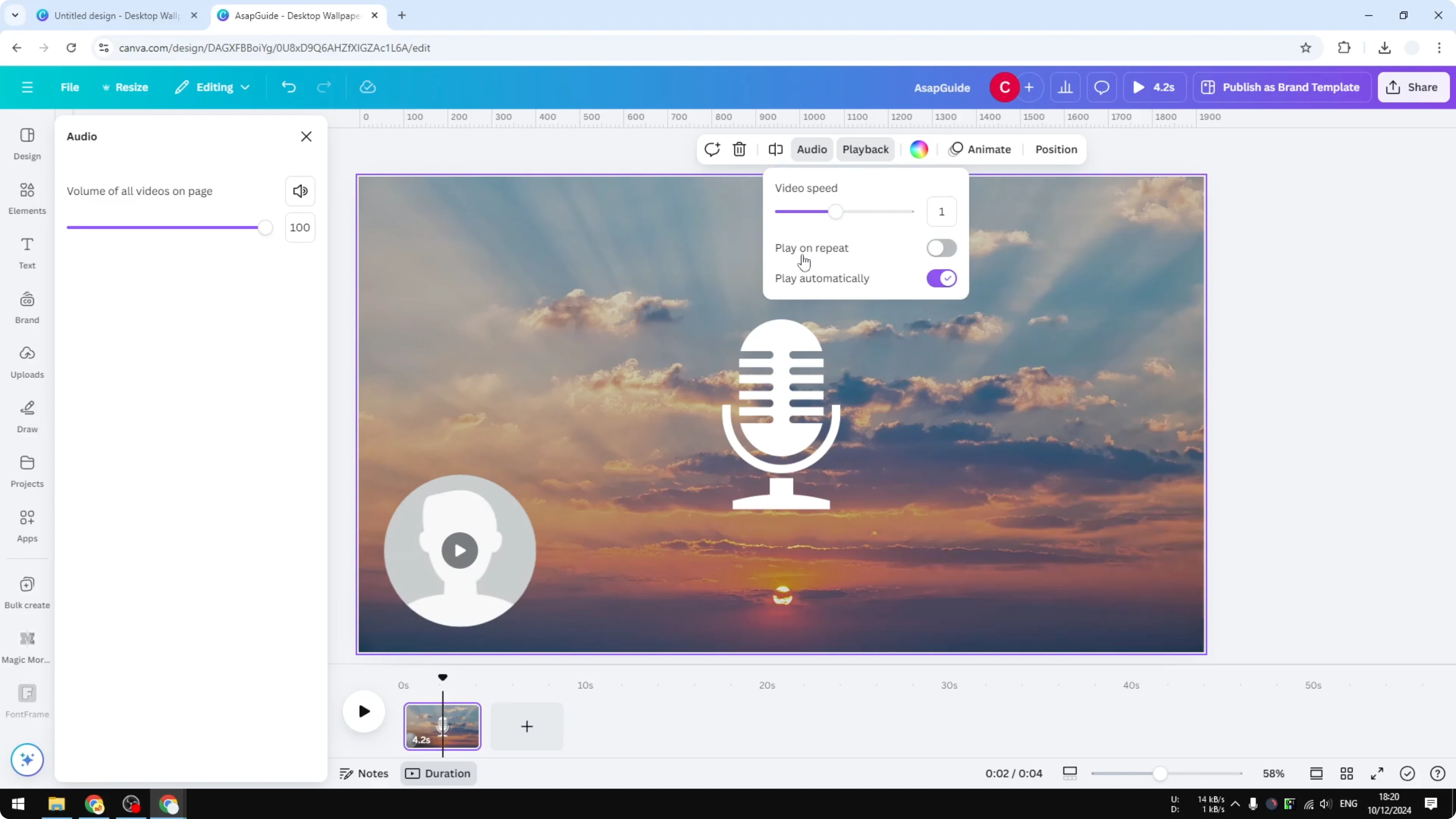
If you do not want the icon to appear on your document, you cannot fully disable it, but you can make it disappear. Enable transparency and set it to 0, and the icon becomes invisible to your audience. The recording still plays based on your playback settings.
Easily Record Voice Over in Canva - Final Thoughts
You can quickly add a voice over to any Canva page using Record yourself in Uploads. Set your mic once, record, save, and control playback to auto play or loop. Hide the on-canvas icon by setting transparency to zero, and present with your recorded voice guiding the audience.
Recent Posts

How to Visualize Yourself as a Pixelized Character with AI?
How to Visualize Yourself as a Pixelized Character with AI?

How to Revive Faded Memories and Enhance Image Clarity with AI?
How to Revive Faded Memories and Enhance Image Clarity with AI?

How to Visualize Yourself as an Animal Crossing Character with AI?
How to Visualize Yourself as an Animal Crossing Character with AI?