How to Create 9:16 Vertical Video in Canva
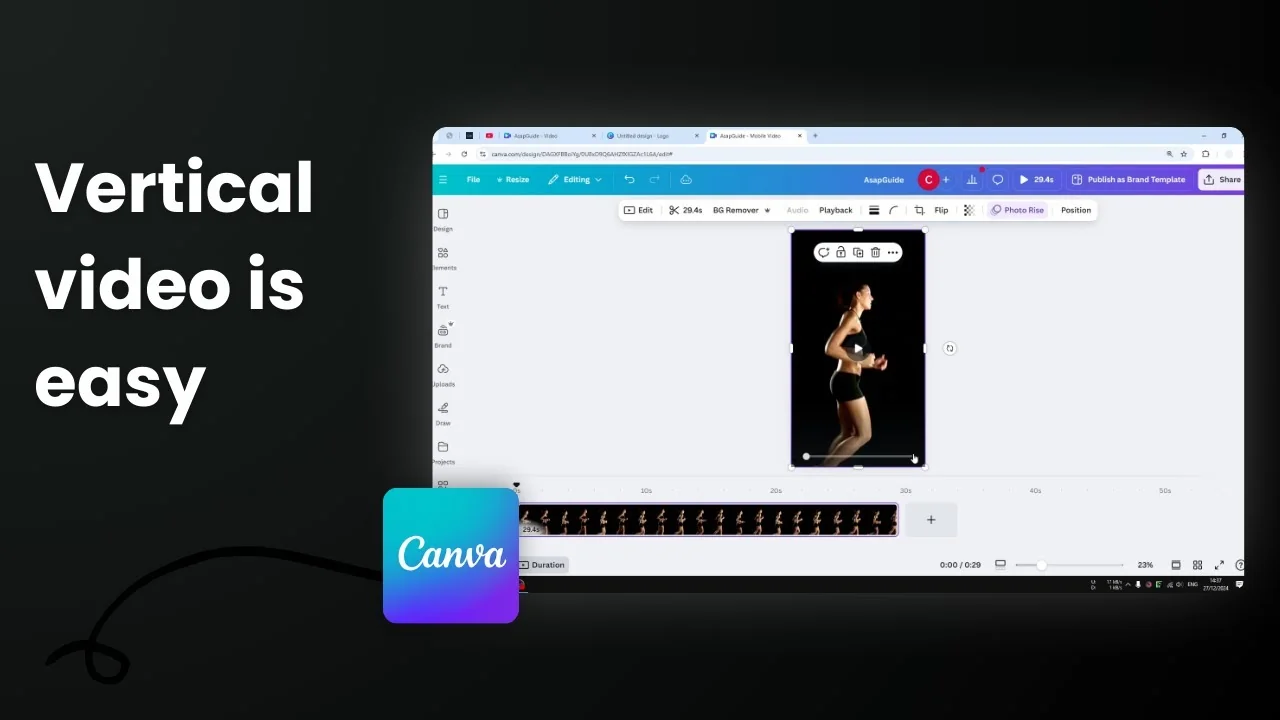
Creating a 9:16 aspect ratio video in Canva is perfect for TikTok, Instagram Reels, and YouTube Shorts. This format can be tricky if you rely on Canva’s stock library, which has lots of assets but most of them are 16:9 or horizontal video. Here’s how to turn that into 9:16.
I’ll use a stock clip of a woman running. There are big empty areas I don’t need, so I’ll grab the part I want and remove the rest. One issue: I’m using the Desktop Wallpaper template, which gives me a 16:9 video. Before editing, select the right format in your document.
Create 9:16 Vertical Video in Canva
Choose the Right Document Size
If you already opened a 9:16 format, skip this. If you started with something like a Facebook Post or Desktop Wallpaper:
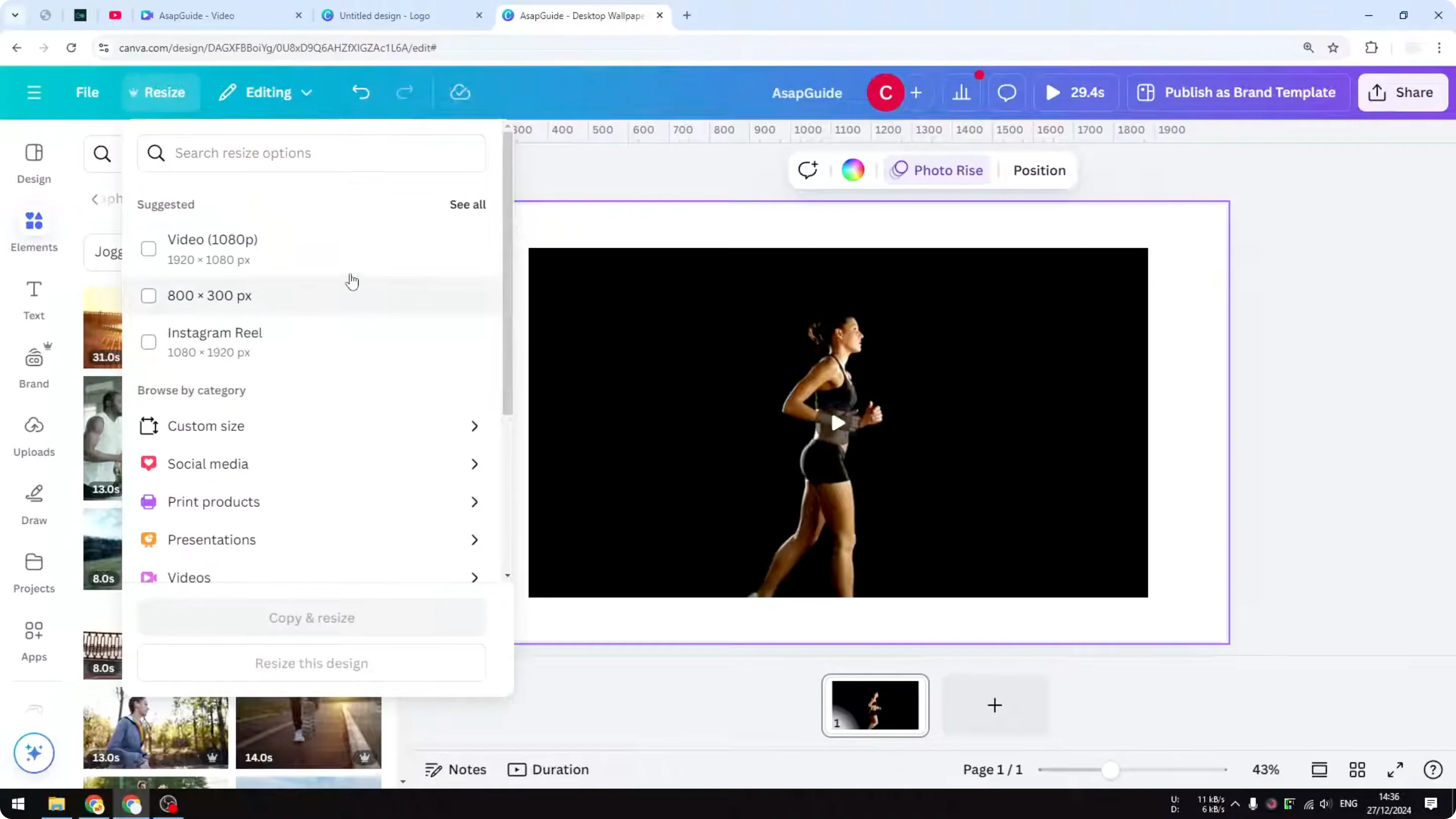
- Click Resize.
- Pick a social media template that’s 9:16. Instagram Reel works well.
- Choose Copy and resize to create a backup, or Resize this design if you don’t need a copy.
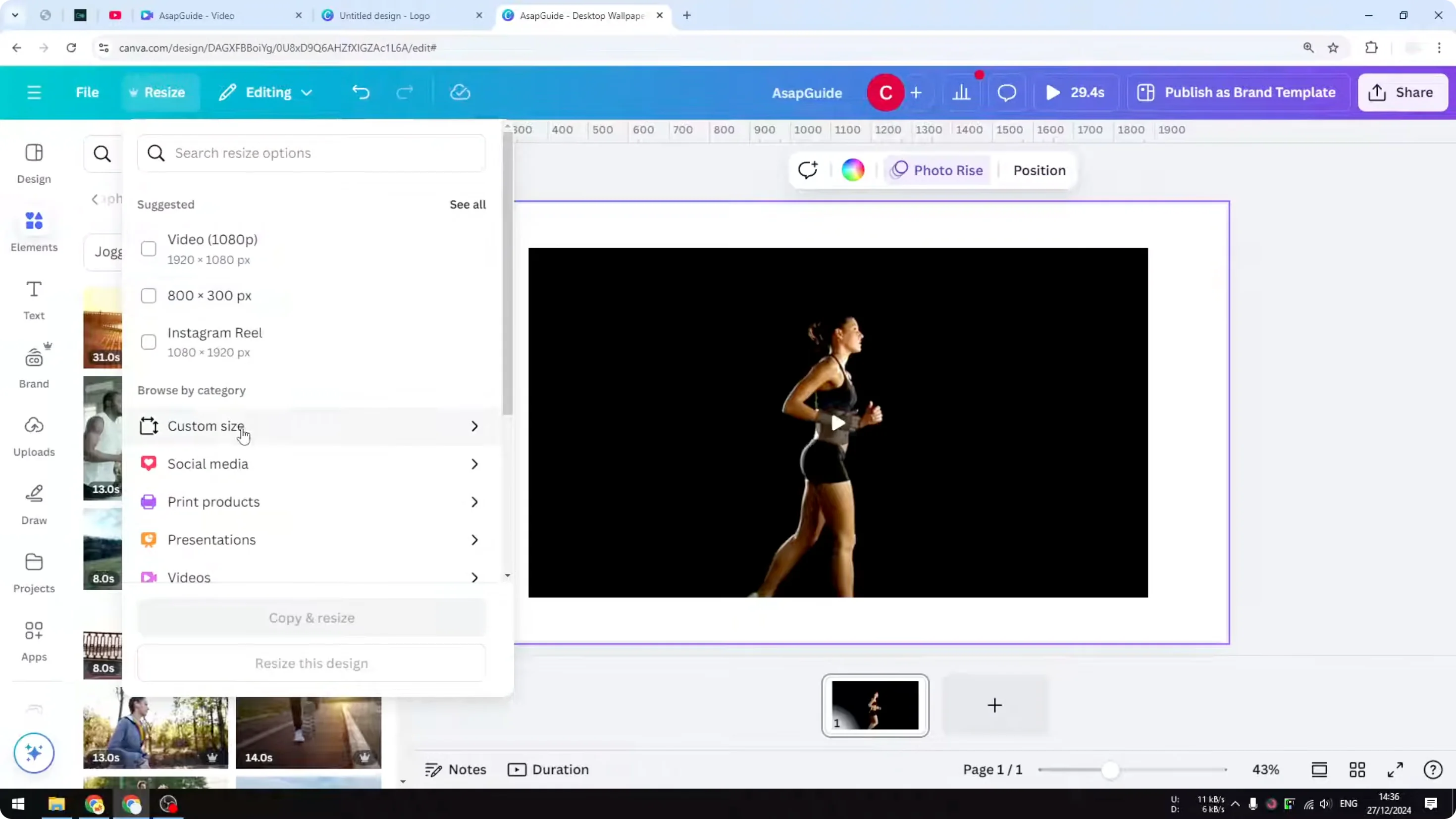
Canva will convert the document from 16:9 to 9:16, but any inserted stock video will still be in its original format.
Convert the Inserted Video to 9:16
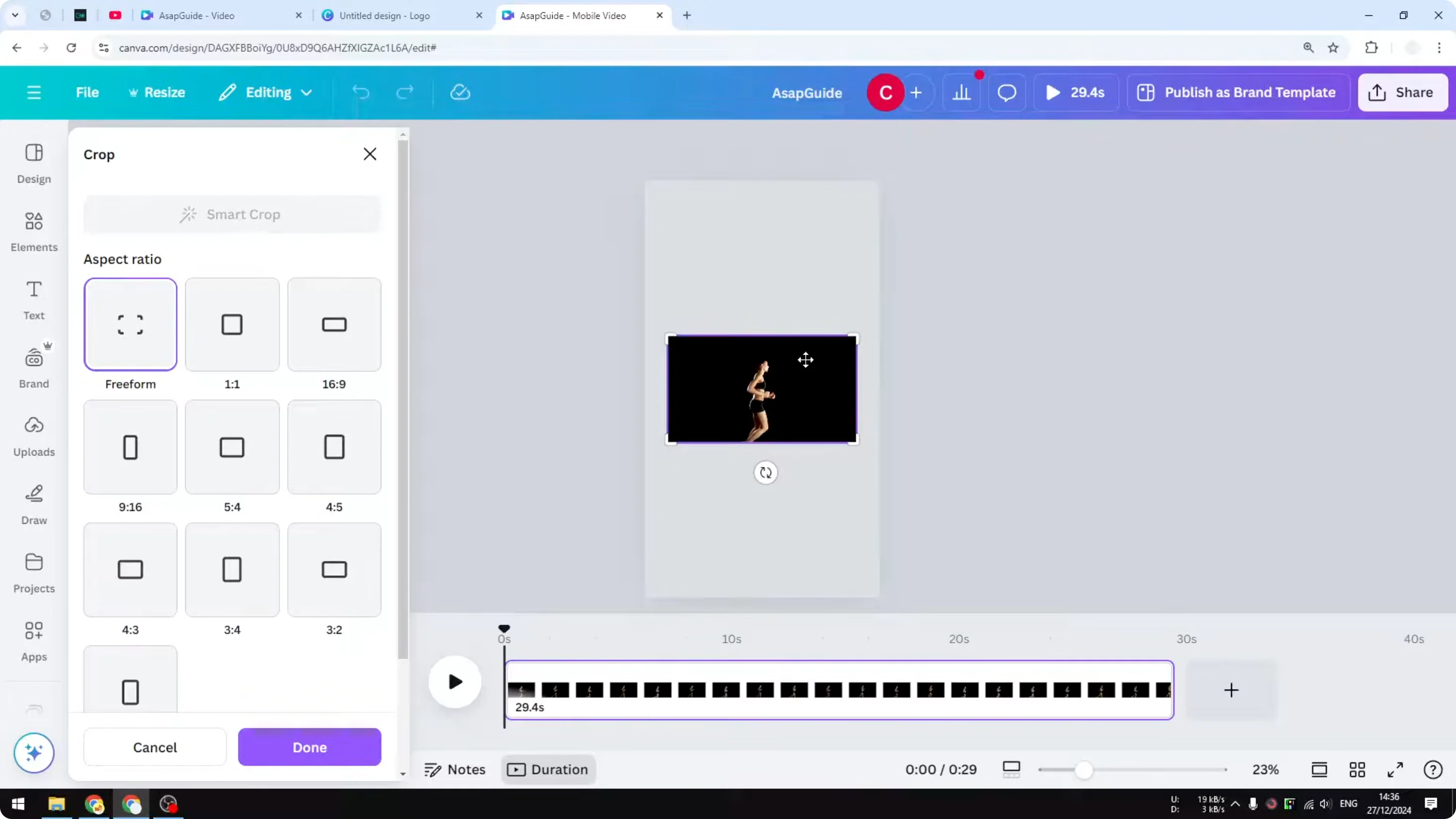
- Double-click the video.
- Select the aspect ratio you prefer. Choose 9:16.
- Click Done, then scale the video up to fill the frame.
Another option:
- Right-click the video and select Set video as background. This fills the entire area.
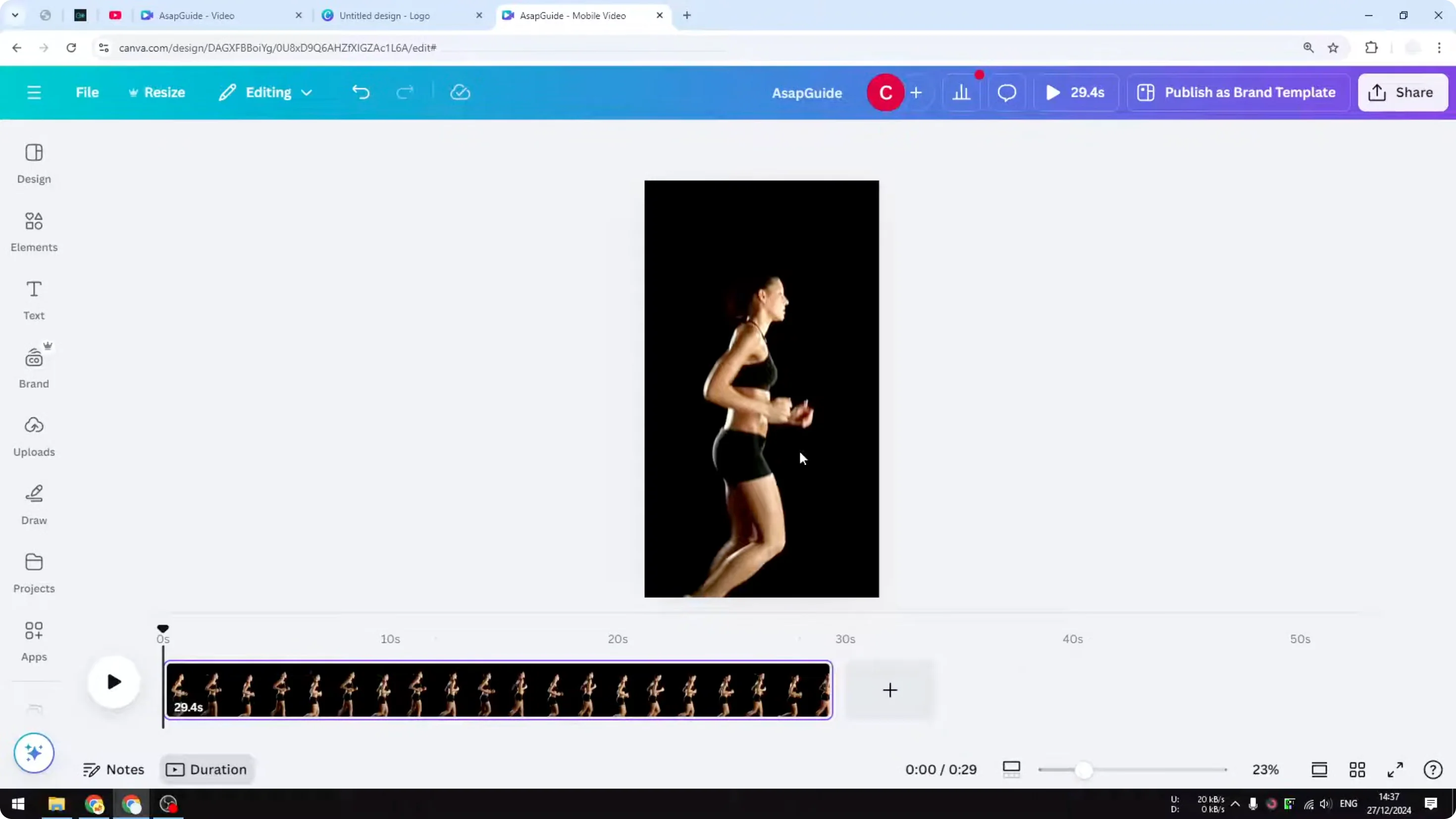
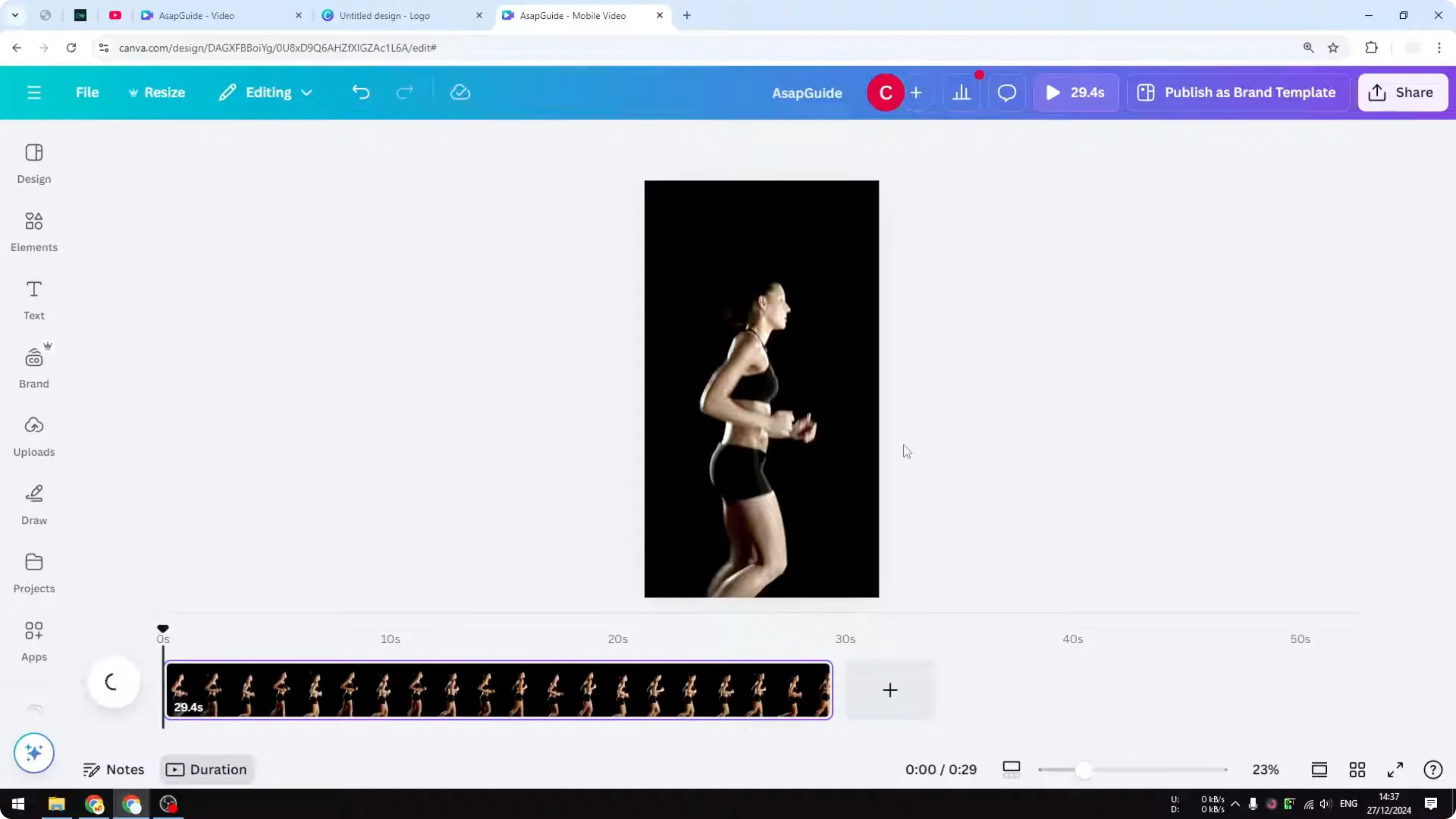
When you play it, the video is now 9:16, which is exactly what we want.
Export Your 9:16 Video
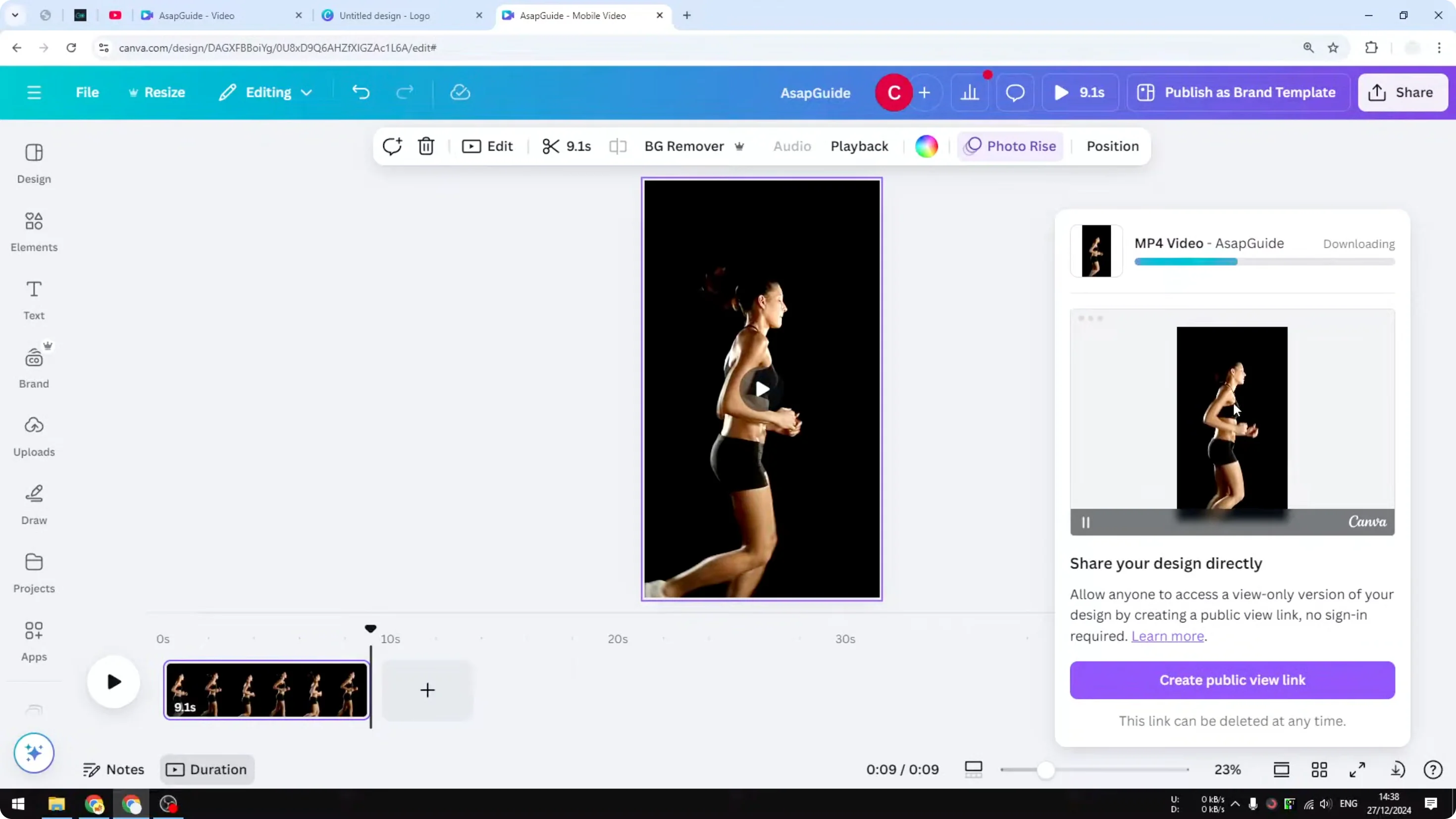
- Click Share.
- Click Download.
- Select MP4 video and download.
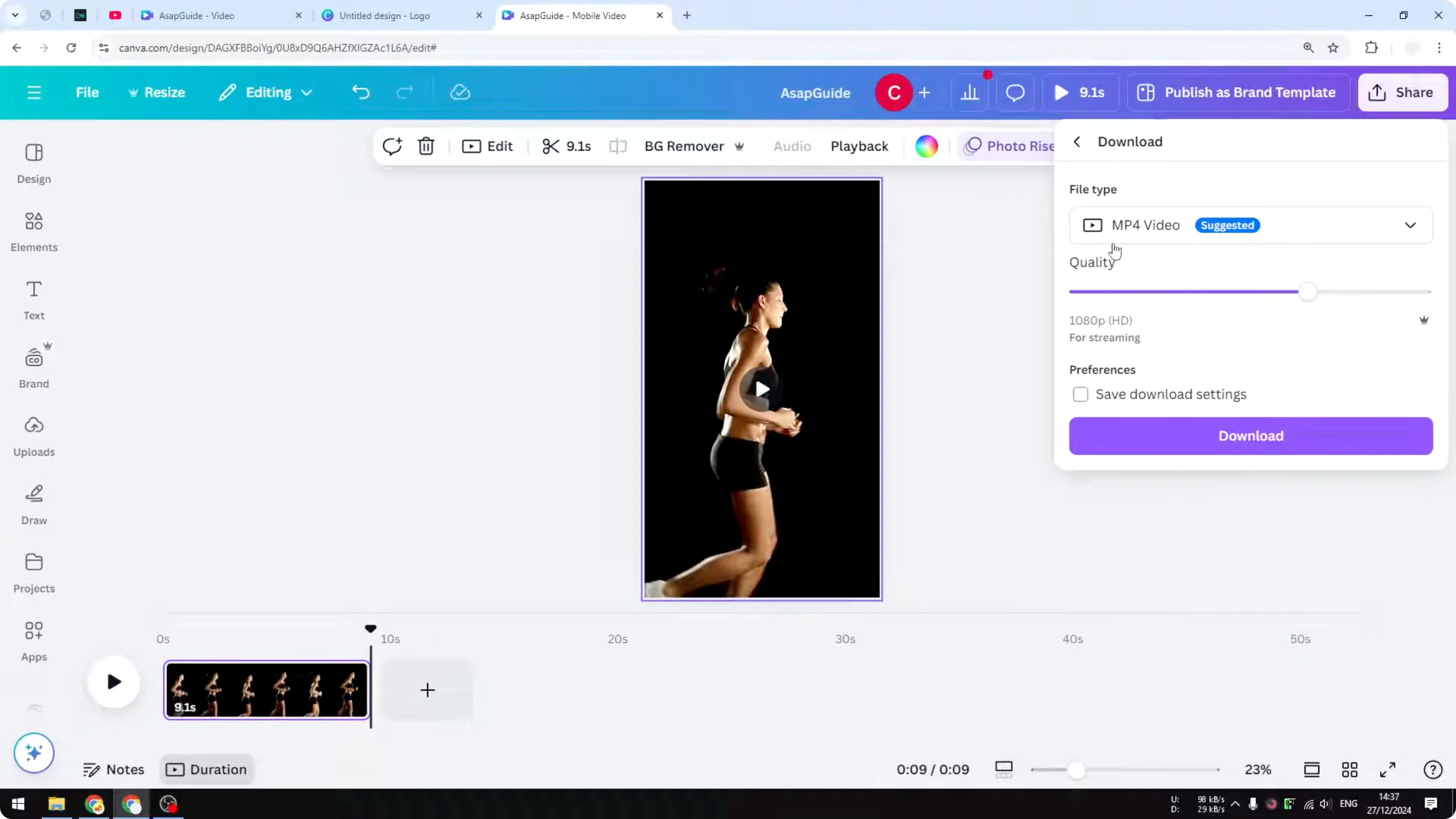
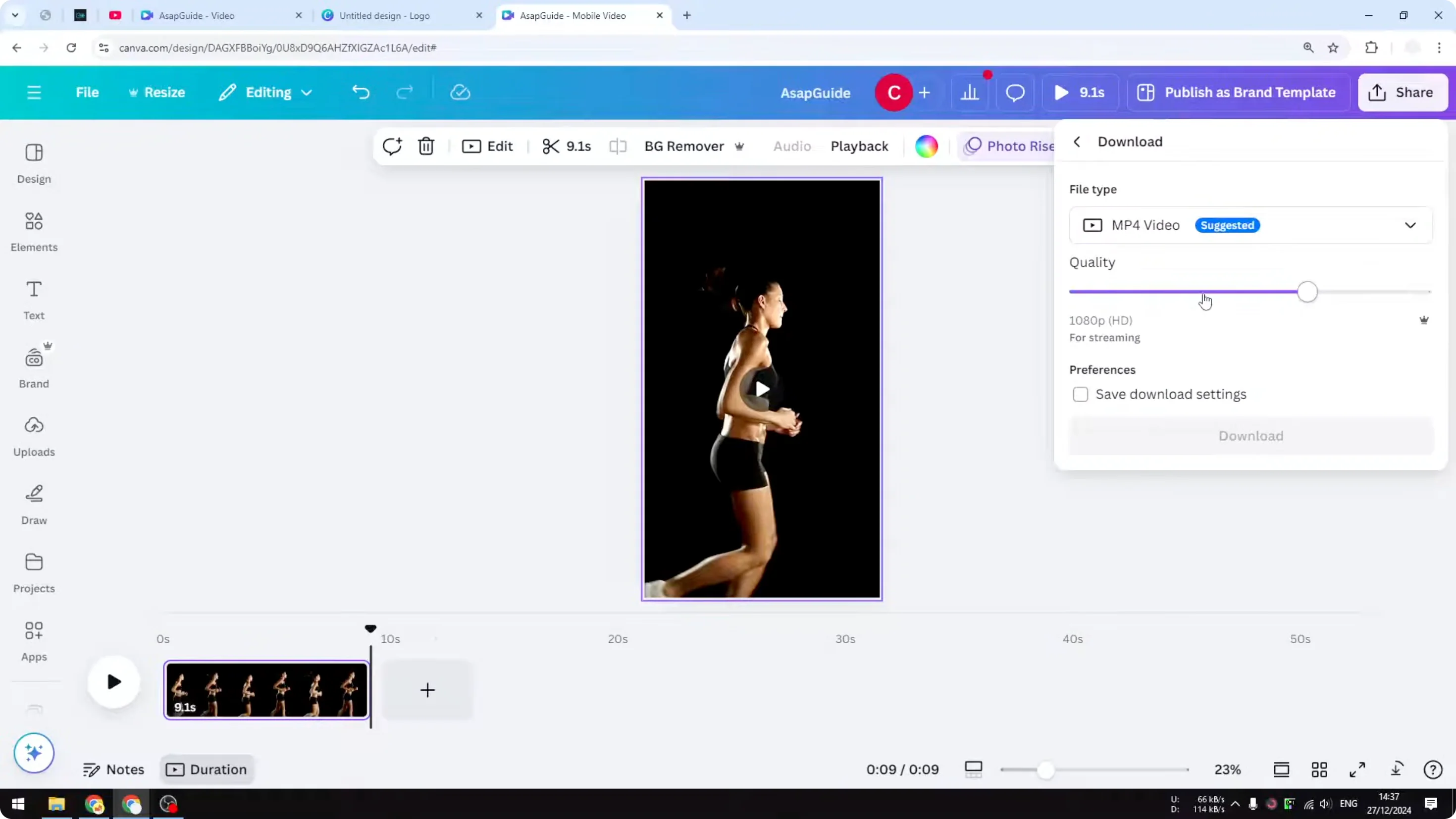
I reduced the video quality to 720p because 1080p feels like overkill for social media. You can use the highest quality or even 4K if you prefer.
Notes
- You can tell from the preview that the output will be 9:16.
- This method applies regardless of the template you start with, but you need to resize the template first.
Final Thoughts
Pick a 9:16 document size, convert your inserted video to 9:16, and either scale it manually or set it as the background to fill the frame. Export as MP4 at the quality you want, and you’re ready to post.
Recent Posts

How to Visualize Yourself as a Pixelized Character with AI?
How to Visualize Yourself as a Pixelized Character with AI?

How to Revive Faded Memories and Enhance Image Clarity with AI?
How to Revive Faded Memories and Enhance Image Clarity with AI?

How to Visualize Yourself as an Animal Crossing Character with AI?
How to Visualize Yourself as an Animal Crossing Character with AI?