How to Blur Part of a Video in Canva
Can you blur a video or part of a video in Canva? The short answer is no. There is no dedicated blurring tool in Canva for video. We have a blurring tool for a picture, but when it comes to a video we don't have that feature yet.
What is the workaround? There is one you can use. Although it's not pretty, if your goal is to conceal a part of the video so your viewers don't see it, it might be worth it.
Blur Part of a Video in Canva: A Simple Workaround
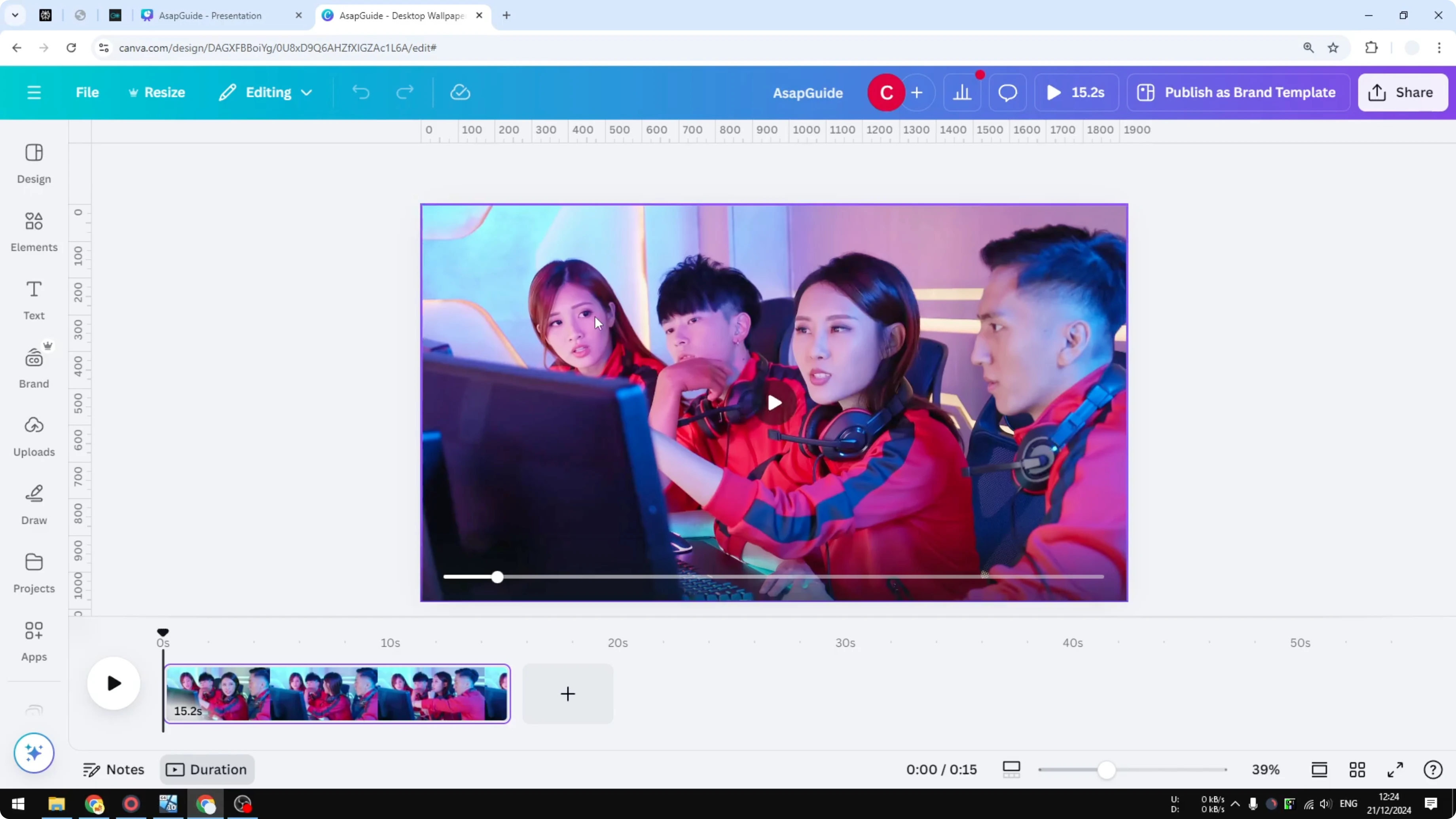
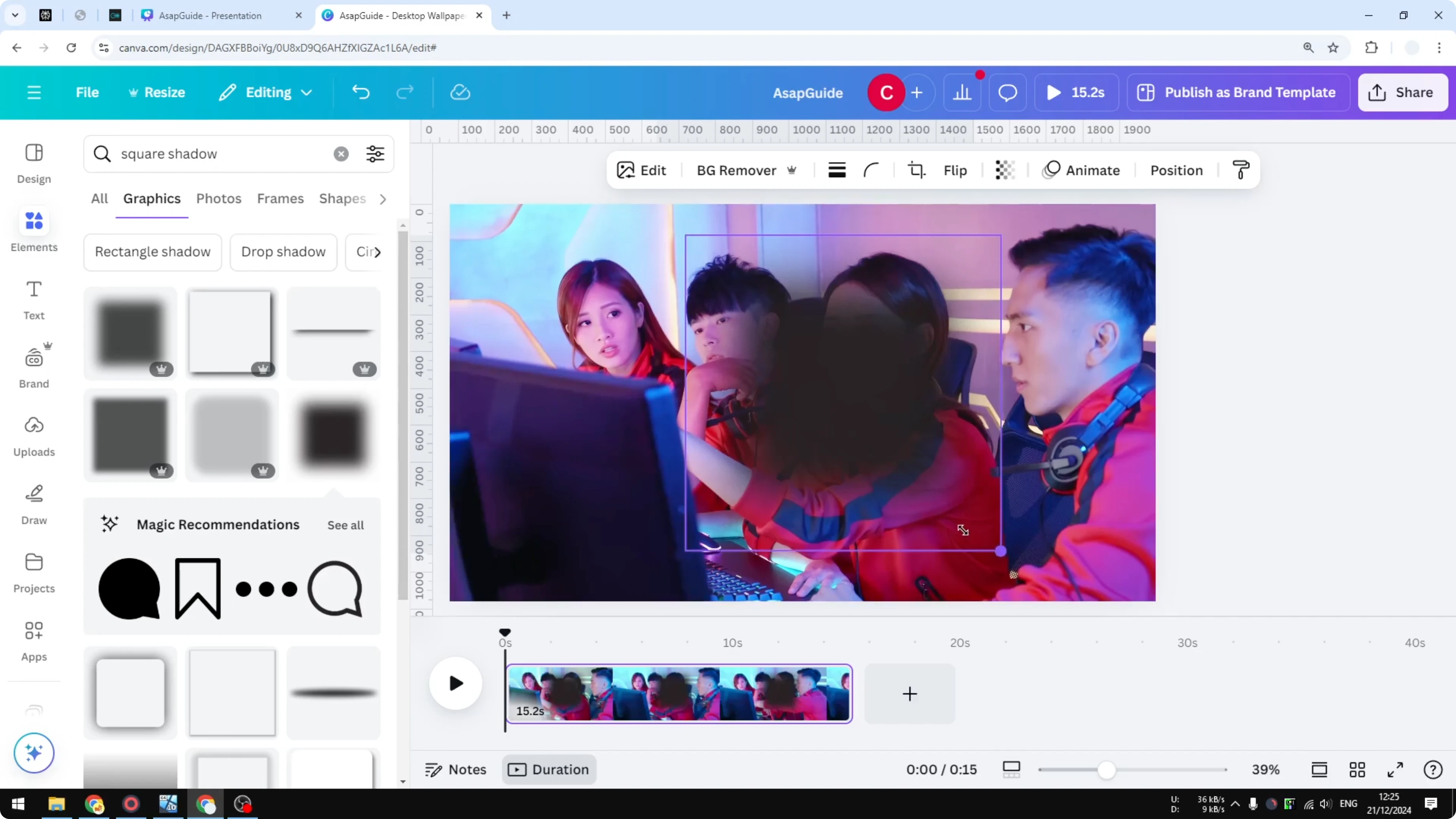
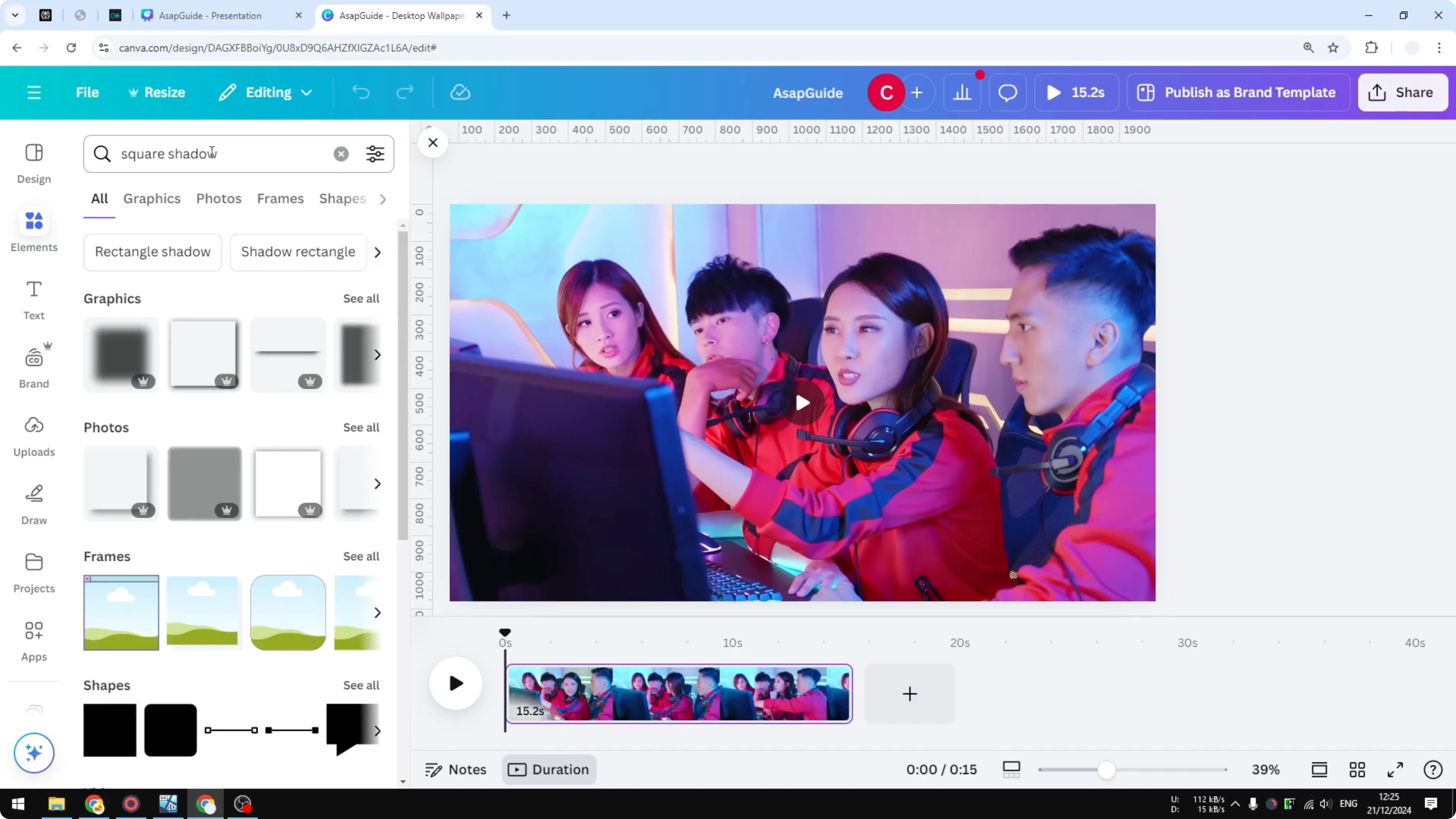
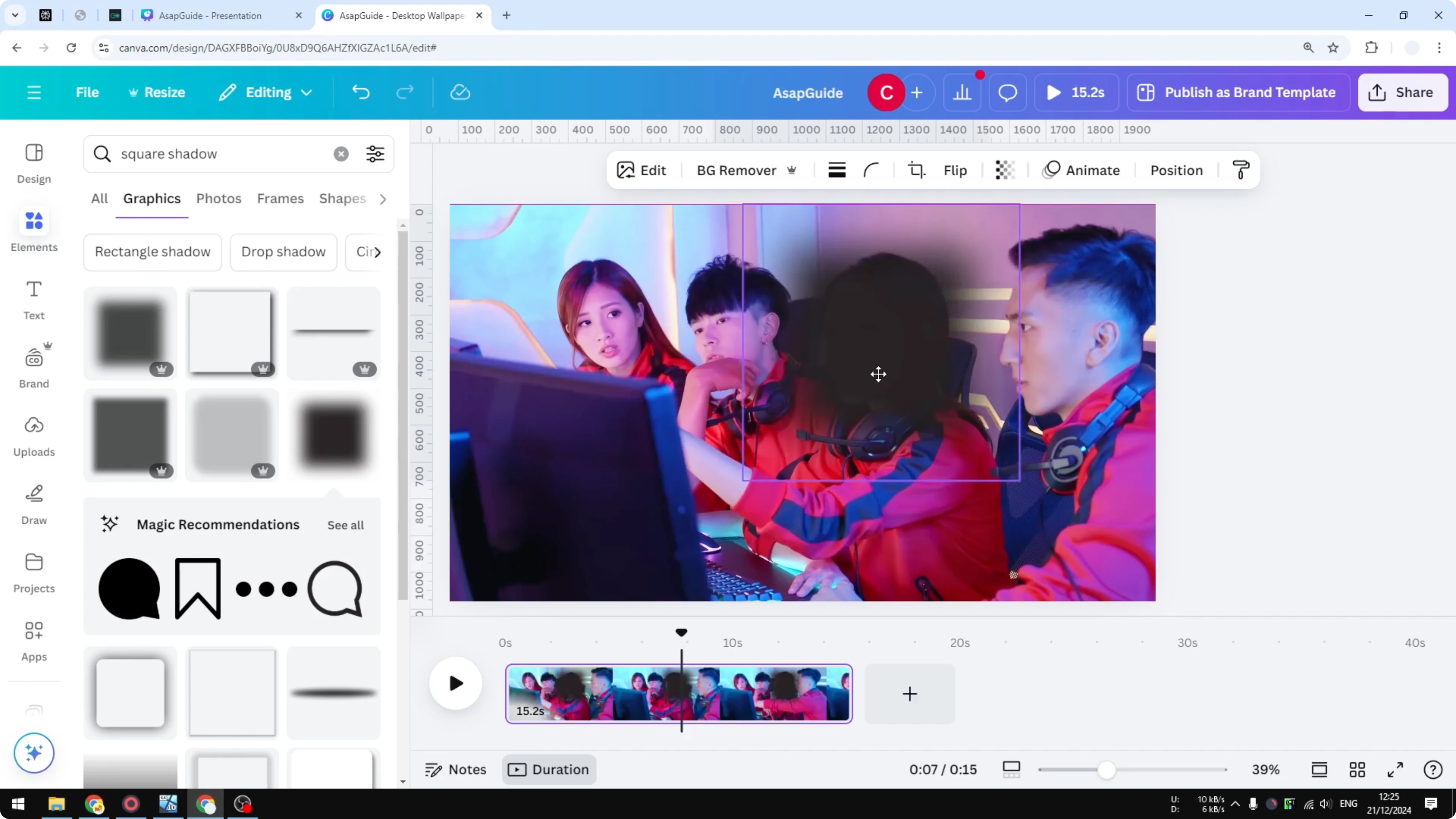
Here I have a picture of a group of people and I want to blur this person in the middle or any person in this group video. I add an element to block the face.
Step-by-step:
- Go to Elements.
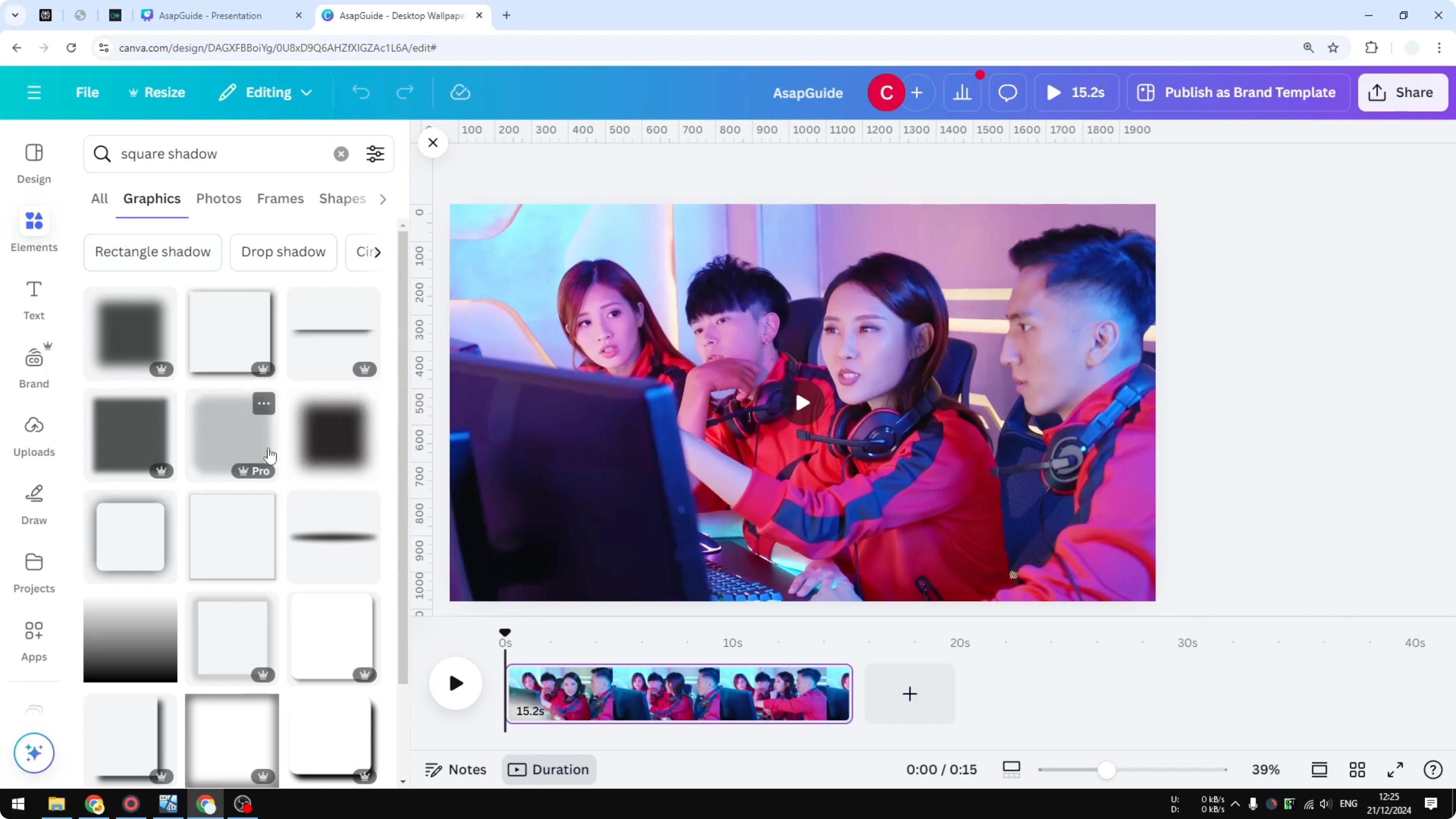
- In the search bar, type "Square Shadow", "Square Glow", or "Square Blue". Those are essentially the same thing.
- Click the Graphics section.
- Choose any style you find the best and click it.
- Put that object exactly on top of the area you want to conceal from the video.
Blur Part of a Video in Canva: Limitations
This is not perfect. This is not for everyone.
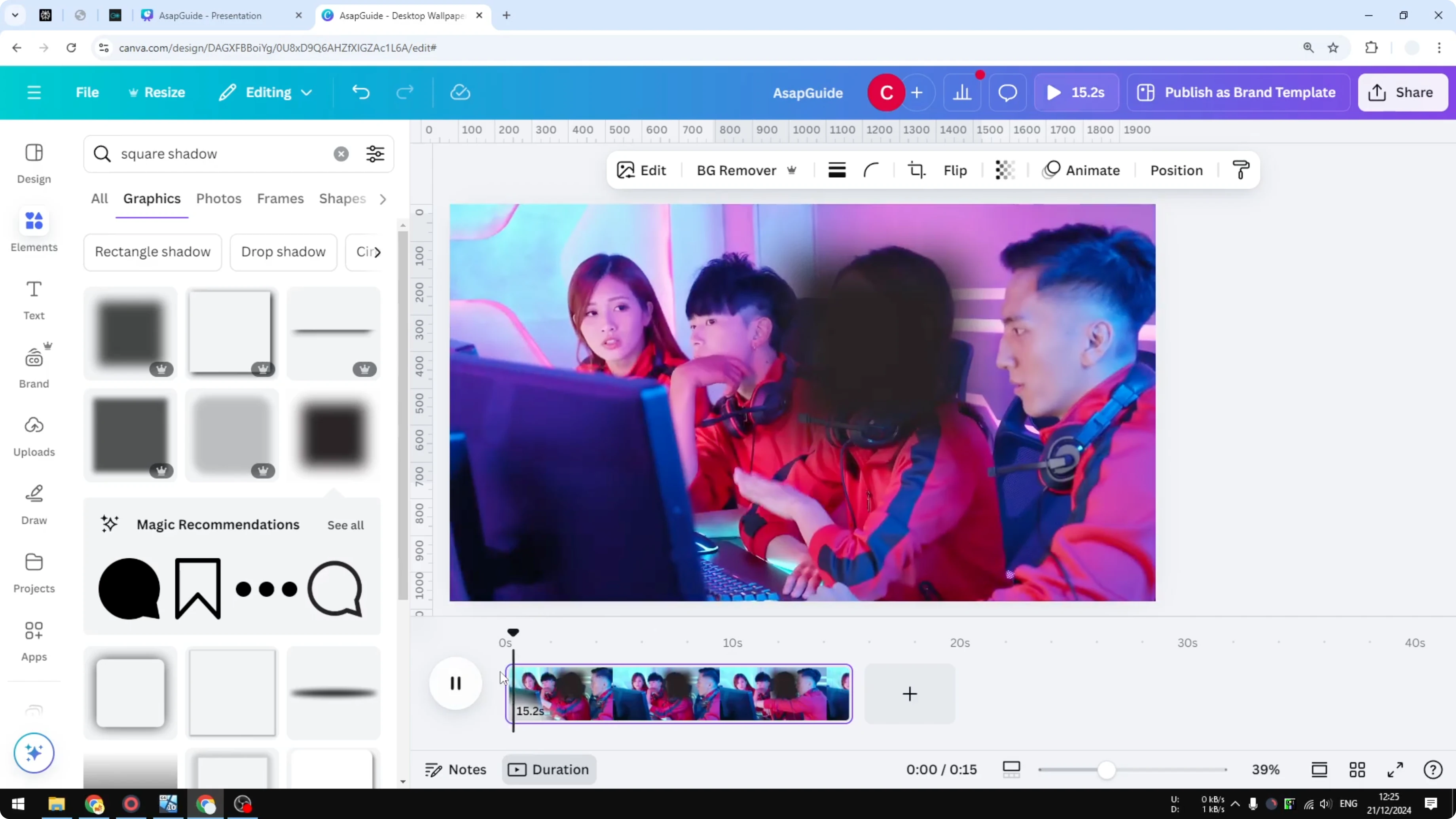
- If the object is moving all around the place, you have to manually move the element as well because there is no Auto tracking feature in Canva.
- There is only a limited use case for this technique.
- Until then, this is probably the only method available to blur part of the picture or part of the video using Canva.
Blur Part of a Video in Canva: Final Thoughts
Not perfect, but it works if you just need to conceal something in a clip. I hope you still find this helpful.
Recent Posts

How to Visualize Yourself as a Pixelized Character with AI?
How to Visualize Yourself as a Pixelized Character with AI?

How to Revive Faded Memories and Enhance Image Clarity with AI?
How to Revive Faded Memories and Enhance Image Clarity with AI?

How to Visualize Yourself as an Animal Crossing Character with AI?
How to Visualize Yourself as an Animal Crossing Character with AI?