How to Create Quotes in Canva

I'm going to show you how you can create quotes in Canva. The first thing you need to do is select the right template because Canva has multiple dimensions and aspect ratios depending on the social platform or media format you are targeting. A post for Facebook is different from a post in TikTok or Instagram.
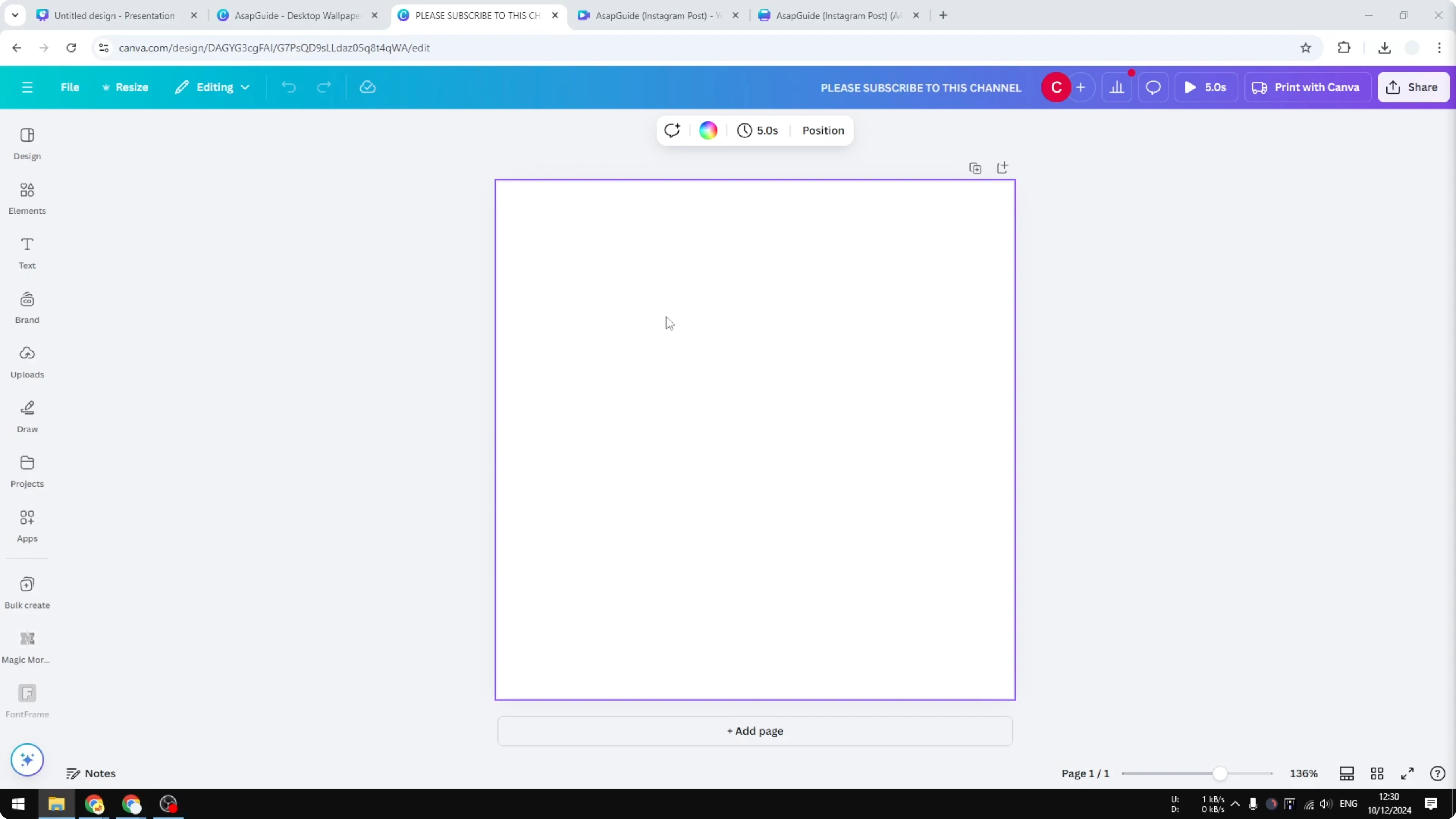
Right now I have a square design, but I don't want to use it. I want a 9 by 16 aspect ratio, which is a vertical aspect ratio popular in TikTok and Instagram. I'm going to resize the document first and select a 9 by 16 aspect ratio.
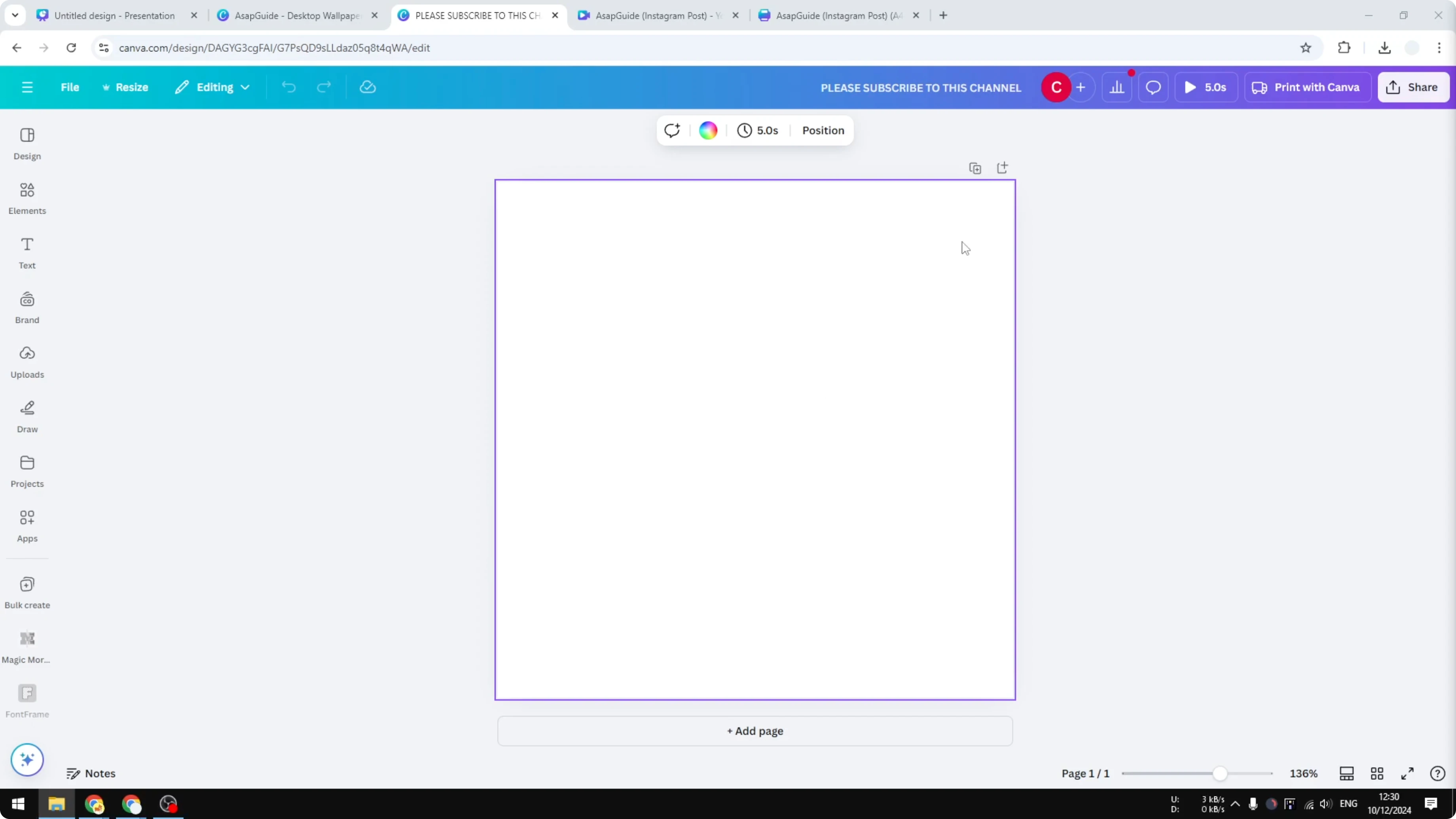
Create Quotes in Canva: Pick the Correct Format
Navigate to Social Media and select the Instagram format, the Instagram Reel for example. Research this design first, and later we are going to use some templates that are available in Canva. You can create your own quotes template, but I highly recommend using a template because it makes things a lot easier and they look pretty too.
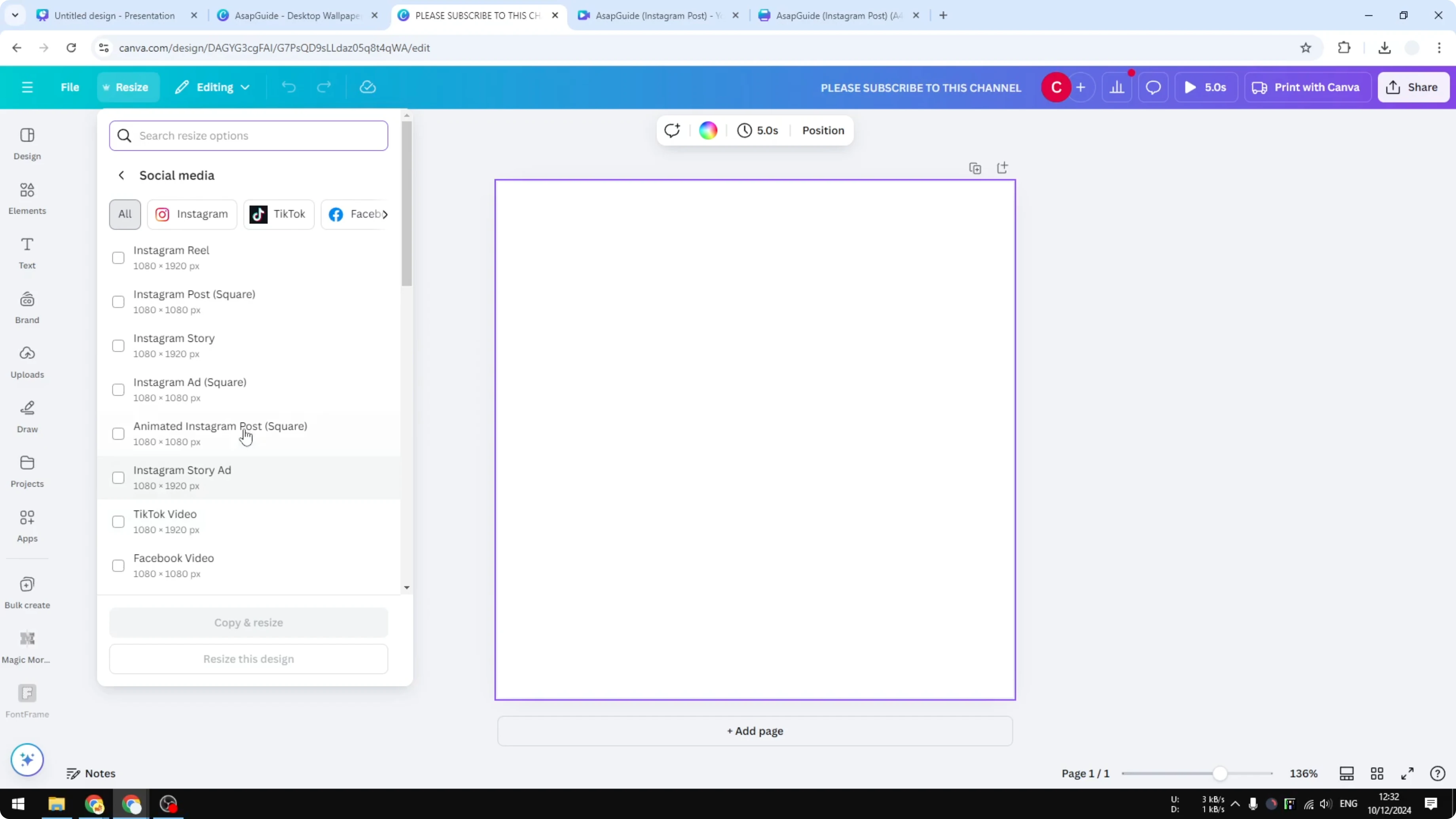
Create Quotes in Canva: Use and Customize Templates
Go to Templates. In the template section, search and you'll find plenty of good looking designs that you can modify later. Select a design you want to use.
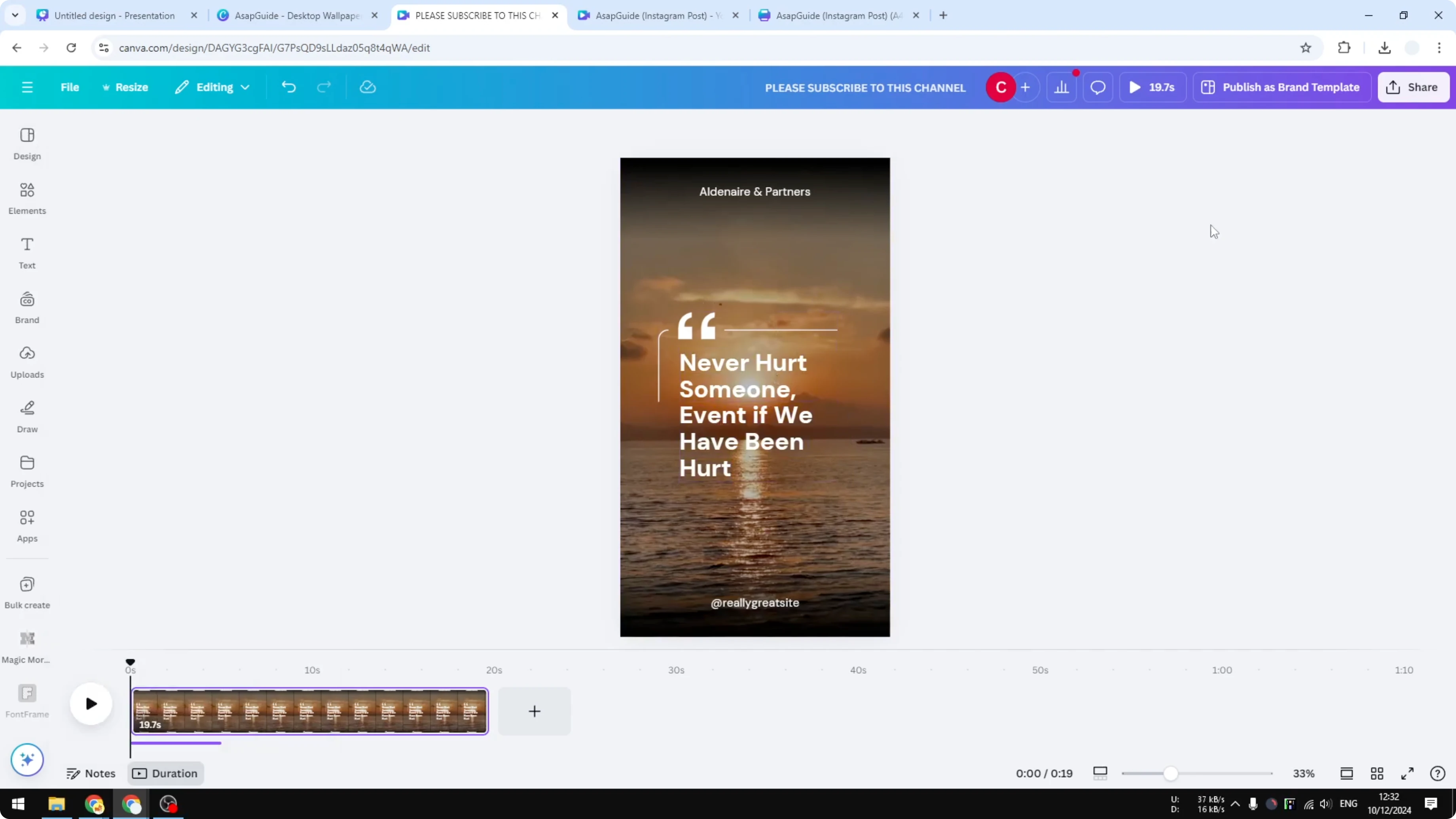
Play around with the position. Change the background. Change the text.
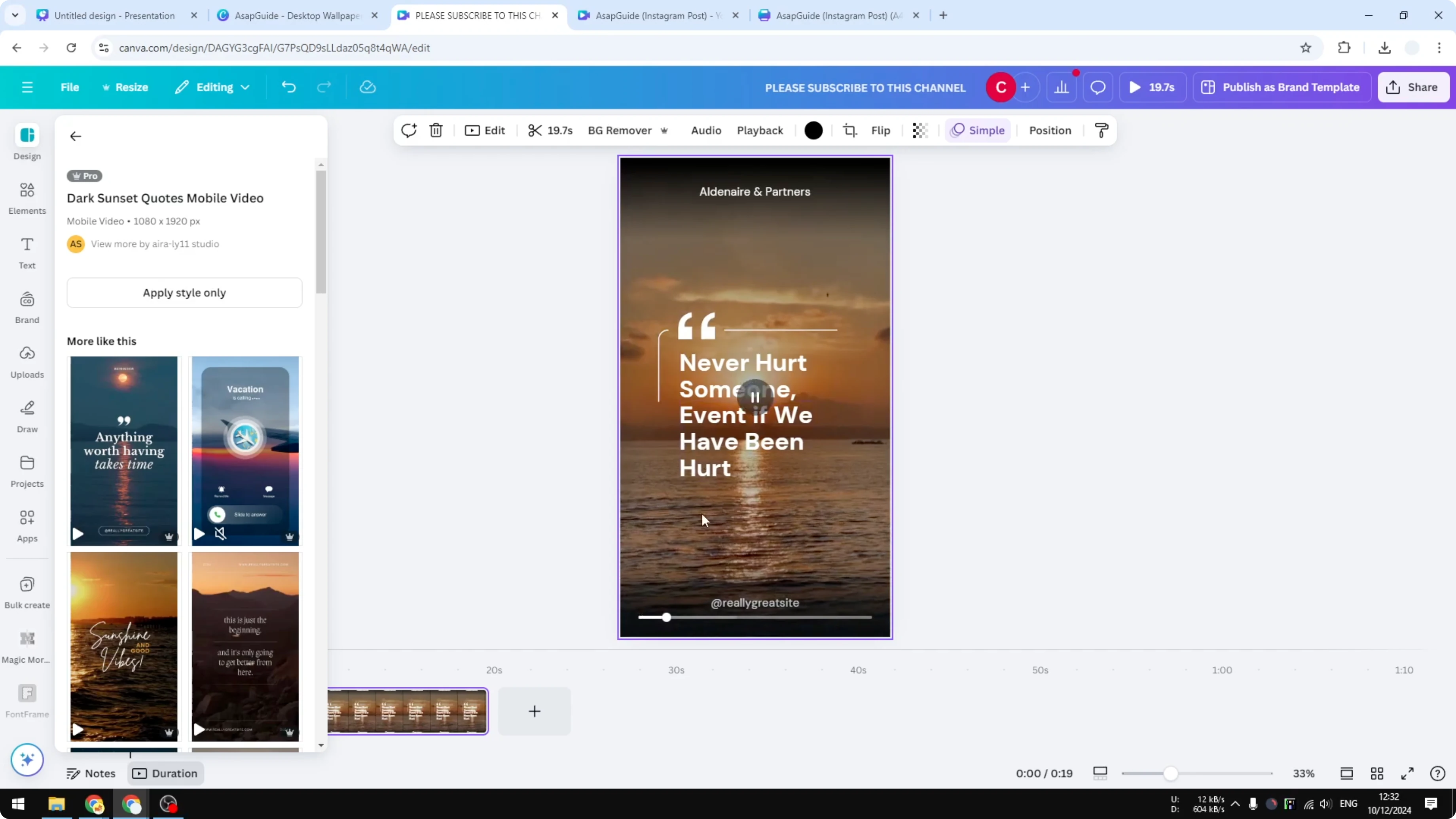
When you're done, go to Share and click Download. Download the file as your preferred format. It could be a video or it could be a picture.
Create Quotes in Canva: Build One From Scratch
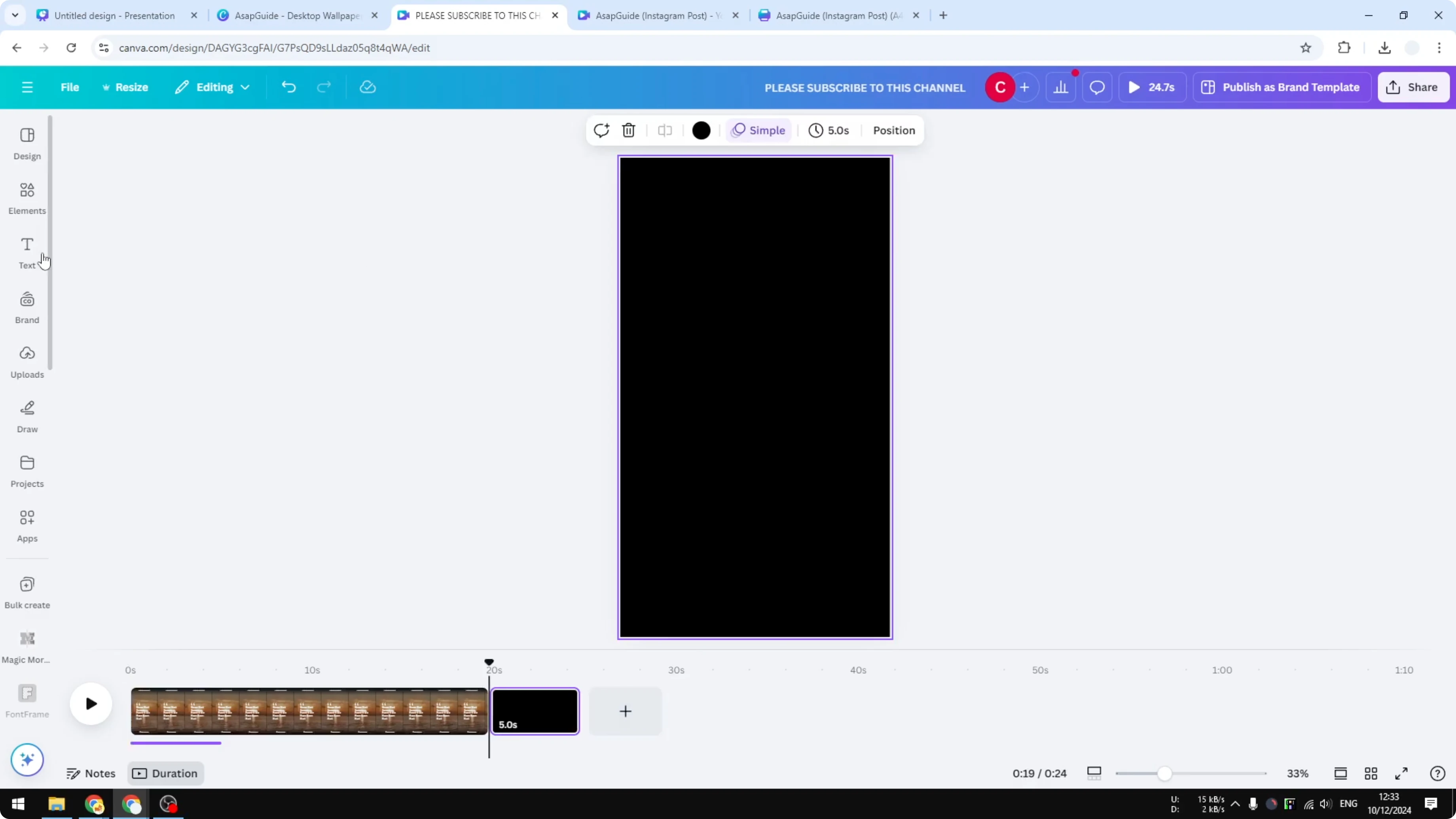
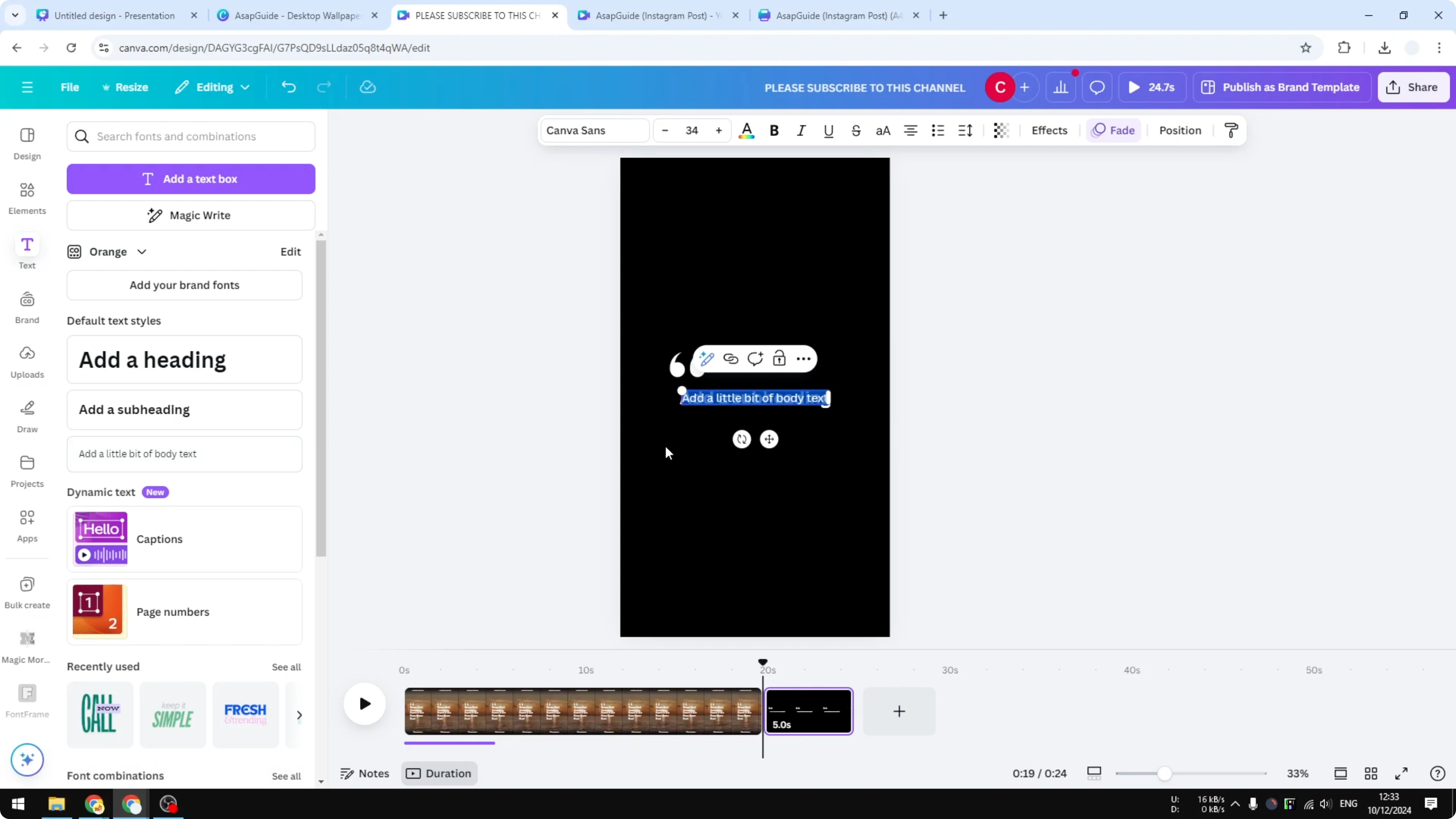
If you want to create a new design for the quote, you can do that if you know how to use Canva. I cannot really cover that because it is complicated, but basically it is just a text. If you want to create your own text, go to the Text section and add some text.
Add some icons like a quote icon. Put this icon where it supports the message, and change the color to white so it is visible. Add some decoration.
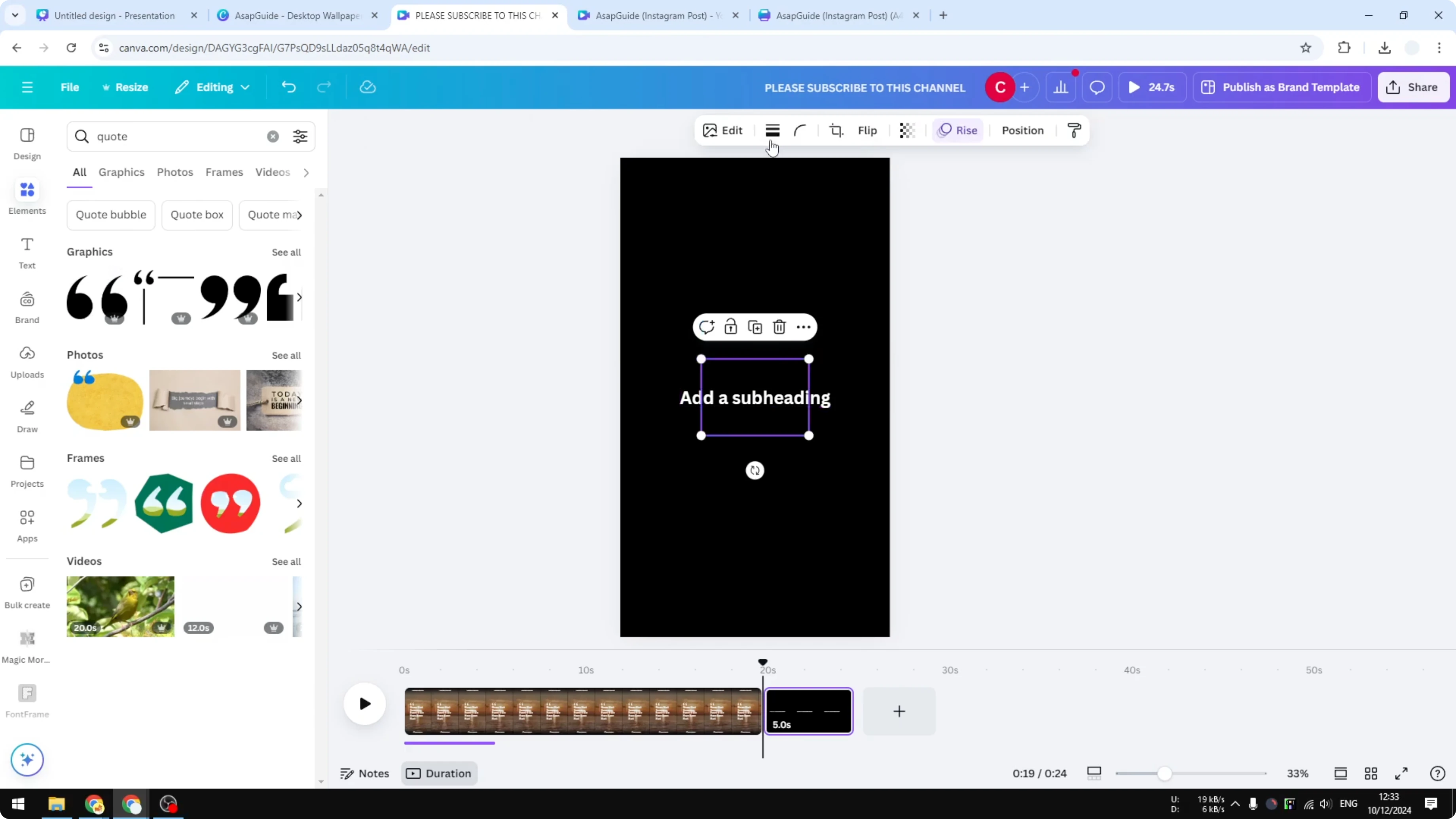
Later you can put the name of the original author of the quote. Add the author name near the quote so the credit is clear. Keep the layout clean so the quote is easy to read.
Create Quotes in Canva: Step-by-Step for Vertical Quotes
Resize your document to a 9 by 16 aspect ratio.
Go to Social Media and choose Instagram Reel.
Open Templates and search for a style you like.
Apply the template to your canvas.
Edit the quote text with your message.
Adjust the position of elements for balance.
Change the background to match your brand or mood.
Add a quote icon and set its color to white if needed.
Add the name of the original author.
Go to Share, click Download, and choose video or image format.
Final Thoughts on Create Quotes in Canva
Select the right aspect ratio and format for your platform, then simplify your workflow by starting with a template. Customize the text, background, and icons, and add the author name for proper credit. Export as a video or image, and your quote design is ready to post.
Recent Posts

How to Visualize Yourself as a Pixelized Character with AI?
How to Visualize Yourself as a Pixelized Character with AI?

How to Revive Faded Memories and Enhance Image Clarity with AI?
How to Revive Faded Memories and Enhance Image Clarity with AI?

How to Visualize Yourself as an Animal Crossing Character with AI?
How to Visualize Yourself as an Animal Crossing Character with AI?